Everything Enjoy does.
164 features for building projects and automating your work with every lab’s agents. 148 are free on your computer; 16 come with Enjoy Cloud.
Every lab’s best agents.
Enjoy runs the coding agents you already use, on the plans you already pay for.
Every lab’s agent in one app
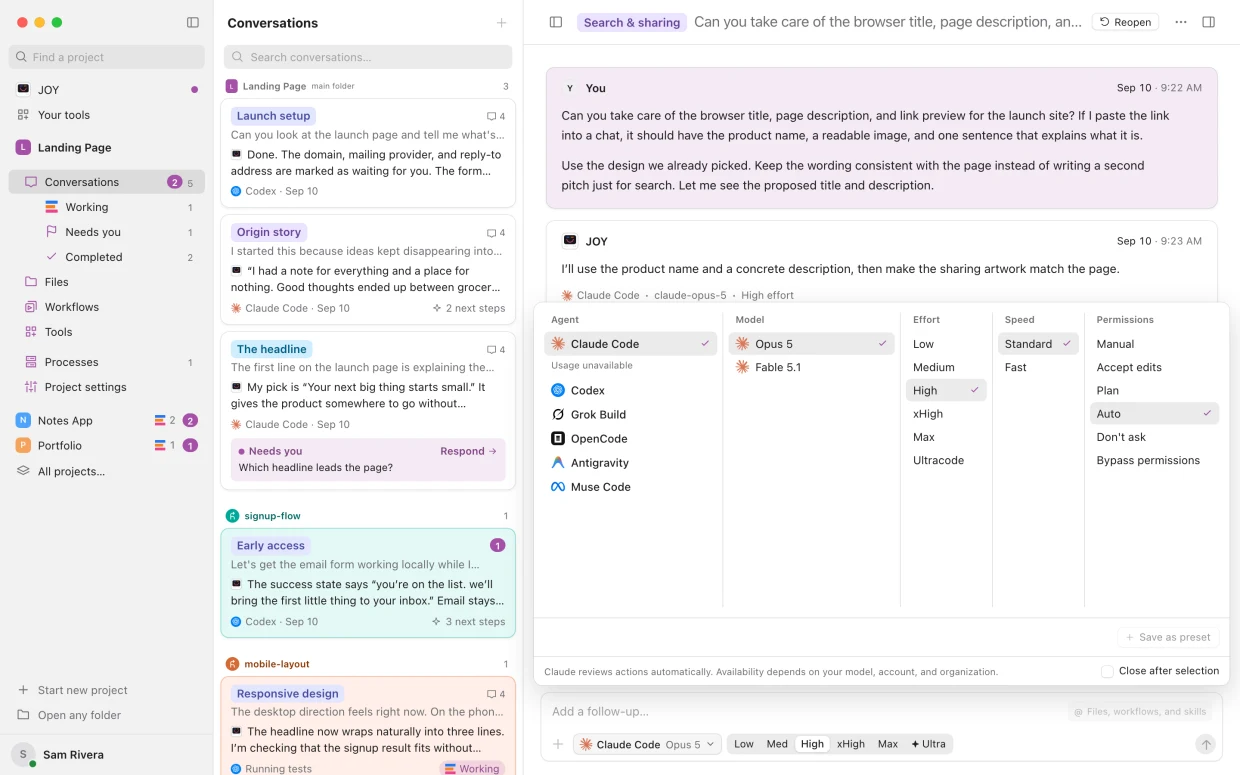
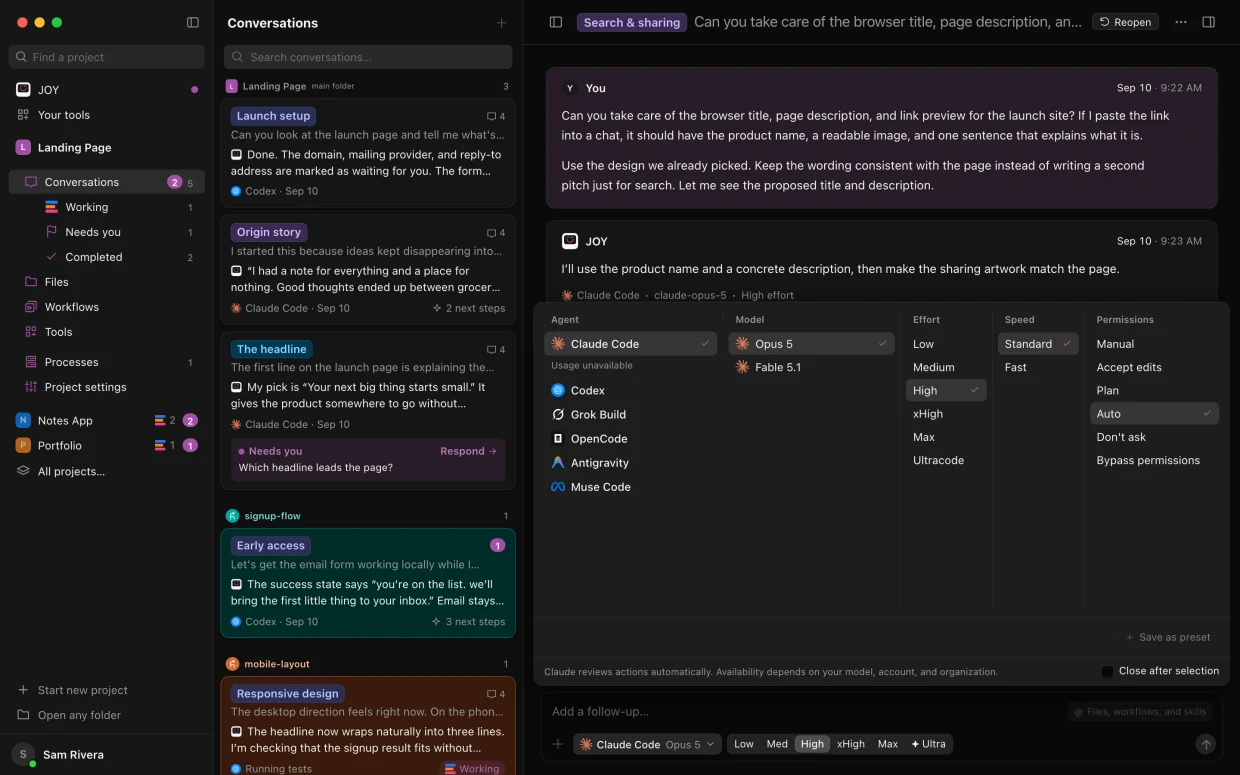
Claude Code, Codex, Grok Build, Antigravity, Muse Code and OpenCode, side by side.
The plans you already have
Each agent signs in with your own account at Anthropic, OpenAI, SpaceXAI, Google and Meta. No new AI bill.
Free and local models
OpenCode runs free models, models on your own computer, or your own keys.
Install without a terminal
Add any agent from inside Enjoy, and update it in place, even while it works.
Switch agents mid-conversation
Hand a conversation to another agent. It catches up on everything so far.
Every model
Pick the model for each message. New ones appear as each lab releases them.
Effort levels
Low for quick fixes, high for hard problems. Press ⌘[ or ⌘], or just say “go high on this.”
Fast mode
Faster replies from Claude Code and Codex on supported models, when waiting slows you down.
Permission modes
Decide what an agent may do without asking. Enjoy remembers each agent’s mode in each project.
Presets
Save an agent, model, effort, speed and permissions under a name, and switch back in one click.
Skills
Type / to run one of Claude Code’s, Codex’s or Muse Code’s skills.
Claude Code hooks
Your hooks run in Enjoy conversations, with their messages beside the work.
Claude in Chrome
Claude Code can use your own Chrome, on sites where you’re already signed in.
Enjoy’s tools for every agent
Agents can message you, ask questions, write docs, save workflows, start conversations and open previews.
Keep going past the limit.
Enjoy watches every plan’s usage, and moves the work when one runs out.
Several accounts per agent
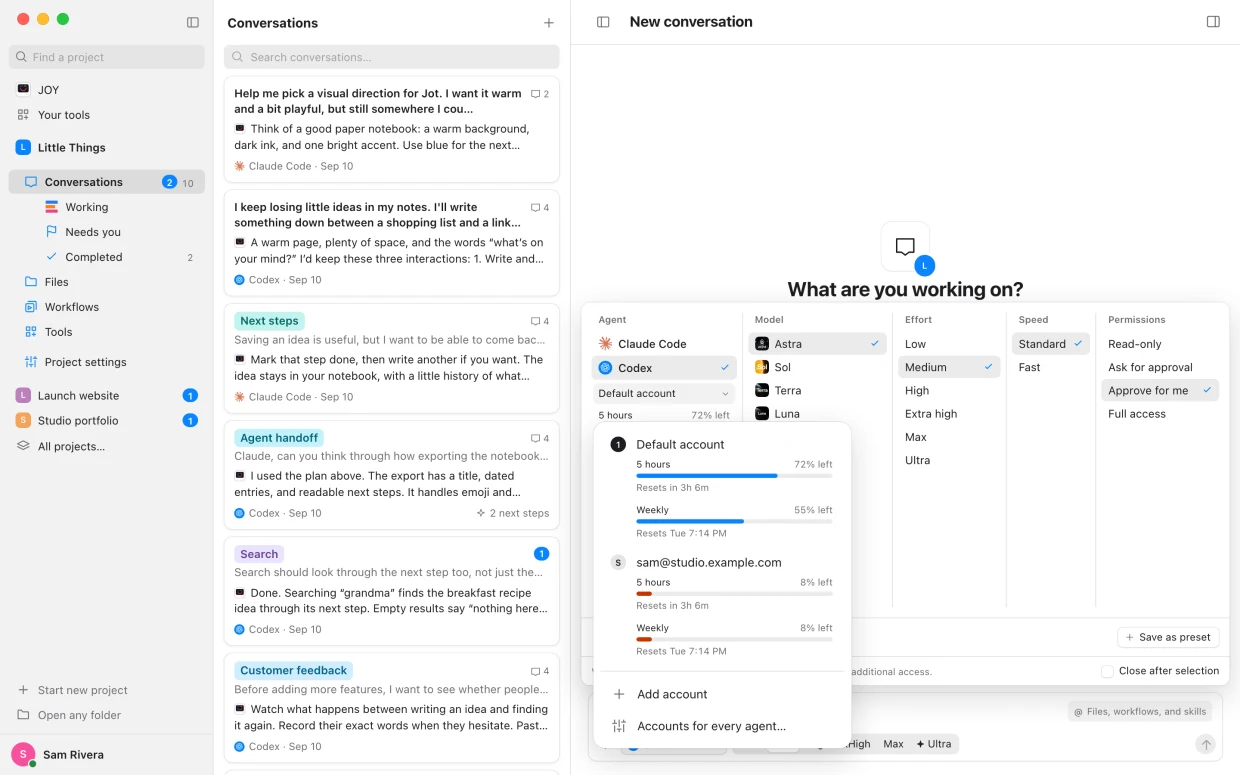
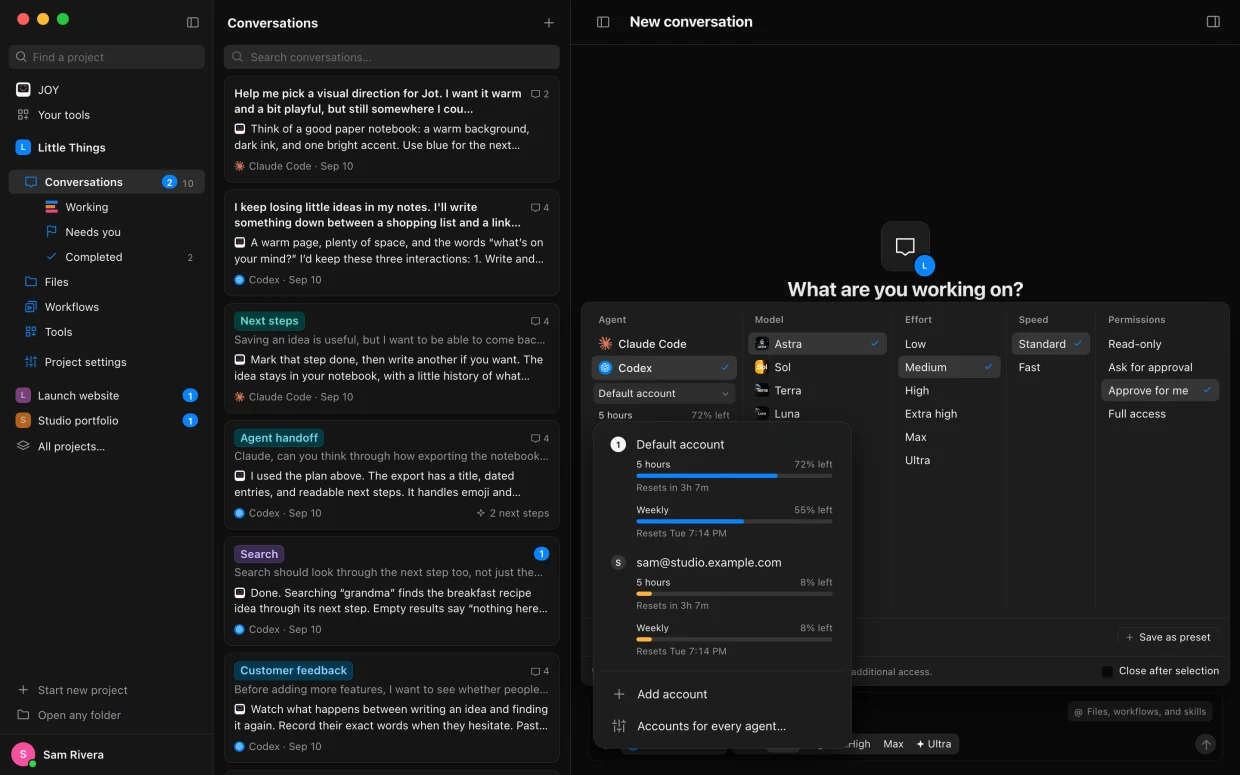
Keep personal and work Claude Code, Codex or Grok Build accounts signed in at once.
An account for each project
A personal project stays on your personal plan, and a work project uses your work one.
Automatic account switching
When one account runs out, the work moves to another with usage left, so overnight tasks finish.
Wait and resume
Or Enjoy waits for the limit to reset and picks the conversation back up by itself.
Usage at a glance
How much of each plan is left, and when each limit resets.
Free usage resets
When OpenAI gives your Codex account a free reset, Enjoy shows it so you can use it.
Plan advice
When a month of Claude Code usage fits a smaller plan, Enjoy says so, with what it saves.
Tokens, explained
Every number a conversation used, from its last message to your plan’s limits.
Move running work
Pick another agent, model, effort or account while an agent works, and the reply moves with it.
One conversation per task.
Say what you want. The agent does the work and tells you when it needs you.
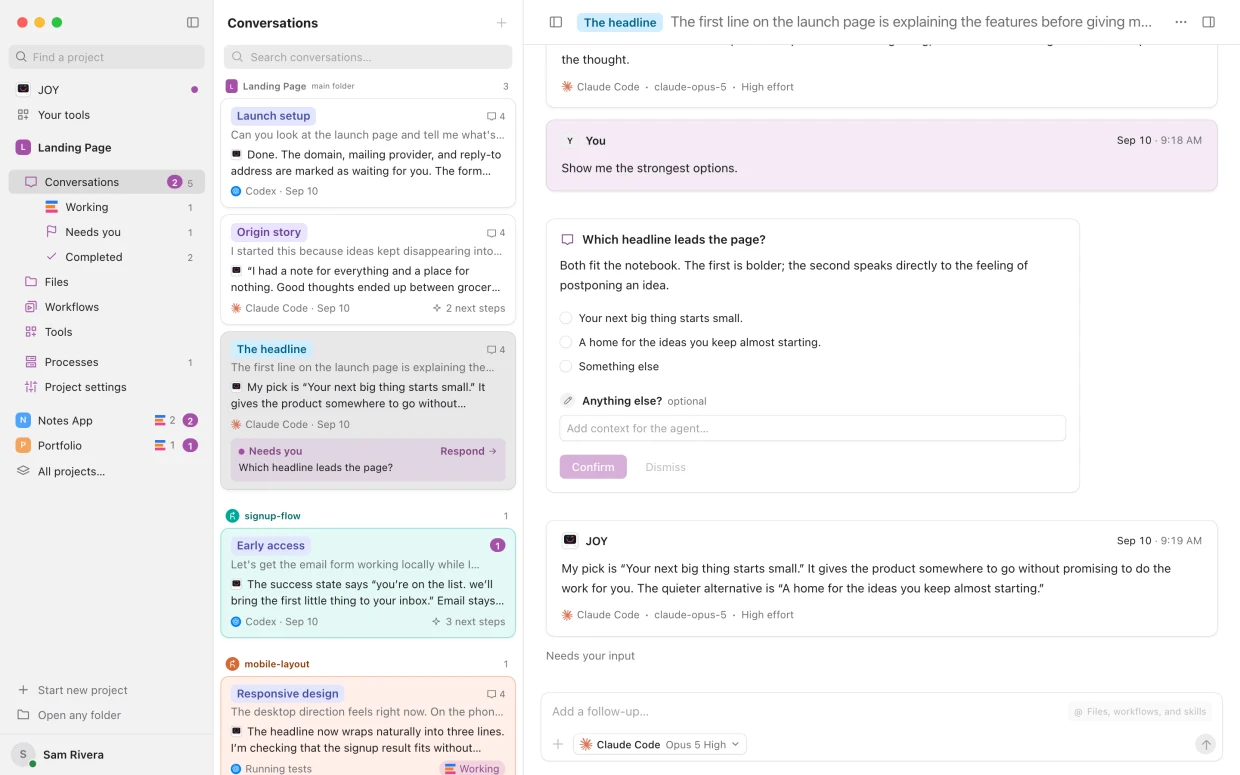
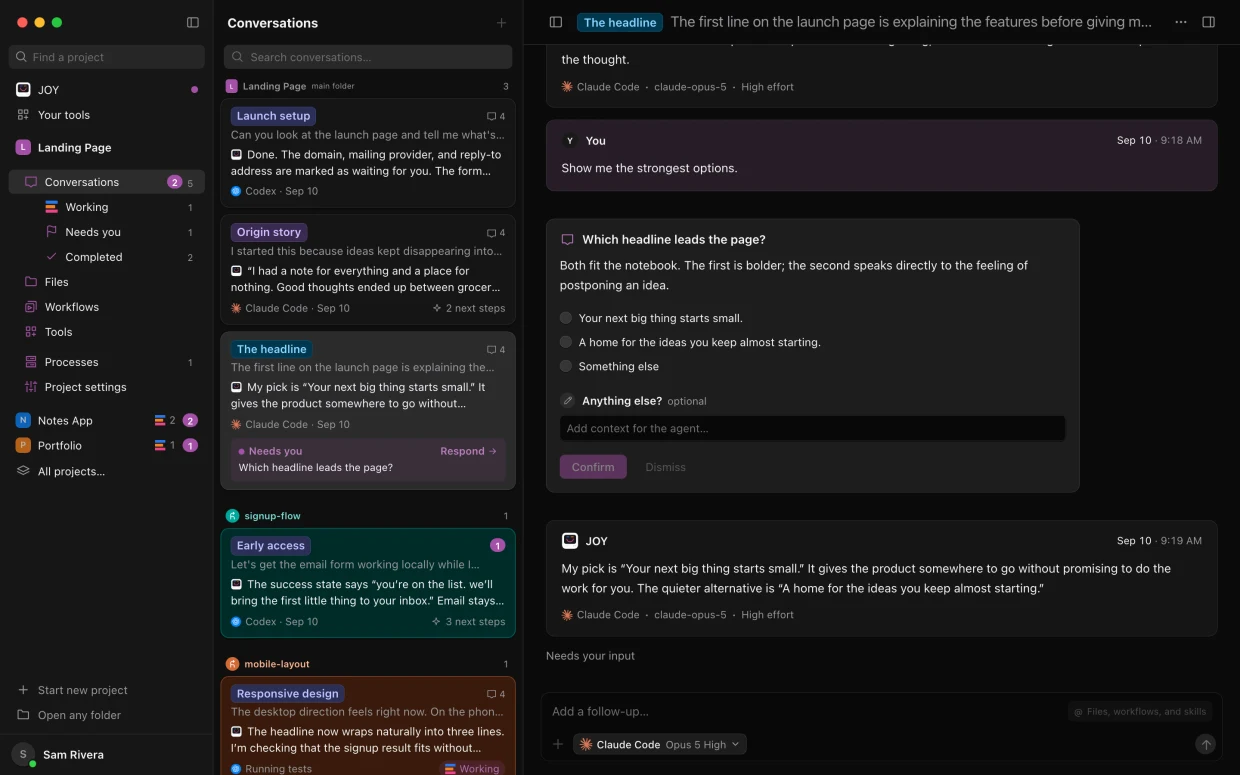
Conversation cards
Each card shows the start of the latest reply and what the agent is doing right now.
Clear statuses
Working, Needs you, Completed, Out of usage, Stopped and Failed, counted in the sidebar.
Questions with choices
When an agent needs a decision, pick an option and add a note, or dismiss it.
Readable approvals
Review a command or a file change as code, then allow or decline it.
Plans before building
A finished plan reads as a plan, ready to start or keep refining.
Follow-ups while it works
Queue a message for when the agent finishes, or send it into the work in progress.
An editable queue
Reword, reorder or delete queued messages, and send them one at a time or all at once.
Suggested next steps
Up to three follow-ups after each reply. Send one, edit it, or run several in your order.
Fork a conversation
Start something new from any message while the original keeps going.
@ mentions
Point the agent at a doc, another conversation, a file, a workflow or a skill.
Files and images
Drag, paste or attach screenshots and files, several at once.
Dictation
Speak instead of typing. Your Mac turns speech into text itself, with Apple’s model or one you download.
Drafts that wait
Unsent messages, attachments and half-written answers survive switching away and quitting.
Sticky notes
Highlight part of a reply and jot a note beside it, then add your notes to the next message.
Quote in message
Select words in a reply to start your next message with them as a quote.
Run commands from replies
A play button beside each shell command runs it and shows what it printed.
Copy anything
A message, a code block, or a message as rich text for Notes, Mail or Google Docs.
Files in replies
Click a file an agent names to preview it, open it in Files, or show it in its folder.
Pinned conversations
Keep the ones you’re watching at the top, in the order you drag them.
Colored labels
Each conversation gets a short label in its own color, easy to spot in the list.
Search and find
Search every conversation in a project, or press ⌘F to find words in one.
Select several
Mark many conversations completed, read or unread, stop them or delete them at once.
Completed and unread
Mark finished work completed so the list stays a to-do list, or a reply unread to come back to.
Who did the work
Each reply names the agent, model and effort that did it, and how long it took.
Import past conversations
Bring in the Claude Code and Codex conversations you had in a project’s folder.
Plain files
Every conversation is saved as a messages.md file you can back up or read anywhere.
Watch the work, if you like.
Follow every step an agent takes, as it takes it.
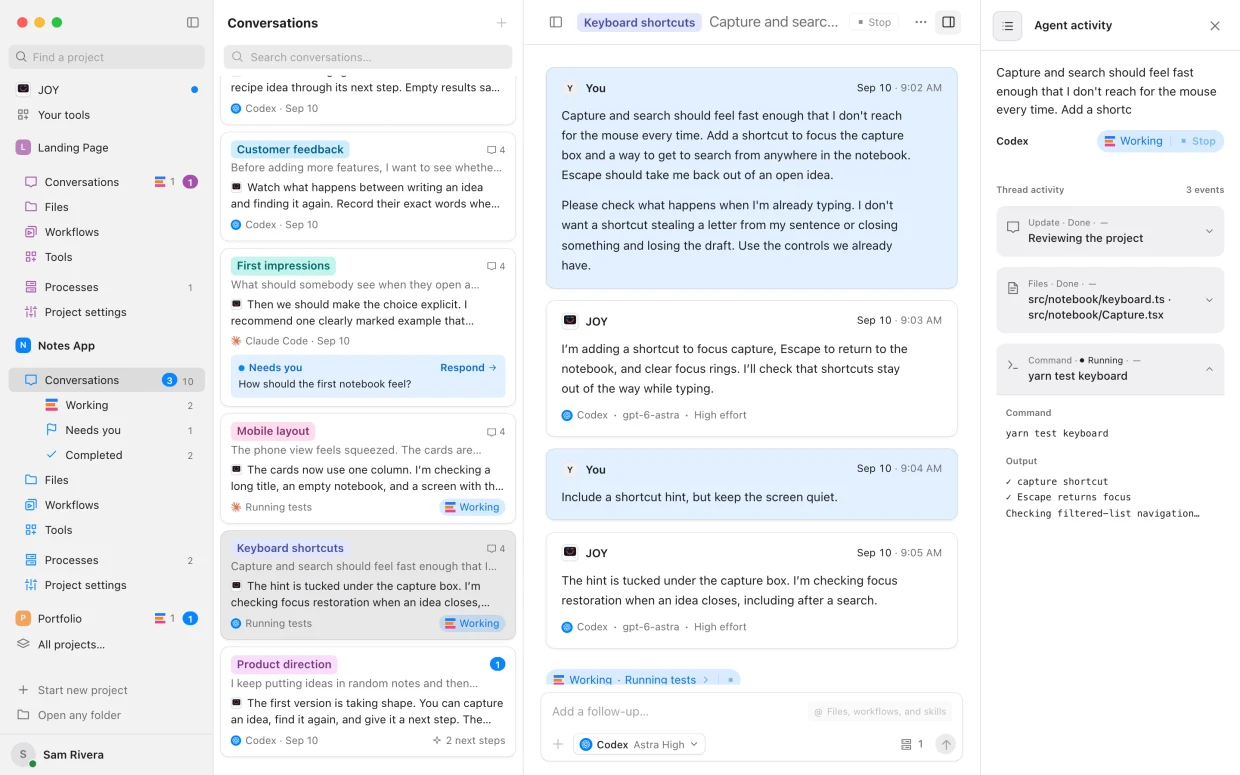
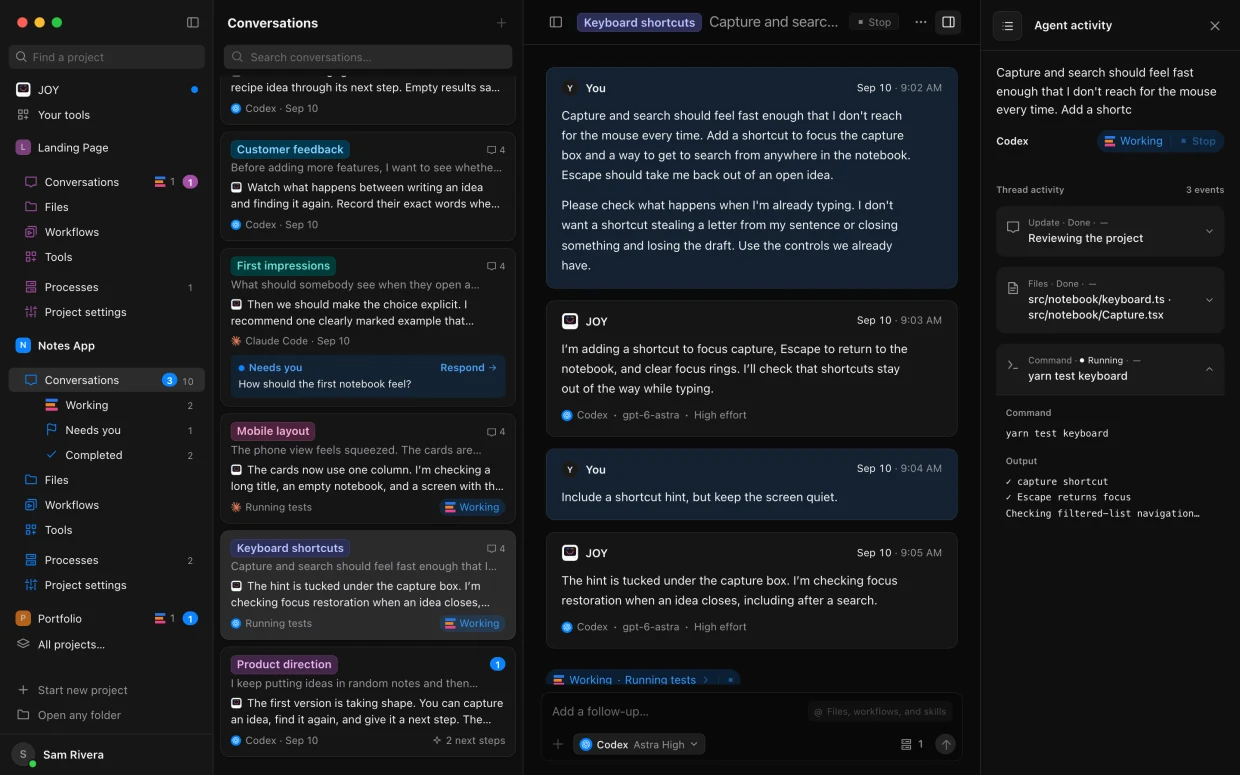
Every step
What the agent reads, changes and runs, and how long each step takes.
Its thinking
Follow Claude Code’s and Codex’s reasoning as they go.
Helper agents
Subagents in groups of their own, with live output and their own status.
Model and account
Exactly which model, effort and account is running each request.
Model switch notices
See the moment Claude Code hands part of a request to another model.
Stop and retry
Stop an agent heading the wrong way, then retry or send new instructions.
Retry with another agent
When a conversation fails, Enjoy says why. Retry it, or retry with another agent or model.
JOY oversees your agents.
Ask JOY what needs you, across every project you have.
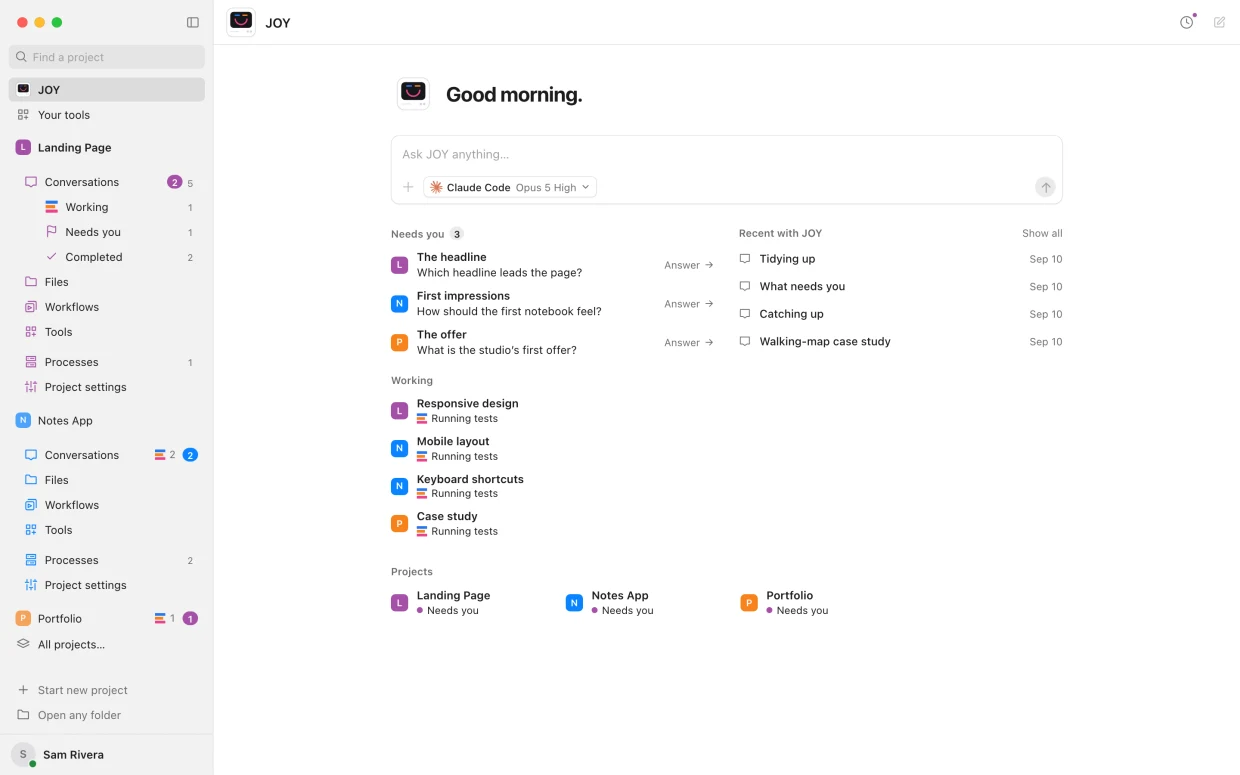
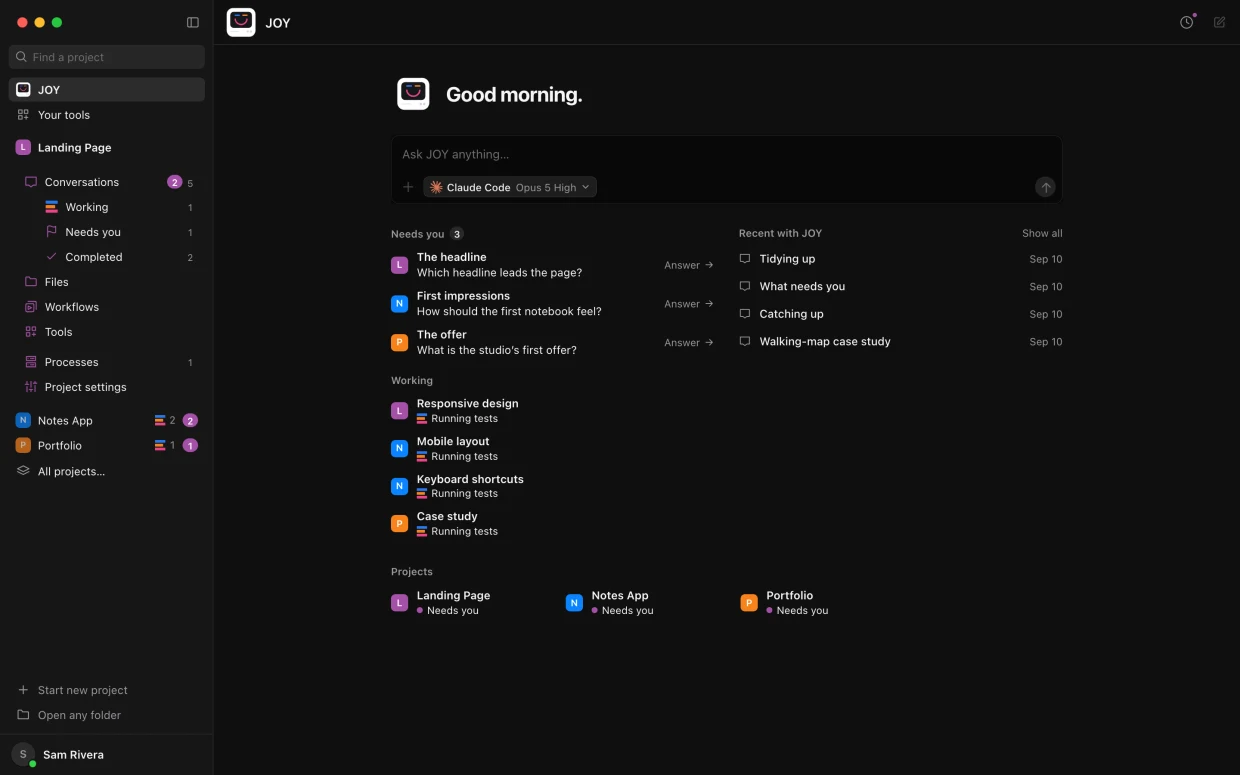
A start page
What needs you, what’s working, your recent chats and your projects, under one message box.
Catch up
Ask what your agents finished while you were away.
Start work anywhere
Ask JOY to start a conversation in any of your projects.
Tidy up
JOY marks finished conversations completed across your projects, and reopens them if you ask.
Your frequent workflows
The workflows you run most, from every project, one click from JOY’s start page.
Find and add projects
Ask JOY to find a folder on your computer and add it as a project.
Work across projects
Any agent can start a conversation in another of your projects and link you to it.
As many projects as you like.
Start one from nothing, or open a folder you already have.
Unlimited projects
No limit on projects, or on the agents working in them at once.
Bring what you have
Open an app you started with Claude Code, Codex, Lovable or Replit and keep going.
Agents in parallel
Several conversations work at the same time, each with its own agent.
Project instructions
Instructions every agent follows in every conversation of a project.
Colors and images
Give each project its own color and picture. The window takes its color when it’s open.
Pinned, in your order
Keep the projects you use most in the sidebar, in the order you drag them.
Quick switching
Find a project by name or jump with a shortcut. Enjoy reopens the conversation you left.
Work that outlives branches
Conversations, docs and workflows live in Enjoy’s storage, so switching branches never hides them.
Sync across computers
When a project is on two of your computers, its conversations, docs and workflows stay the same on both.
Projects in WSL
Open a project inside a WSL distribution. Enjoy runs its Git and agents there.
Remove without deleting
Take a project out of Enjoy. Its folder stays exactly where it is.
Docs you and your agents share.
Write a plan once, and every agent can read it. Every file in the project sits beside it.
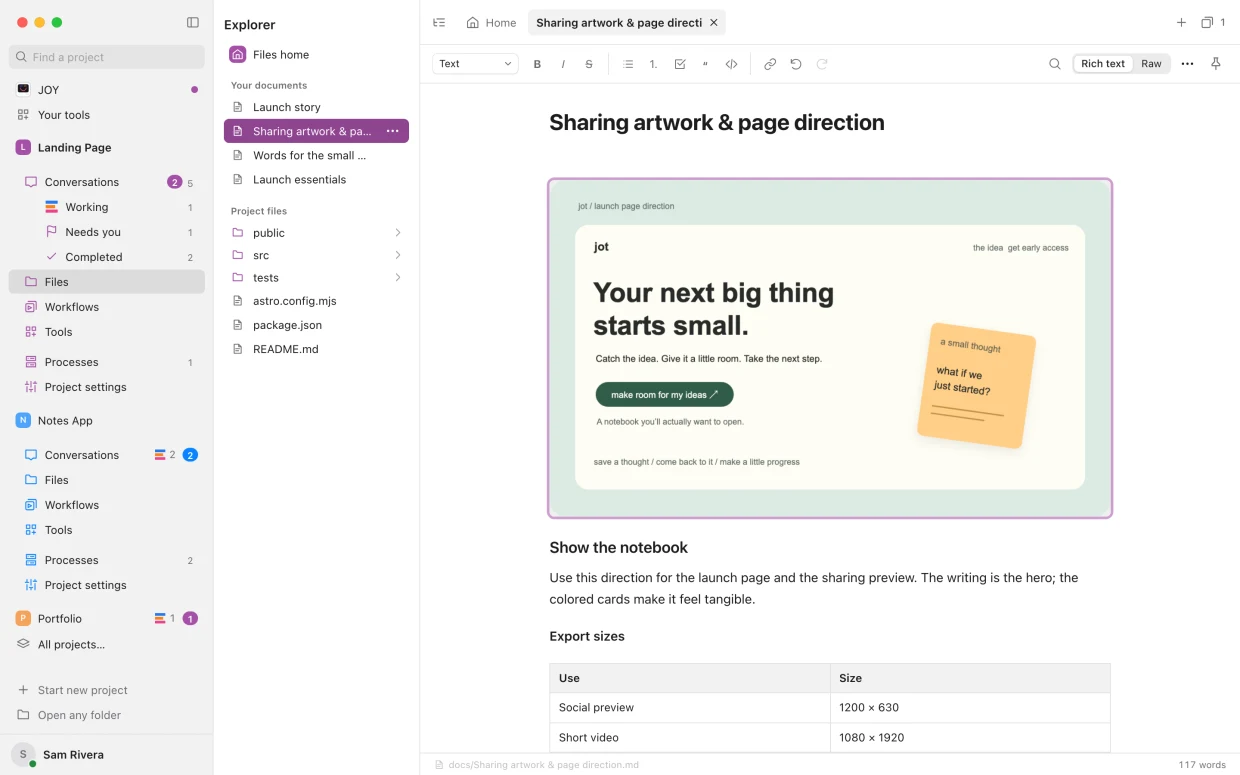
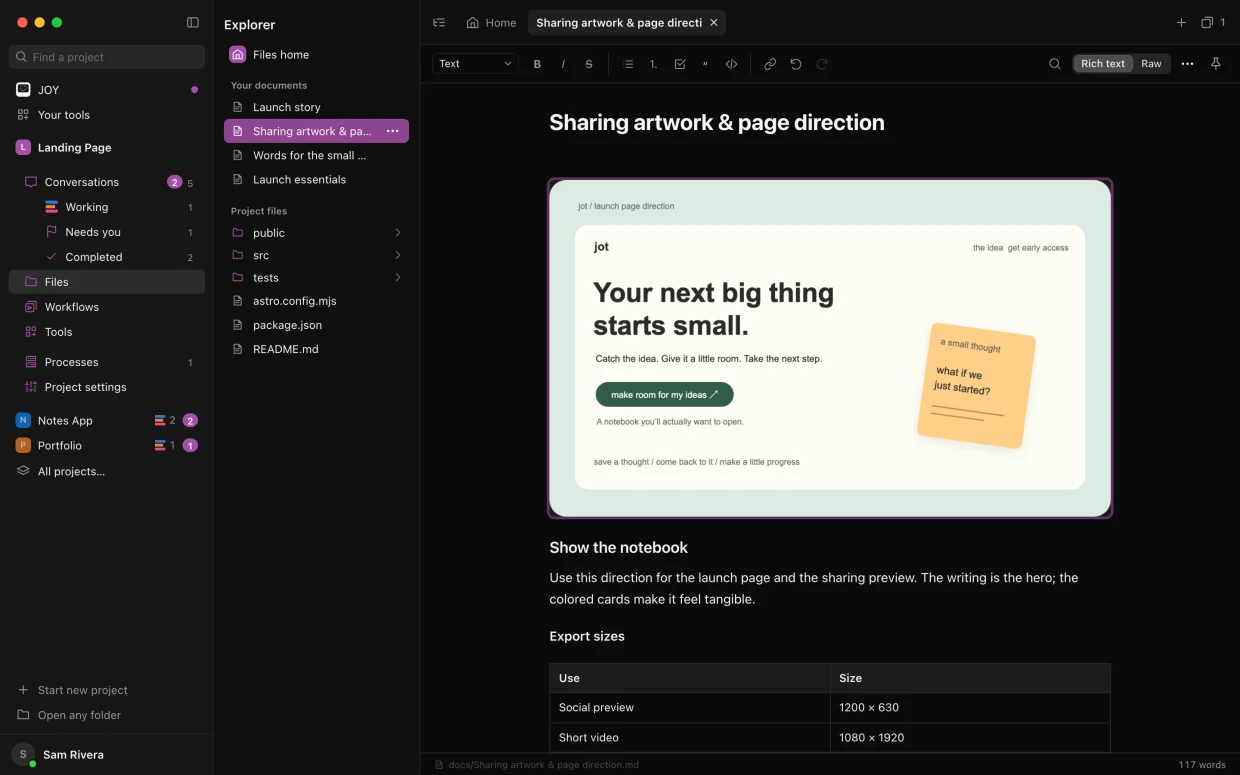
Shared documents
Notes, plans and briefs that you and your agents both read and edit.
Formatting
Headings, lists, to-dos, quotes, code and links from the toolbar or in Markdown, with Raw when you want it.
Images in docs
Drag or paste pictures in. Enjoy keeps a copy with the project.
Quick notes
Point at Files in the sidebar and select + to start a note right away.
An archive
Put finished docs away without deleting them, and search or restore them any time.
Every file in the project
A code editor for code, a formatted view for Markdown, previews for pictures, players for audio and video.
Tabs
Every open file gets a tab. Close one, or all the others.
Explorer and search
Browse folders as a list or a tree, and find any file by name.
Find and replace
In docs, Markdown files and workflows, with every replacement undoable.
Ask about a selection
Select code or text and start a conversation with it already in your message.
Never lose an edit
When an agent or another device changes a file you’re editing, Enjoy shows it and keeps your work.
Open with
Open a file in another editor, one of your tools or its usual app, and set a default for each type.
Pinned files
The docs and files you use most, under Files in the sidebar.
Copy files in
Drag files into the project. Enjoy never replaces one that’s already there.
A worktree’s files
Browse any worktree’s copy of the project from the same place.
Automate the work you repeat.
Save instructions once. Run them in one click, or on a schedule.
Workflows
Instructions you save once and run whenever you need them, each run in its own conversation.
Schedules
Every day, every weekday, every week, or any cron expression you like.
Up next
See which workflows are about to run.
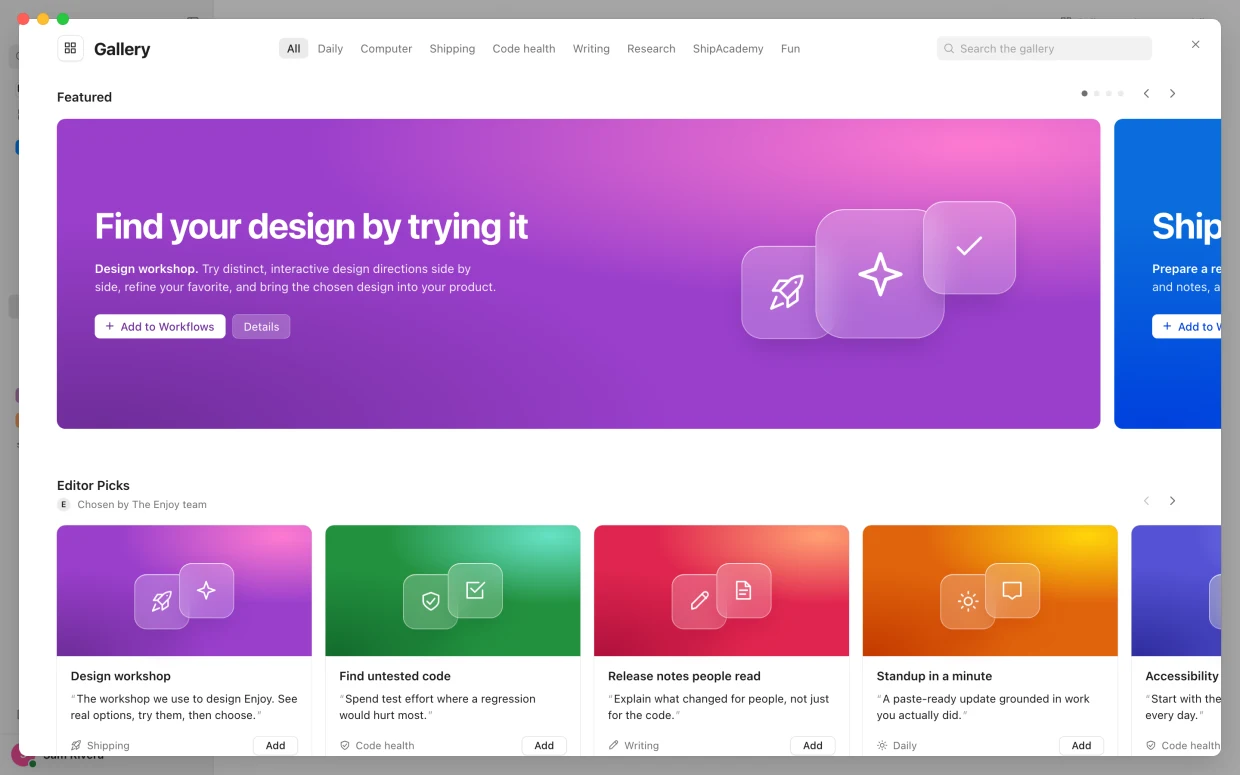
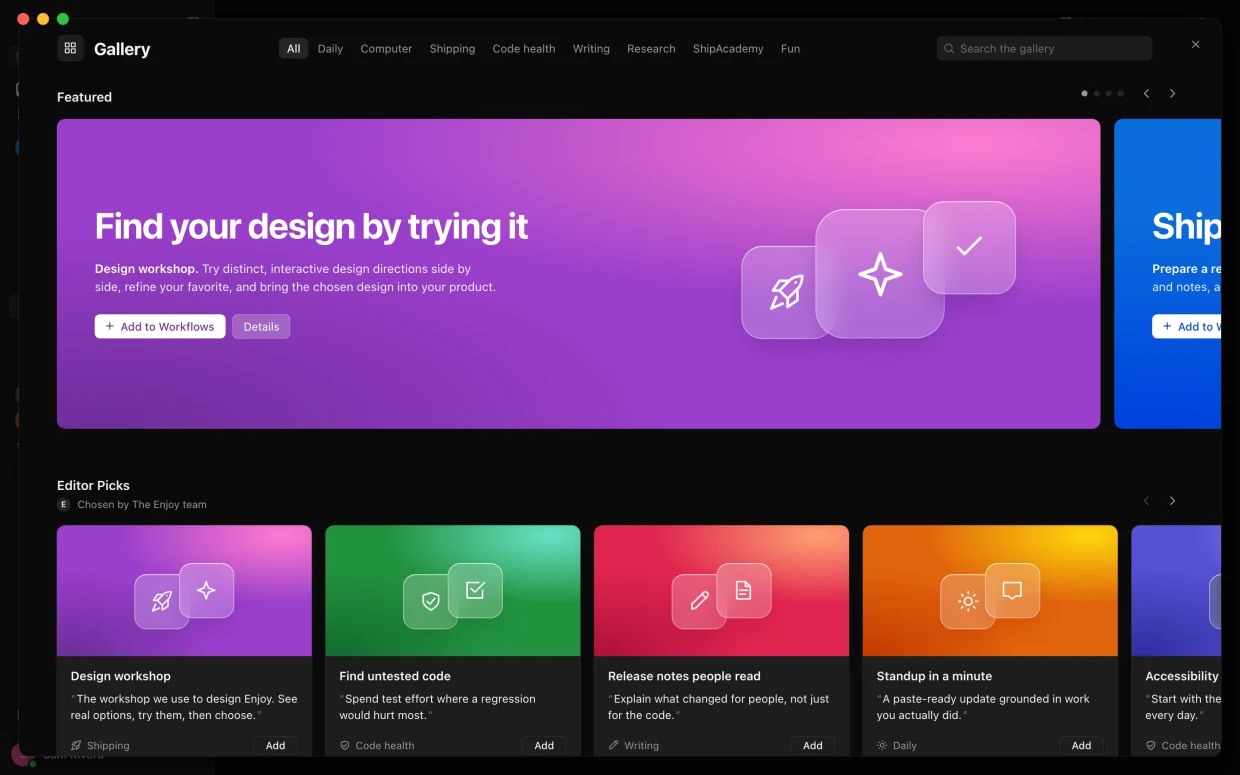
The Workflow Gallery
Ready-made workflows to read in full and add to a project.
An agent of its own
Give a workflow its own agent, model, effort, speed and permissions.
Chains
Mention one workflow in another, and the agent carries on with it in the same conversation.
In any message
Type @ to add a workflow to a message, with your own details.
Made by your agent
Describe a routine, and the agent saves it as a workflow, schedule and all.
Collections
Group workflows and show one collection at a time. Pin and duplicate them too.
Runs keep their version
Edits apply to future runs. Earlier runs keep the instructions they started with.
Done means done
Ask an agent, or a workflow, to mark its conversation completed when it finishes.
Tools made for you.
Describe a small tool, and an agent builds it into your project.
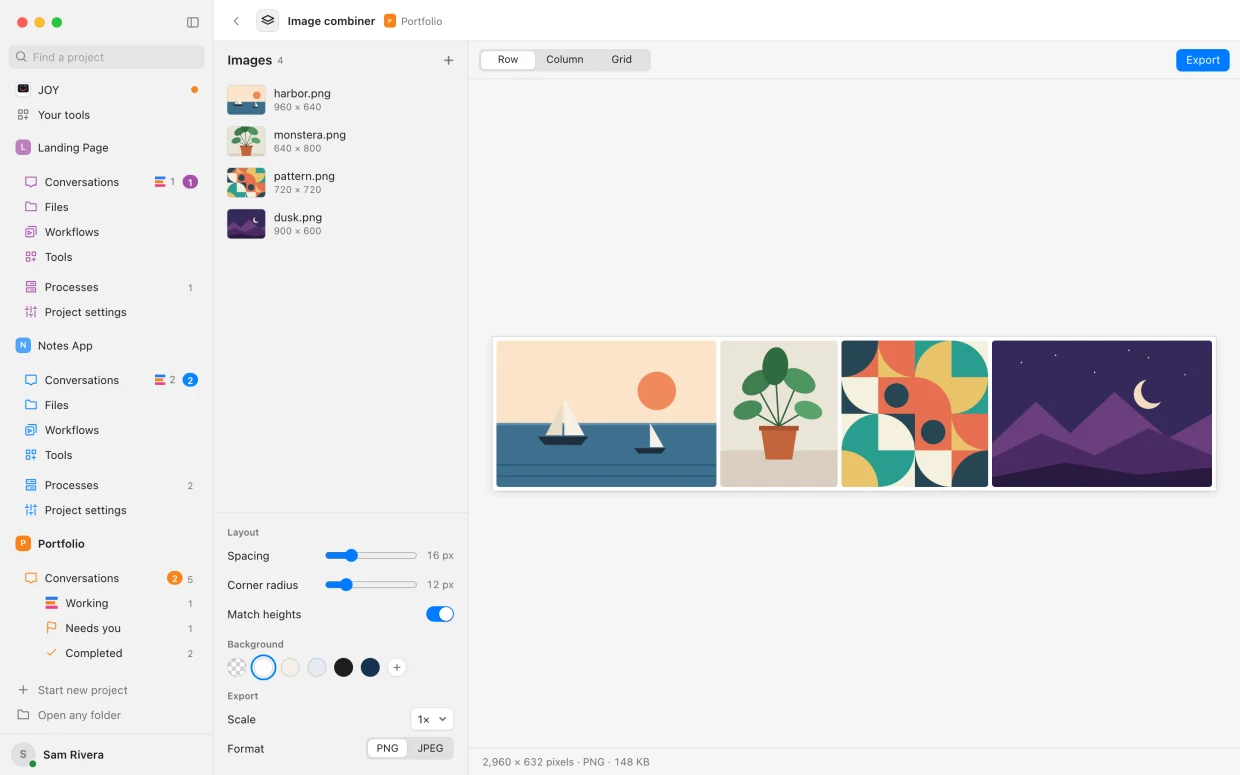
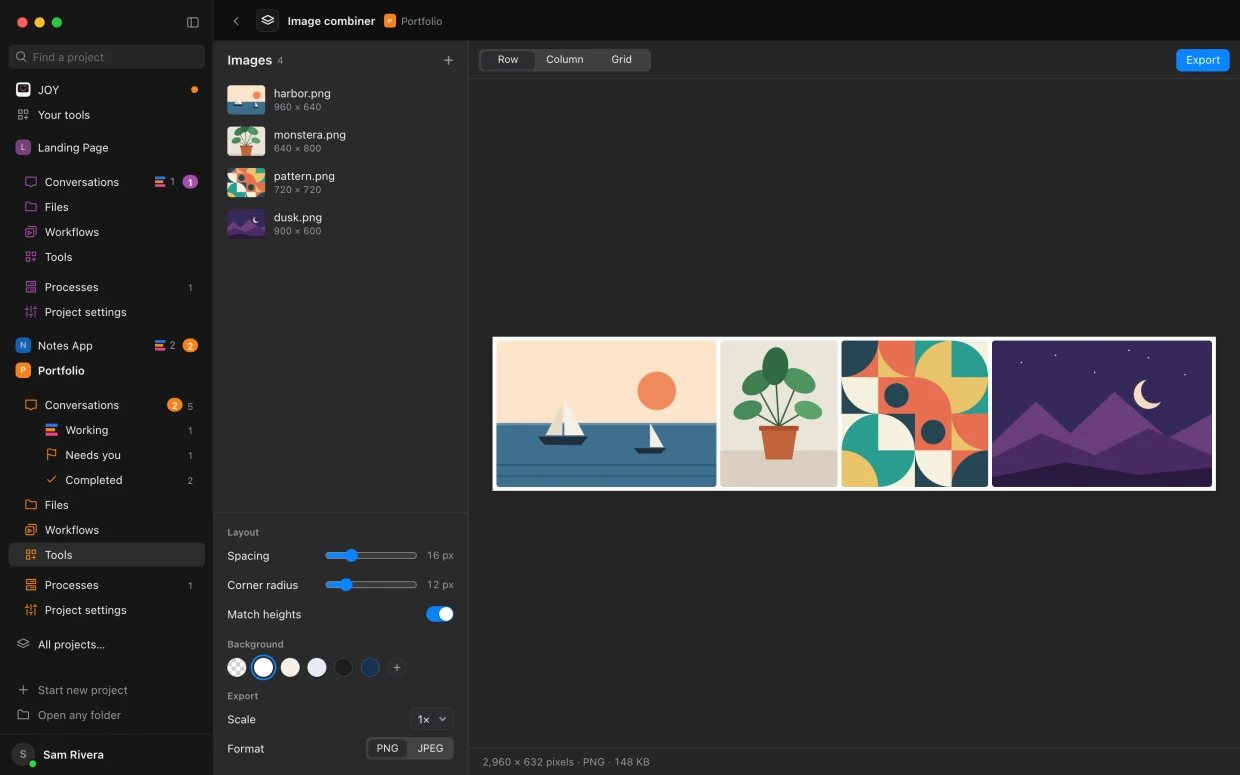
Your tools
Small apps an agent builds into your project, like a transcript maker or a button that updates your agents.
The Tool gallery
Ideas for tools, each pictured. Make one as it is, or edit the prompt first.
One click away
Open a tool from Tools, pin it to the sidebar, and see what it prints.
In the menu bar
Keep a tool in your Mac’s menu bar and use it with Enjoy’s window closed.
On your phone
Open your tools full screen from the iPhone app or the web app.
Tidy by itself
Enjoy stops tools nobody has used for ten minutes.
In Git, or not
Keep tools in Git with the rest of the project, or keep them out.
See it as it’s built.
A browser beside every conversation, and everything your agents leave running.
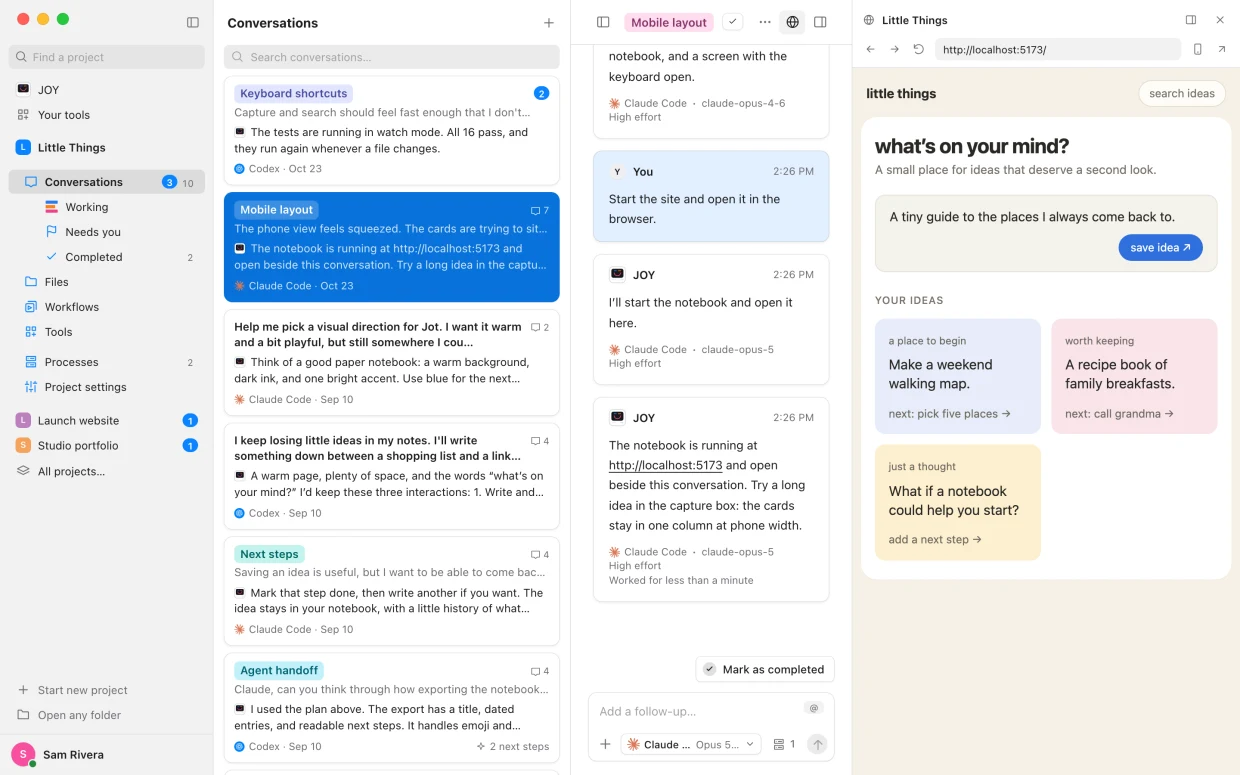
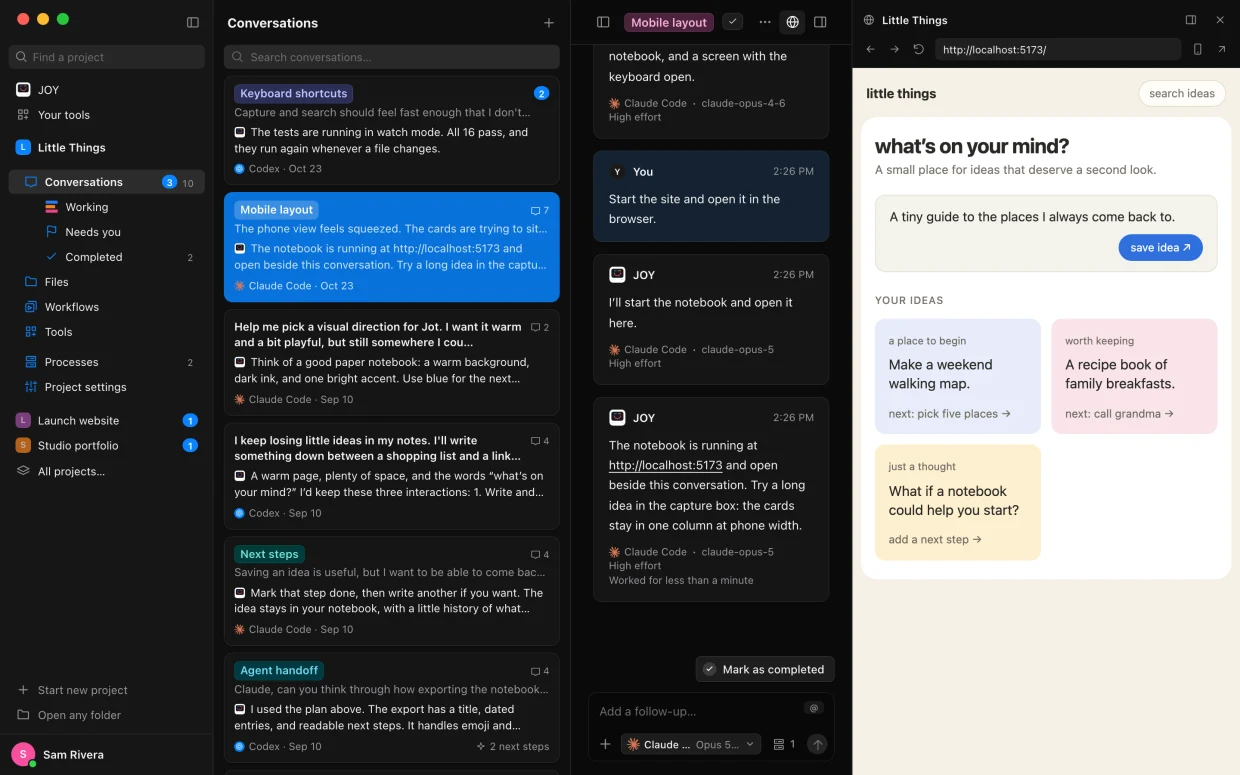
A browser beside the conversation
Your site, live, next to the chat. Go back, refresh, or check the phone layout.
Agents check their own work
They read the page, click and fill in forms. On a Mac they take screenshots and type too.
In the background
Agents keep browsing while you switch conversations, and pages unload when they’re done.
Stay signed in
The built-in browser remembers your sign-ins, so your app opens logged in.
More room
Expand the preview to most of the window, or open it in your usual browser.
Processes
Every server and program your agents leave running, with its address and a copy button.
Live output
Read what a process prints, as it prints it.
Stop one, or all
Stop a process, or every process in a project at once.
Previews from anywhere
Use your site live from the web app or the iPhone app.
Try ideas without risk.
Branches, commits and worktrees, without learning Git first.
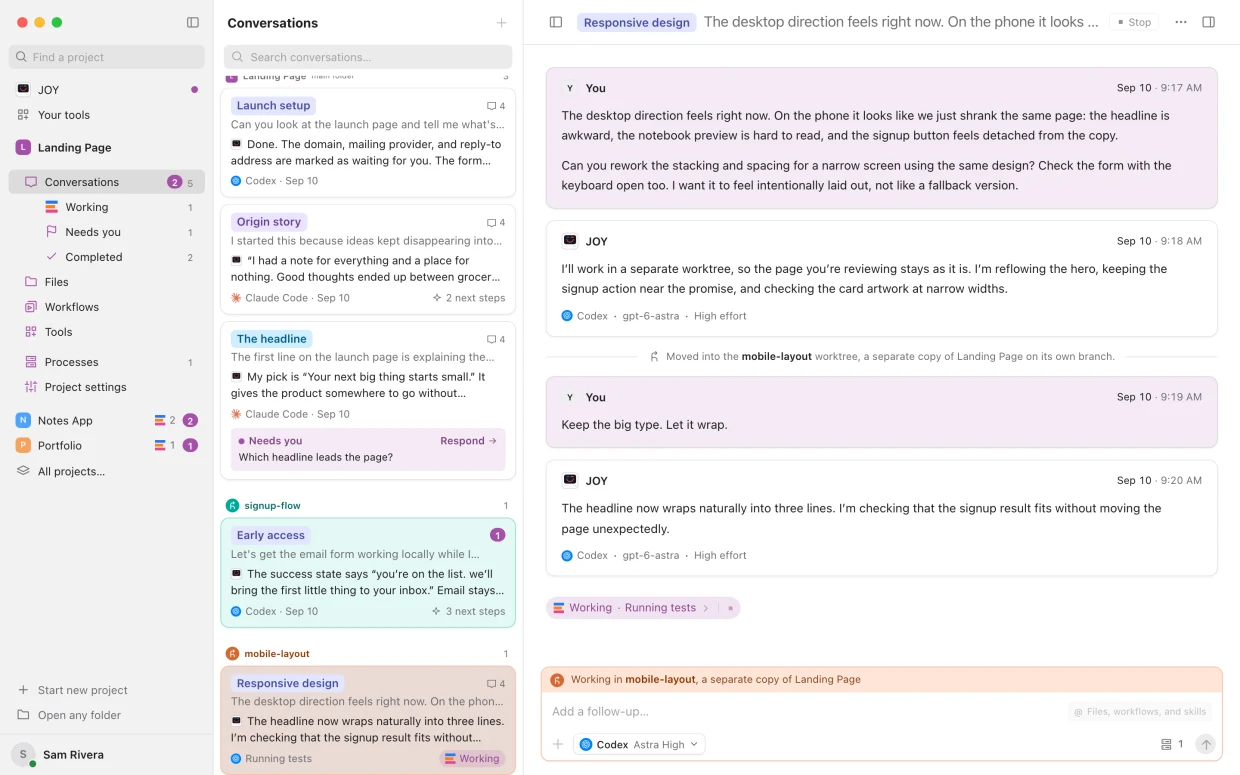
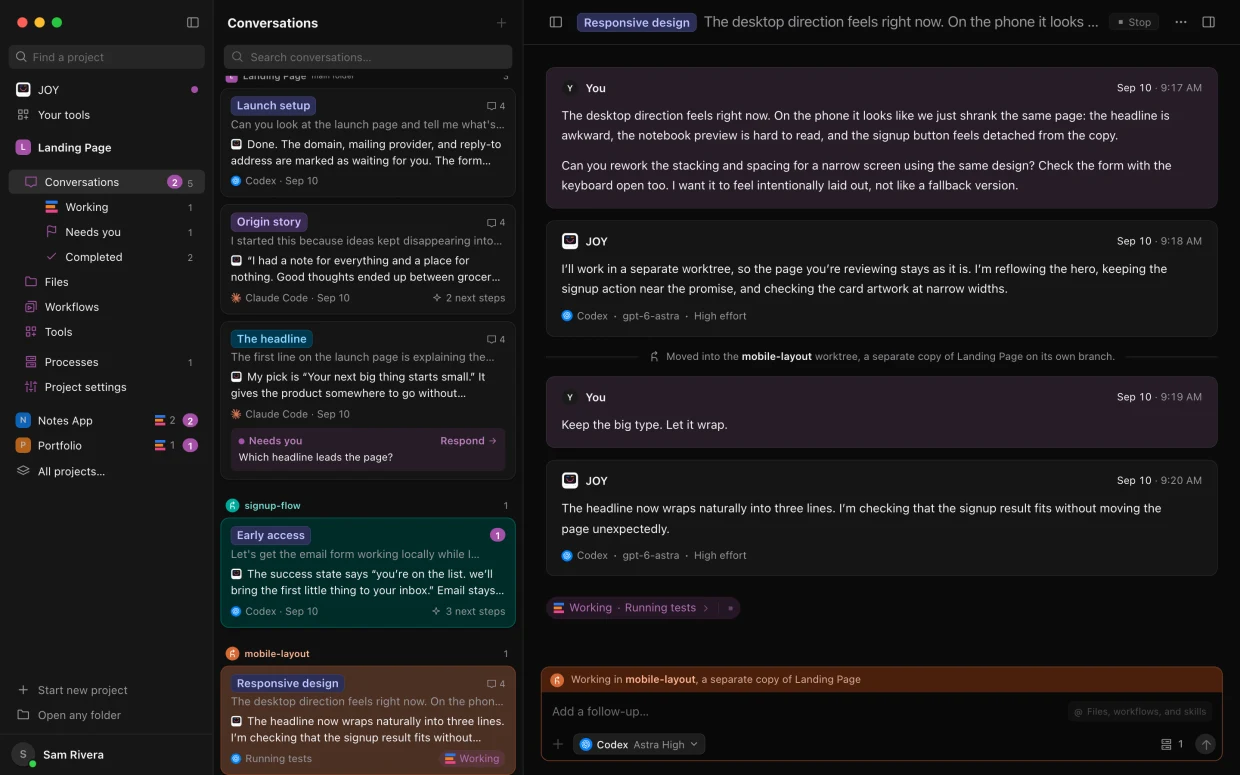
The branch menu
Switch branches, or start a new one, from the message box.
Commits
Ask the agent to save a snapshot, or to commit after every change.
View changes
Every file an agent changed, line by line, full screen if you like.
Push and pull
Send and fetch commits from GitHub or any remote, with a plain answer when something stops it.
Worktrees
A separate copy of the project on its own branch, for trying an idea side by side.
Many at once
One conversation can start work in several worktrees, each in its own color.
Merge
Bring a worktree’s work back. When both changed the same files, an agent finishes the merge.
Safe switching
Enjoy lists changes you haven’t committed and lets you commit them before it switches.
Branch notices
When another conversation switches the branch, Enjoy tells you before you carry on.
Your agents, anywhere.
With Enjoy Cloud, follow and steer your agents from your phone, any browser or another computer.
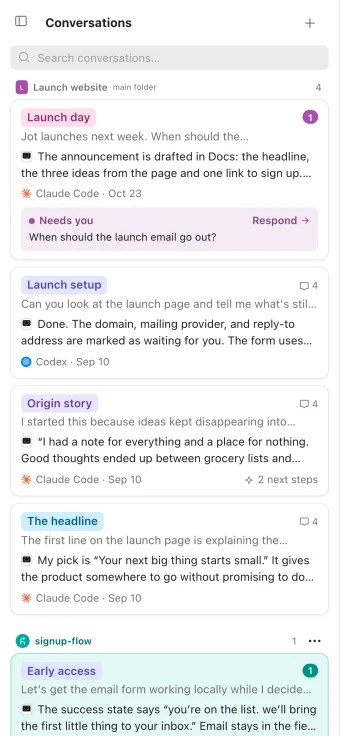
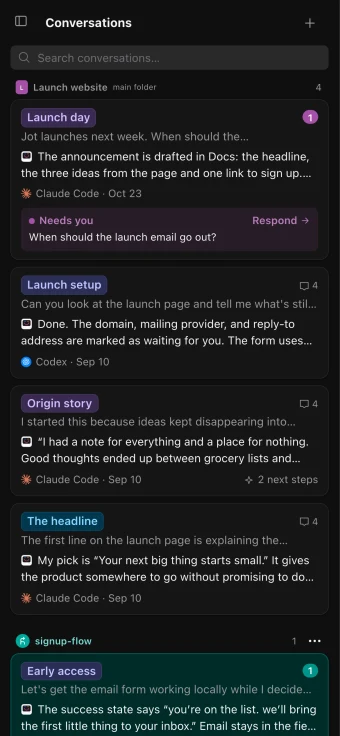
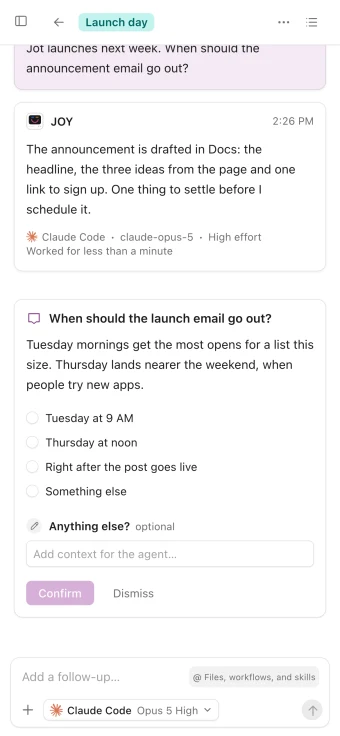
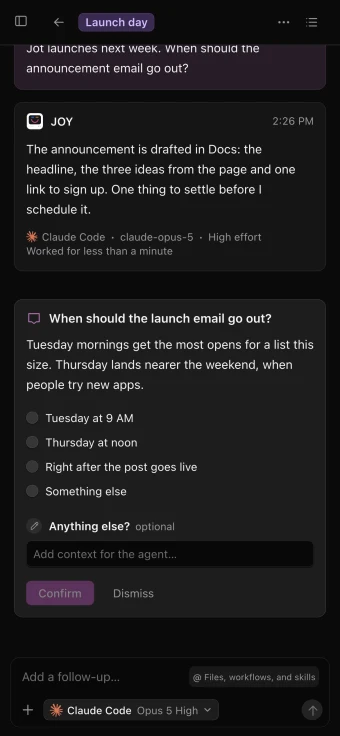
The iPhone app
Start conversations, answer questions and follow the work from your iPhone or iPad.
Any browser
Open app.enjoy.dev anywhere and connect it to your computer with a short code.
Another computer
Use the projects on your main computer from a second one.
Agents on other computers
Run agents on a Mac mini that works all night, and control them from your main computer.
Files, docs and workflows
Read and edit files and docs, and run your workflows, away from your desk.
Full or Limited
Choose for each device whether it can approve agents’ requests.
End-to-end encrypted
Every device reaches your computer over an encrypted connection, approved on the computer first.
Awake while it works
Enjoy keeps your computer awake while agents work, and reachable with its window closed.
Instant on the web
Conversations open instantly, and the web app picks up where you left off.
Update from anywhere
When something needs a newer Enjoy on your computer, update it from the web app.
Bring in your team.
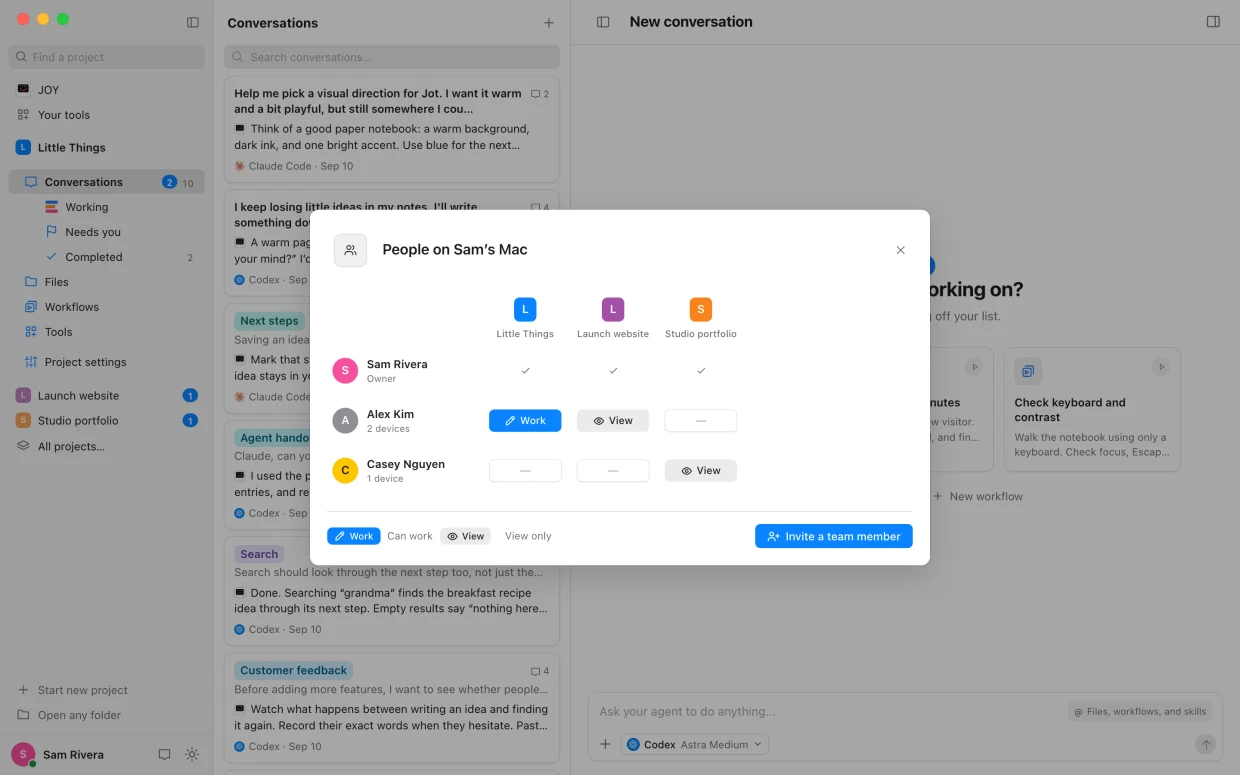
Teammates work on the projects you share, on your computer, with their own accounts.
Invites
Create an invite link for one person, with the projects they can use.
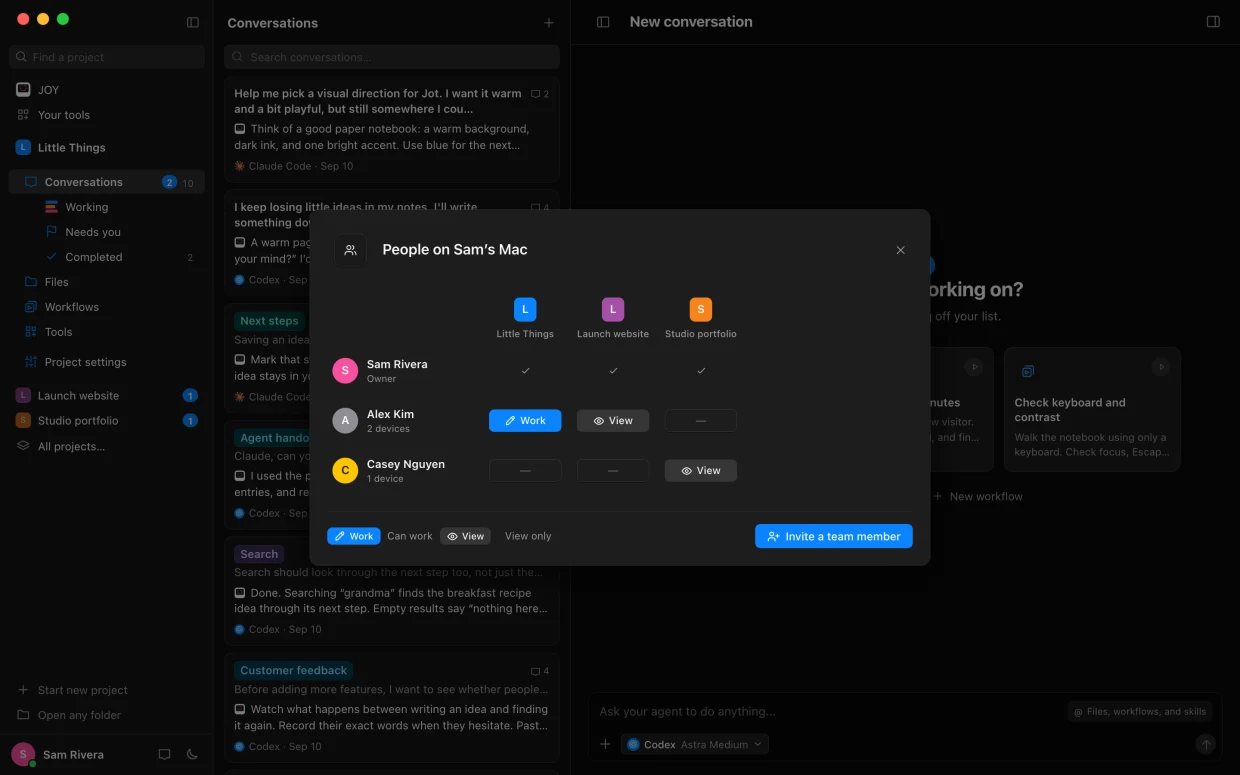
Can work or View only
Choose for each project, and change it any time.
Approve who joins
See who’s asking and adjust their access before you let them in.
Remove at once
Their access ends right away, and their running work stops.
Your face everywhere
A picture or a color that shows you on every device, and to everyone you share with.
Stay in the loop without watching.
Enjoy tells you when an agent replies or needs you.
Chimes or a voice
Hear a chime, or short spoken reactions like “Let me check.”
Mac notifications
When an agent replies or needs a decision, click the notification to jump straight there.
A Dock badge
What needs you, counted on Enjoy’s icon.
Unread counts
Cards show how many replies you haven’t read yet.
Needs you, first
Conversations waiting on a decision are counted under Needs you in the sidebar.
Made for your computer.
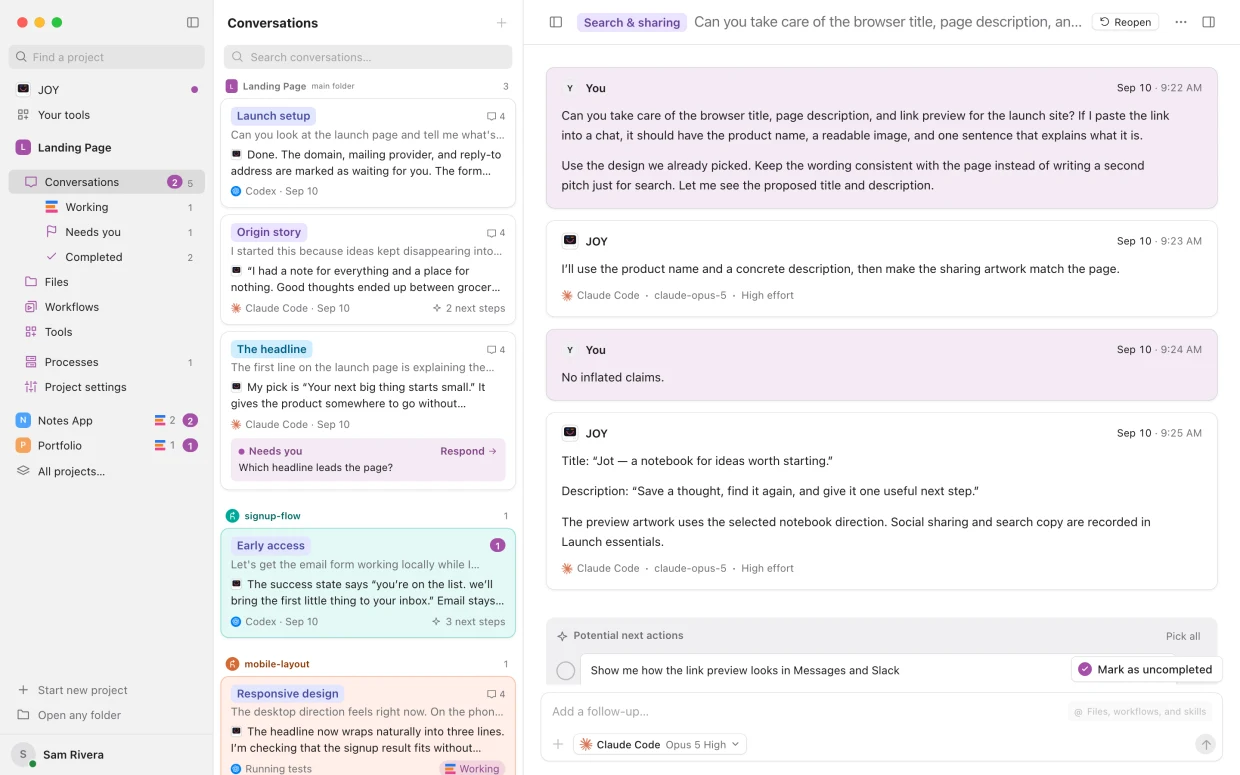
One app for Mac, Windows and Linux, in light or dark.
Mac, Windows and Linux
The same Enjoy on each, with an AppImage for Linux.
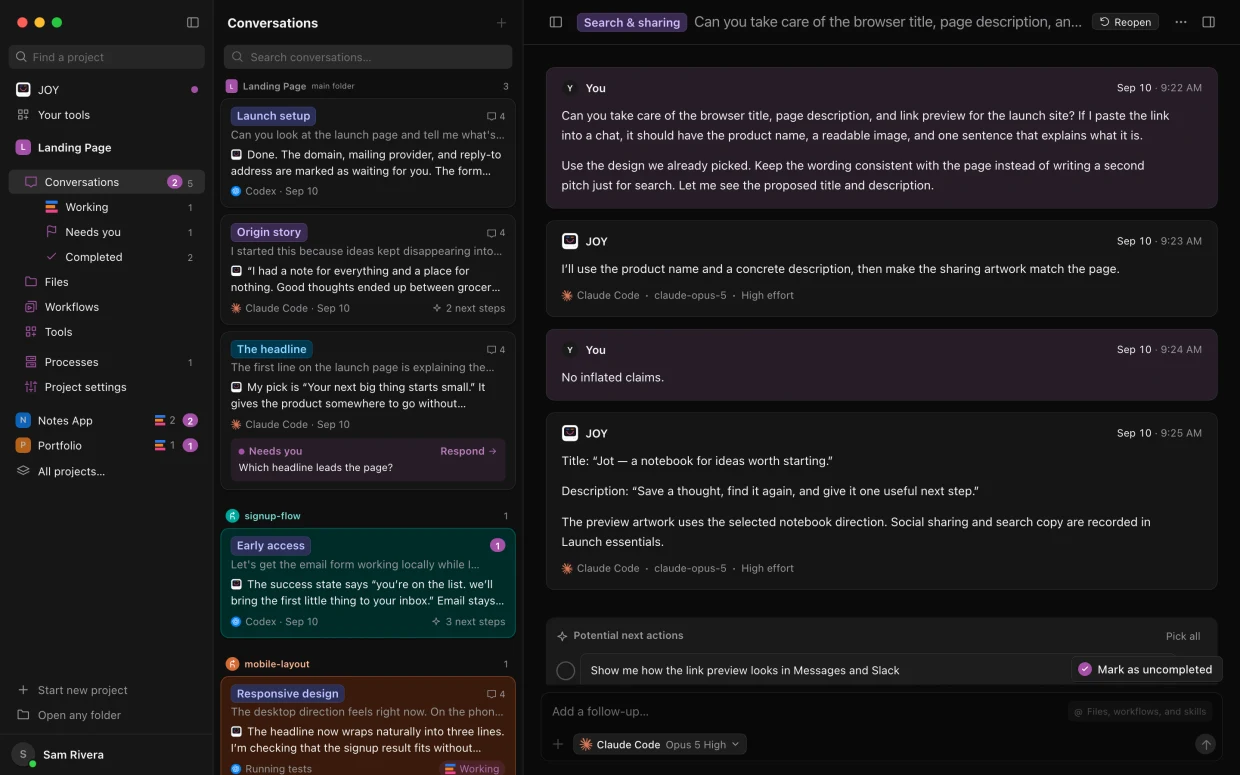
Light, dark or system
Dark is in near blacks, so your work stands out.
Compact view
Fit more on screen, and choose what each conversation card shows.
A sidebar that folds
Fold it to a strip of icons, or let it float over a narrow window.
Keyboard shortcuts
⌘N for a new conversation, ⌃1–4 for sections, ⌘F to find, and zoom.
The Manual, built in
Over 200 guides beside your work. Press ⌘? to open them.
Updates by themselves
Enjoy downloads updates and asks before restarting, with release notes by version.
Anonymized emails
Show every email address as a short code while you record your screen.
The work stays on your computer.
Enjoy never sees your files or your conversations.
On your computer
Your files, conversations, docs and workflows stay on your disk.
Straight to your agent
Your messages go to your AI provider, never through Enjoy.
No account needed
Enjoy is free and works without one.
Statistics, your call
Feature counts with a random ID, never your content. Turn them off any time.
The system keychain
Keep your sign-in and connection keys in your computer’s secure storage.
Reset remote access
Disconnect every device at once and get a new security key.
A clean slate
Delete all of Enjoy’s data. Your project folders stay on disk.
Help when you want it.
From people, not only pages.
A free 15-minute call
An orientation with Mo, Enjoy’s founder, to set up Enjoy and plan your next step.
The Slack community
Ask questions and share ideas with other people building with Enjoy.
Email support
Write to help@enjoy.dev from the Help menu, your account or any email app.
Feedback, with screenshots
Tell the team what could be better, pictures attached.