Change your picture and color
Enjoy shows you as a circle with your initial: at the bottom of the sidebar, on your messages, and wherever people you share a computer with see you. Until you choose a color, it gets one from your account.
Steps
Open your account
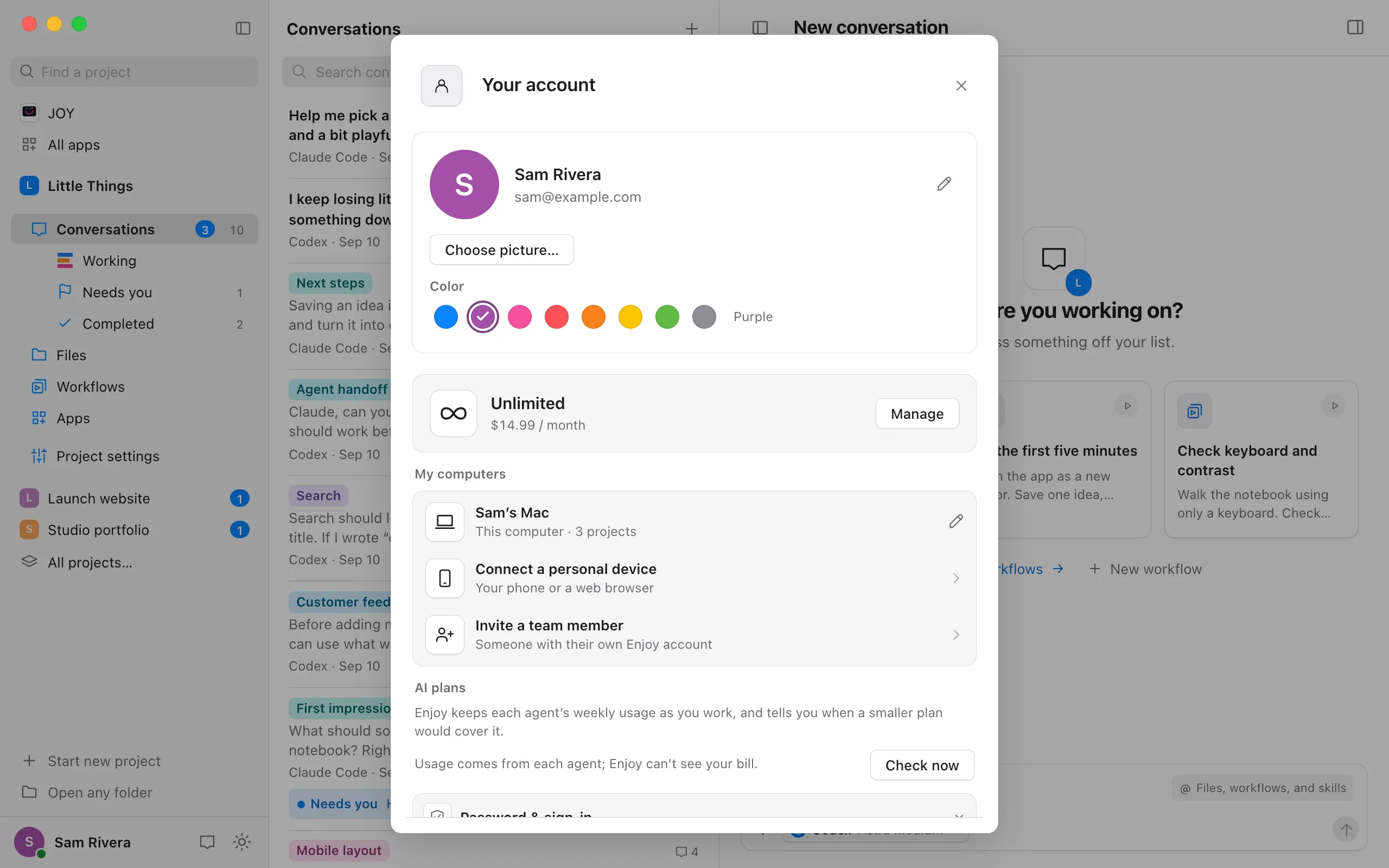
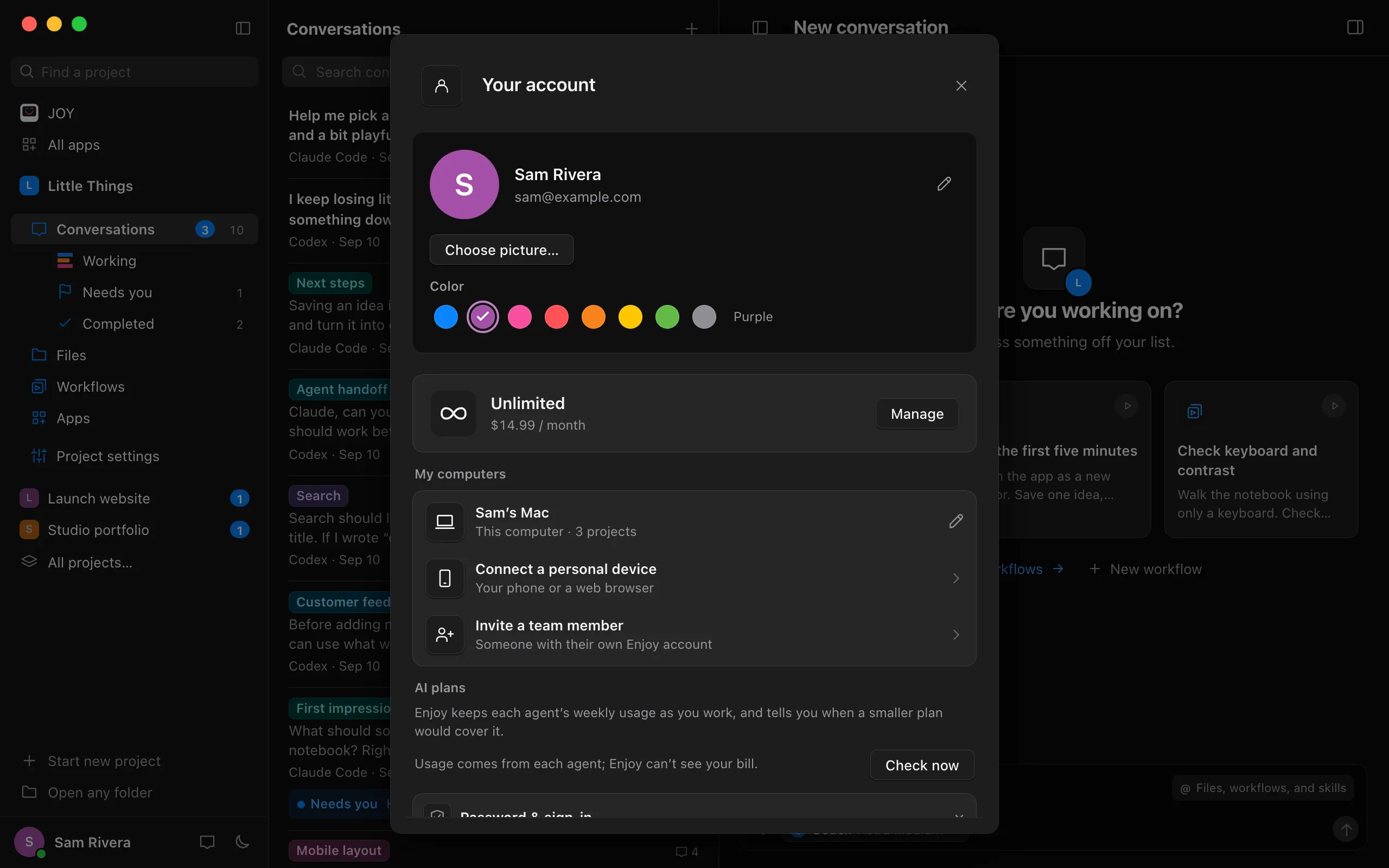
Select your name at the bottom of the sidebar. If a menu opens, choose Your account. On iPhone, select your picture on the Computers or Projects screen to open Settings.
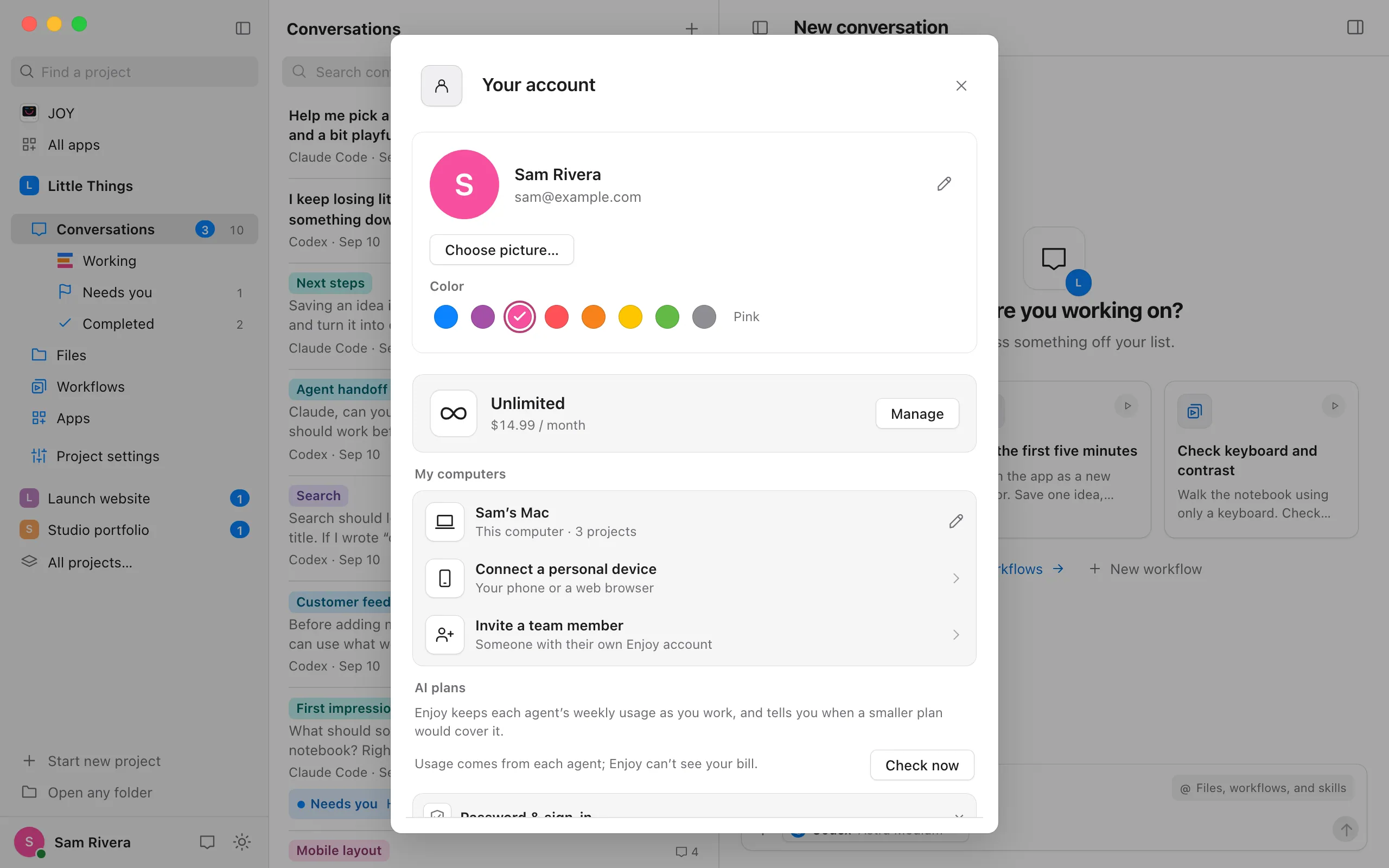
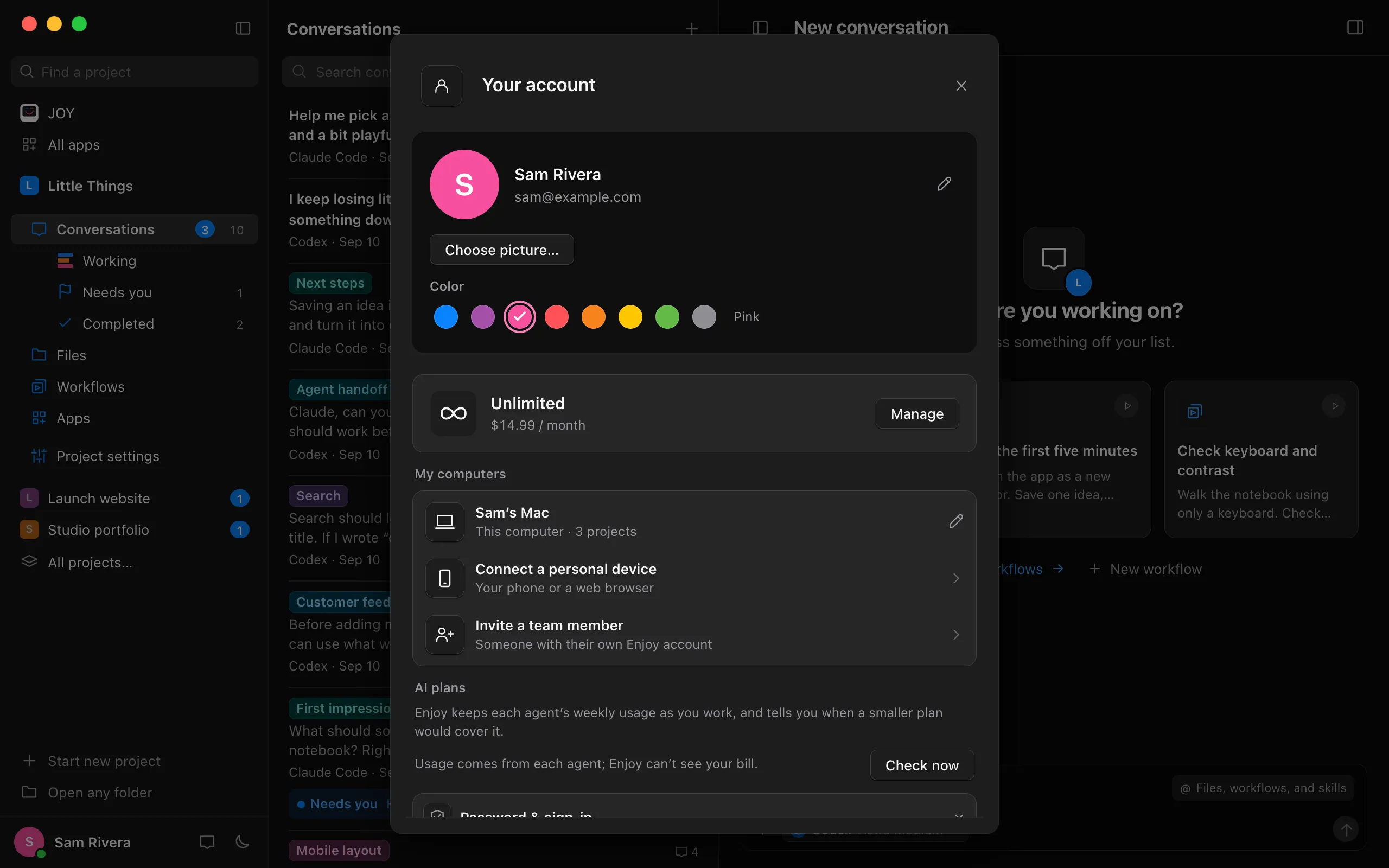
Choose a color
Select one of the colors under Color. Your circle changes as soon as it’s saved, and the color’s name shows beside the colors.
Choose a picture
Select Choose picture… and pick a PNG, JPEG, or WebP image. Enjoy uses the middle square of it in place of your initial. On iPhone, pick a photo from your library.
Remove the picture to show your initial again
Select Remove picture. Your circle goes back to your initial on your color.
Good to know
- Your picture and color are saved to your Enjoy account, not to one device. Your computers, the web app, and the iPhone app all show them, and so does everyone you share a computer with.
- Enjoy keeps a small square copy of your picture, 256 pixels wide.
- A picture or color helps people see who wrote something, but anyone can choose one. Where it matters, Enjoy shows the person’s email too.
- Messages saved by older versions of Enjoy keep the letter of the name they were saved with.
If something goes wrong
Couldn’t save your color or picture
Your circle keeps what it had. Check your connection and choose again.
Choose a PNG, JPEG, or WebP image
Enjoy reads only these kinds of image. Save the picture in one of them, or pick another. Images larger than 20 MB can’t be used either.
Sign in again to change your color or picture
Your account session is no longer available. Sign in again, then retry the change.