Fork a conversation
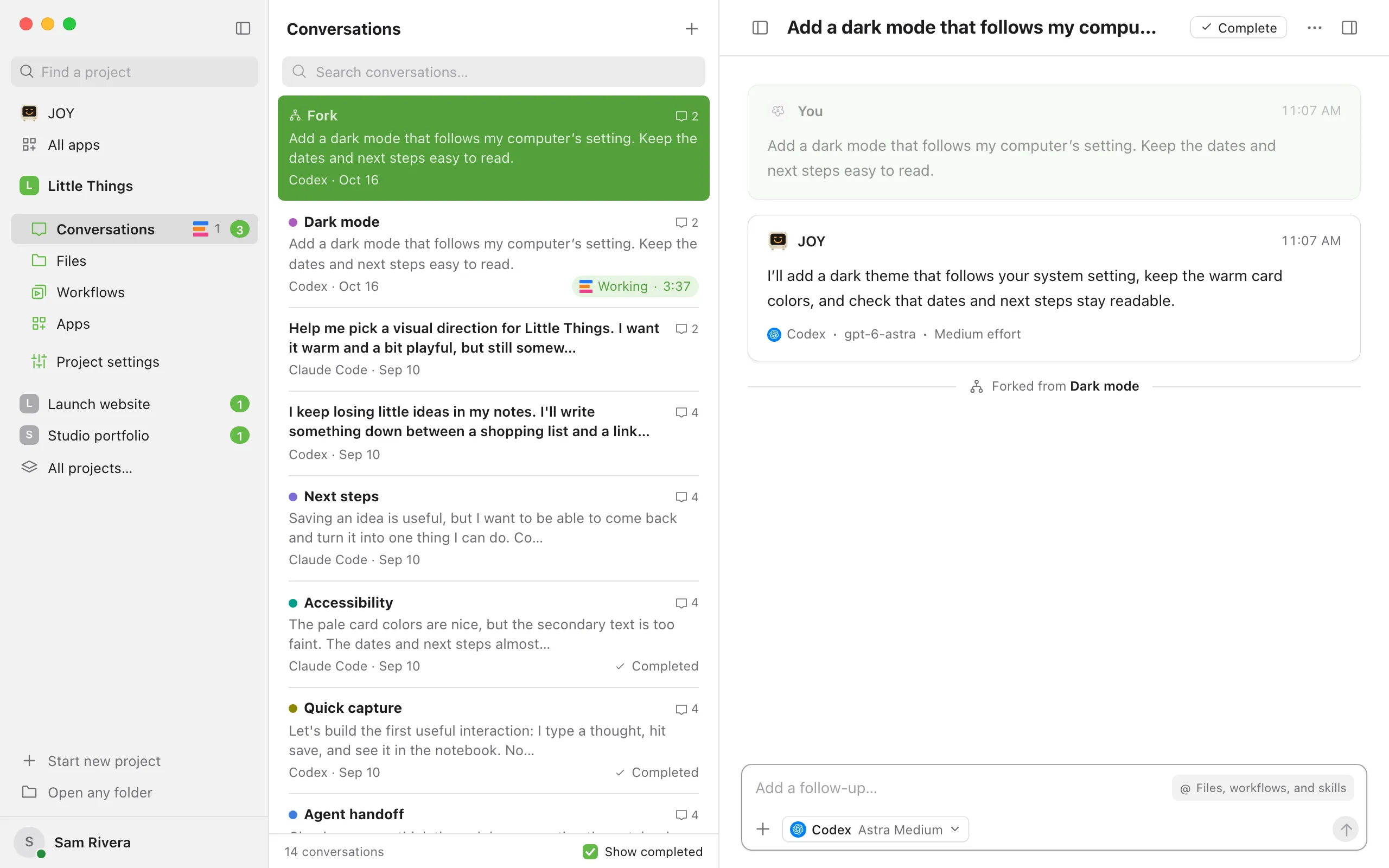
A fork carries everything said so far into a conversation of its own. The original isn’t interrupted: its agent keeps working while you start something else in the fork.
Steps
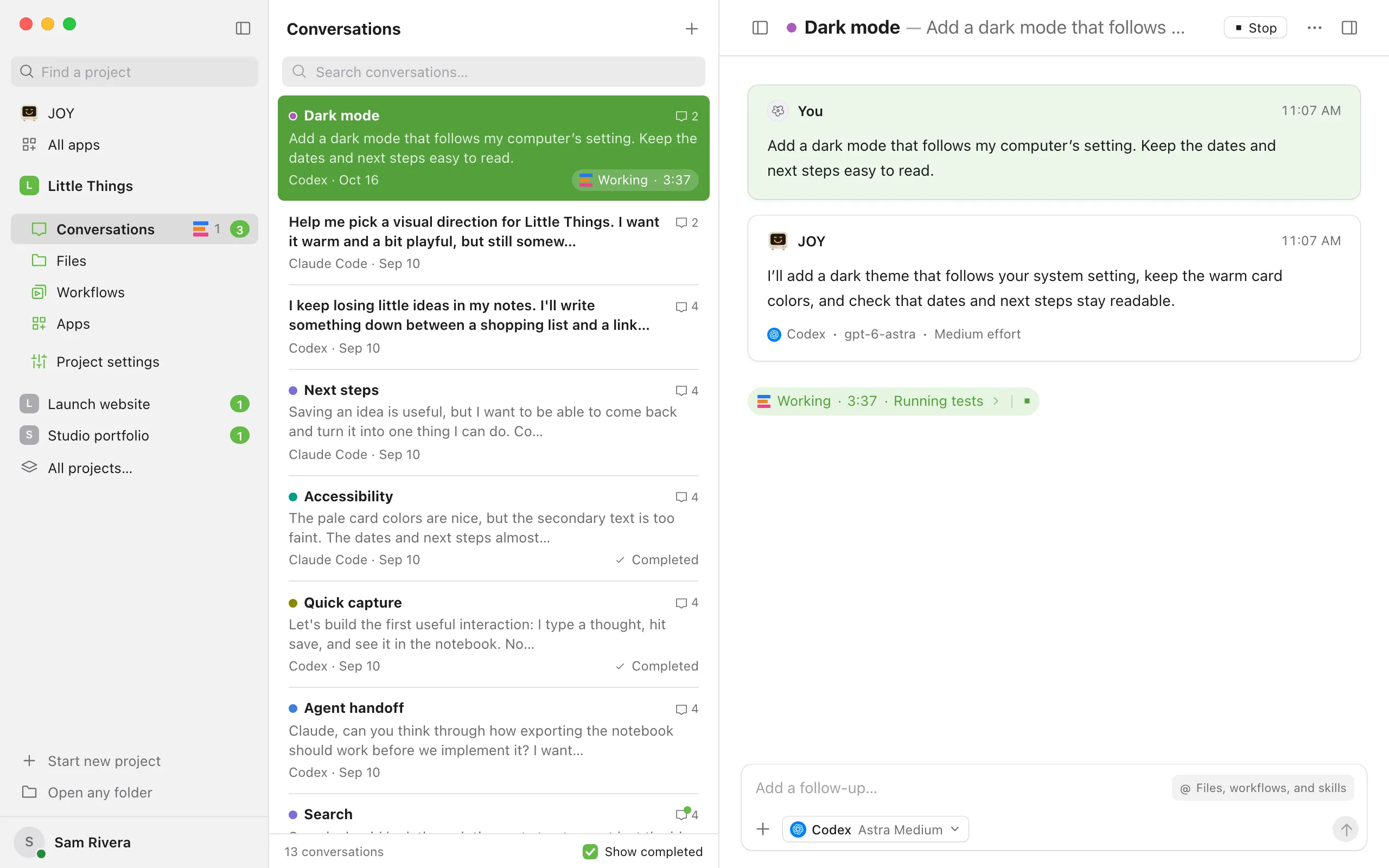
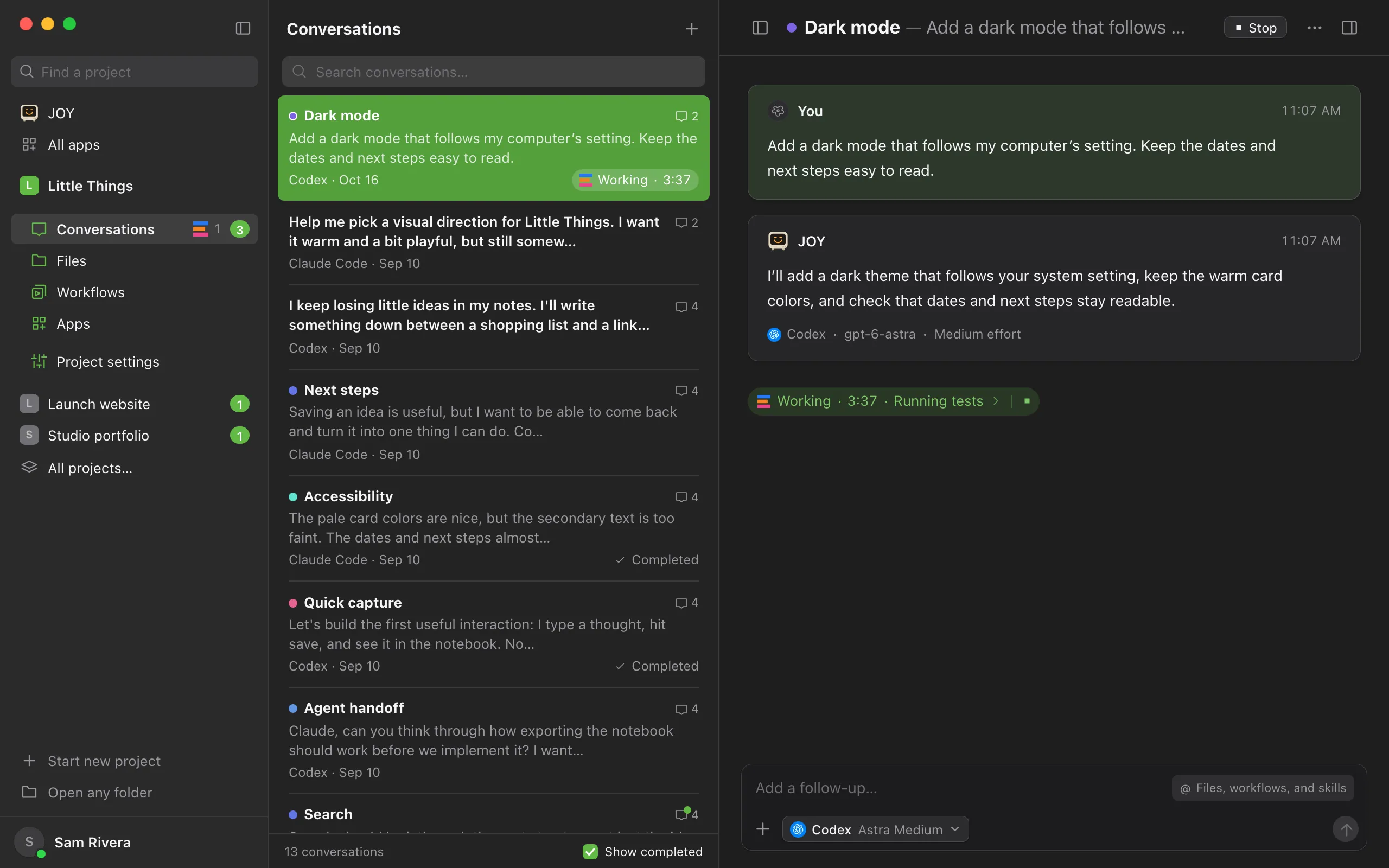
Open the menu
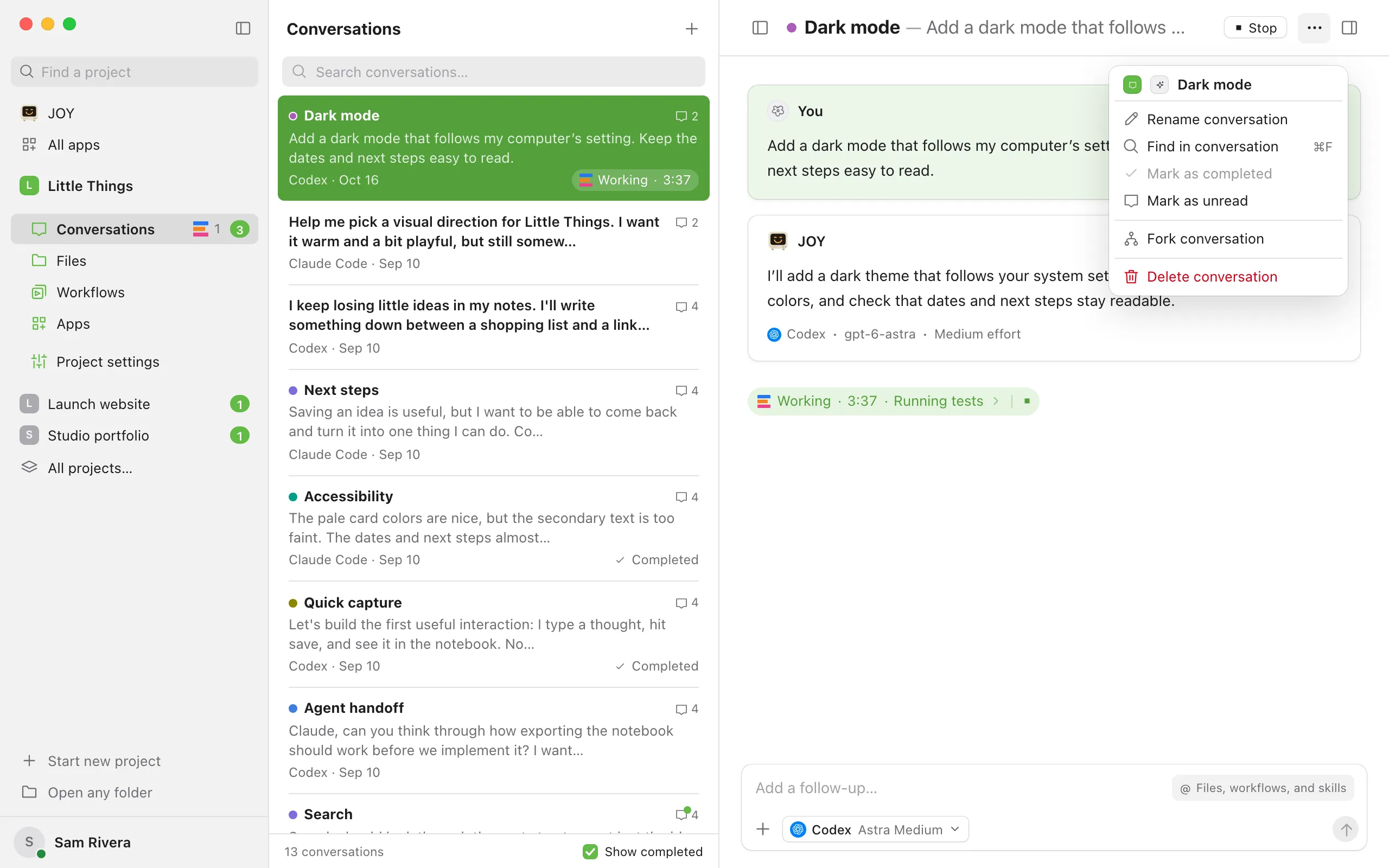
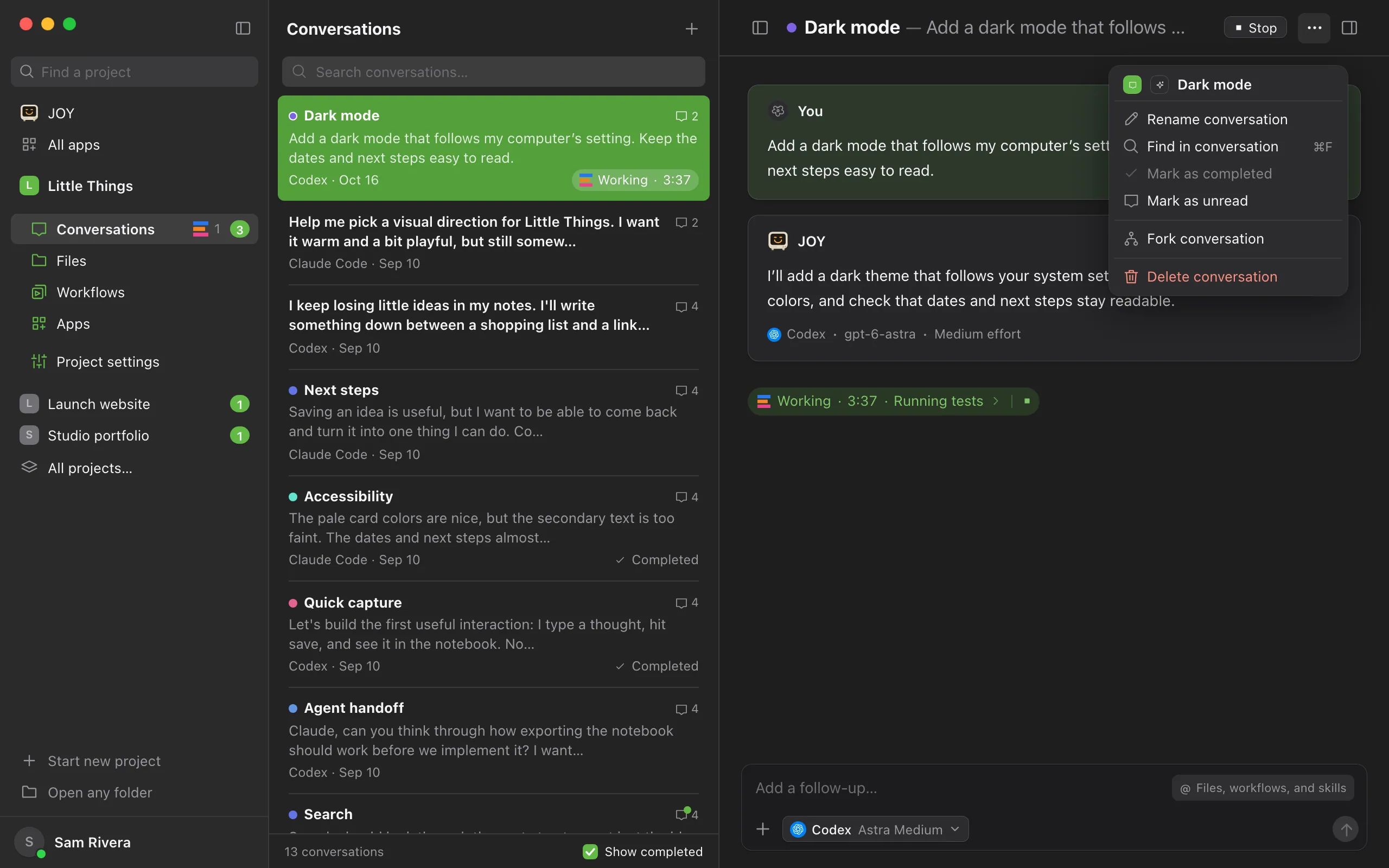
In the conversation, select the ⋯ button (Conversation actions) at the top right. It works while the agent is busy.
Choose Fork conversation
Enjoy opens the new conversation with a copy of every message. Nothing runs there yet.
Send what to do next
Write your next message in the fork and send it. Its agent reads the copied messages first, so you can carry on as if you were still in the original.
Fork from an earlier message
To start over from a point further back, point to that message and select the fork button under its copy button (Fork from here). The fork copies the messages up to and including that one.
Good to know
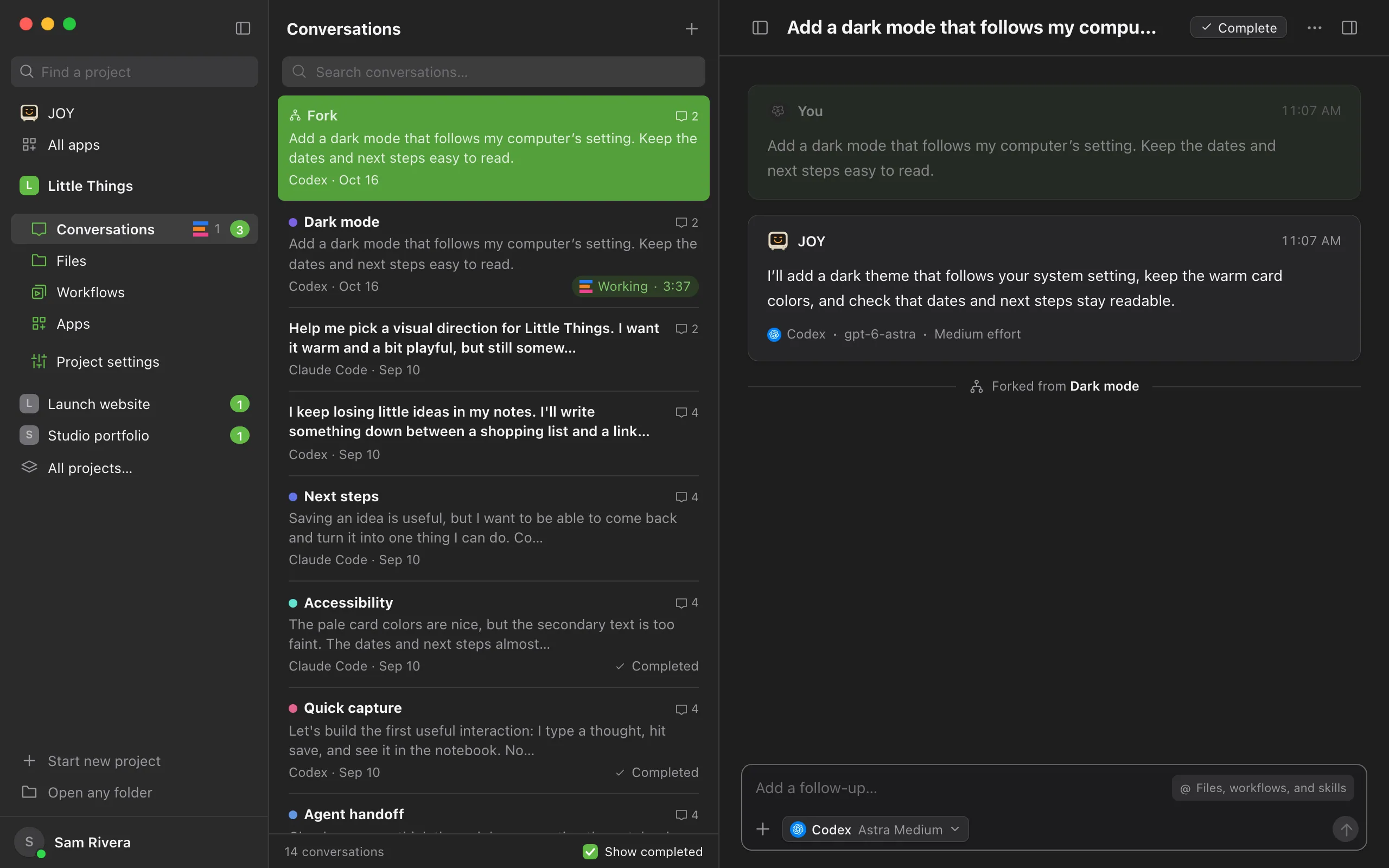
- The copied messages are faded until you point to them. A line under them says Forked from, followed by the original’s name. Select the name to go back to it.
- In the conversation list, the fork shows a Fork tag until its agent gives it a label of its own.
- The fork uses the same agent, model, effort, and permission settings as the original. You can change them before you send.
- Answered questions come along. A question that was still open at that point is open in the fork, so you can answer it differently there.
- Approvals, queued messages, and messages the agent hasn’t taken in yet stay in the original.
- If the original was still working on a request when you forked it, the fork’s agent is told that the original is finishing that work, so it doesn’t do the same work twice.
- A fork works in your project’s main folder, so both conversations can change the same files. To keep the fork’s changes apart, move it into a worktree with the branch menu before you send. See Move a conversation into a worktree.
- In the iPhone app, open Conversation actions (the ⋯ button) and choose Fork conversation, or touch and hold a message and choose Fork from here.