Open, pin, and stop an app
Before you start
- Use the computer app, in a project on that computer. To open apps from your phone or another device, see Open your apps on your phone.
Steps
Find the app
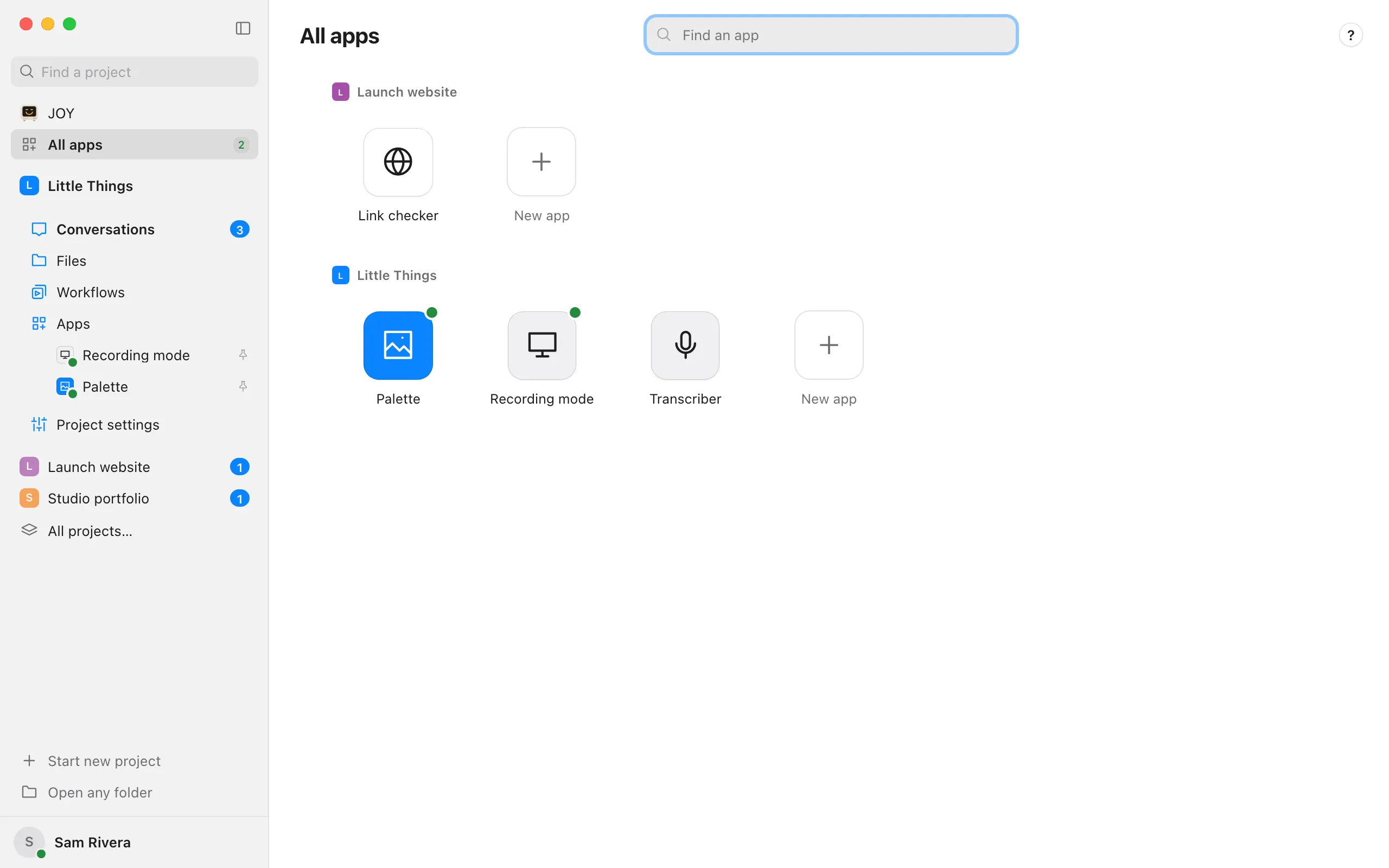
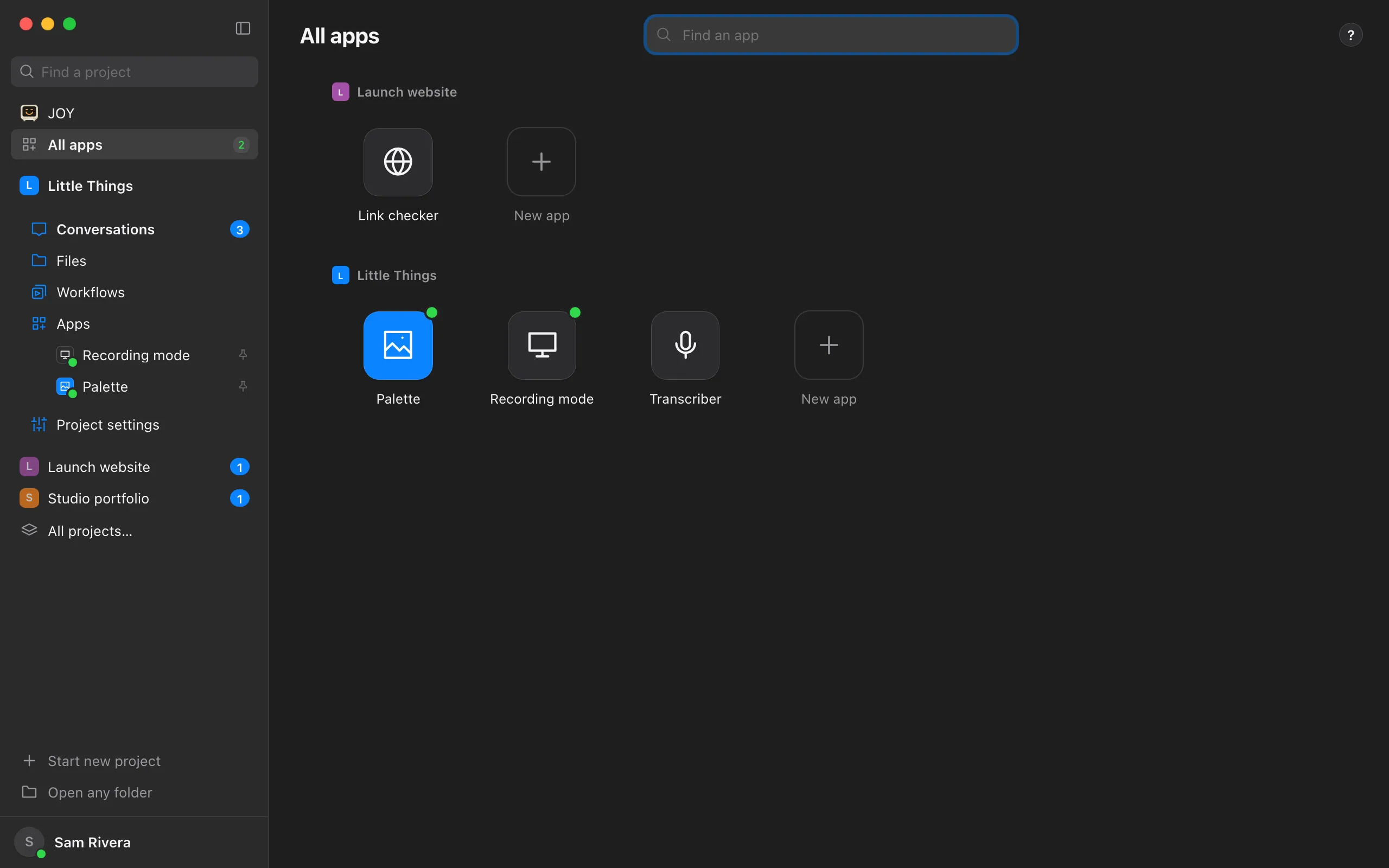
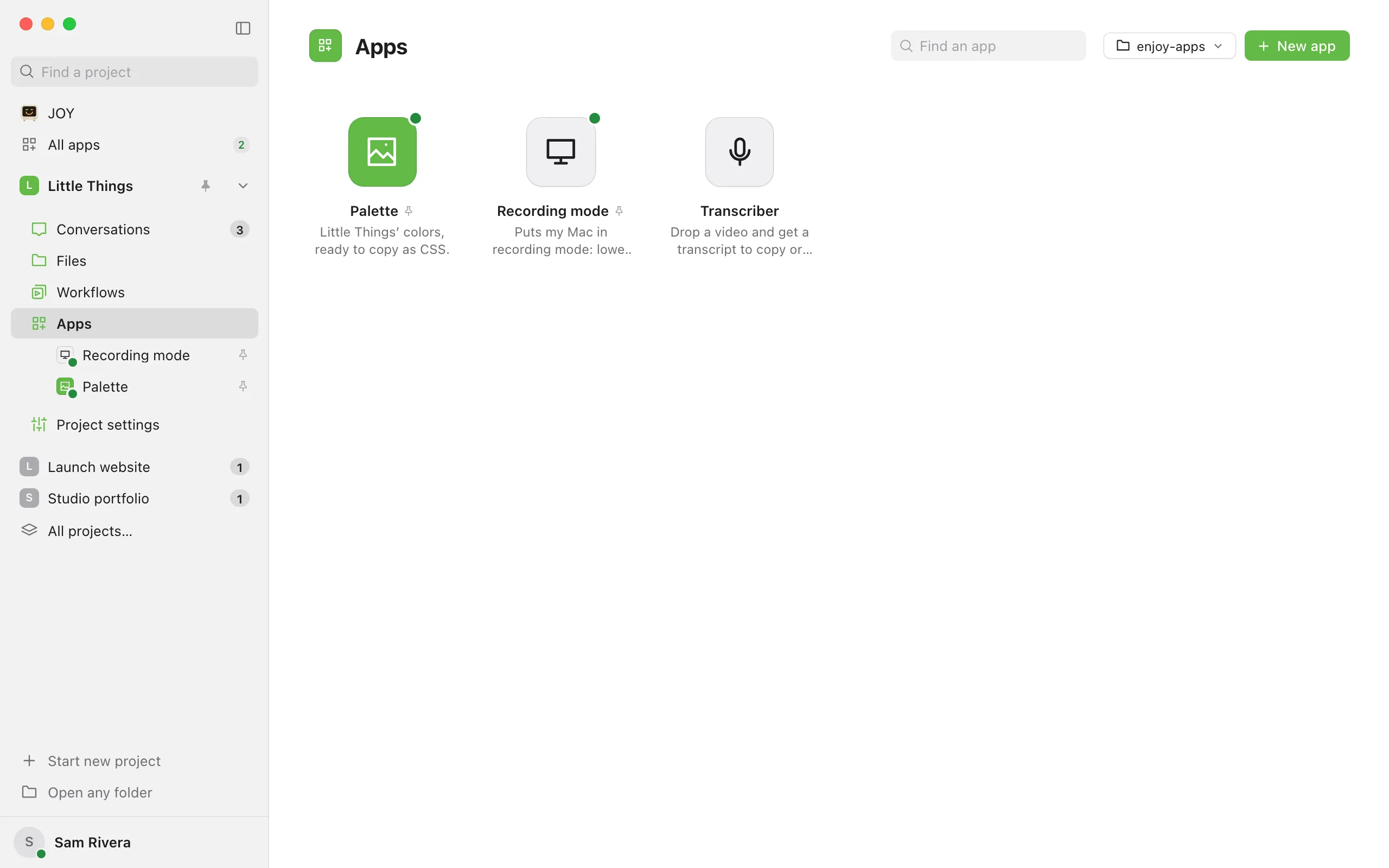
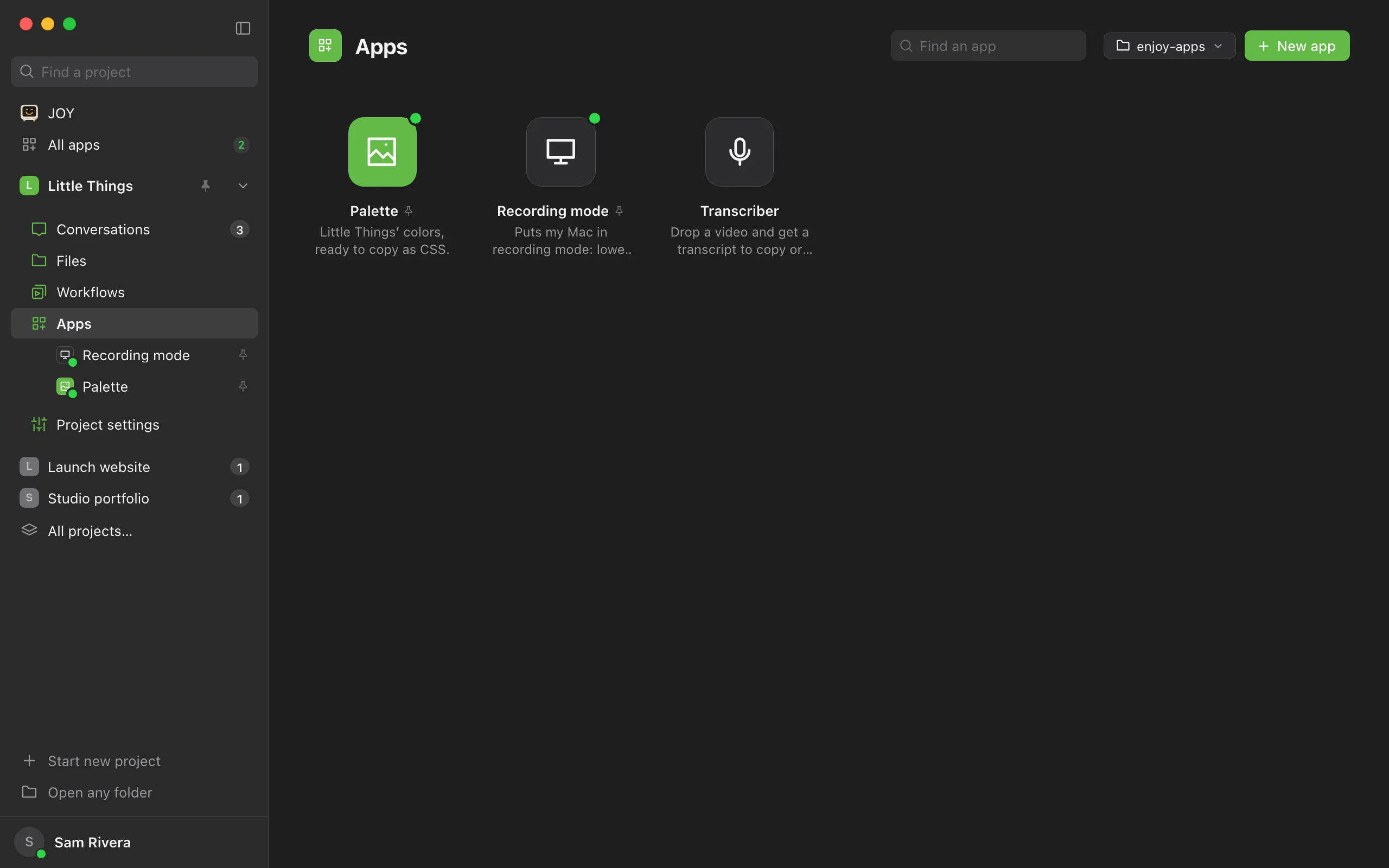
Select Apps in the rail on the left side of the window, under Workflows, to see the project’s apps. You can also press ⌃4 on a Mac, or Alt+4 on Windows and Linux. To see the apps of all your projects, select Apps at the top of the window, next to Projects, and select an app’s key. A number on that button counts the apps running now.
Select the app
In Apps, each app is a key with its name and what it does under it, and a green dot on the key while it runs. Select the app to open it. Enjoy starts the app if it isn’t running and shows it in its project, with the rail beside it. The first start can take a while, as Installing followed by the app’s name shows.
Read the bar
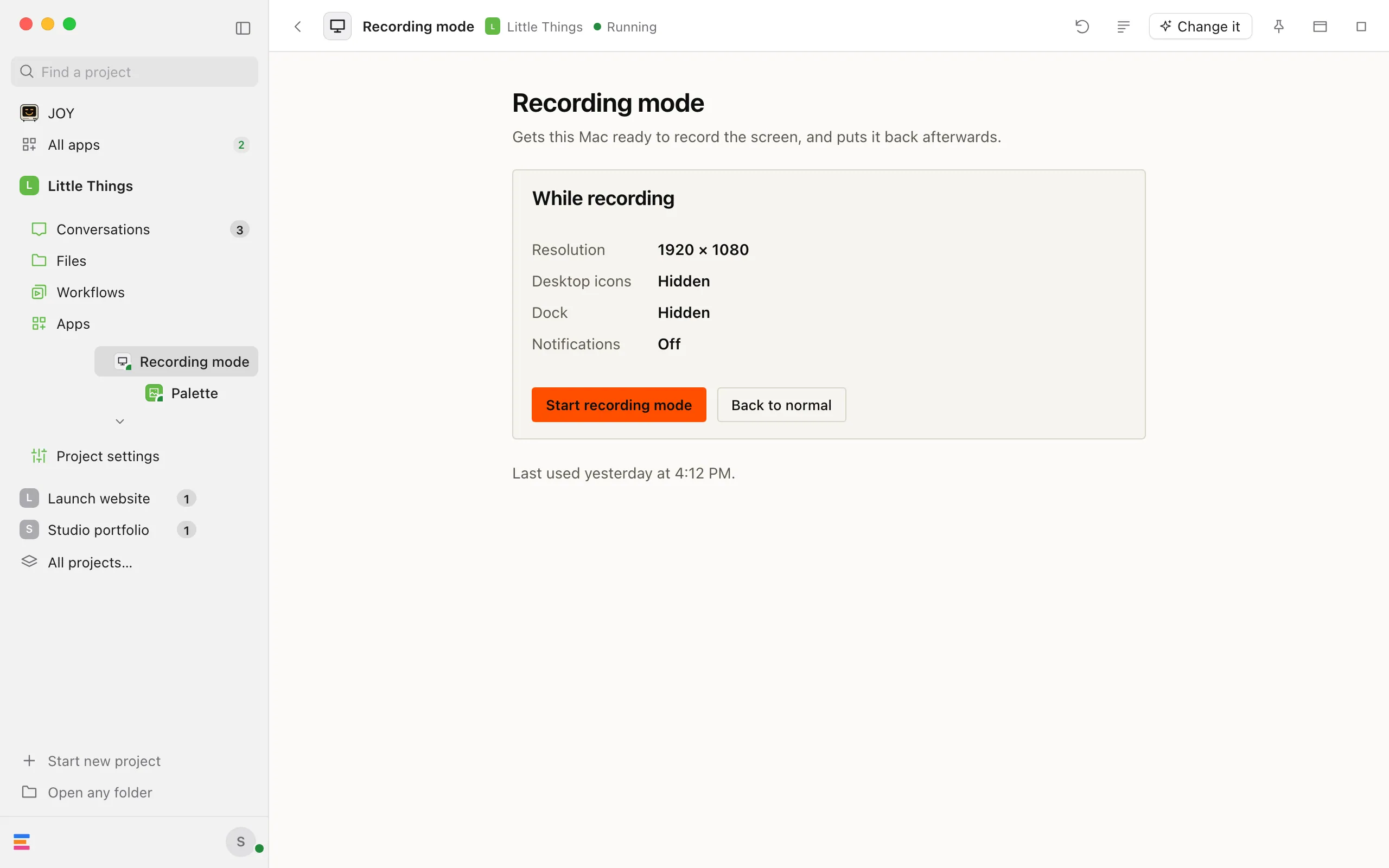
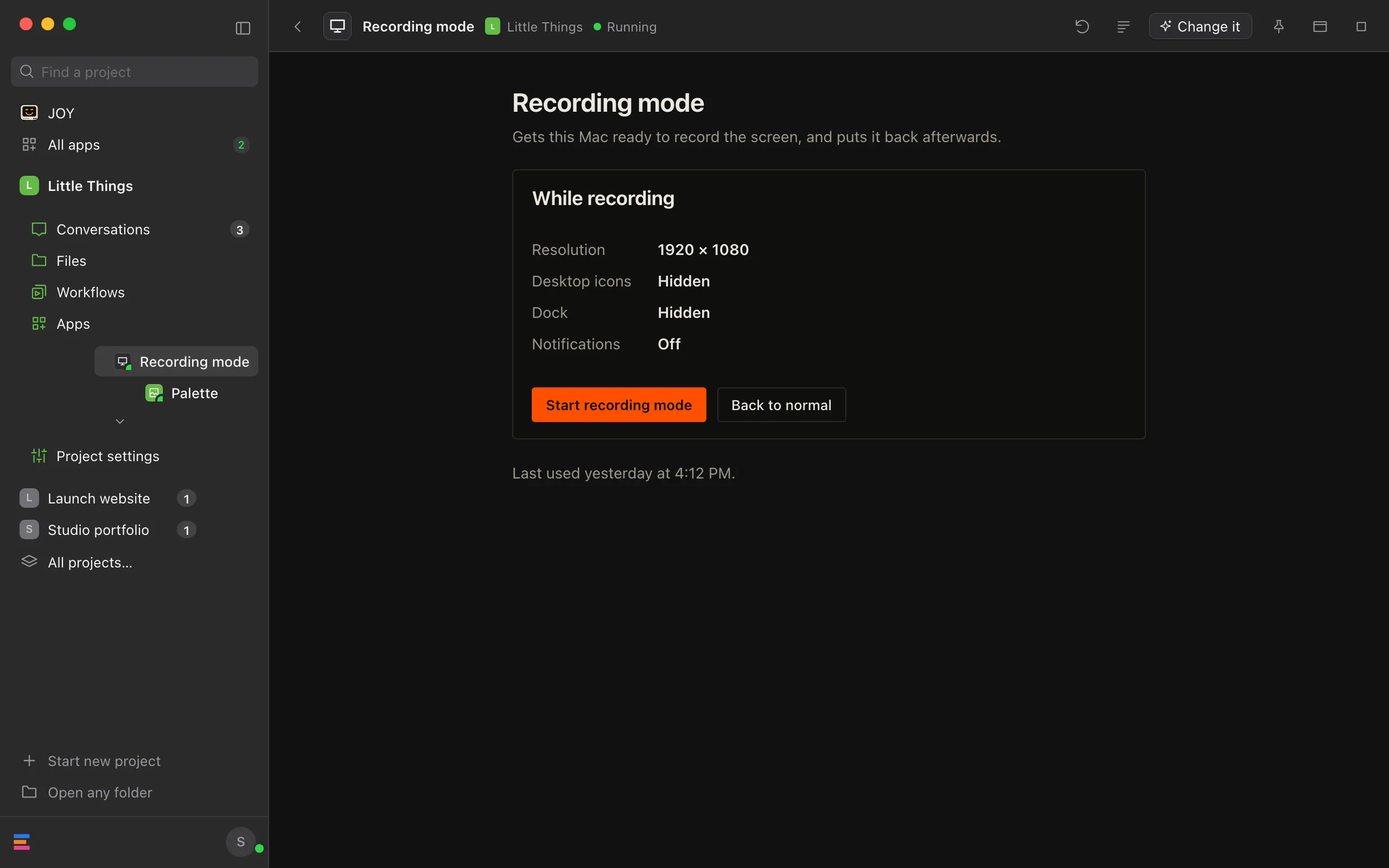
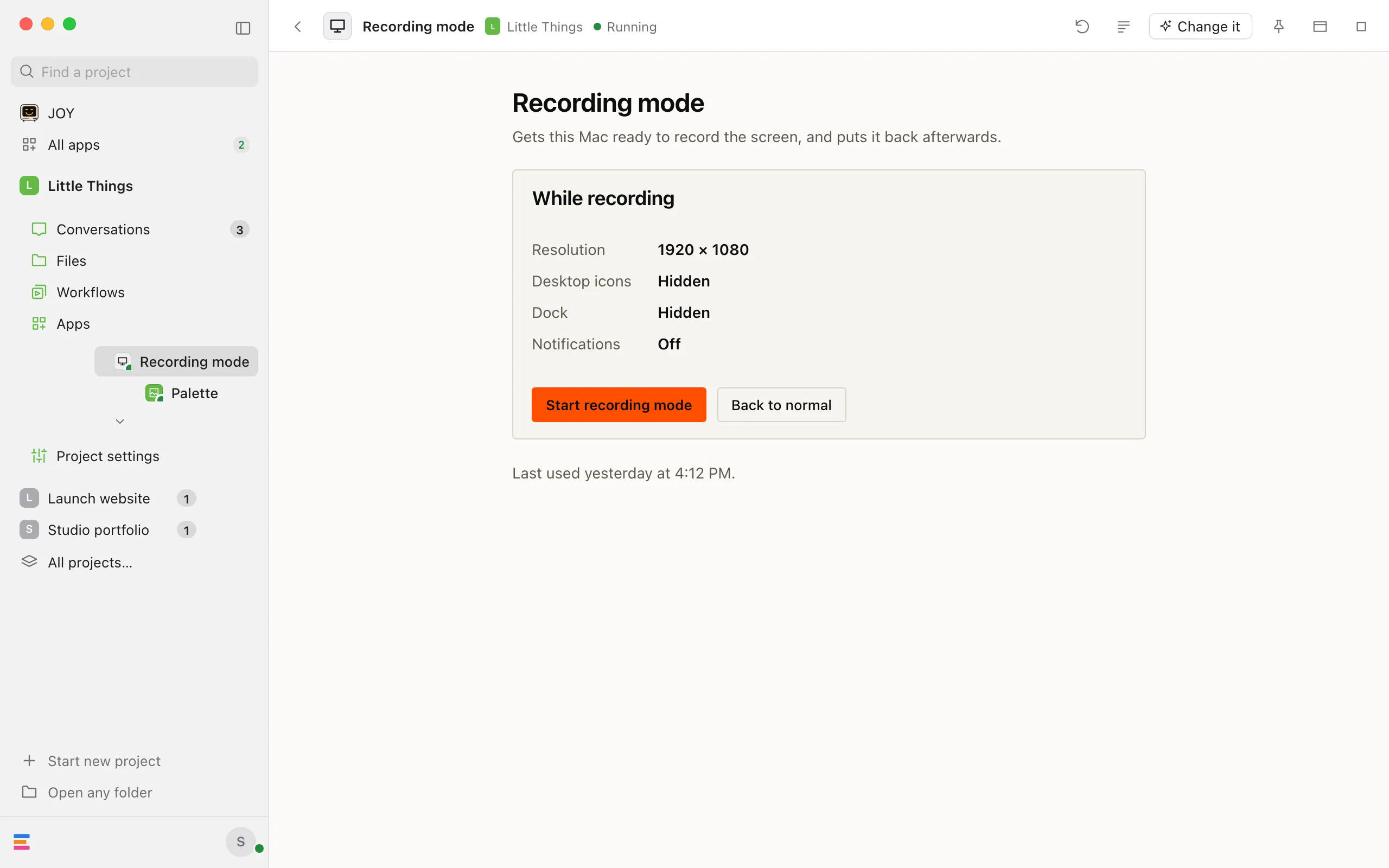
The bar above the app has Back to apps, the app’s name, its project, and what it’s doing: Starting, Installing packages, Running with a green dot, Page for an app without a server of its own, Stopped, or Couldn’t start.
Use its controls
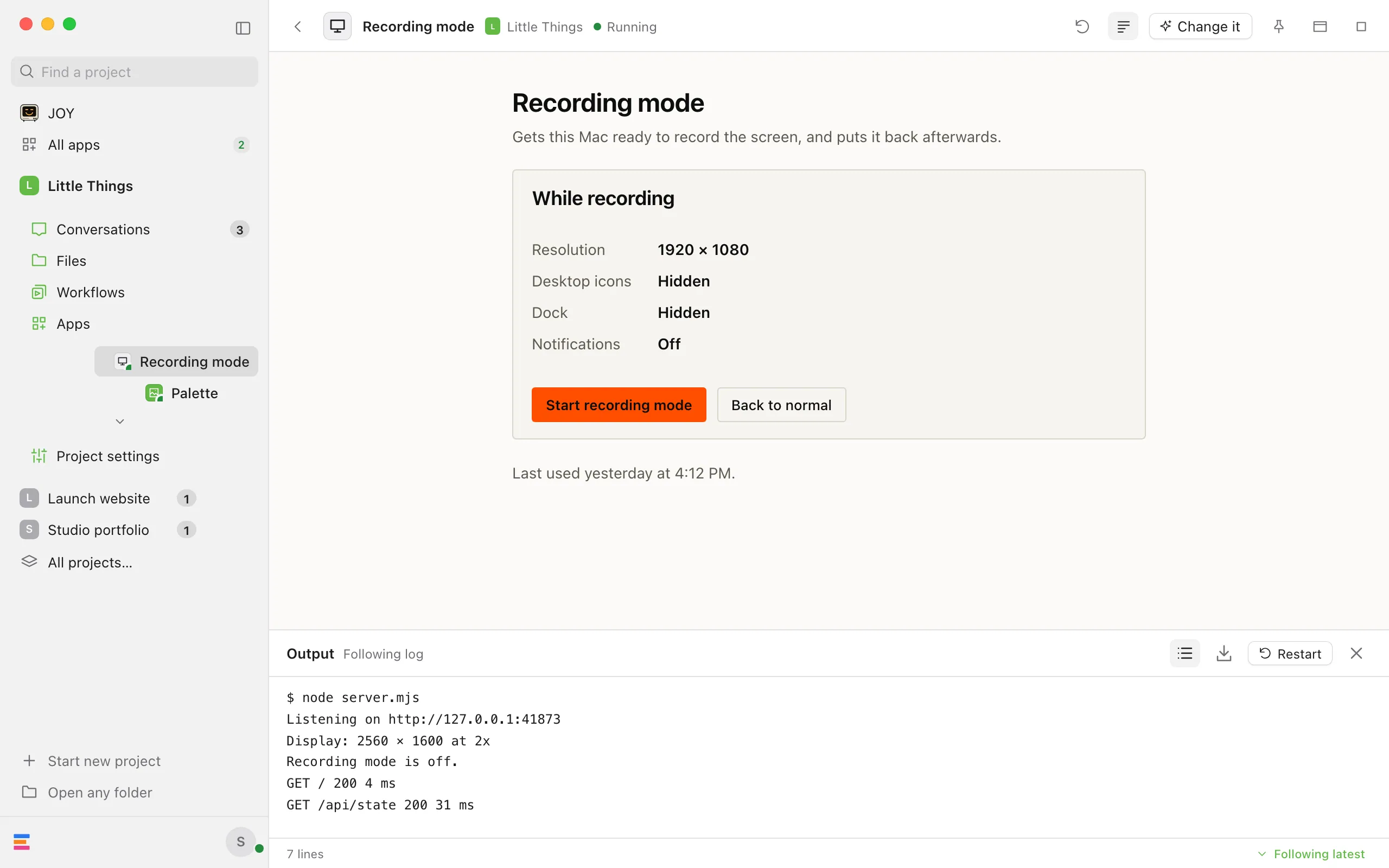
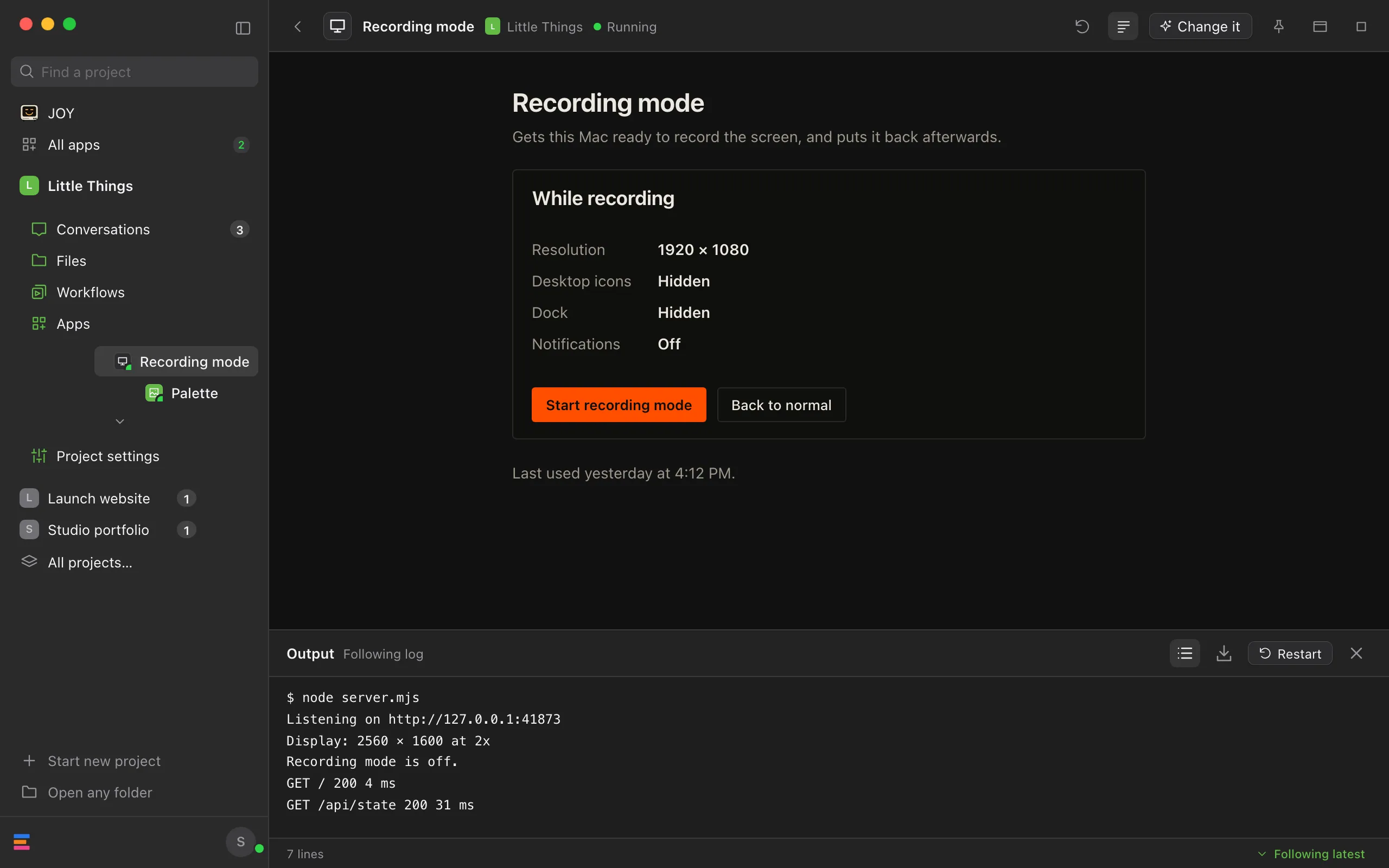
Reload shows the app’s latest version, restarting its server if it has one. Output opens a panel below the app with what its server prints. Change it starts a conversation to change the app. In a narrow window it shows only its sparkles. Open in a new window moves the app into a window of its own.
Pin it
Select Pin to the tab bar in the bar to give the app a tab after your project tabs. Or, in Apps, point to the app, select …, and choose Pin followed by its name to list it under Apps in the sidebar. In Apps, a pinned app has a small pin after its name.
Stop it
Select Stop, the square at the end of the bar. Enjoy stops the app’s server, closes the app, and goes back to Apps, which says the app stopped and starts again when you open it.
Good to know
- Apps stop when nothing uses them. An app keeps running while it’s open: on its page, in its tab or its own window, in a file tab in Files, beside a conversation, or on a device that’s using it. Ten minutes after nothing has it open, Enjoy stops it, and its page says Stopped after 10 minutes unseen. Opening it again starts it again.
- Apps without a server, marked Page, have no Stop in their bar. Enjoy shows their page itself, and stops it when nothing has it open.
- In its own window, the app can sit beside Enjoy. Its page in Enjoy says Showing in its own window, with Bring back. Closing the app’s window also brings the app back.
- Output follows new lines as the server prints them, and shows the latest run only. Select Restart in the panel to restart the server, and Close output to hide the panel. Wrap output lines and Follow latest work as they do for processes. See Read a process’s output.
- Downloads go to your Downloads folder, and a line above the app says “Saved” with the file’s name. If a file with that name is already there, the new one’s name gets a number. On a Mac, macOS may ask once whether Enjoy can use your Downloads folder.
- Links that open a new window open in your default browser when you select them. A website you go to from inside the app can’t open windows or download files.
- The keyboard: while you use the app, it gets the keys you press. Enjoy’s shortcuts work again once you select something outside the app, such as its bar.
- Pinned apps sit under Apps in the sidebar, one step in, each with a small pin at the end of its row and a green dot on its key while it runs. The app on screen is highlighted in place of Apps. To unpin one, right-click it and choose Unpin. On a phone, or in any narrow window, select Show sidebar at the top left to reach them. If Enjoy can’t load the project’s apps while you have some pinned, Apps couldn’t load shows in their place. Point to it to see why, or select it to go to Apps.
- App tabs sit after your project tabs. An app’s tab is filled in while the app is on screen. Select the × on the tab (Unpin from the tab bar) to remove it. A tab whose app isn’t in its project anymore, for example because you switched to a branch without it, says This app was removed, and comes back with the app. While Enjoy can’t load the project’s apps, the tab shows an alert mark in place of the app’s key, and pointing to it shows “Couldn’t load this project’s apps” and why.
- Each app’s menu (the … that shows when you point to the app, or right-click it) has Pin or Unpin, Always open options for the file types the app opens, Change, Stop, and Delete, each followed by the app’s name. Delete moves the app’s folder to the Trash, and its pin and tab go with it.
- Find an app at the top of Apps searches the project’s apps by name and description.
- An app that only opens files says so on its page, such as Opens .md files, with Open in Files. See Open a file with a different editor.
- A note under the bar means the app’s code changed since you last saw it. See Check what changed in an app.
If something goes wrong
“couldn’t start”
The page shows the app’s name followed by “couldn’t start”, the reason, and the last lines the app printed. Select Fix with an agent to start a conversation with all of that already in the message box, or Try again. In Apps, the app says Couldn’t start under its name, with the reason below it.
“It changed since it last ran, so it waits for you to start it.”
The way the app starts changed while it was running, or its server stopped by itself after its code changed, and you haven’t seen the change. Read the note under the bar, then select Start followed by the app’s name. See Check what changed in an app.
“listens on every network”
Enjoy stopped the app because other computers on your network could have reached it. Select Fix with an agent: the app needs to listen only on your own computer.
“can’t open”
The page shows the app’s name followed by “can’t open” and what’s wrong, such as “Add an enjoy-app.json to this folder so Enjoy can open it.” In Apps, the app says the same in place of its description, for example “Rename this folder to lowercase letters, numbers and dashes, such as cli-updater, so Enjoy can open it.” Ask an agent to fix it, then open the app again. To remove the app instead, choose Delete followed by its name from the app’s menu.
“No app named”
The app was renamed or deleted, or it’s on a branch you aren’t on. Select Back to apps.
“Couldn’t load this project’s apps”
Enjoy couldn’t read the project’s enjoy-apps folder, and the reason follows. Apps it read before stay in Apps and keep opening, but Enjoy can’t tell whether others came or went. Check that the folder is still in the project and that you can open it, then come back to Enjoy’s window, which makes Enjoy read it again.
“Couldn’t show”
Enjoy couldn’t place the app’s page in the window. Select Try again.