Ask JOY, which oversees your agents
JOY oversees your agents. It used to be called Eliza. It lives in Enjoy itself rather than in one of your projects, and sees across all of them: which conversations need you, what your agents finished, and what’s still running. It says a short line out loud with each reply.
Before you start
- Connect an agent first. JOY thinks with the agent you choose in its message box, like any conversation. See Set up your first agent.
Steps
Open JOY
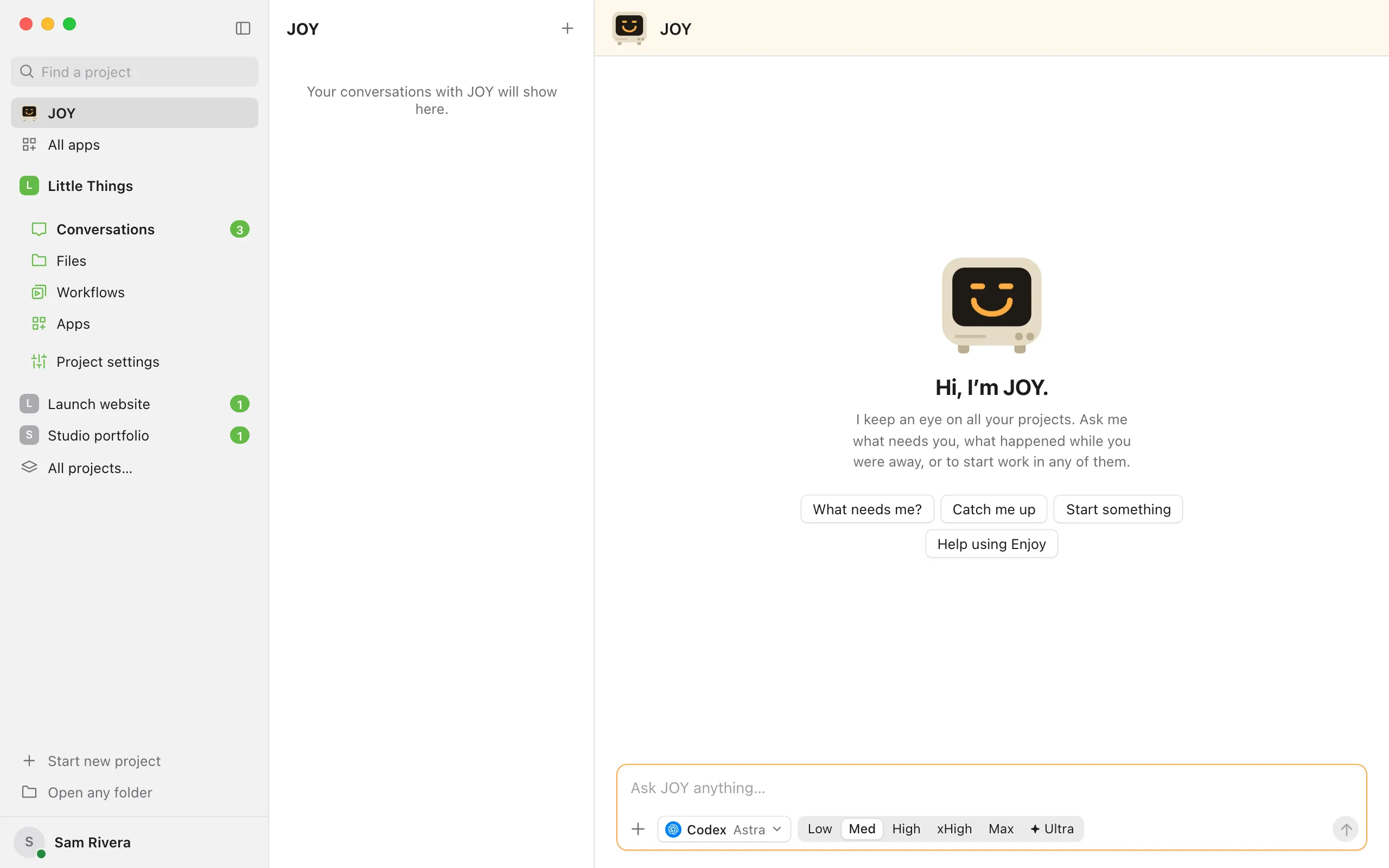
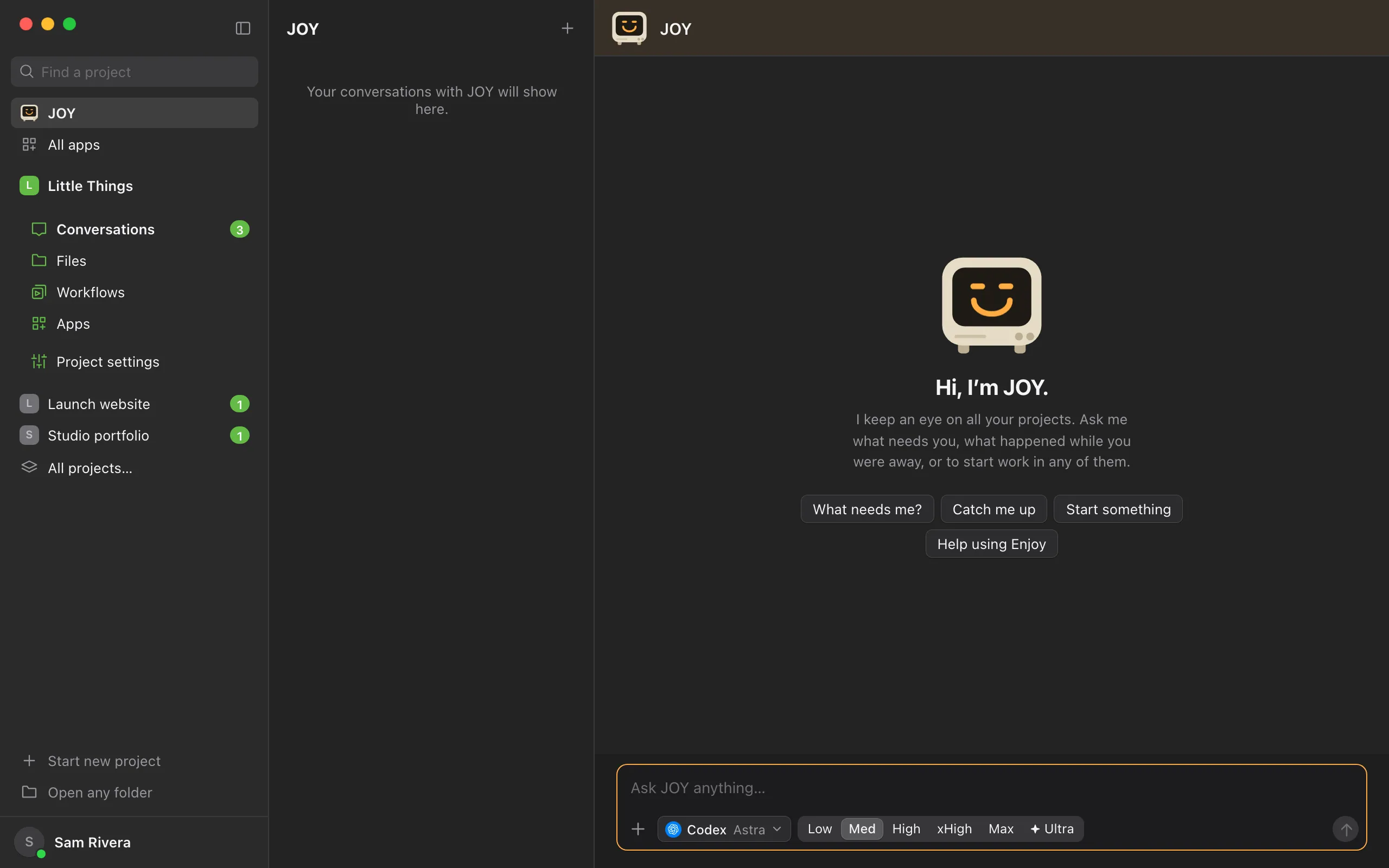
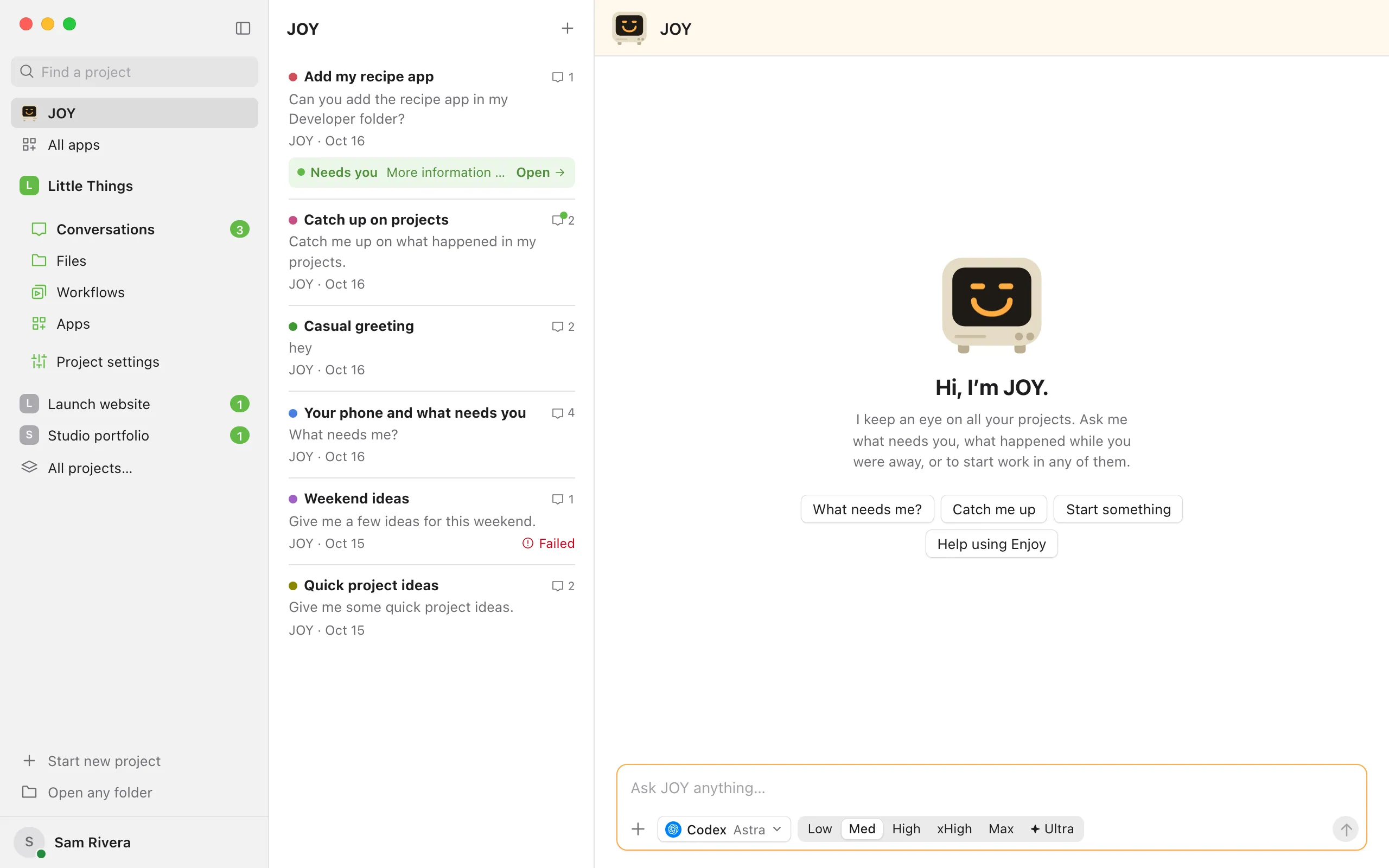
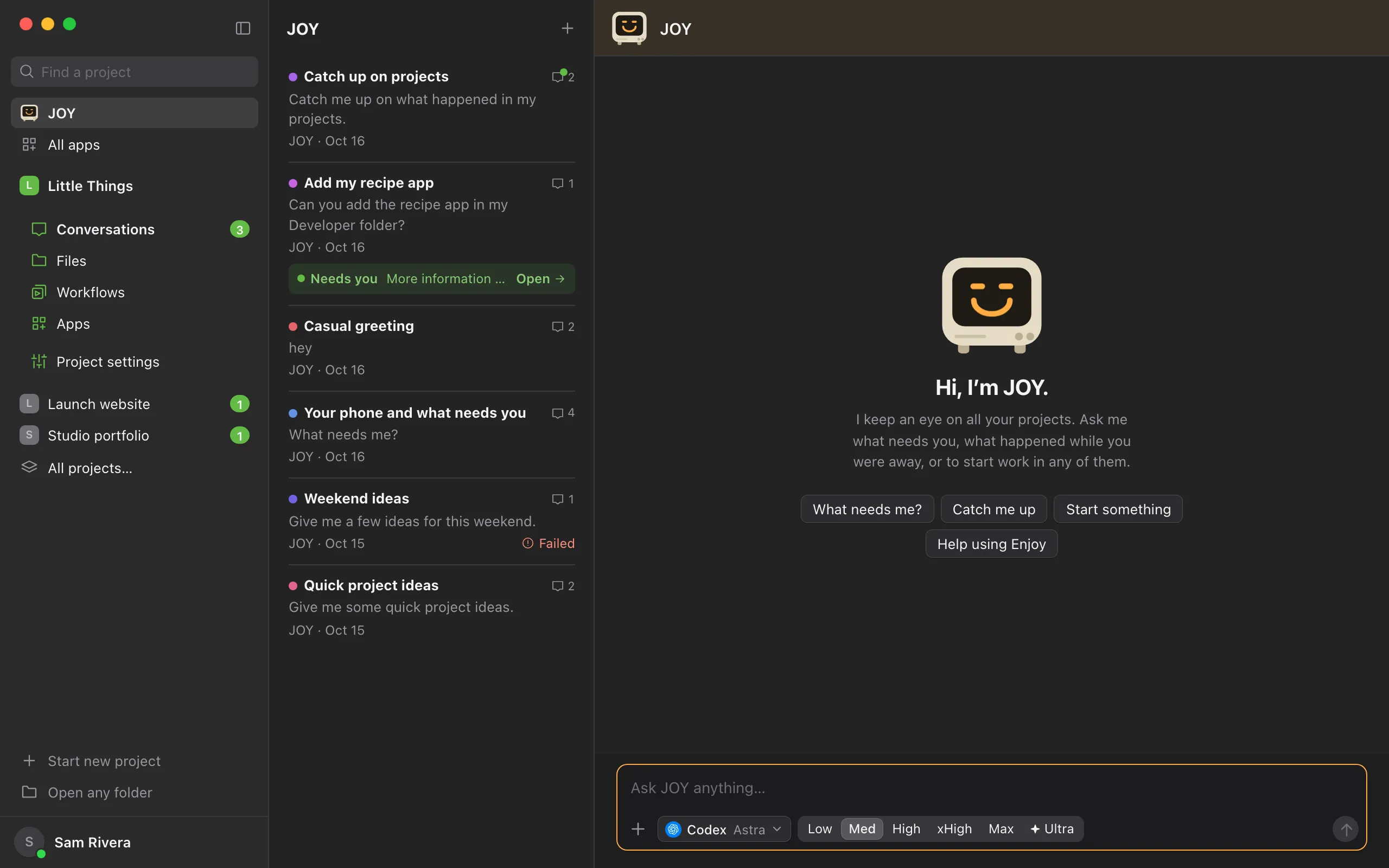
Select JOY at the top of the sidebar, the row with the little terminal. Its place opens beside the sidebar: your conversations with it in the list, and a new chat with it in the main pane. Before you have any projects, Enjoy opens to it, with ways to begin such as Find my projects and Plan something new.
Ask it something
Type in the box that says Ask JOY anything…, or select What needs me?, Catch me up, Start something, or Help using Enjoy to start a message, then send it. Three dots show beside its terminal while it thinks; to stop it, select the square at the end of their bubble.
Go where you’re needed
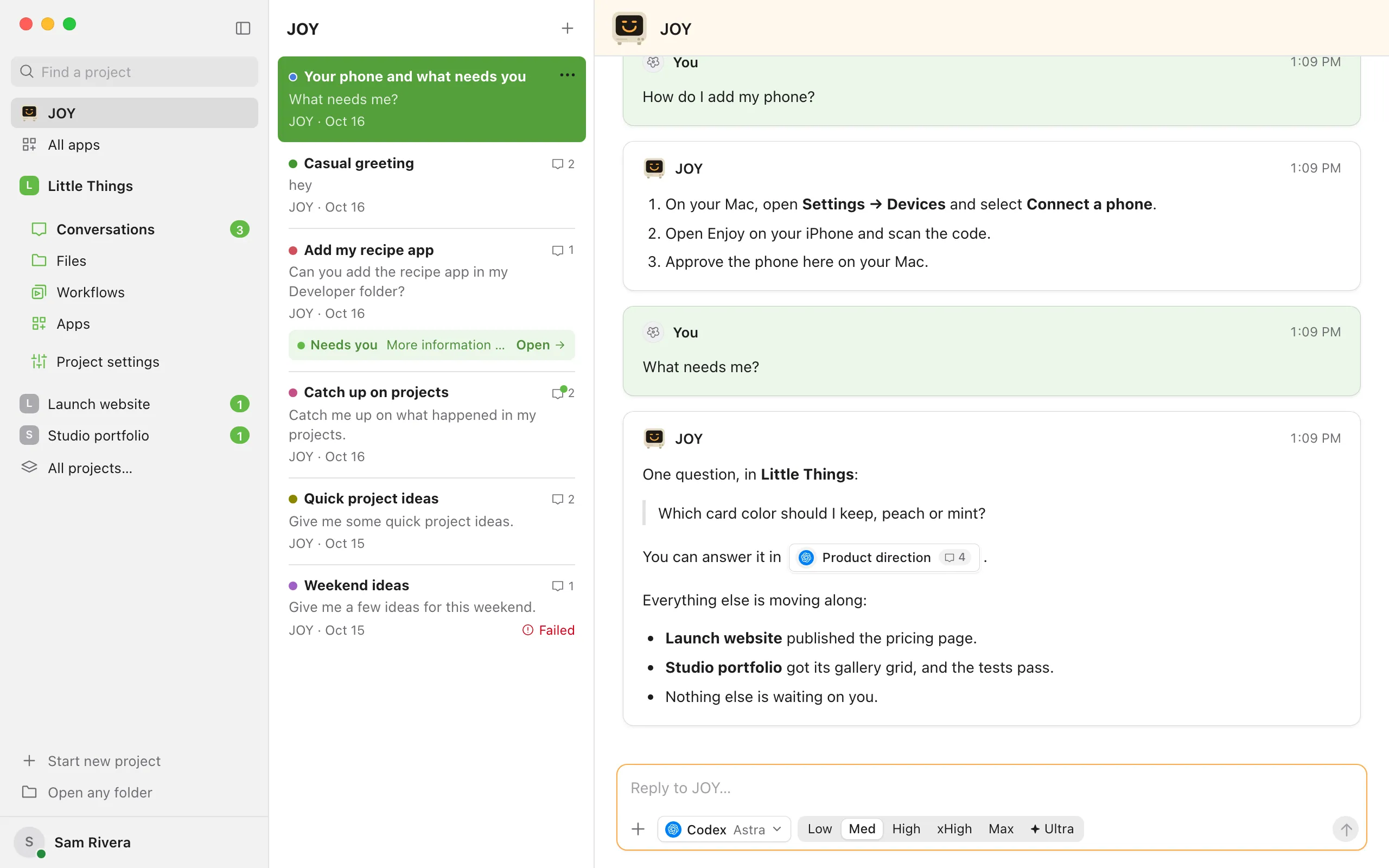
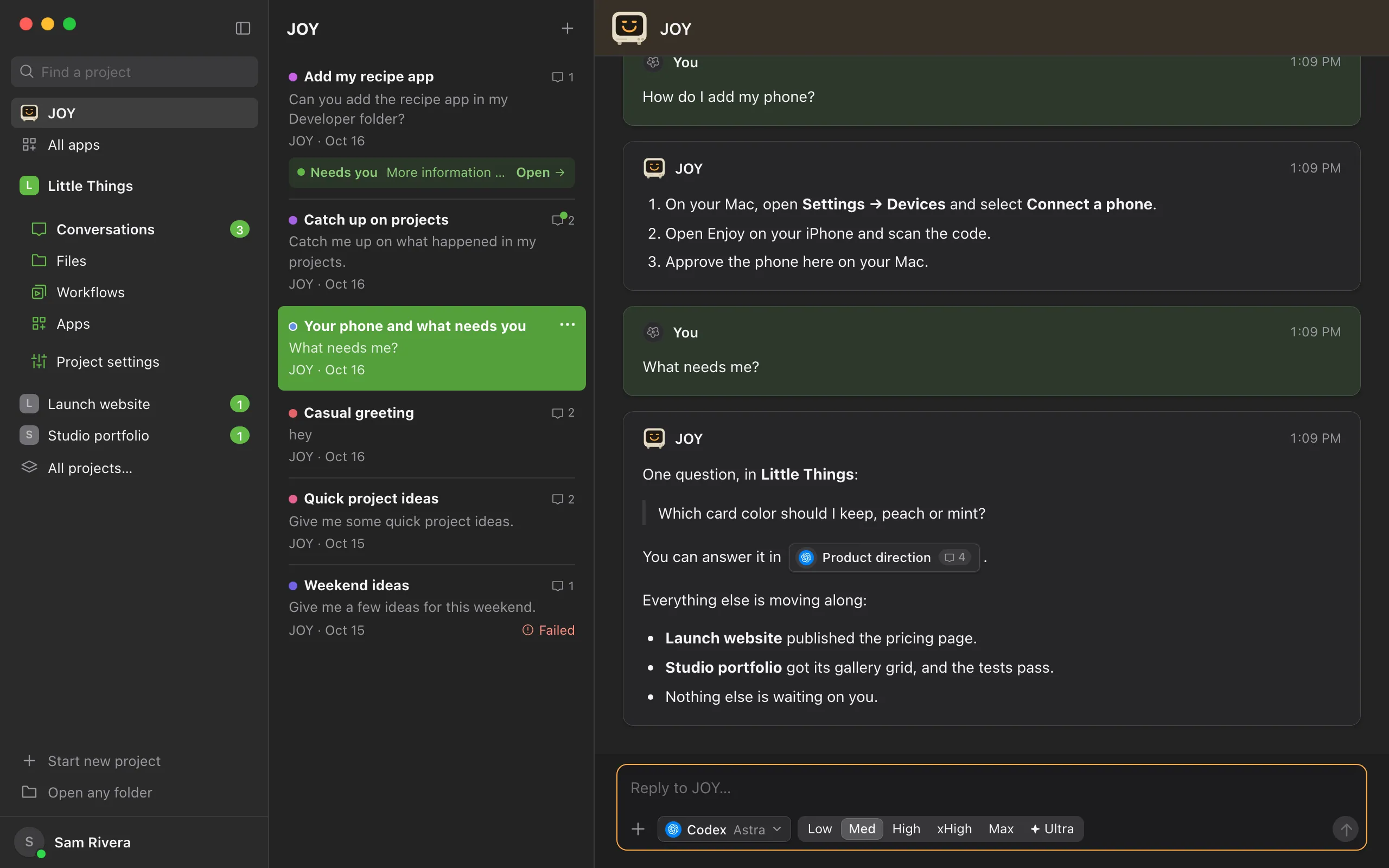
JOY tells you which conversations are waiting on your answer or approval, quotes their questions, and links to each. Select a link to go there. To come back, select JOY in the sidebar again.
Hand it work
Tell JOY what you want done, and in which project. It starts a conversation there and links to it. Ask it later how it’s going, and it reads the conversation for you.
Find and add projects
Ask JOY to find the projects already on your computer. Enjoy shows you each folder it suggests and asks before adding it; select Add project.
Go back to an earlier conversation
Your conversations with JOY are listed beside its chat, newest first, like a project’s conversations: each shows its label, its first message, and the agent and date. Select one to open it. A dot on the message count means new replies, Needs you shows a question waiting on you, Thinking means JOY is still working on it, and Failed means it didn’t finish. Select + at the top of the list to start a new one.
Good to know
- Ask JOY to tidy up, such as Mark anything that’s finished completed, and it reads your conversations, marks the finished ones completed, and lists them with links. It leaves anything still working or waiting on you, unless you name it. Ask it to reopen one, and it does. See Mark a conversation as completed.
- To make JOY’s list wider or narrower, drag its edge. Double-click the edge to go back to the default width. Enjoy remembers the width you choose.
- To show JOY a screenshot or another file, drag it anywhere onto JOY’s chat or list, or paste it into its message box, as in any conversation. See Attach files and images.
- JOY speaks with every reply, even when you’ve chosen Chimes for other agents. To silence it, turn off the sound for Agent sends a message. See Choose sounds and notifications.
- A dot on JOY’s row in the sidebar means it replied, or is still working, while its place was closed.
- The terminal’s screen shows three blinking blocks while JOY thinks, and a moving line while it speaks.
- To delete a conversation with JOY, point to it in the list and select the ⋯ button that takes the place of its message count, or right-click it, then choose Delete conversation. It’s deleted right away, without a confirmation. Deleting the one you had open starts a new conversation.
- Select the terminal, at the top of JOY’s chat or the big one in a new conversation, and JOY says a line, unless you’ve turned off the sound for Agent sends a message.
- To leave JOY’s place, select JOY again, or go to any project in the sidebar. Your conversation is still there when you come back.
- Replies in your projects’ conversations come from JOY too, with the agent that did the work, its model and effort under each one. See What’s in an agent’s reply.
- JOY reads your projects’ conversations but never answers their questions or approvals for you, and doesn’t change files itself. It marks conversations completed and adds or creates projects only when you ask, and hands real work to a conversation in the project.
- Your conversations with JOY stay on this computer. They aren’t shown in the web app or on your phone.