Keep docs in folders
Folders keep Your docs in order, like the folders on your computer. Each folder has a color and an icon, and folders can hold other folders.
Steps
Make a folder
On Files home, select New folder at the end of Your docs. You can also point to Your docs in the explorer on the left and select the folder button at its end. Type a name and press Return.
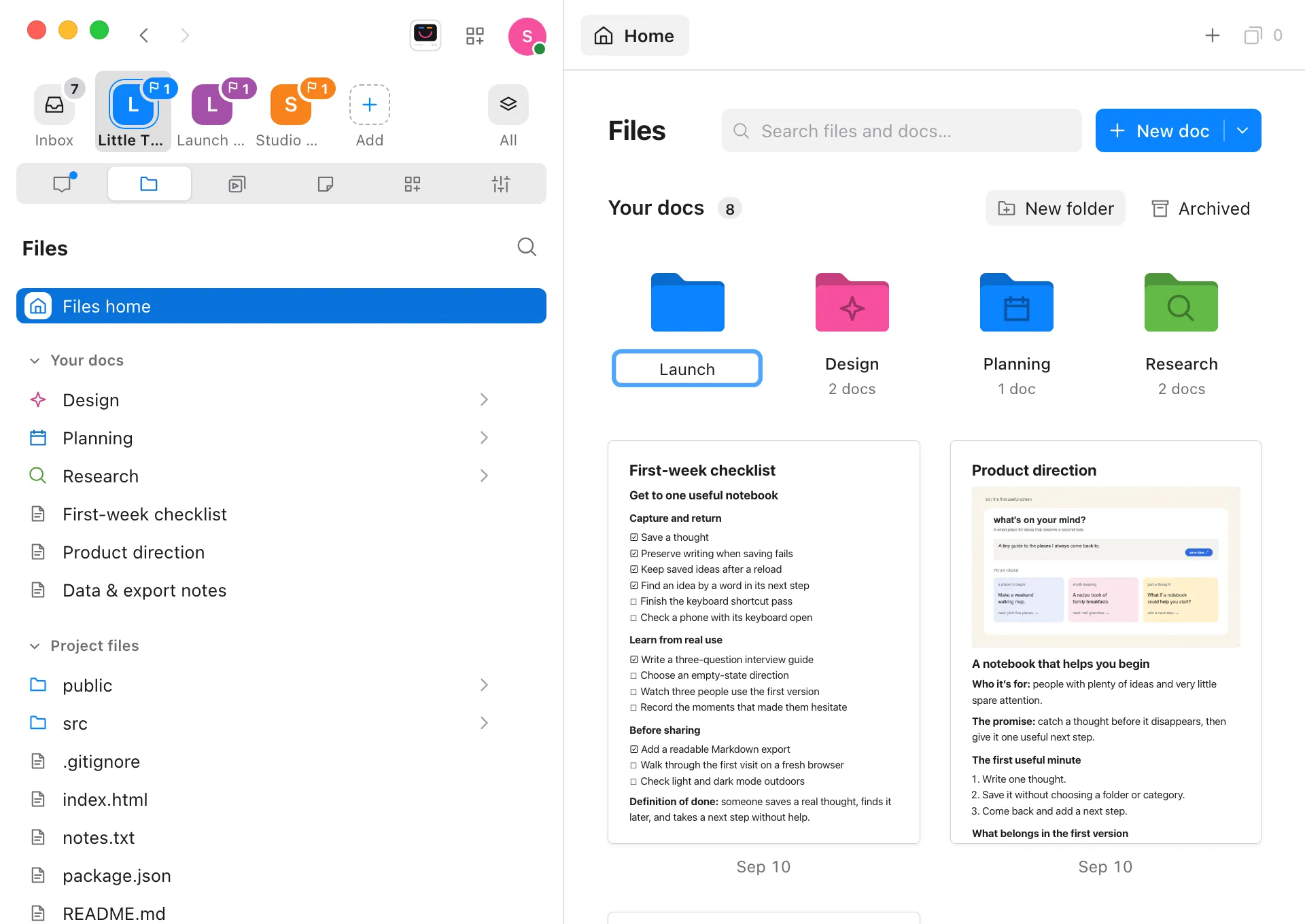
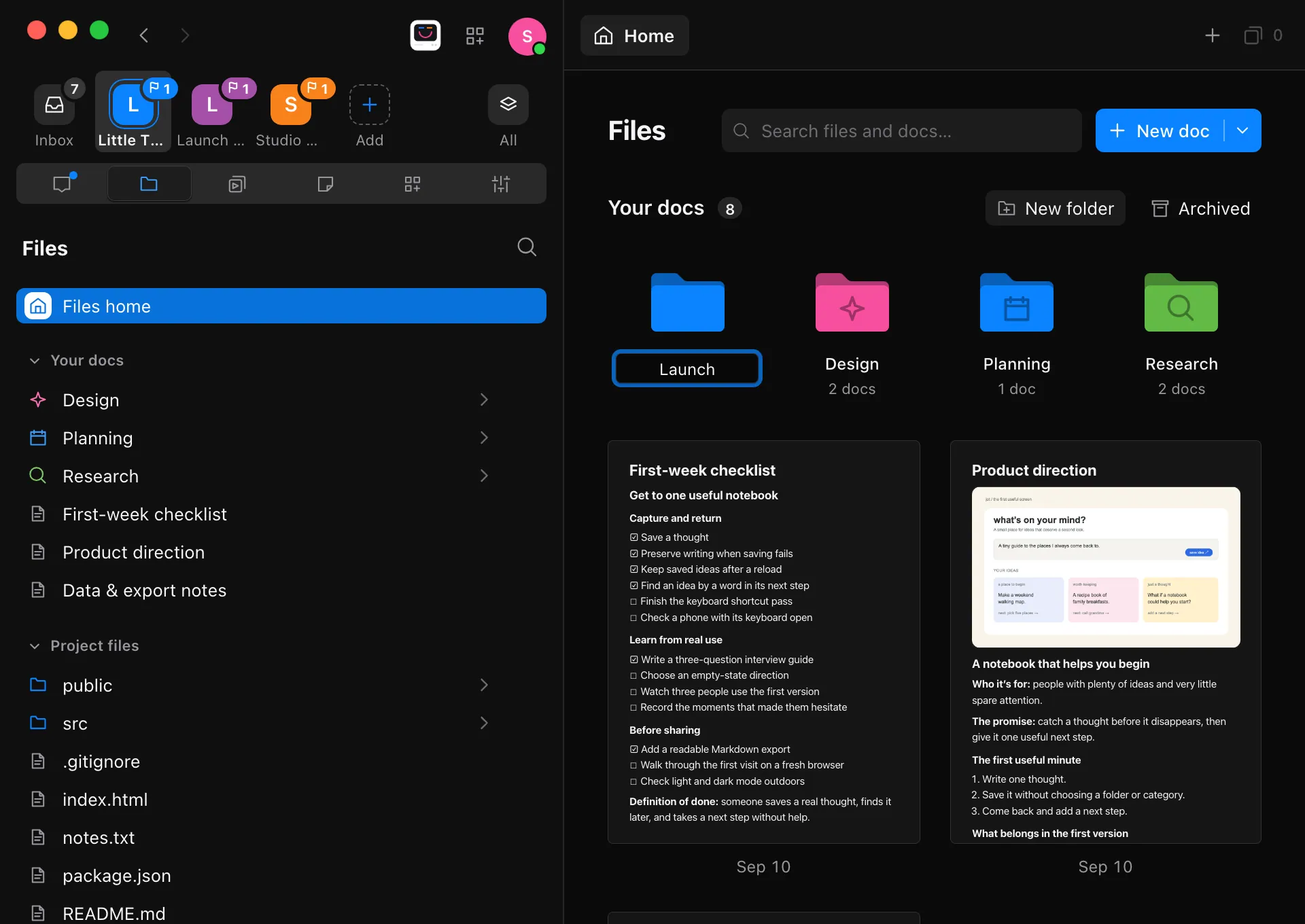
Move docs into it
Drag a doc onto the folder, in the explorer or on Files home. Or open the doc’s … menu, choose Move to, and pick the folder.
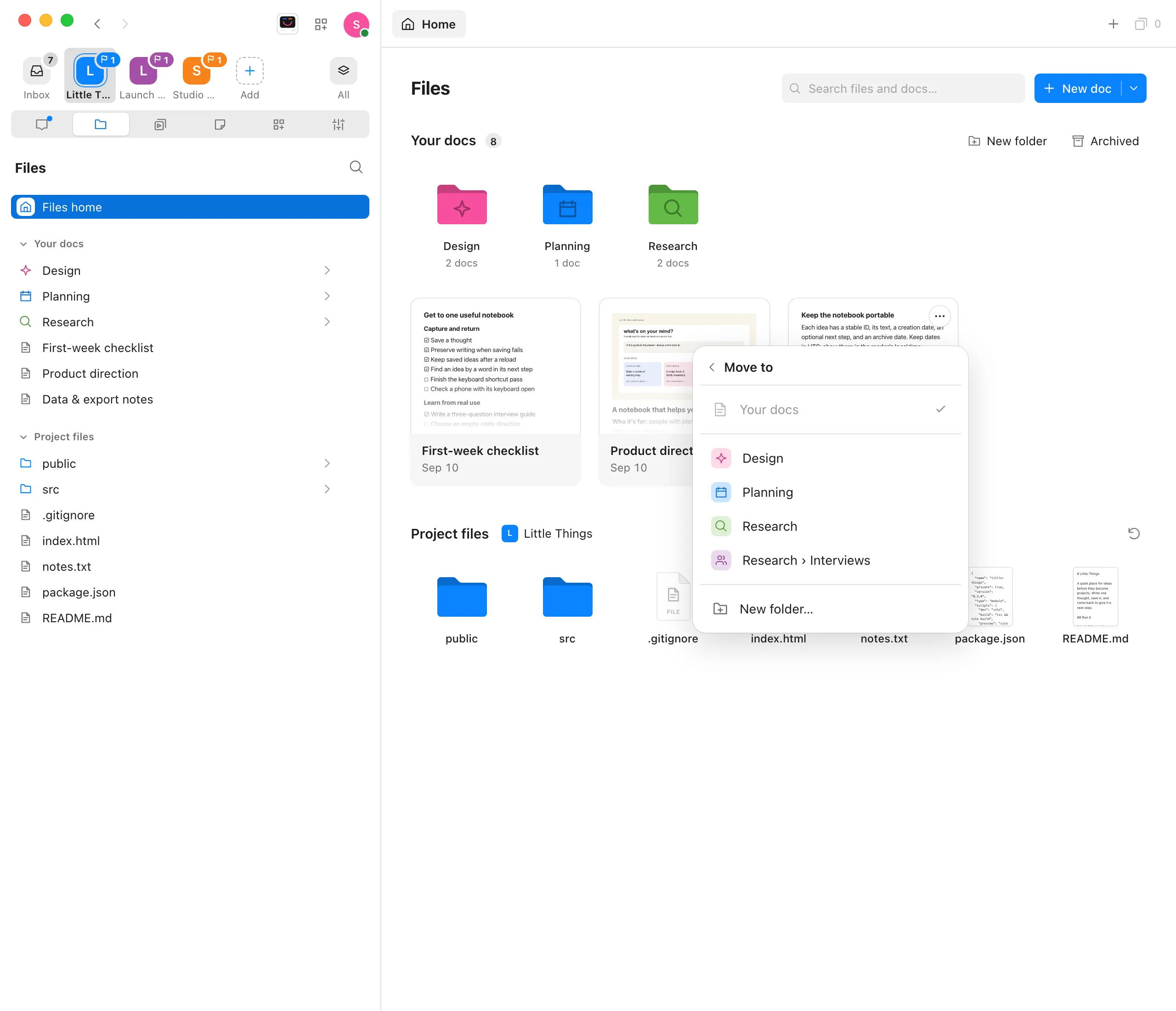
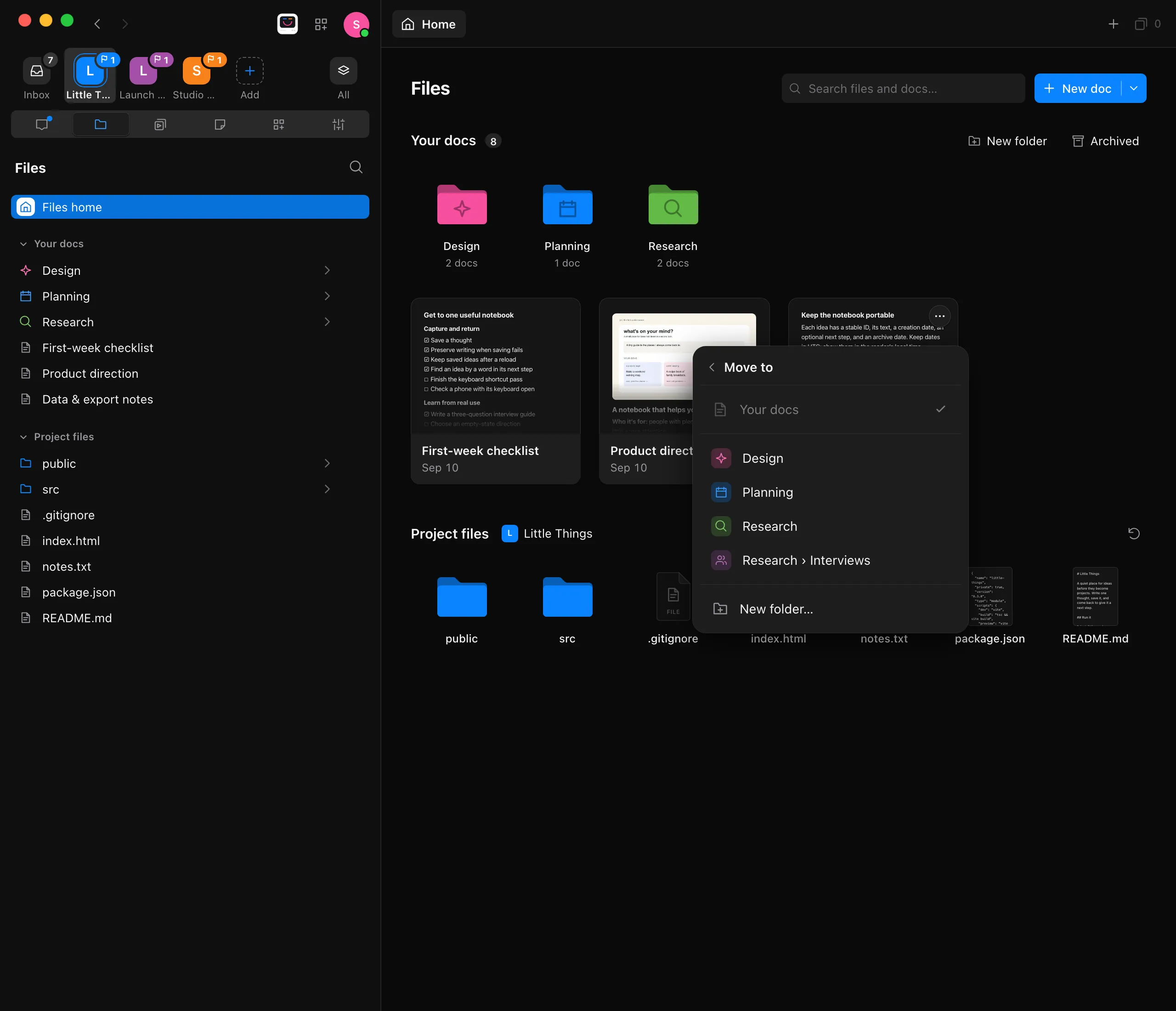
Open the folder
Select it on Files home or in the explorer. Files home shows the folders inside it, then its docs. The path after Your docs shows where you are; select any part of it to go back up.
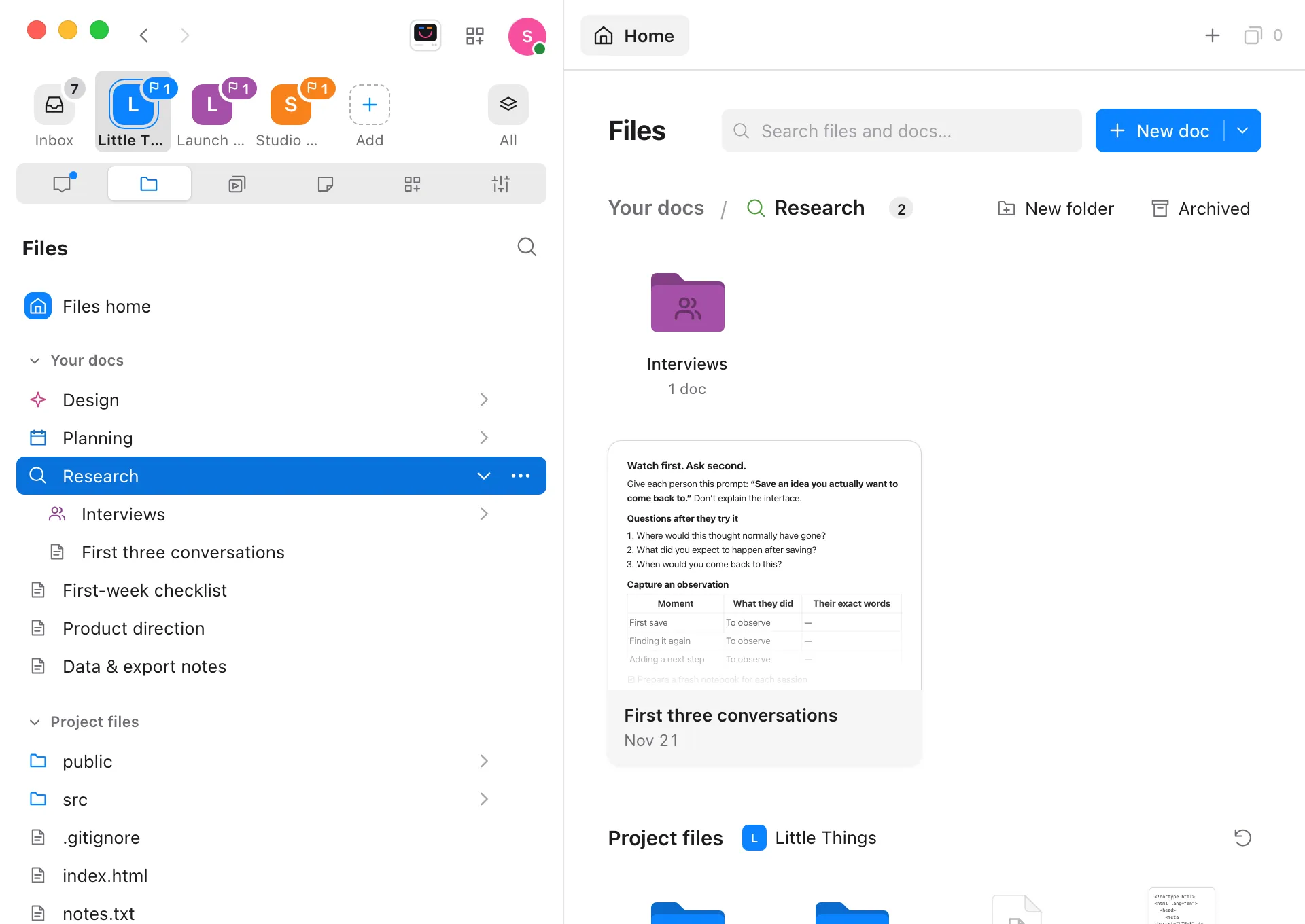
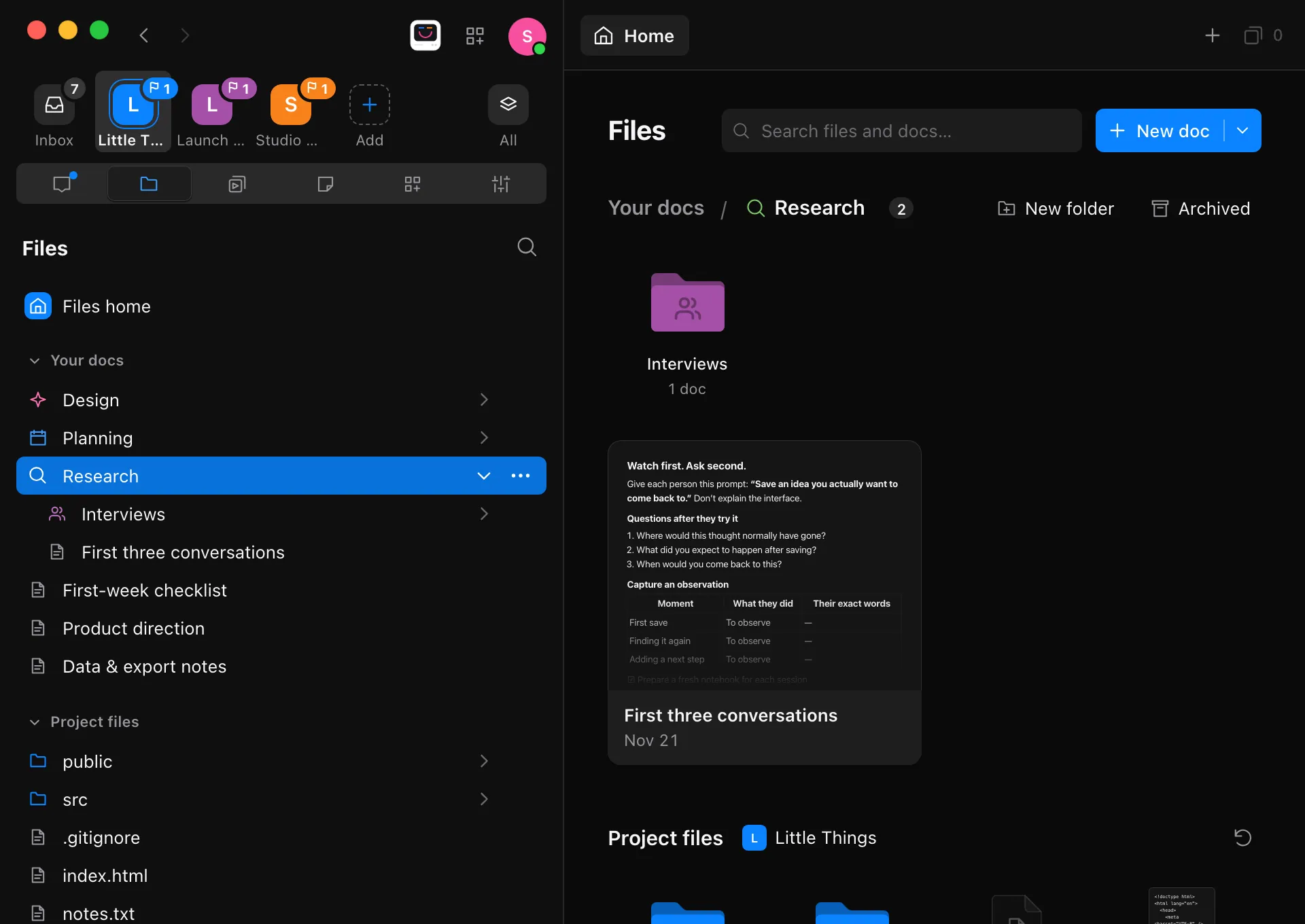
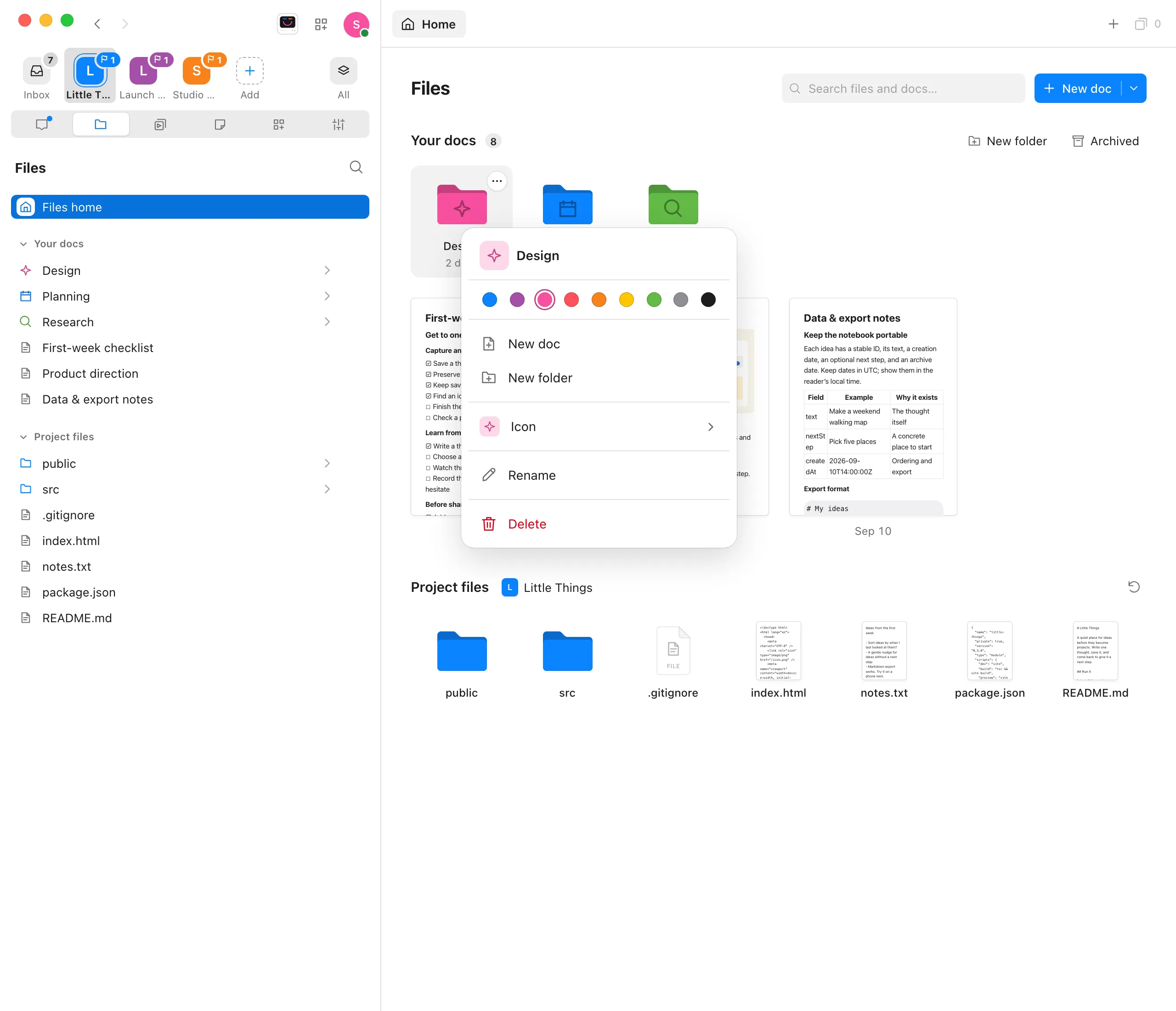
Give it a color and an icon
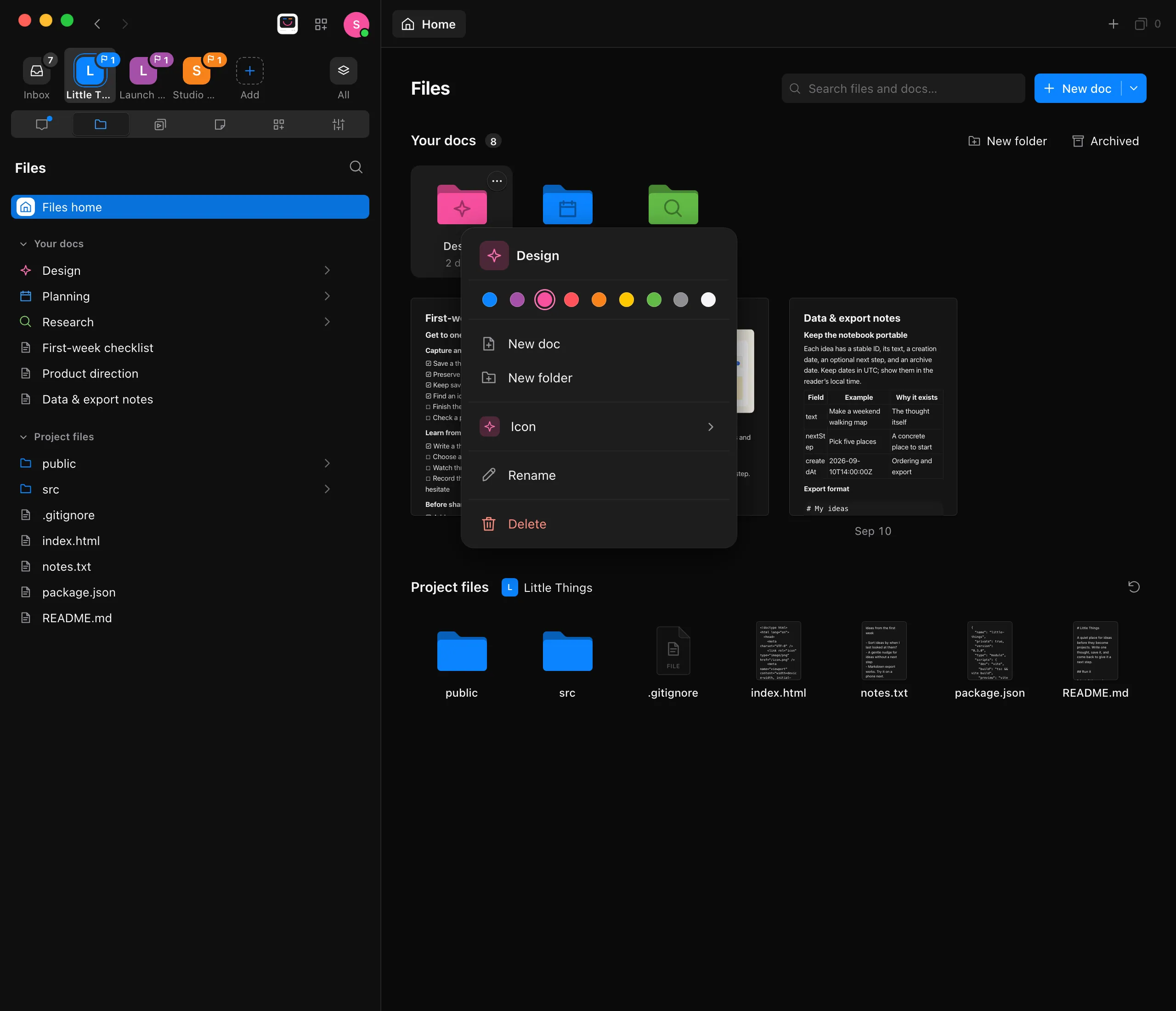
Right-click the folder, or point to it and select …. Pick a color from the dots at the top. Choose Icon to pick an icon.
Rename or delete it
Choose Rename or Delete from the same menu. Deleting asks first.
Good to know
- New doc makes a new doc in the folder that’s open. A folder’s menu also has New doc and New folder.
- A new folder gets a color its neighbors don’t have yet. A folder inside another takes its parent’s color until you give it one of its own.
- Folders are real folders inside your project’s docs folder, so you’ll find
Research/Plan.mdthere in Finder or File Explorer. If you, or an agent, make a folder there, Files shows it too. - Renaming a folder takes everything in it along. Docs you have open from it stay open.
- Deleting a folder permanently removes it and everything in it: its docs, their versions, and the folders inside it.
- Searching Files and the Archived list show matching docs from every folder.
- Agents can keep docs in folders too. Ask, for example, “Save the interview notes in Research/Interviews.”
- If you use project sync, folders, their colors and icons, and moves travel to your other computer.
- On your iPhone, folders work the same way in the Files tab: touch and hold a folder for its color, icon and the rest, and a doc for Move to. See Use Files on your iPhone.
If something goes wrong
“There’s already a folder named … here.”
Two folders in one folder can’t share a name, even if only the capital letters differ. Type a different name.
“A folder’s name can’t have /, \ or : in it.”
Take those characters out. A name also can’t start with a period or end with a period or a space.
“Save the docs open from this folder before deleting it.”
A doc you have open from the folder has changes that couldn’t be saved. Save it, or close it, and try again.
There’s no New folder, and no Move to
The computer your project is on needs an update to keep docs in folders. Until then, Files lists every doc together.