Make, rename, and delete folders
Steps
Open the folder’s menu
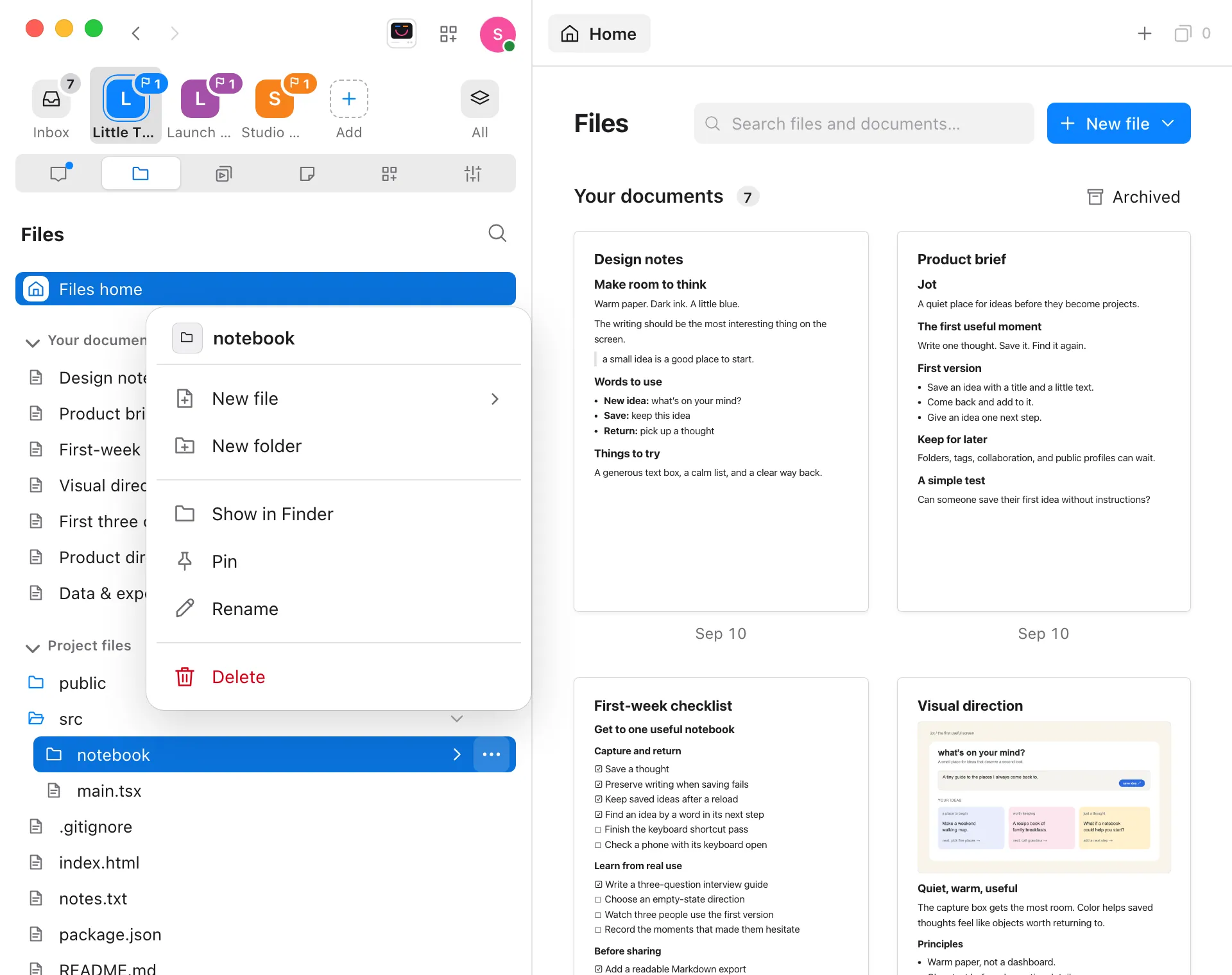
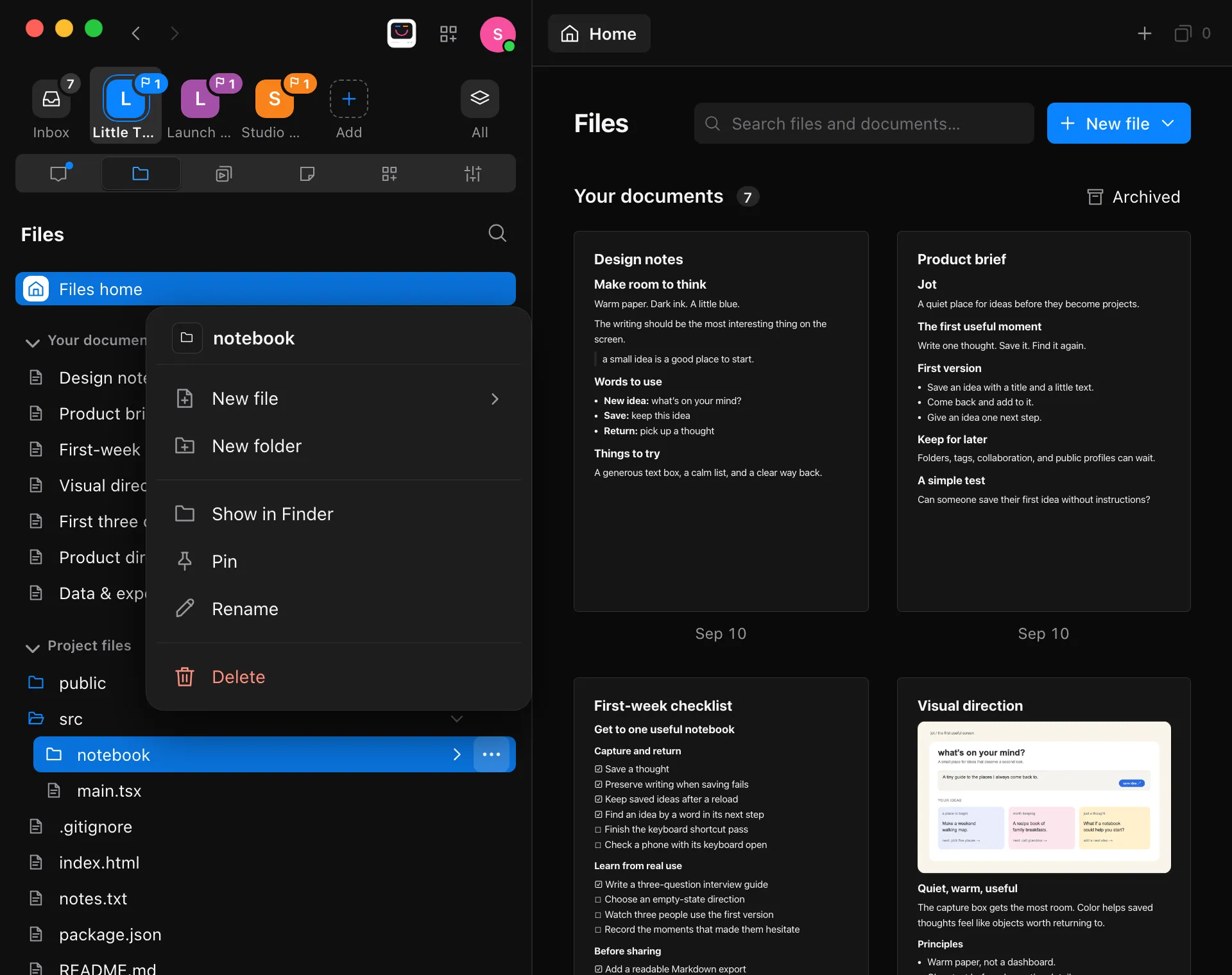
In Files, right-click a folder in the explorer on the left or on Files home. You can also point to it and select the … button, or select it and press Shift-F10.
Choose what to do
New file and New folder make something inside the folder. Show in Finder, Pin, Rename, and Delete act on the folder itself. On Windows, Show in Finder reads Show in File Explorer.
Type the name where it goes
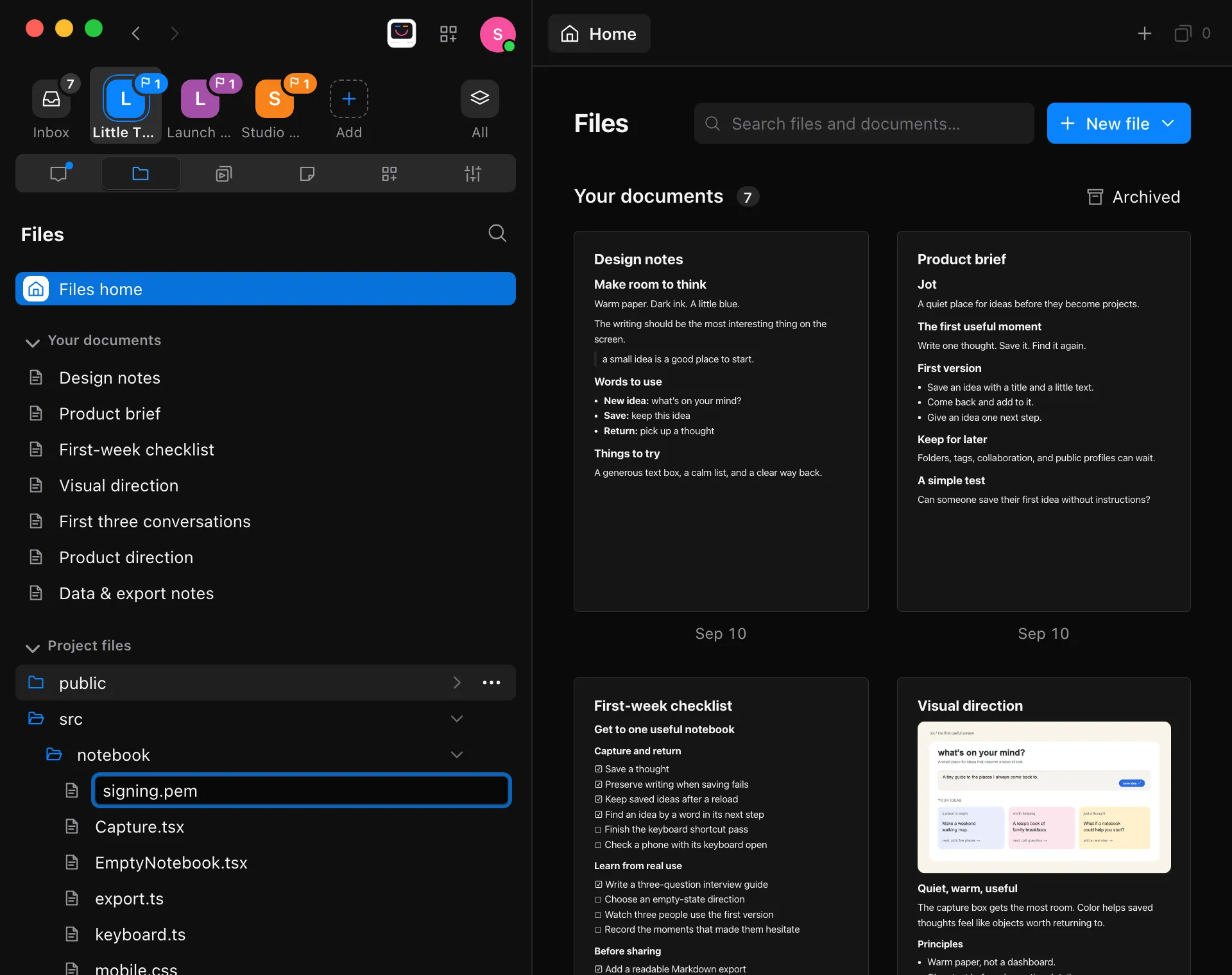
For New file, choose a type first: Markdown file, JSON, Plain text, or Other file. The folder opens with a name field at the top of it. A new file’s name starts as
Untitledwith the type’s ending, such asUntitled.json, or empty for Other file. For Rename, the folder’s own name becomes the field.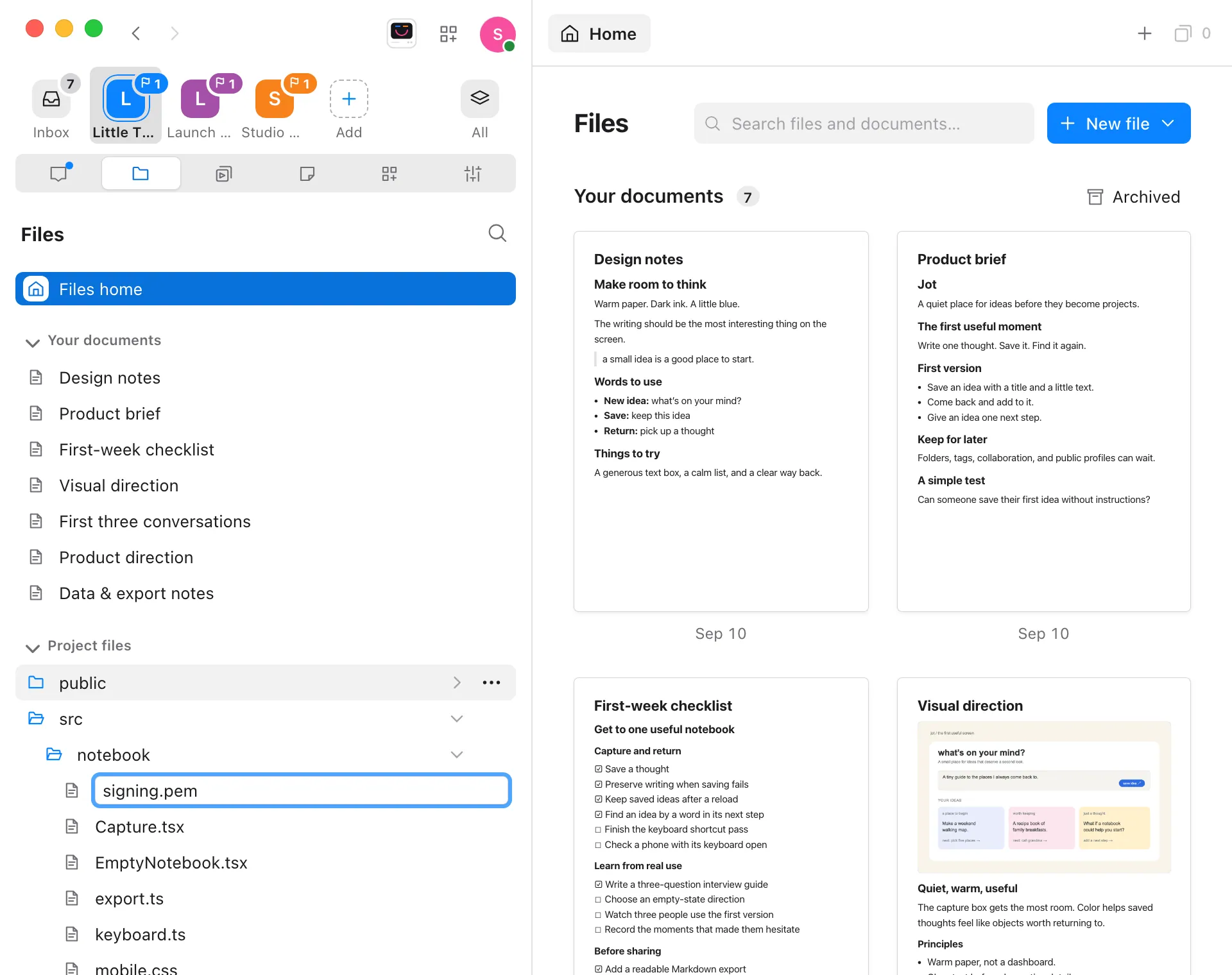
Press Return
Enjoy makes the file or folder, or renames the folder. A new file opens in a tab, ready for you to type. Press Escape to stop without changing anything.
Good to know
- To make a folder where there’s no folder to right-click, such as at the top of your project, select New file on Files home and choose Folder. It’s made in the folder you’re browsing.
- Selecting somewhere else also finishes the name. Leaving it empty, or as it was, changes nothing.
- Names follow the same rules as file names: they can’t include
\ / < > : " | ? *, and they can be up to 180 characters long. Enjoy never replaces anything that already has the name. - Renaming a folder takes everything in it along. Files you have open from it stay open under the new name, and pins of the folder or the files in it follow it. Unsaved changes in those files are saved first.
- Deleting asks first, then removes the folder and everything in it permanently. It isn’t moved to the Trash or Recycle Bin. If you saved your changes before deleting, an agent can bring back the saved versions. See Undo changes an agent made.
- A pinned folder shows under Pinned files in the explorer, wherever Files is open. Select it to open it on Files home. See Pin documents to keep them at hand.
- In the web app, or when you use another computer’s project, there’s no Show in Finder. Everything else works the same, on the computer your project is on.
- In a project inside WSL, Enjoy makes, renames, and deletes folders in the Linux distribution.
- To make, rename, or delete folders on your phone, see Use Files on your iPhone.
If something goes wrong
“A file or folder with this name already exists.”
Something in the folder already has that name. On a Mac, names that differ only in capital letters count as the same. Type a different name and press Return again.
“Names can’t be . or .., or have / \ < > : “ | ? or * in them.”
Take those characters out of the name. To make a folder inside another, make the outer folder first, then use its menu.
“This folder holds the project’s conversations and settings, so Files can’t rename or delete it.”
The folder holds your project’s records, such as its .enjoy folder. Enjoy keeps it where it is so your conversations stay with the project.
“This folder has a Git repository in it, so Files can’t rename or delete it.”
Somewhere inside the folder there’s a Git repository, such as a worktree or a submodule. Files never changes Git’s own folders. Use Git, or ask an agent, to move or remove it.
“Save the files open from this folder before changing it.”
A file you have open from the folder has changes that couldn’t be saved. Save it, or close it, and try again.
New folder, Rename, and Delete are greyed out
You have view-only access to this project. The computer’s owner can change that. See Change what a teammate can access.