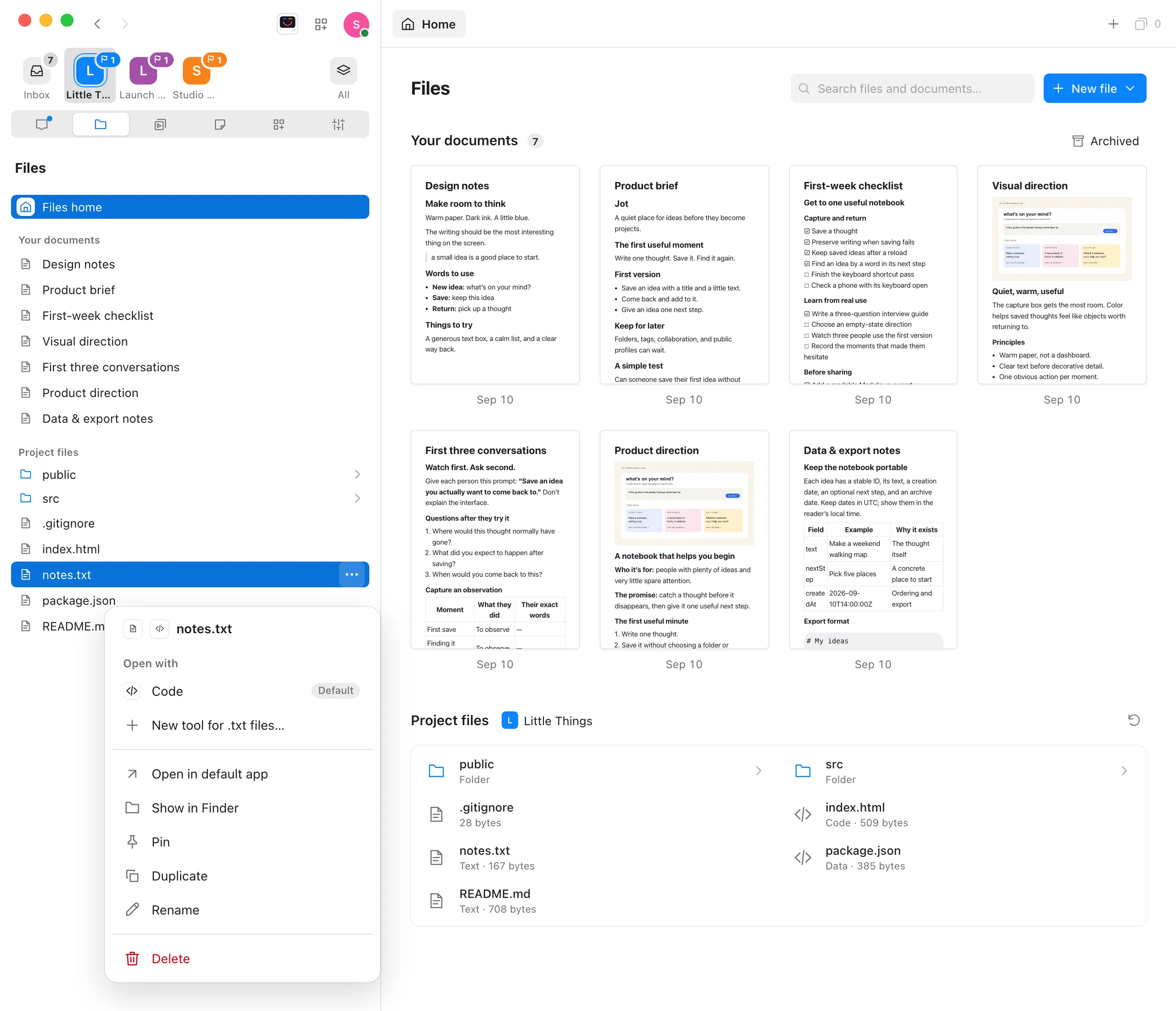
Duplicate a file or document
Steps
Good to know
- How copies are named. A copy of a project file goes in the same folder, with “copy” added before its ending:
notes.txtbecomesnotes copy.txt. If that name is taken, the next copy isnotes copy 2.txt, thennotes copy 3.txt, and so on. A copy never replaces another file. - A document’s copy is a new document with the same text, titled with “(copy)” after the original’s title, such as Launch plan (copy). Its version history starts fresh, and it isn’t pinned or archived, even if the original is.
- Any kind of file can be duplicated, including pictures, videos, and PDFs. The copy is exactly the same as the original.
- Unsaved edits are saved first, so the copy has what you see.
- To change the copy’s name, choose Rename from its menu. See Rename or delete a file or document.
- In a project inside WSL, Enjoy makes the copy in the Linux distribution. A copy of a script keeps its permission to run.
- On iPhone, open the file or document and choose Duplicate from its menu at the top. See Use Files on your iPhone.
- Duplicate is greyed out if you have view-only access. The computer’s owner can change that. See Change what a teammate can access.
If something goes wrong
“Save this file’s changes before duplicating it.”
The file has unsaved edits that couldn’t be saved, such as a conflict with another change. The document version says “Save this document’s changes before duplicating it.” Resolve that first, then duplicate again. See What happens when a file changes while you edit it.
“This action is unsupported or invalid.”
You’re using the web app or another device, and Enjoy on the project’s computer is from before Duplicate. Update and restart Enjoy on that computer, then refresh the app and try again. See Update Enjoy.