See and restore a document's versions
Enjoy keeps a document’s versions when an agent changes it: what the agent wrote, and what you had written just before. Restoring a version never loses anything, because what you had is kept too.
Before you start
- An agent has changed the document at least once. Your own typing doesn’t make versions, so a document no agent has changed has none yet.
Steps
Open the document
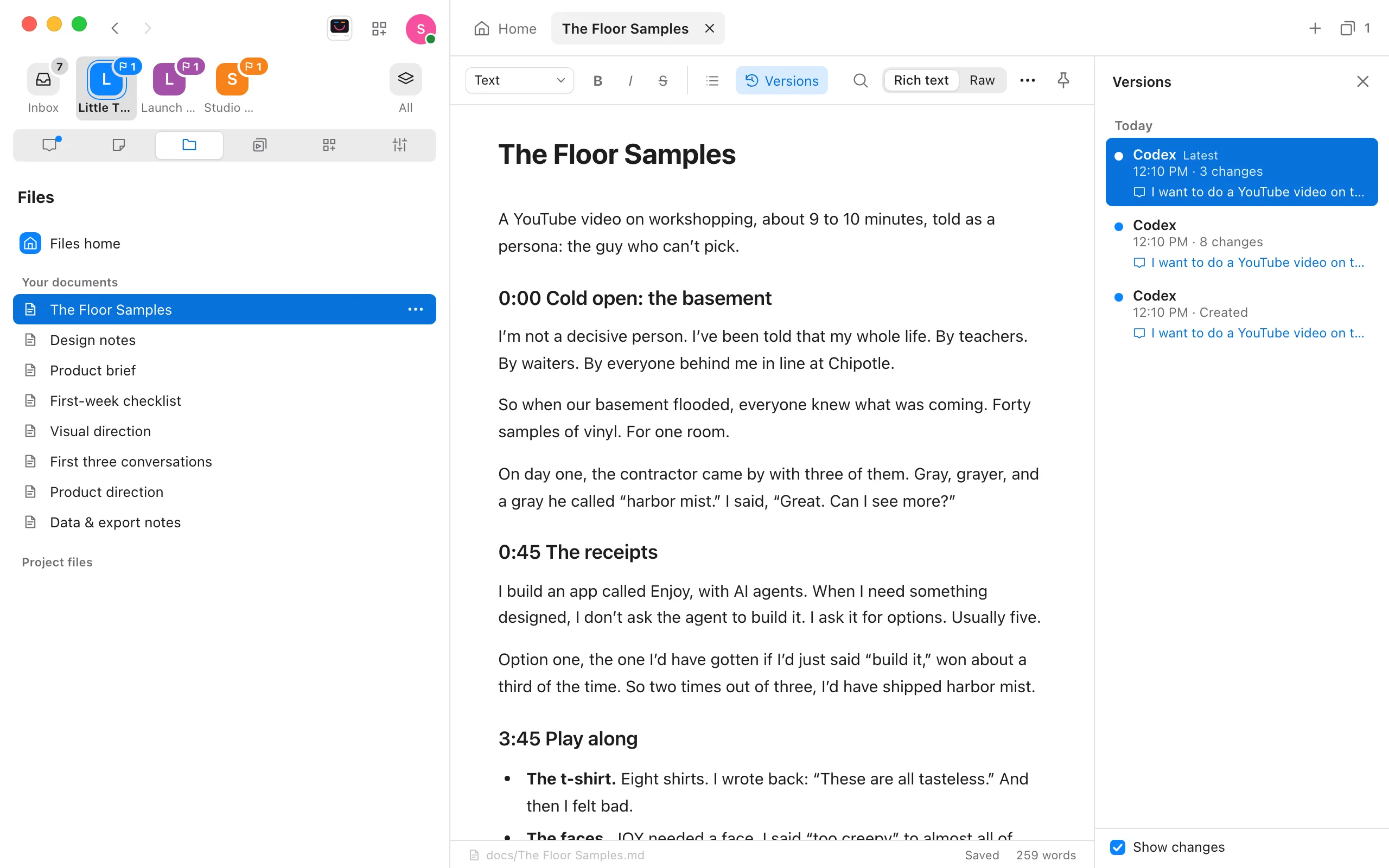
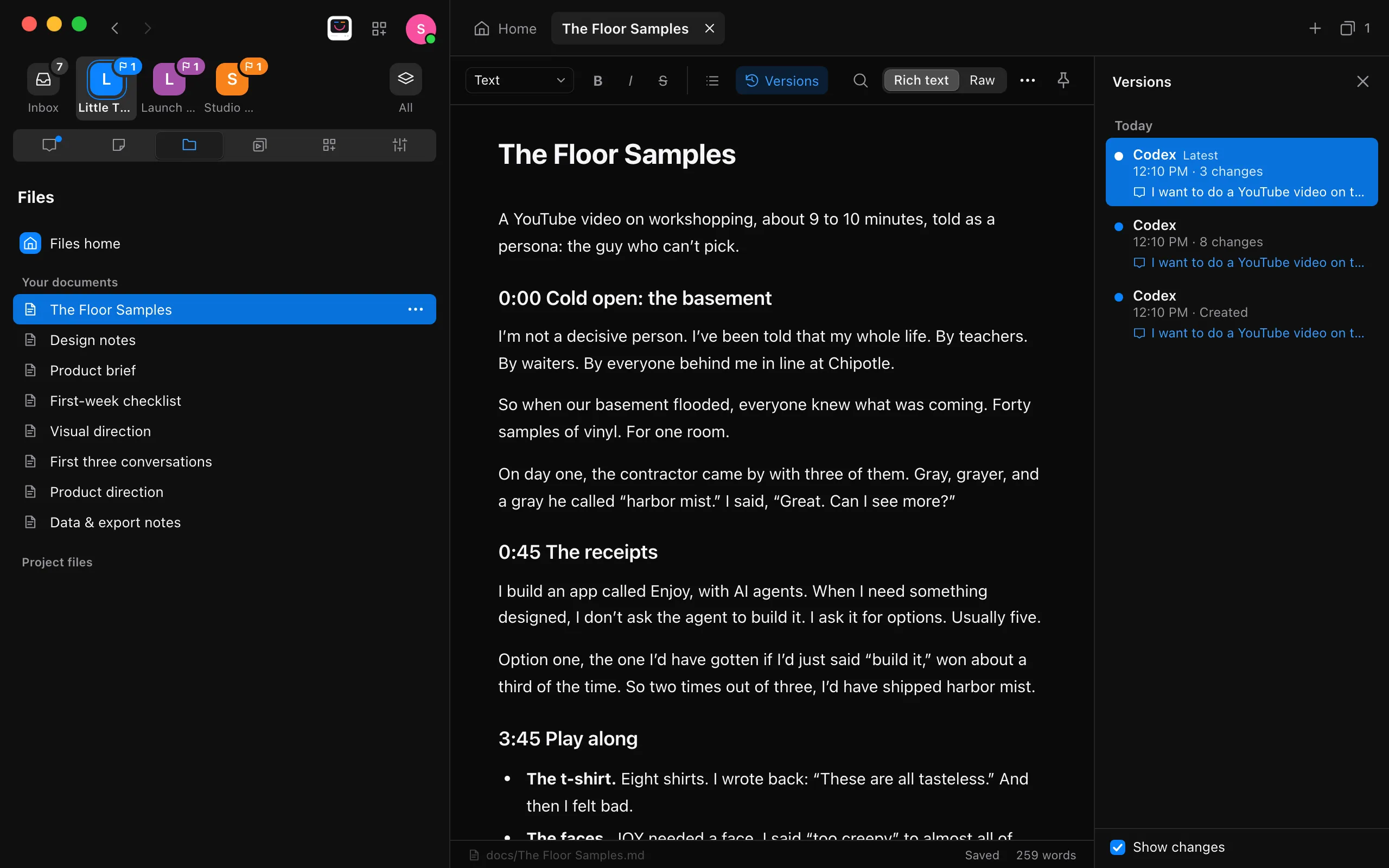
Select Files in your project’s tabs, then the document under Your documents. A document open beside a conversation works the same way.
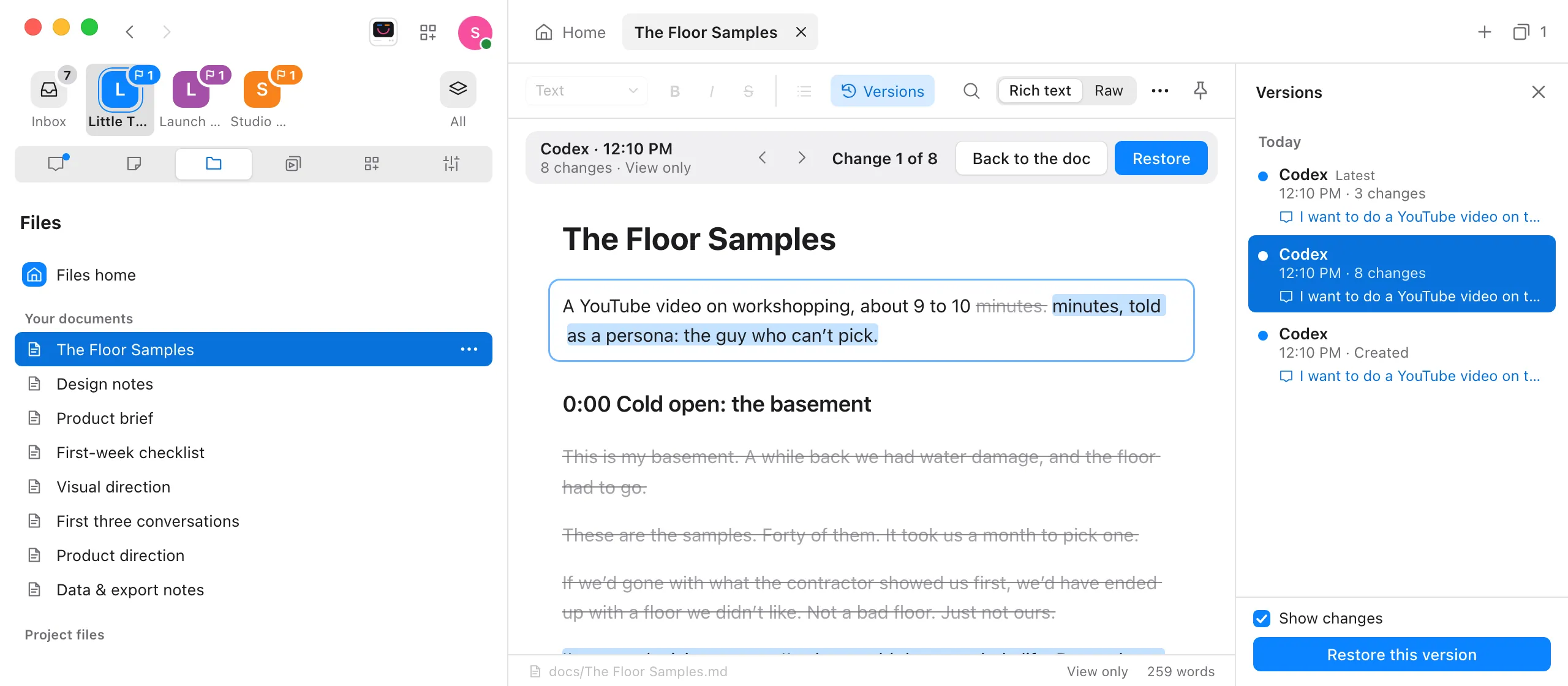
Select Versions
It’s in the toolbar at the top of the document. A column opens on the right with the document’s versions, newest first, by day. Each shows who made it (the agent’s name, You, or Restored), when, and how many changes it made. An agent’s version also names the conversation it came from; select the name to open the conversation. If you’ve edited the document since its newest version, Your edits comes first.
Choose a version
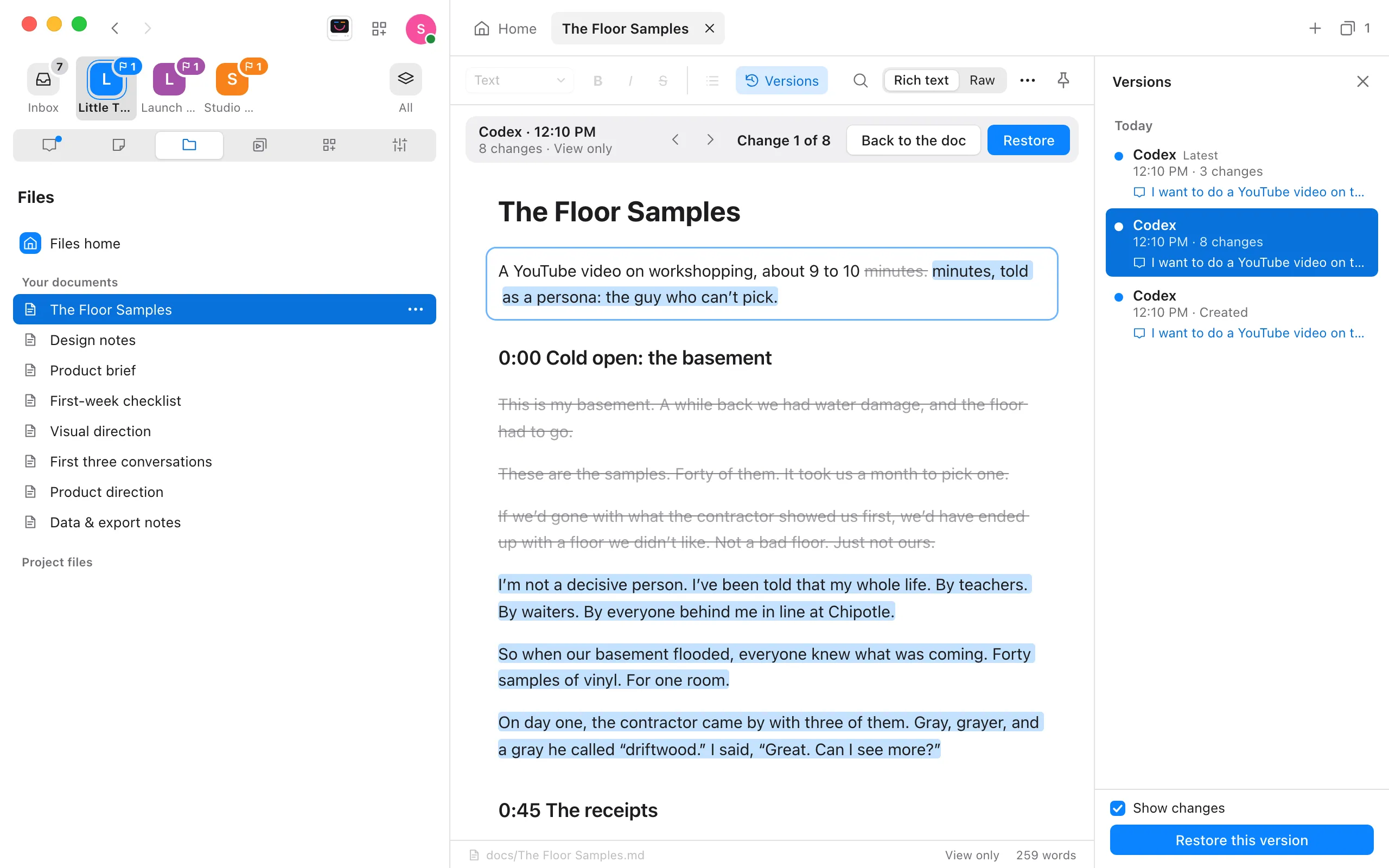
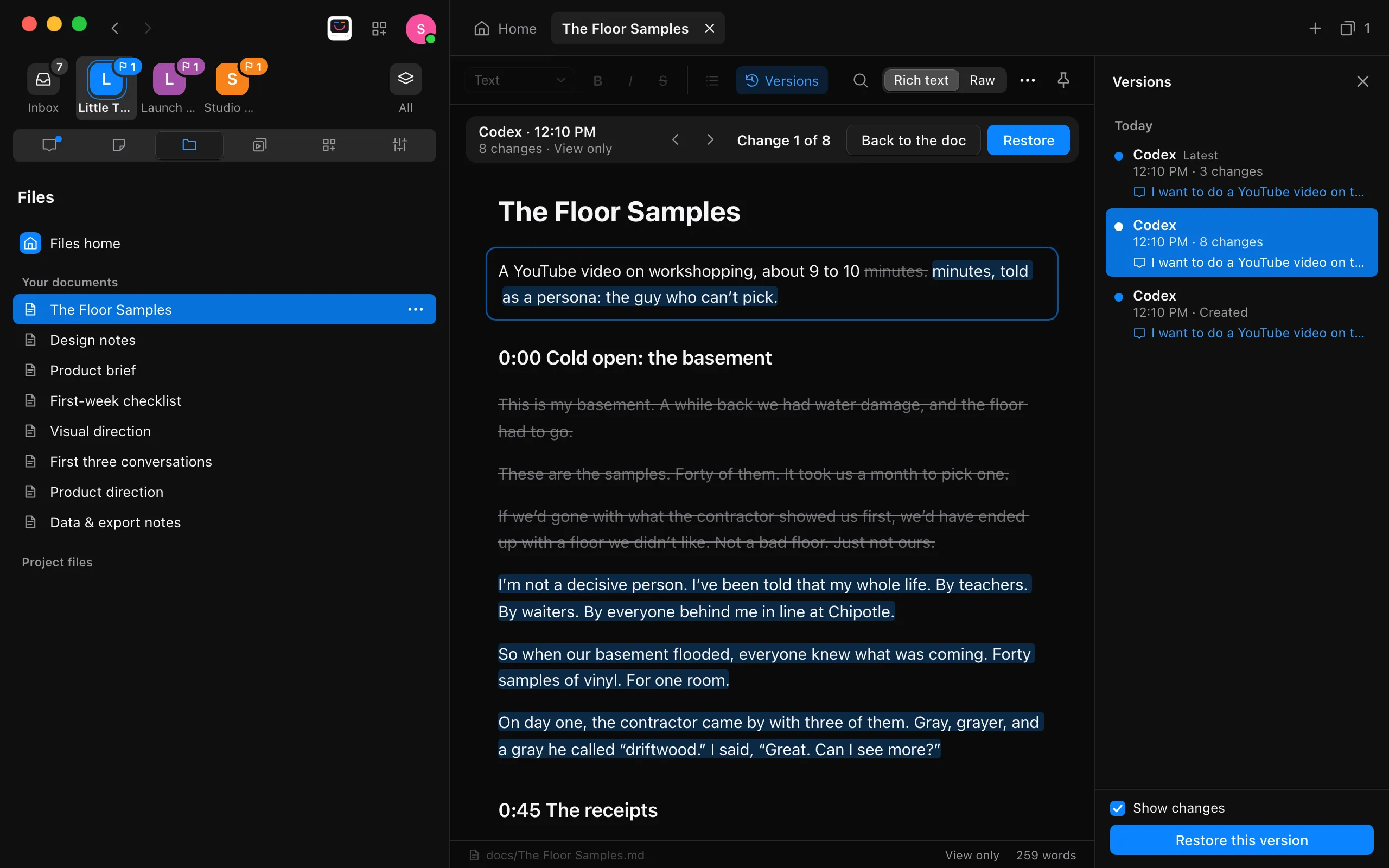
It shows in place of the editor, view only. While Show changes at the bottom of the column is on, what the version changed from the one before is marked, and the arrows at the top step through the changes. Select Back to the doc to return to the document as it is now.
Restore it
Select Restore above the version, or Restore this version at the bottom of the column. The version becomes the document’s newest, marked Restored. What the document said before stays in the list, so you can go back to it.
Good to know
- When versions are kept. Each time an agent writes or changes the document, Enjoy first keeps the document as you had it, unless that’s already its newest version, then what the agent wrote. Restoring keeps versions the same way. The document itself is always your latest.
- In the conversation. The change also shows under the agent’s reply. See See what an agent changed in a doc.
- Close the column with the X at its top, or select Versions again. It stays open or closed from document to document, as you last left it on this device.
- How many. A document keeps its 40 newest versions, and fewer when they’re very long. A very long document, more than about 200,000 characters, keeps none. Deleting a document deletes its versions.
- Your other computer. With project sync, versions go to your other computer along with the document, when both run a version of Enjoy that keeps them. An older Enjoy keeps syncing documents without their versions. See Keep a project synced across your computers.
- Web app and iPhone. The web app shows versions when the computer the project is on keeps them. The iPhone app doesn’t show versions yet.
- With view-only access to a project, you can see versions but not restore them.
If something goes wrong
Restoring says “Save your changes to this doc before restoring.”
Your latest edits haven’t saved yet, so Enjoy didn’t restore. Wait until the bar at the bottom of the document says Saved, or settle a conflict first (see What happens when a file changes while you edit it), then restore again.