See what an agent changed in a doc
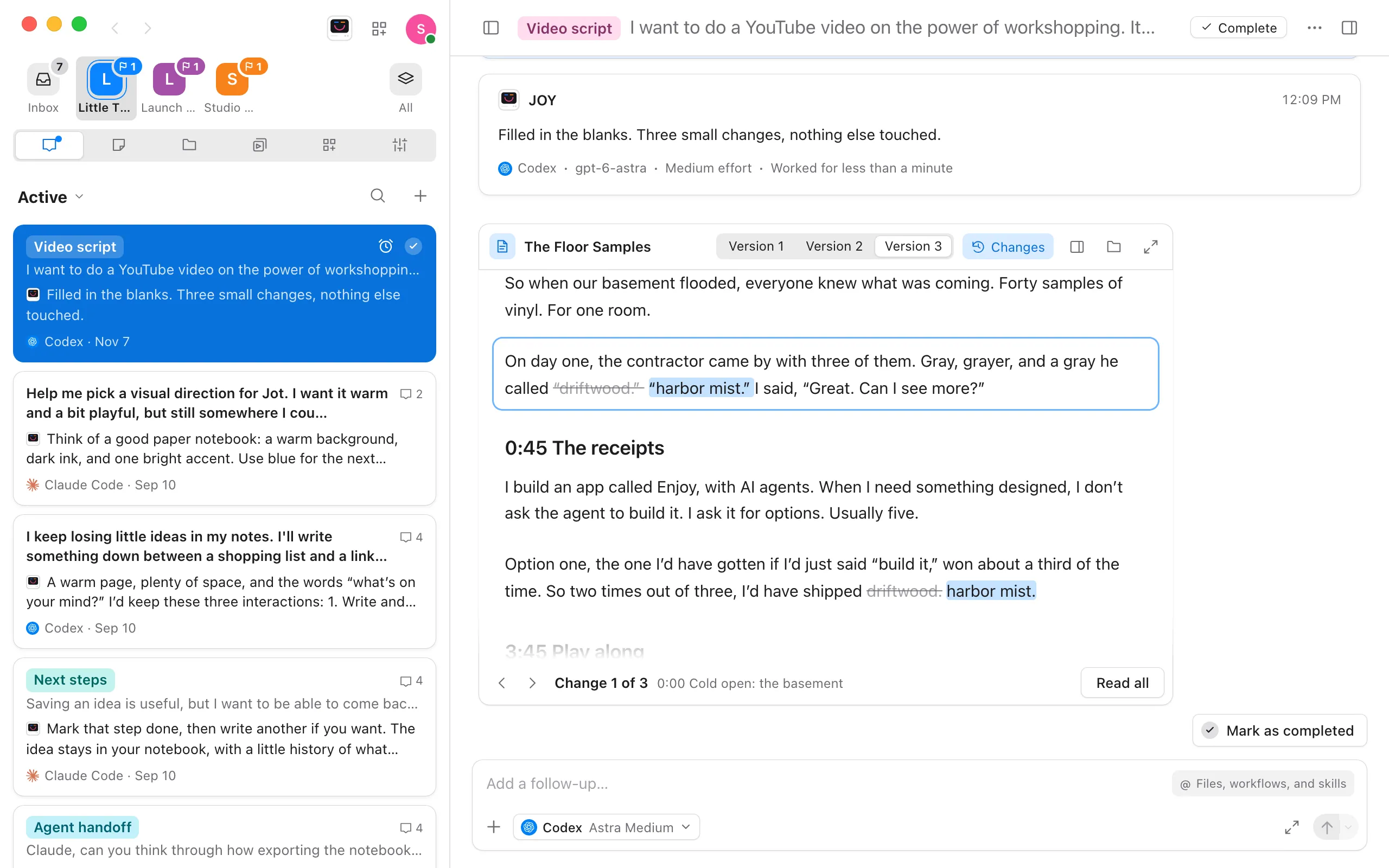
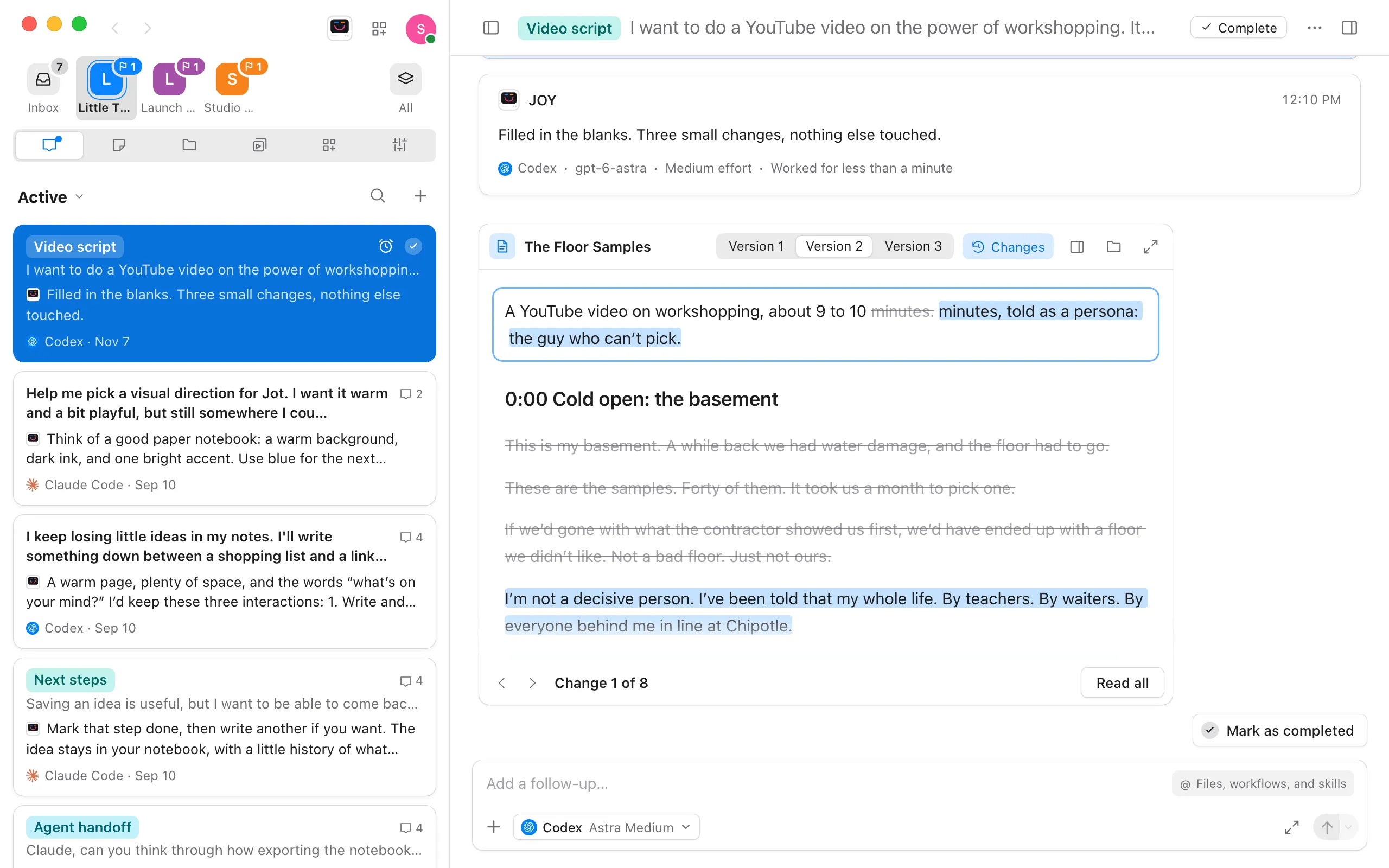
When an agent writes a doc in a conversation, or changes one, the doc shows as a card under its reply. You can see what it wrote and what’s different without leaving the conversation.
Before you start
- You’re using the computer app, on the computer the project is on. Doc cards don’t show in the web app or the iPhone app yet. The doc itself is in Files there.
- Ask for a doc, such as “Write the script for this video as a doc,” and then for changes, such as “Make the opening shorter.”
Steps
Read the change under the reply
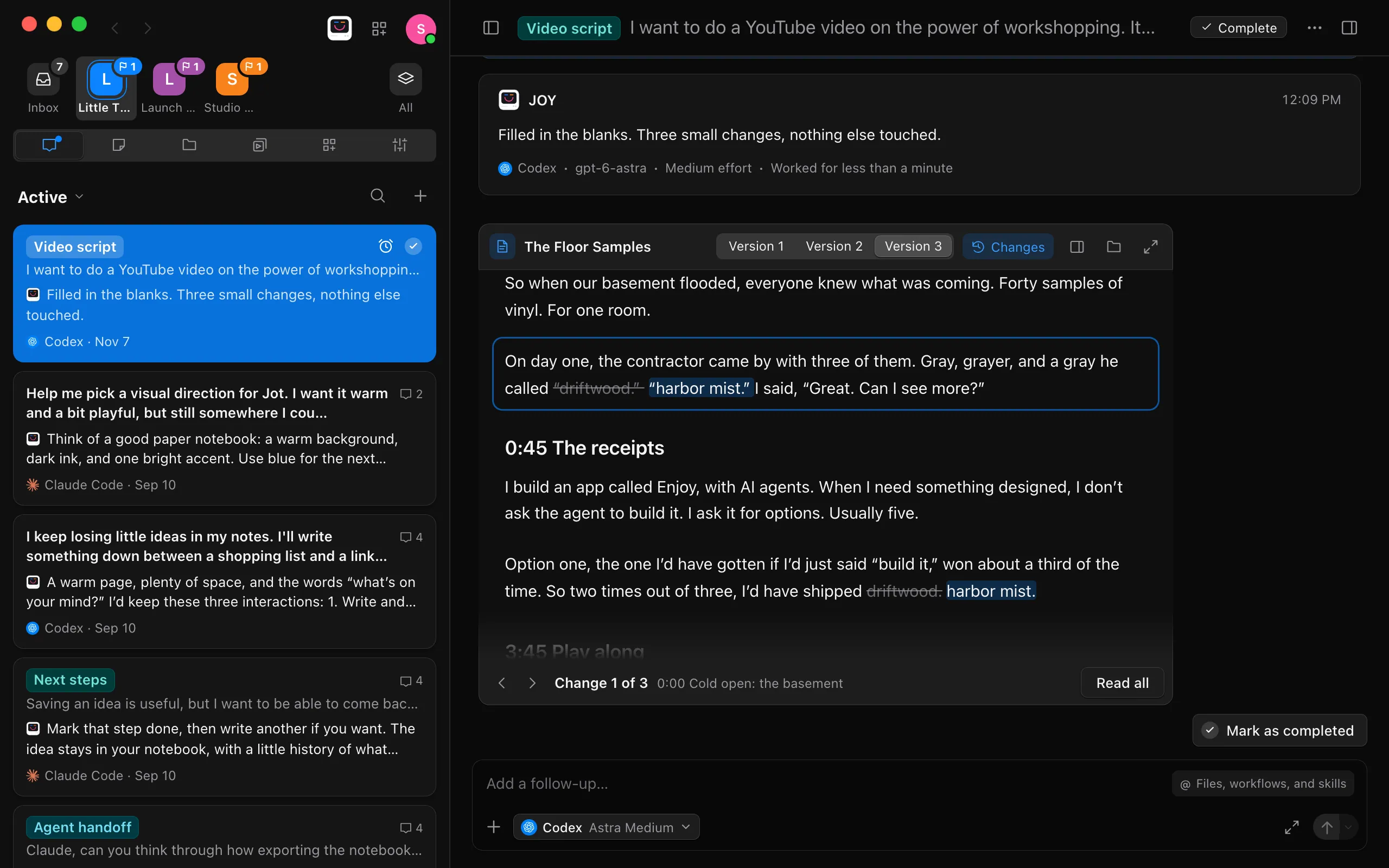
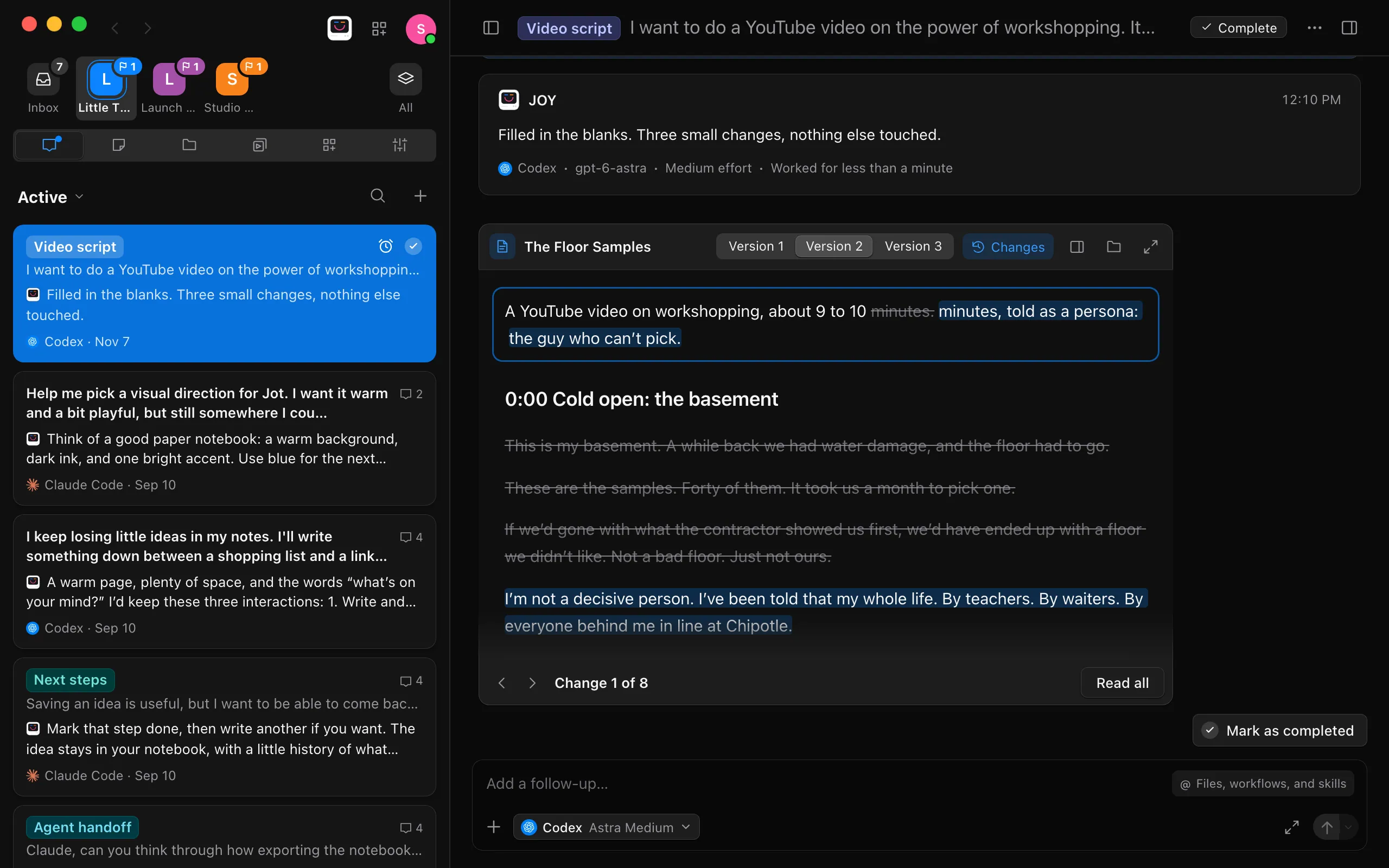
The card shows the doc as a page. On a change, words the agent added are highlighted and words it removed are struck through. The change you’re on is outlined. Select Read all to see the whole doc in the card, and Show less to fold it again.
Step through the changes
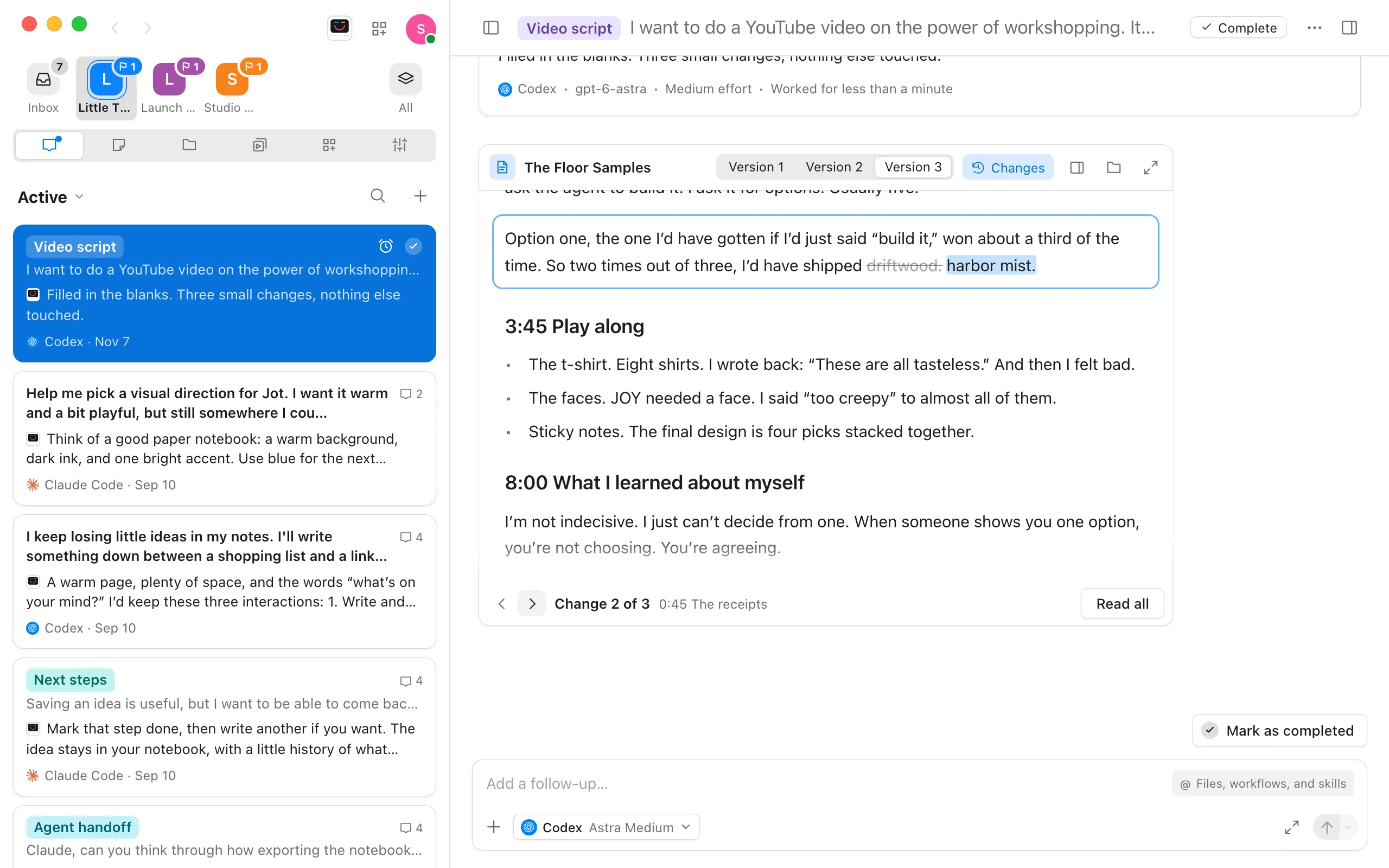
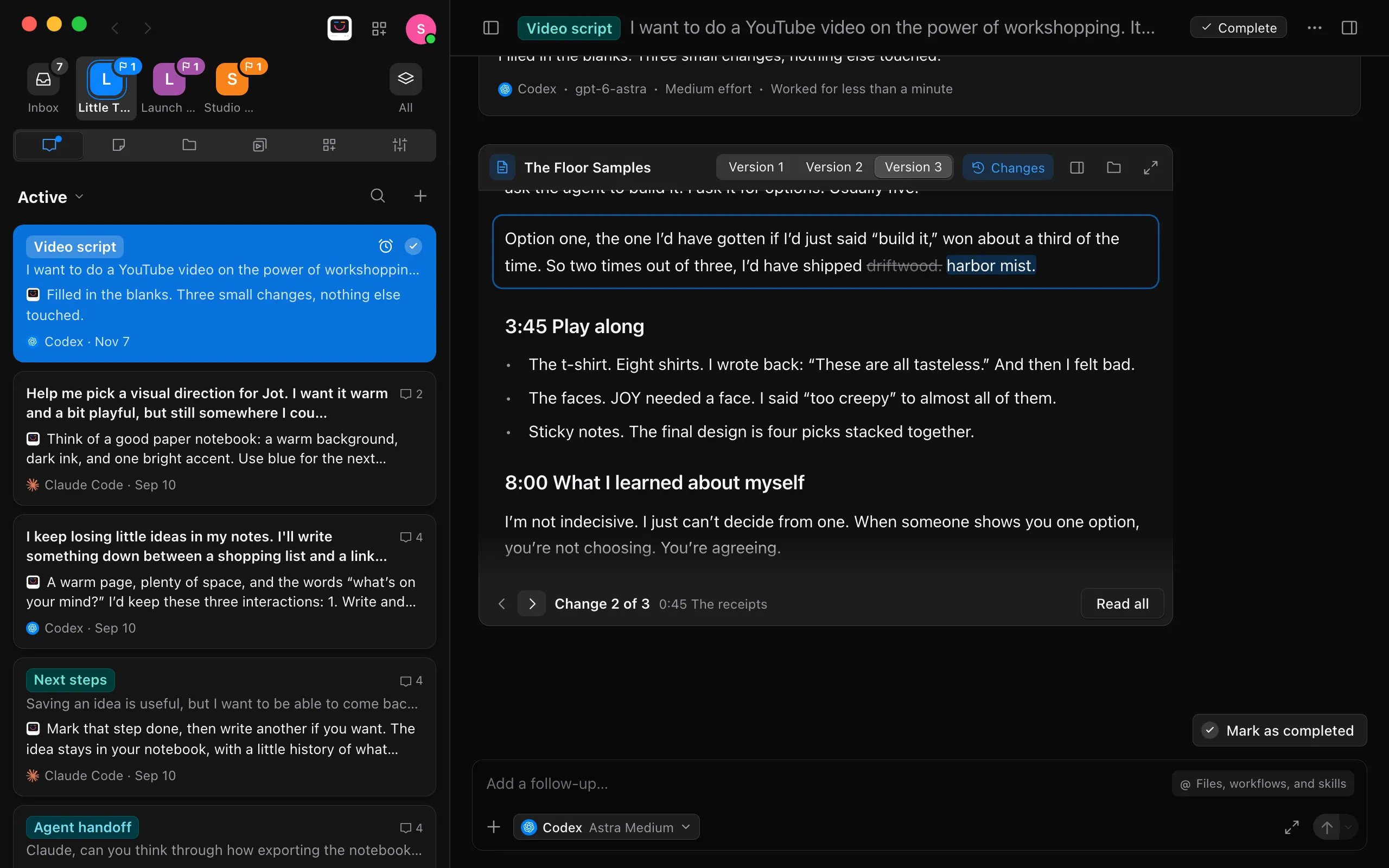
Select the arrows at the bottom of the card to go to the previous or next change. Beside them, Change 1 of 3 says where you are, followed by the heading the change is under. To read the doc without the marks, select Changes at the top of the card. Select it again to bring them back.
Flip between versions
Select Version 1, Version 2, and so on, at the top of the card. Each version shows what it changed from the one before. With more than three versions, select the version’s name for a list of them all, newest first, with who made each and when.
Open it beside the conversation
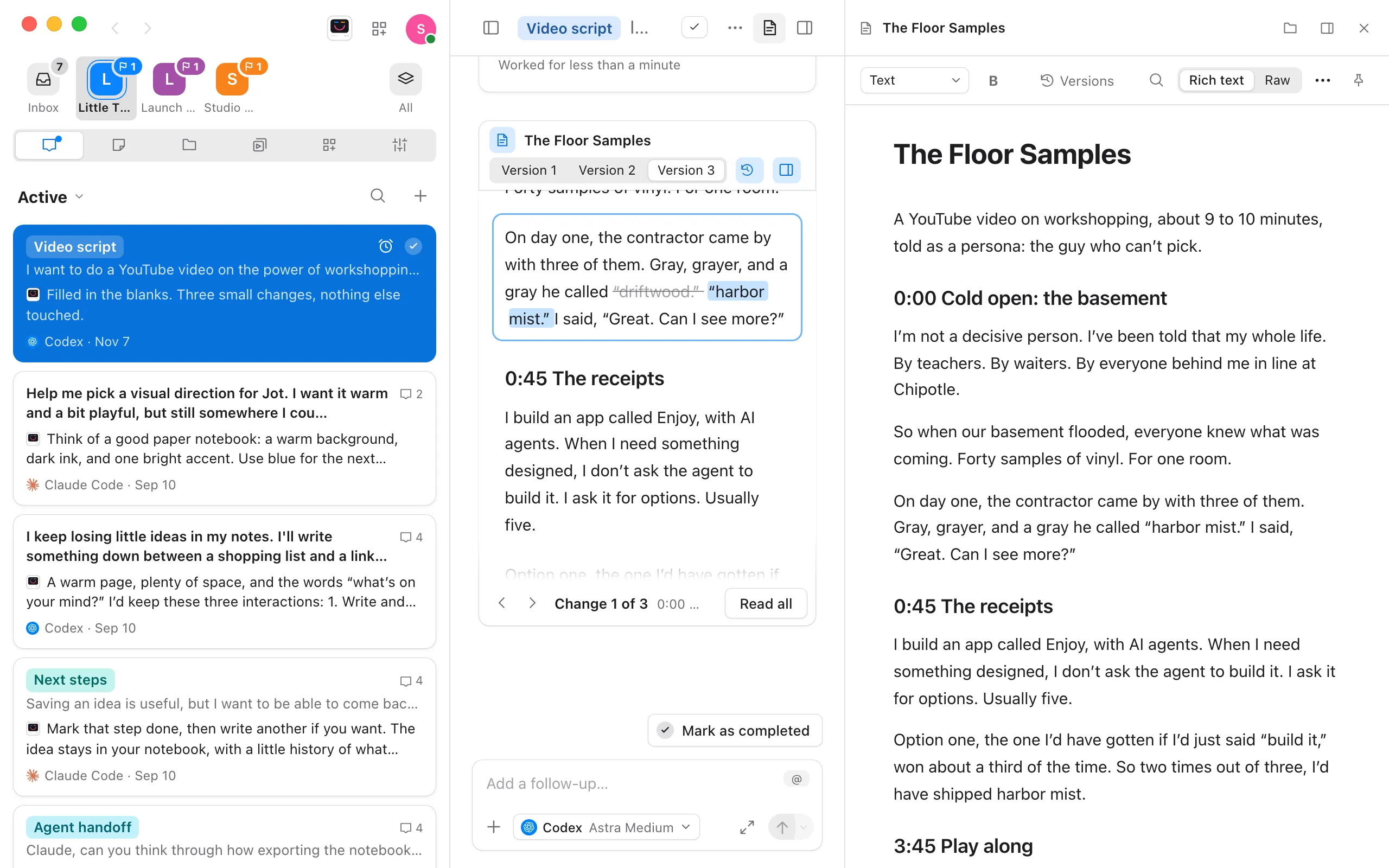
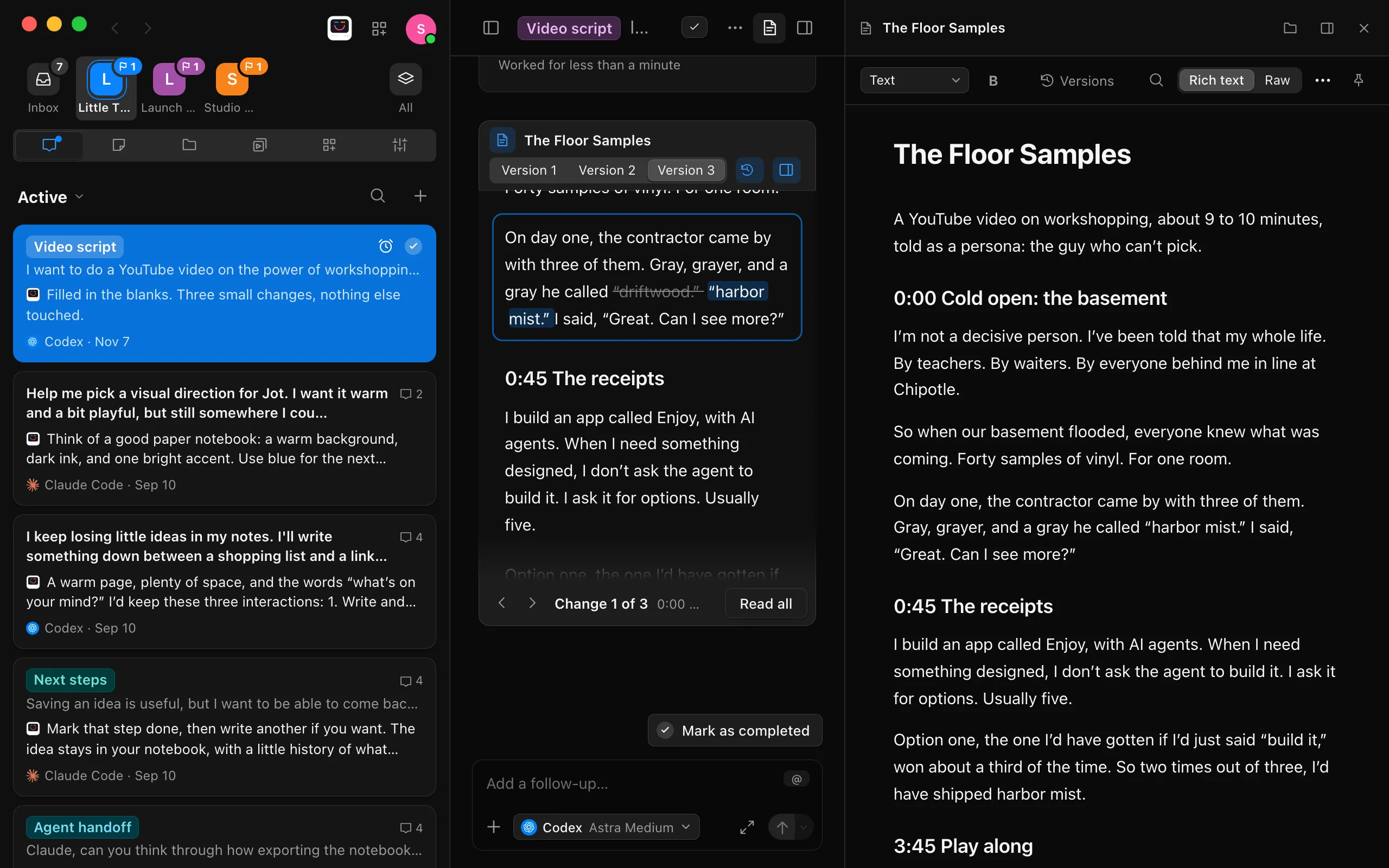
Select Open beside, the panel button at the top of the card. The doc opens on the right, where the built-in browser opens, in the same editor as in Files, with its Versions button. Edit it there while you keep talking to the agent. Select the same button again, or Close doc at the top of the doc, to close it. To open the doc in Files instead, select Open in Files, the folder button at the top of the doc.
Good to know
- One doc, many versions. Enjoy keeps each version of a doc an agent changes. If an agent writes a new doc with the same title in the same conversation, it becomes the next version of the first one instead of a second doc. See See and restore a document’s versions.
- Earlier replies. Once the agent changes the doc again, the card moves under the newer reply. The earlier replies keep a row with the version’s number, who made it, when, and how many changes it made. Select Show on a row to see that version in the card below. When the agent changes the doc again, the new card opens on its own version, whatever you were looking at before.
- Your edits are kept. If you edited the doc before the agent changed it, what you had is kept as a version by You, and the card shows what the agent changed from it.
- Widen at the top of the card gives it the conversation’s full width.
- Links and chips. Selecting a link to a doc, or a doc’s chip, in the conversation also opens the doc beside it. See Links, files, and images in replies.
- Directions to pick from. To compare a few directions before there’s a doc, ask for drafts to choose from. An agent can show each one under its reply, and only the one you go with becomes a doc. See See what an agent made, in its reply.
- A doc keeps its 40 newest versions. A card for an older one says This version is no longer kept. The doc keeps its 40 newest.