Archive and restore workflows
Steps
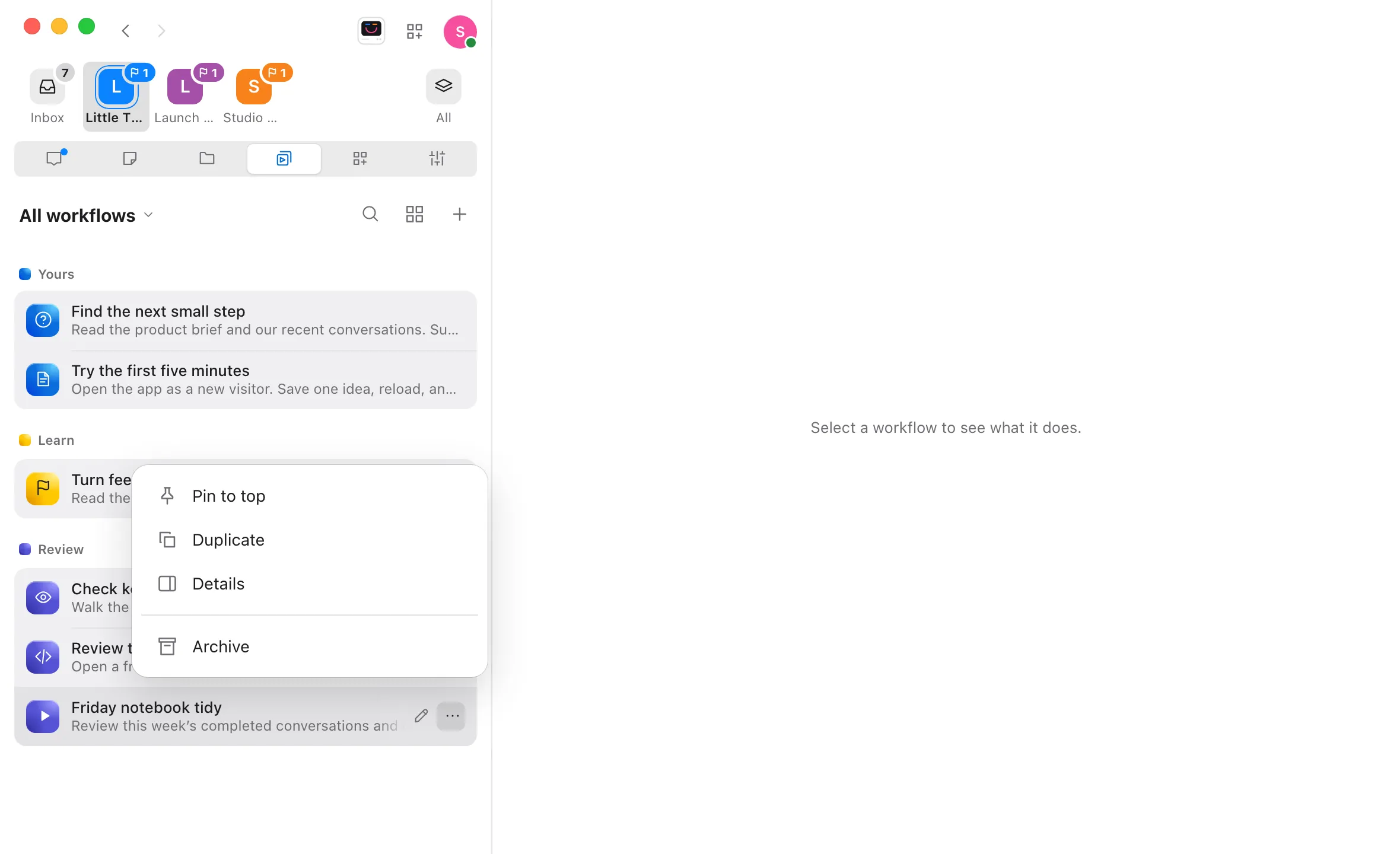
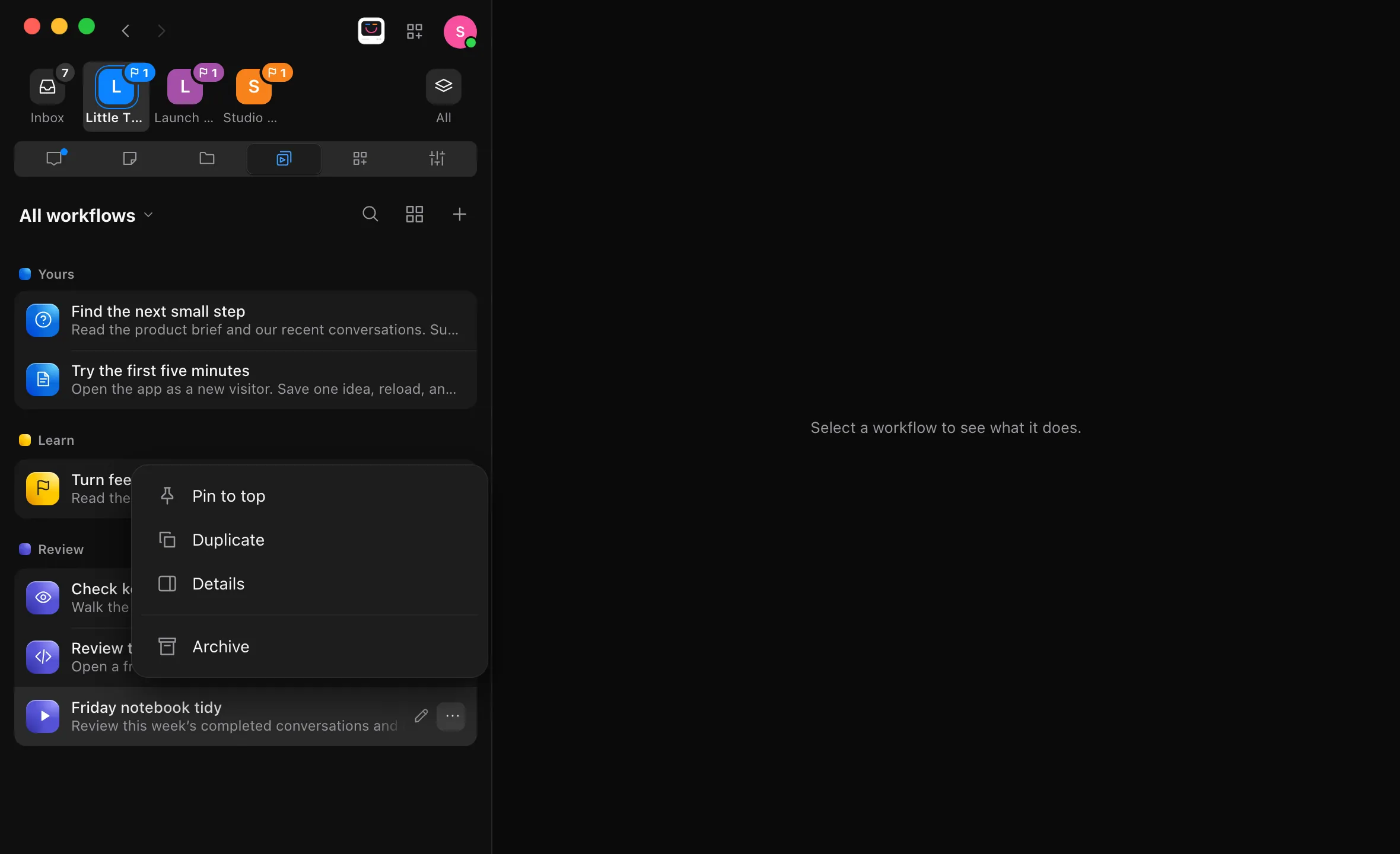
Open the workflow’s menu
In Workflows, point at the workflow’s line and select the ⋯ button at its right. If the workflow’s page is open, you can use the ⋯ button at the top right of the page instead.
Choose Archive
The workflow leaves the list, and its page closes if it was open.
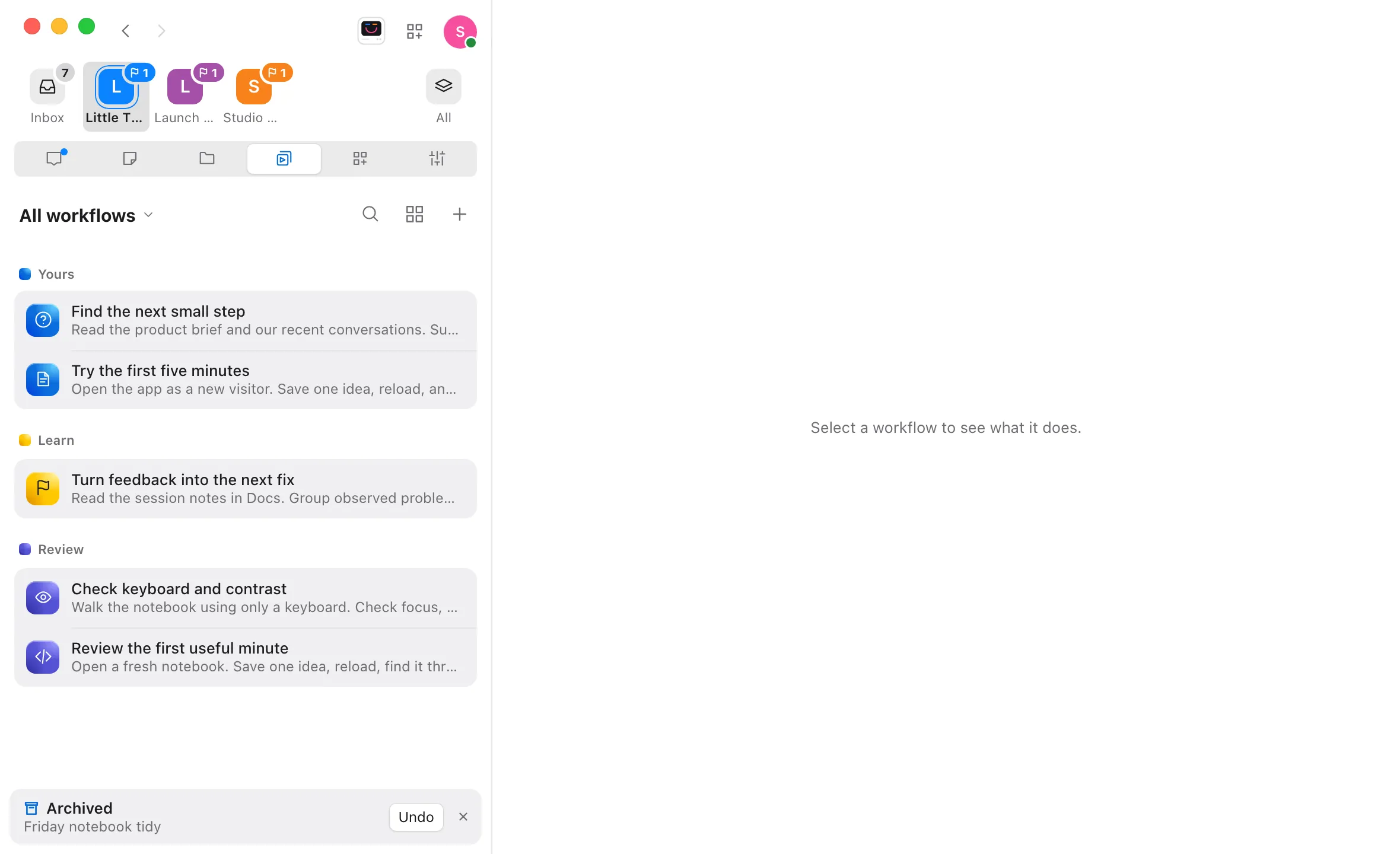
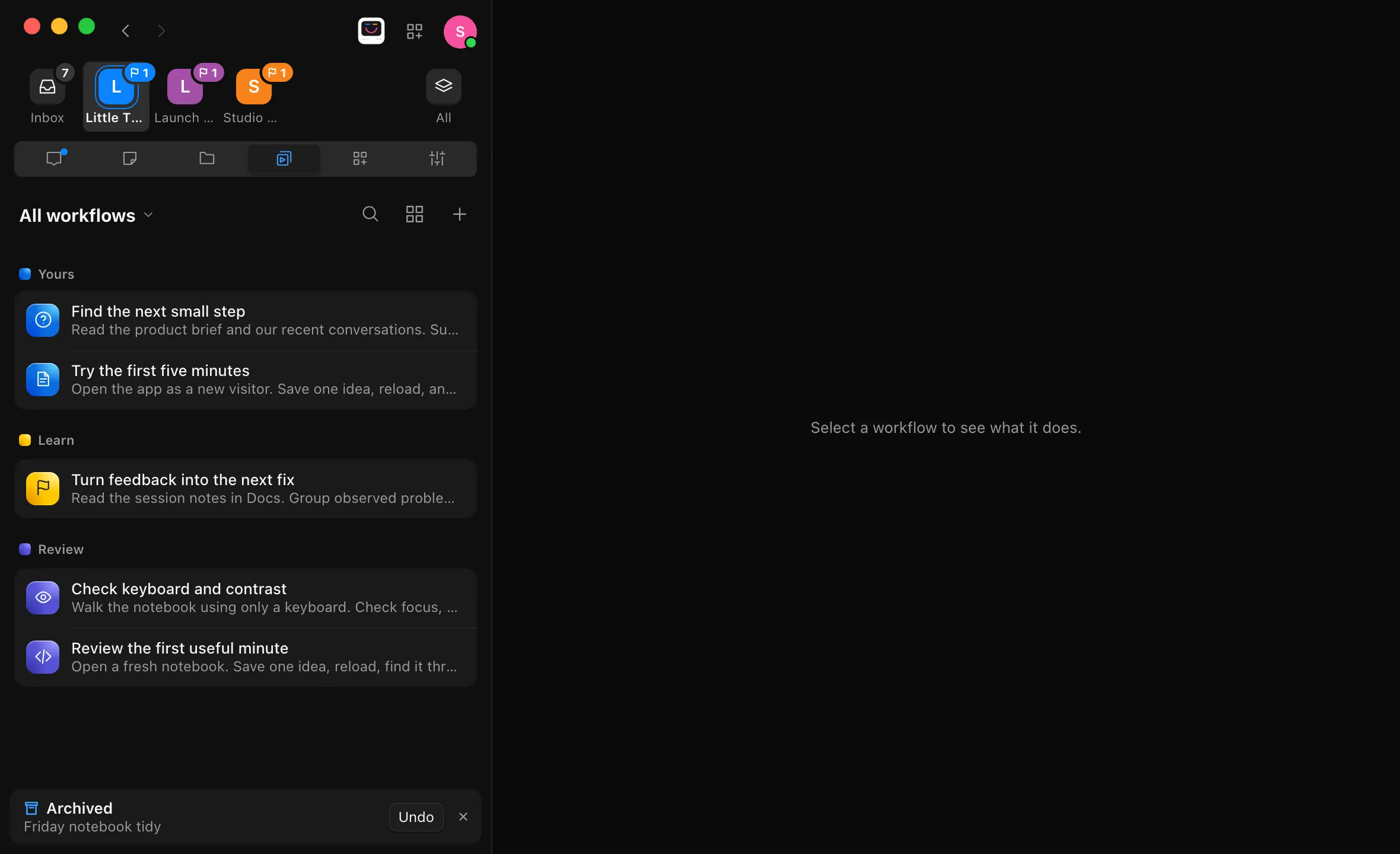
Undo if you need to
A note under the list says Archived with the workflow’s name. Select Undo to bring it straight back.
Open the archive
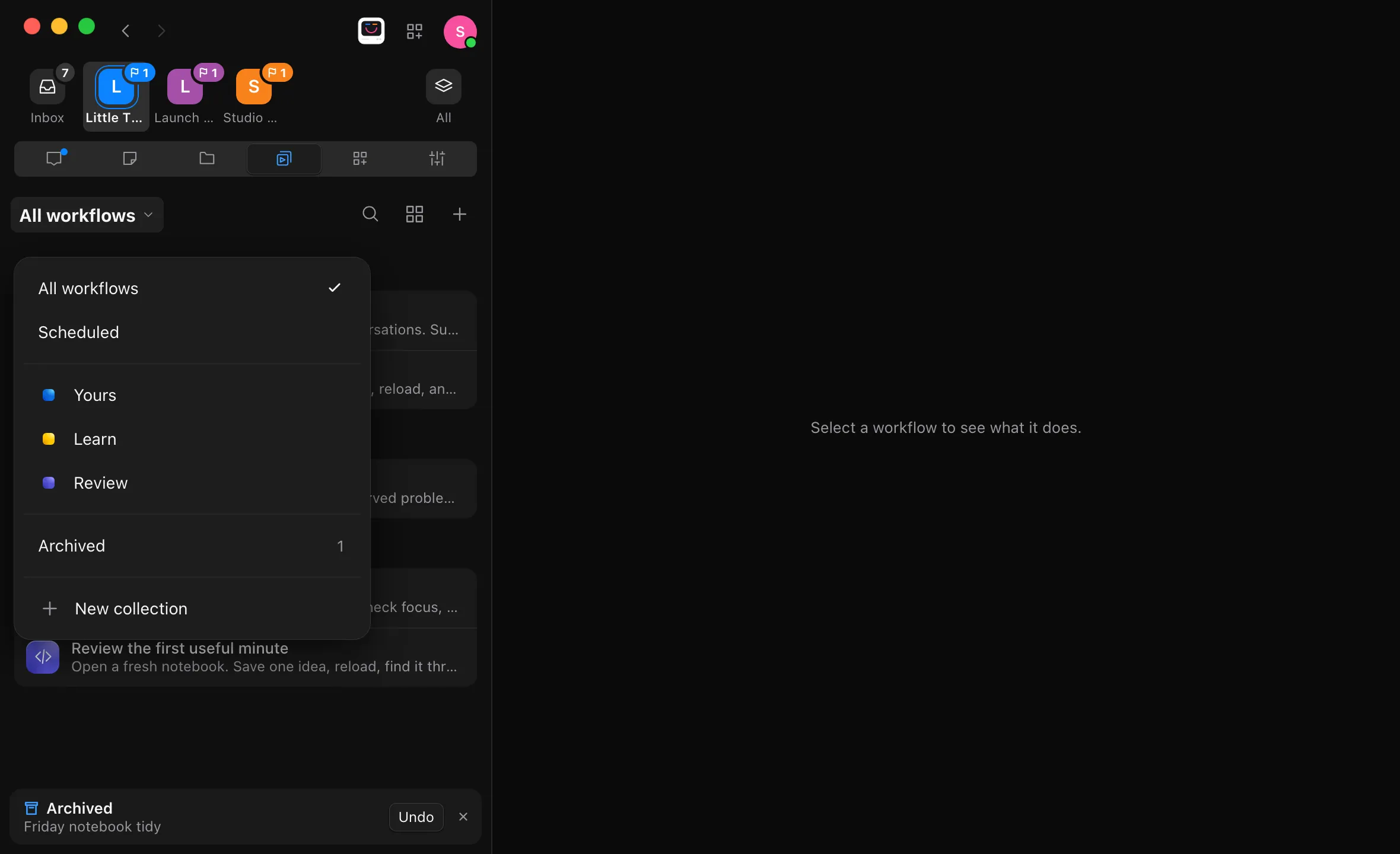
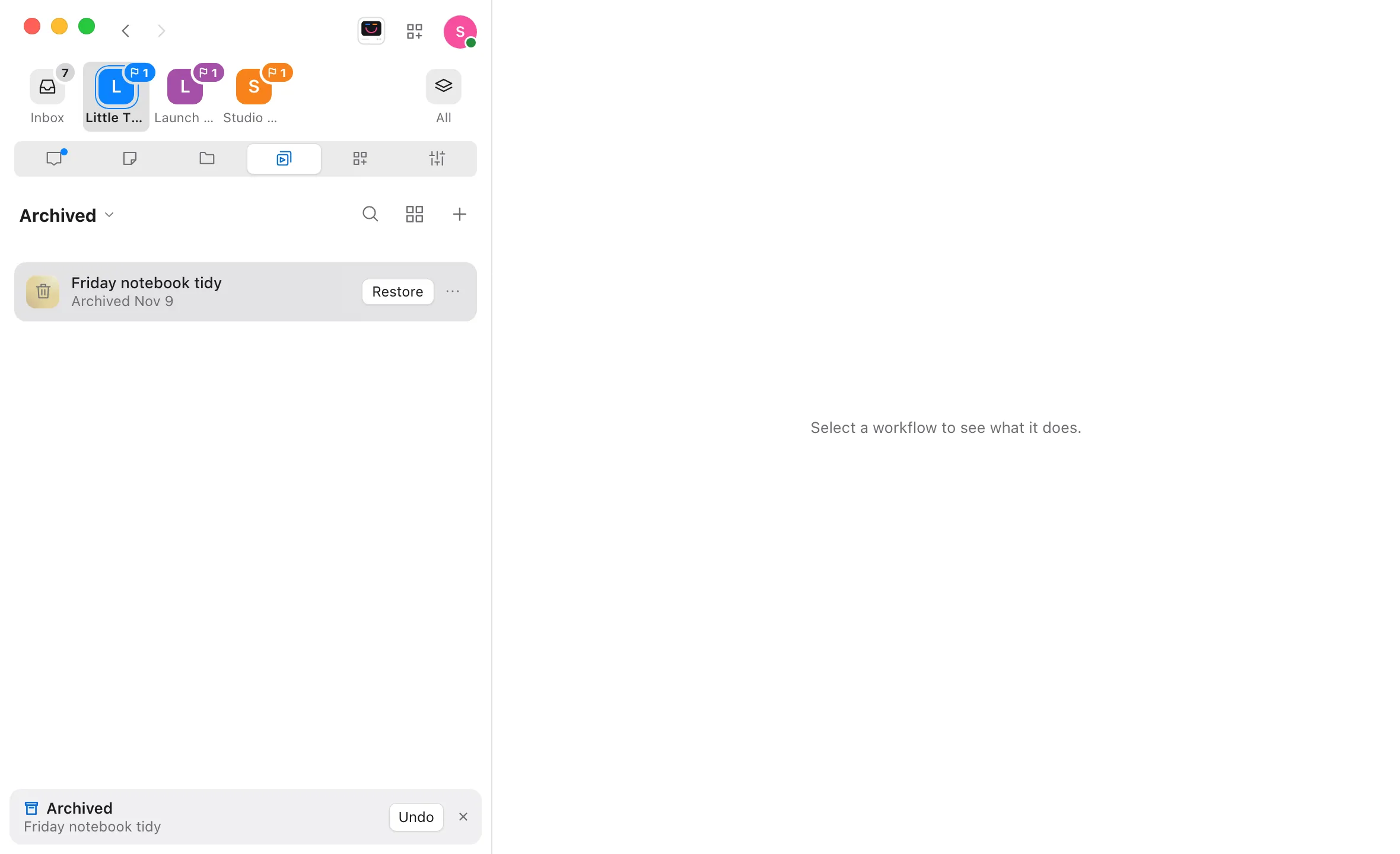
Select the list’s title, All workflows, and choose Archived. The number beside it is how many workflows are archived. The list shows only those, each with the date it was archived.
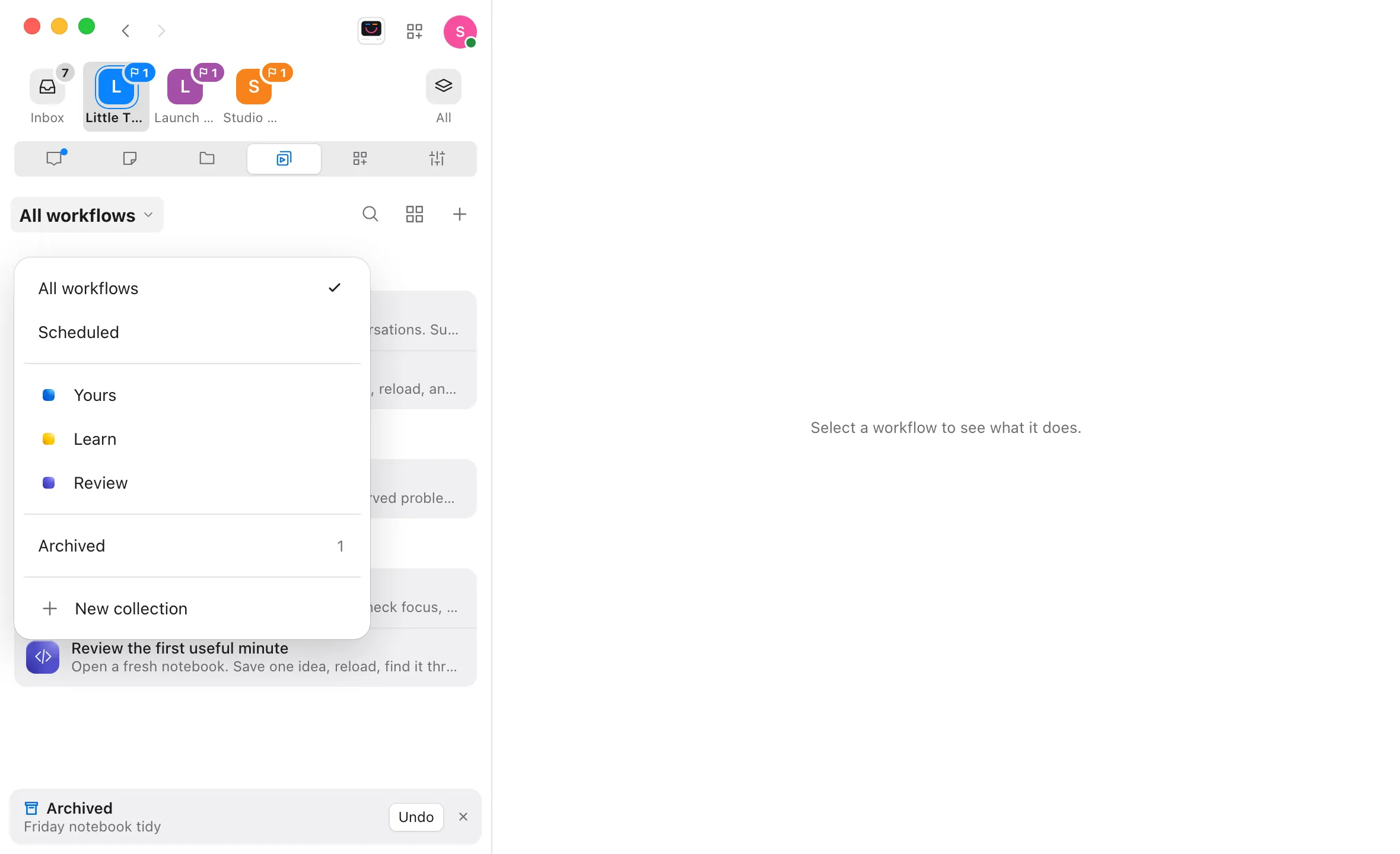
Select Restore
Point at the workflow’s line and select Restore. The workflow goes back to where it was. To go back to the rest of your workflows, select the title again and choose All workflows.

Good to know
- An archived workflow doesn’t run. Its schedule is off while it’s archived, and it can’t be run by hand. Its line in the archive says schedule off if it has one.
- Restoring turns its schedule back on. A workflow that repeats runs again from its next time, and the times that passed while it was archived are skipped. A workflow set to run once whose time passed while it was archived doesn’t run late; it becomes On demand. See Schedule a workflow.
- Nothing is deleted. The workflow keeps its instructions, collection, and preferred agent. Select its name in the archive to read them. Its page says “This workflow is archived. It won’t run until you restore it.”, with Restore where Run usually is. To change an archived workflow, restore it first.
- Archived workflows stay out of the way. They aren’t listed in All workflows, Scheduled, or their collection, aren’t suggested in new conversations, and can’t be picked when you type @ in a message. Agents don’t see them when they list your project’s workflows.
- Archived only appears in the title’s menu once a workflow is archived.
- A pinned workflow keeps its pin while it’s archived, and comes back under Pinned when you restore it.
- To delete an archived workflow, choose Delete from its ⋯ menu in the archive. See Delete a workflow.
- Workflows from an installed collection can’t be archived. Turn the whole collection off instead. See Organize workflows into collections.
- Archiving stays on the computer where you did it. If you sync a project between two computers, a workflow archived on one is still listed on the other.
- The iPhone app can’t archive or restore workflows, and doesn’t list archived ones.
If something goes wrong
Archive isn’t in the ⋯ menu
Workflows from an installed collection can’t be archived, and neither can a removed workflow opened from a message.
Archive is greyed out
You have View only access to the project. Ask its owner for Can work access.
“Restore this workflow before running it.”
The workflow was archived, perhaps from another device, while you had it open. Restore it from Archived, then run it.