Run a workflow once, at a date and time
A workflow can run one time instead of repeating. At the date and time you pick, Enjoy starts a run in a new conversation, so it works as a reminder: write what you want to be reminded of, or what the agent should check on that day.
Before you start
- The run happens on the computer that has the project, even if you set the date from the web app.
Steps
Open the workflow
In Workflows, select the workflow’s name. To make a new one, select New workflow and write its instructions, such as “Remind me to renew the domain before it expires on November 24.” See Create a workflow.
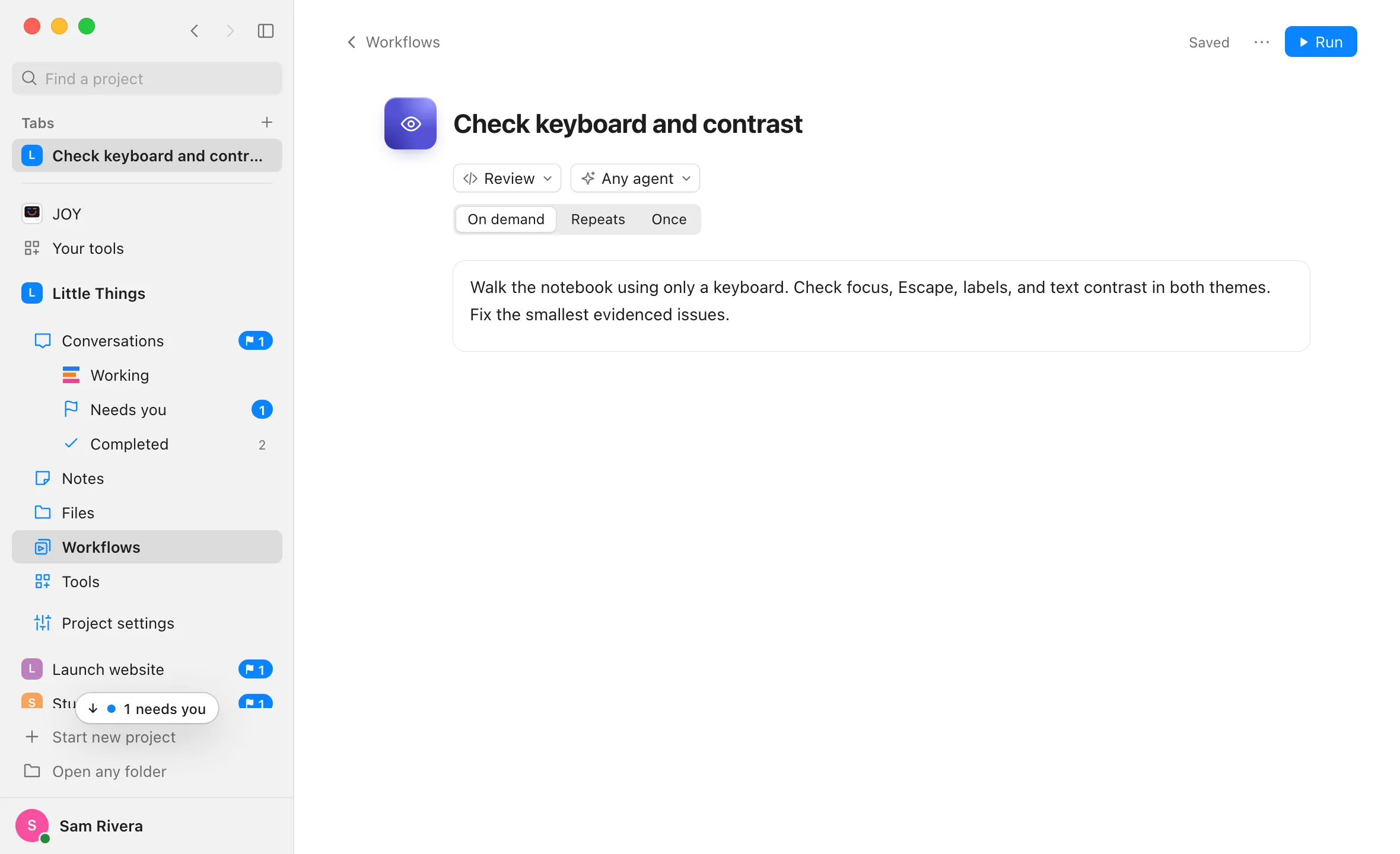
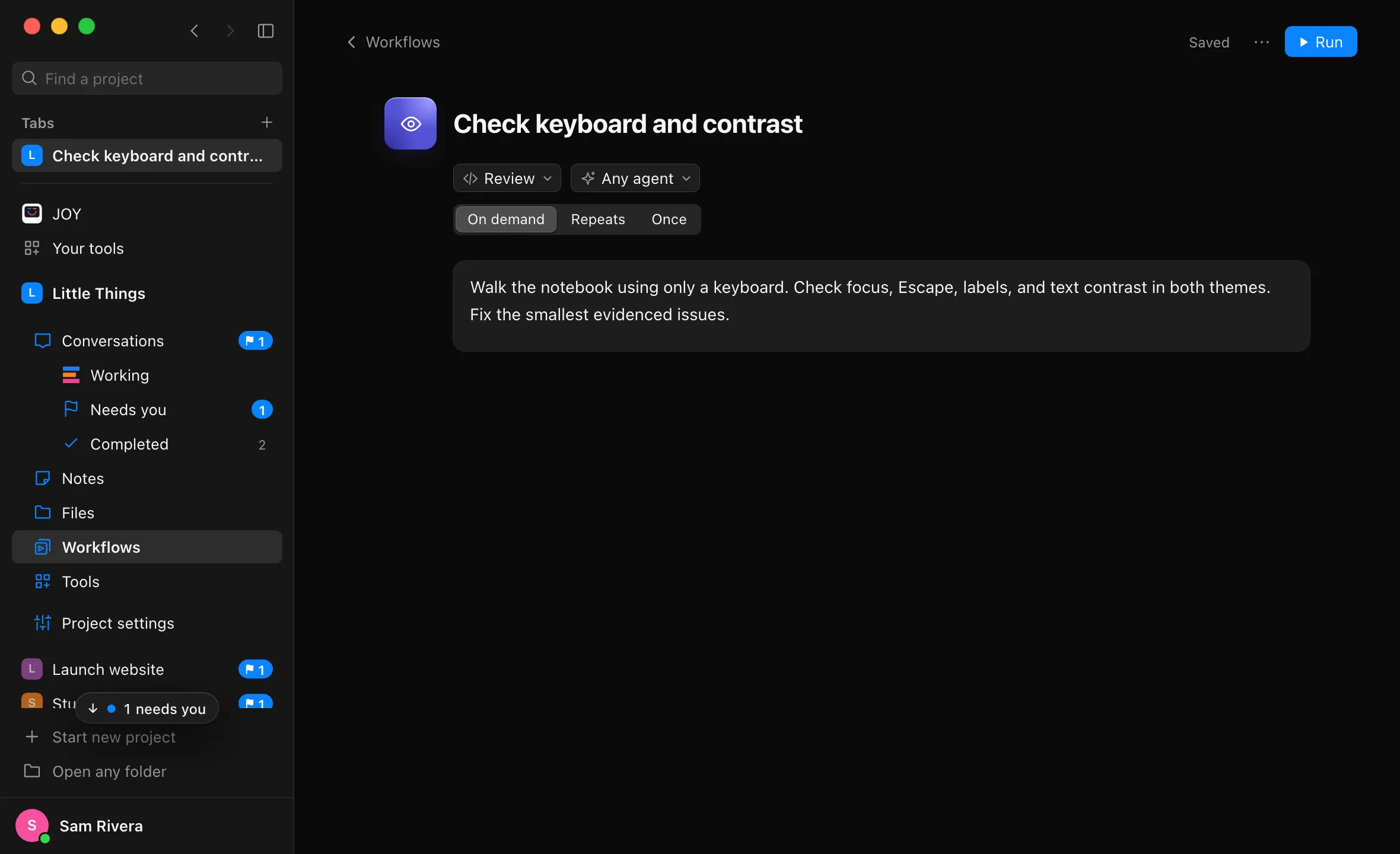
Select Once in Runs
Runs is below the small menus under the title. It shows On demand when the workflow only runs when you start it.
Pick the date
Date starts on tomorrow. Choose another day after today.
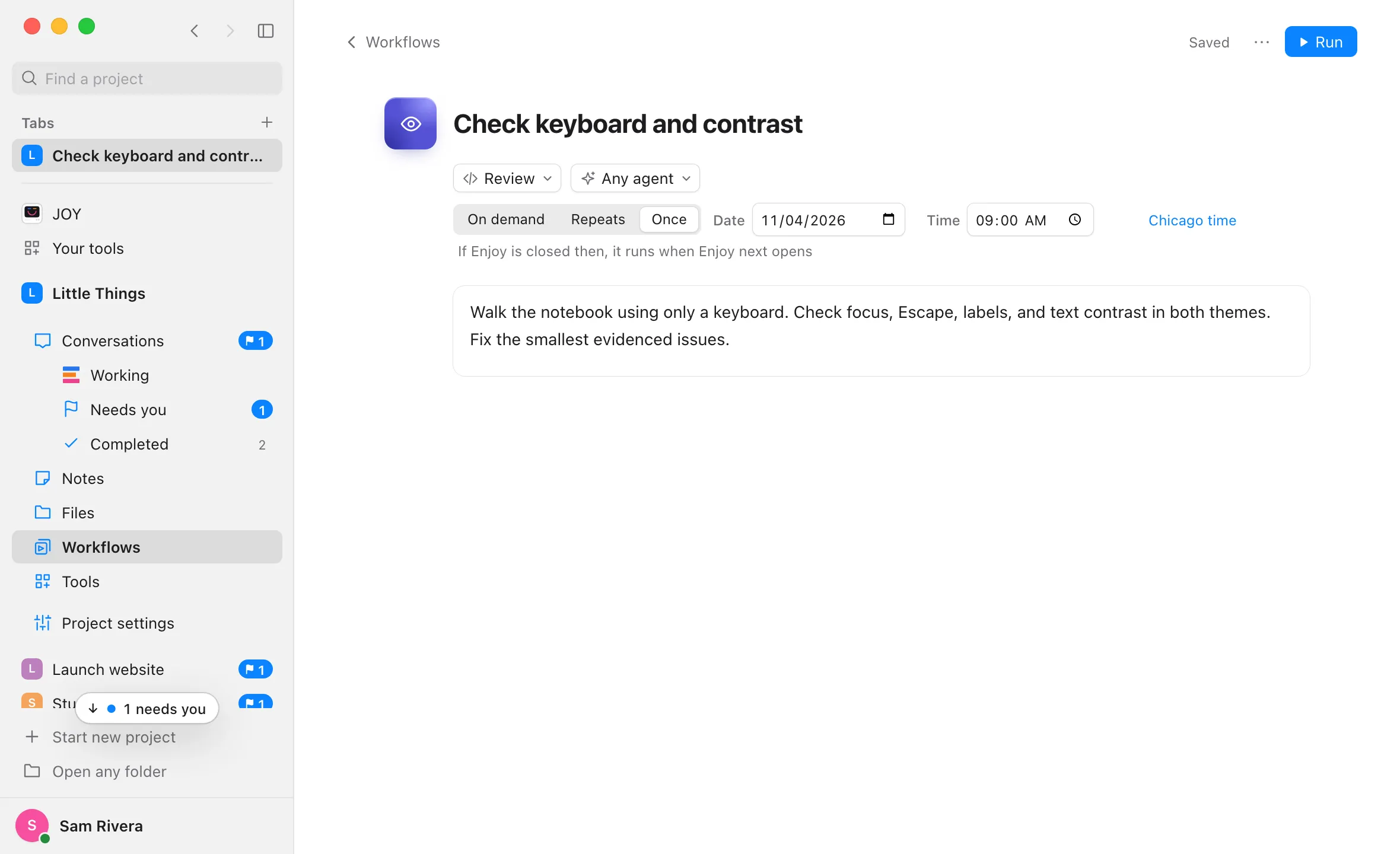
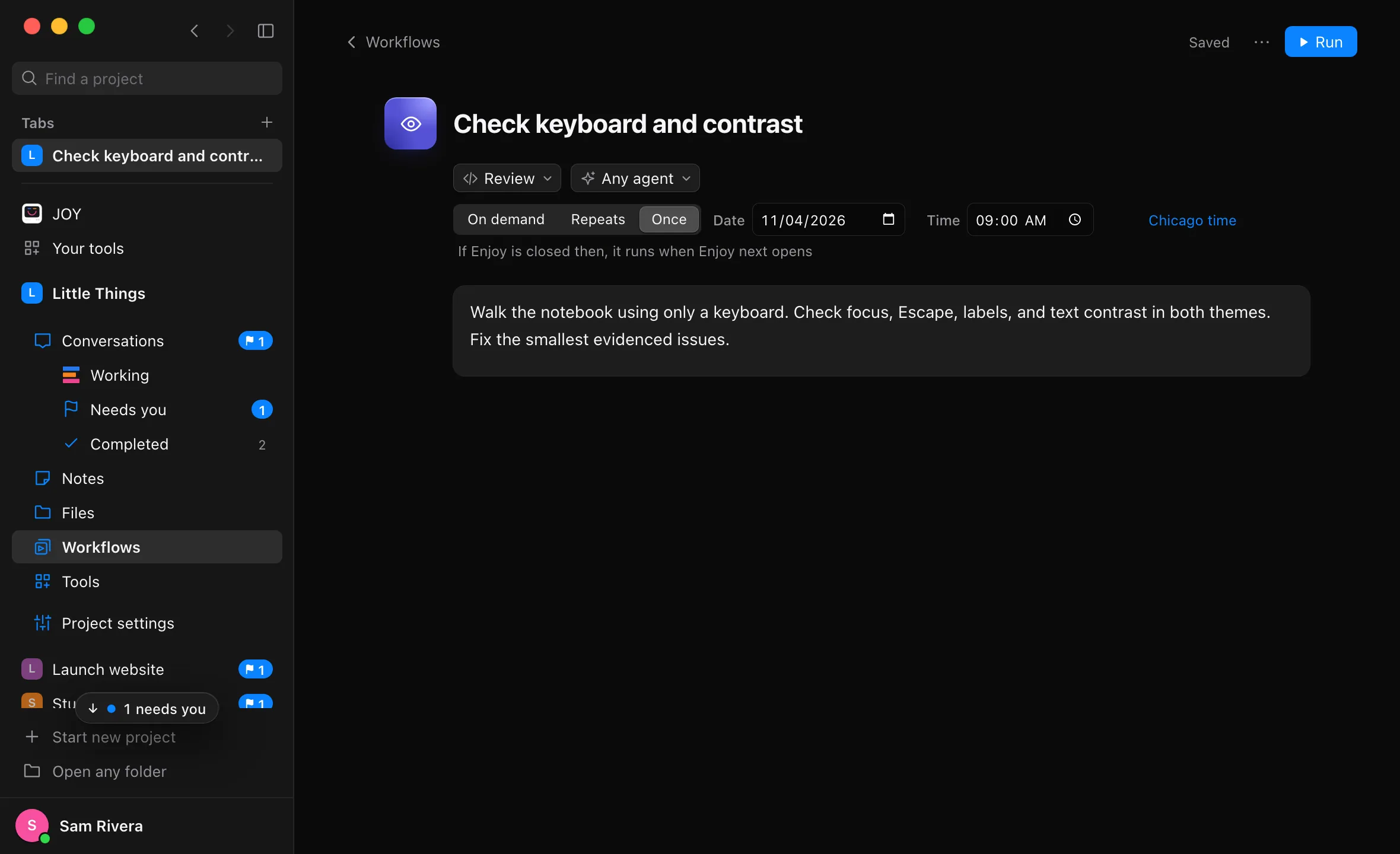
Set the time
Type a Time. The line after it shows the time zone, such as Chicago time. To change it, select that line and type a time zone name in Timezone, such as Europe/London or America/Los_Angeles.
Check that it’s scheduled
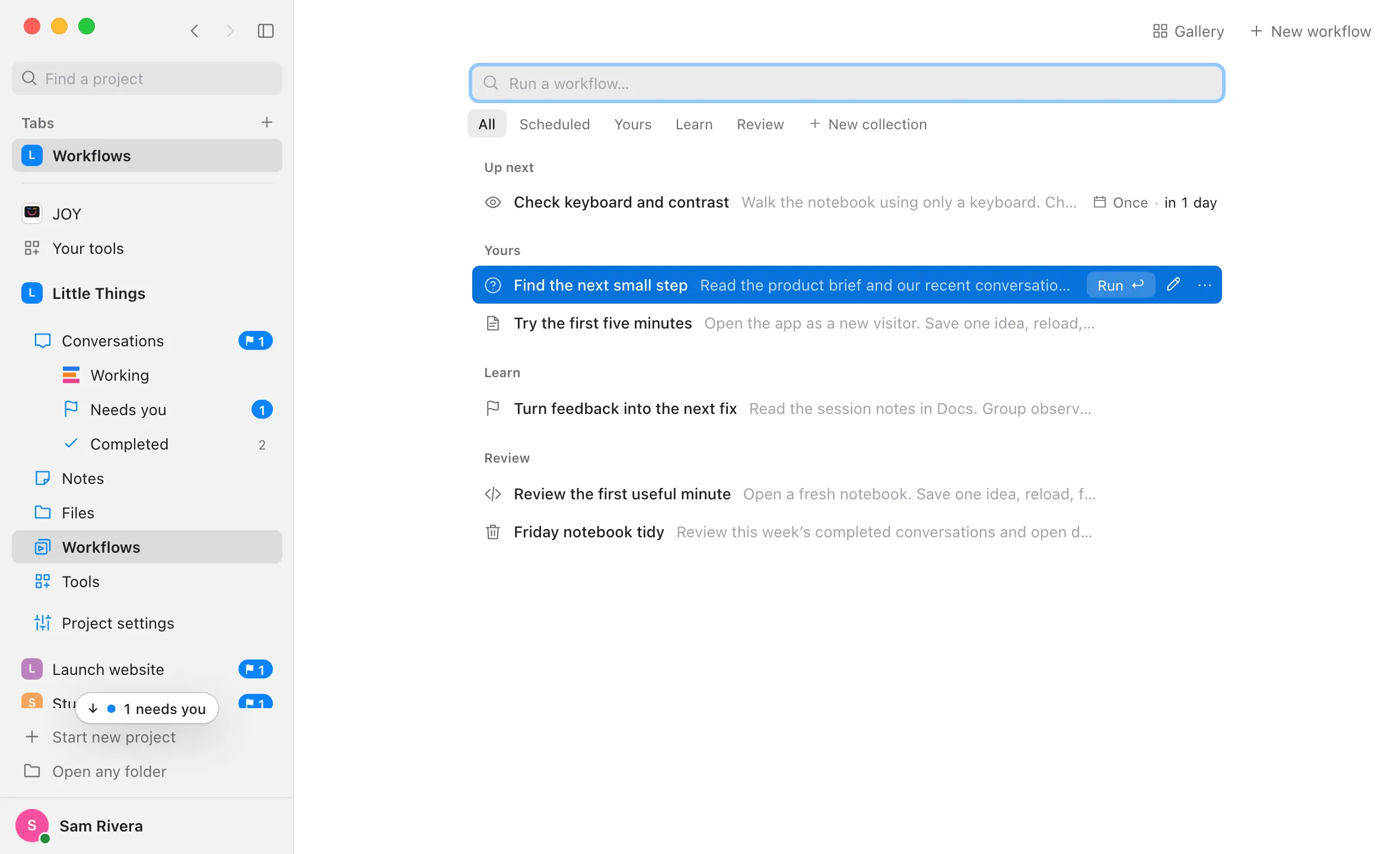
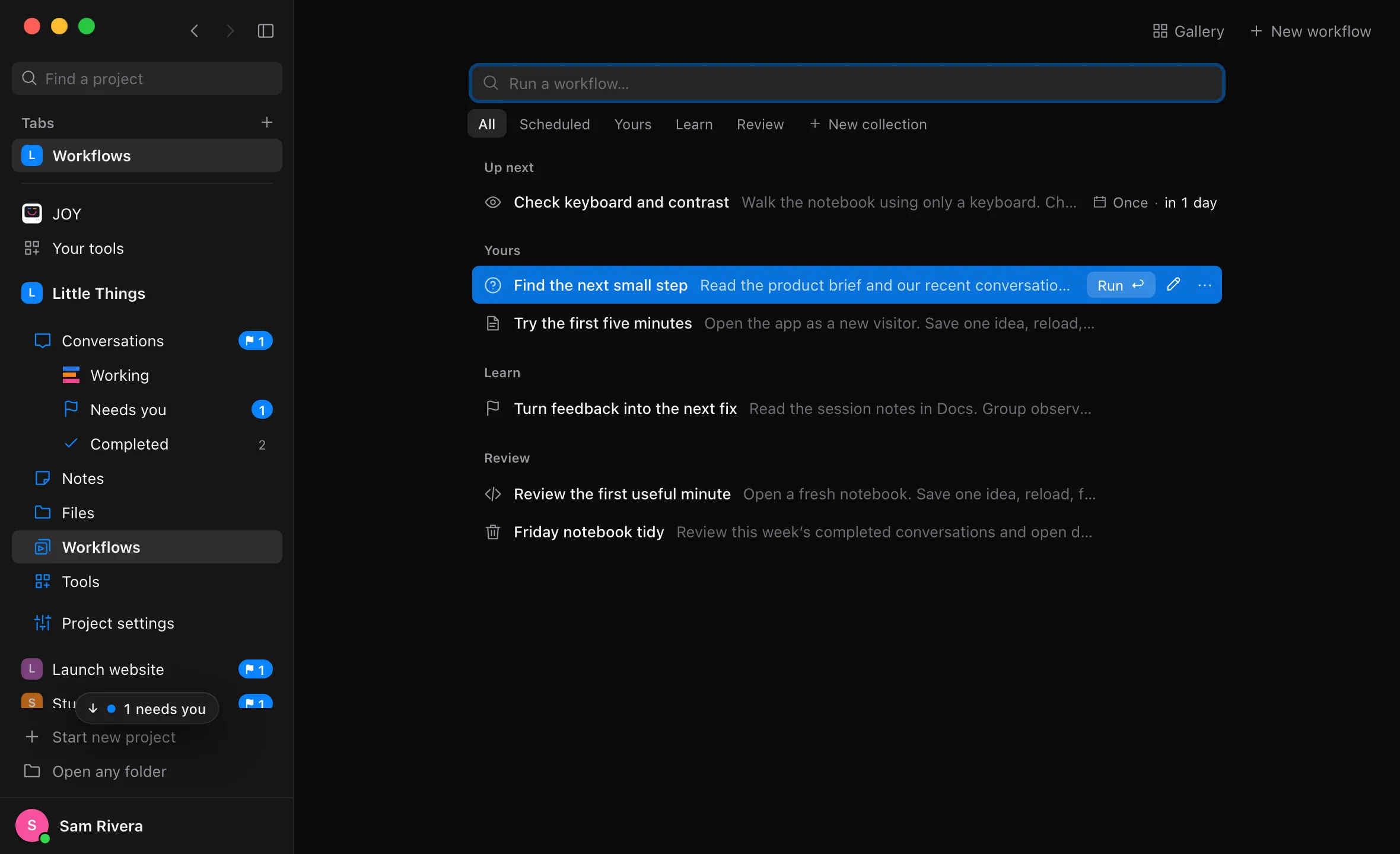
Enjoy saves a moment after you change it, and the top right of the page shows Saved. In Workflows, All lists it near the top, under Up next if it runs before your other scheduled workflows, or under Scheduled. The right of its line shows Once and how long until it runs.
Good to know
- It runs once. At that time, Enjoy starts a new conversation named after the workflow, with a first message from Enjoy scheduler. Afterward the workflow stays in its collection, and its line shows Ran and the date instead of a countdown. Its page says Ran and the date, with “Pick a new date to run it again.”
- To run it again, pick a new date and time on its page. Running it yourself with Run doesn’t change the date.
- If Enjoy is closed or the computer is asleep at that time, it runs as soon as Enjoy opens again. Repeating schedules skip missed times; this doesn’t.
- If the project is paused, it waits, and runs when you select Resume agent work.
- If its agent isn’t ready, for example because it’s signed out, the run starts anyway, and its conversation says what’s wrong.
- To cancel it, select On demand in Runs, or delete the workflow.
- Ask your agent to set one. For example: “Remind me on November 20 at 9 AM to renew the domain.” The agent saves a workflow that runs once. See Ask your agent to create or change a workflow.
- The iPhone app shows a one-time workflow’s schedule and next run, or Ran and the date once it has run, but can’t change them.
If something goes wrong
“Choose a date and time after now.”
The date and time you picked has already passed, so the page shows Not saved, and the workflow keeps its last saved schedule. Pick a later time. Enjoy saves once it works.