Make your own theme
Steps
Open Theme
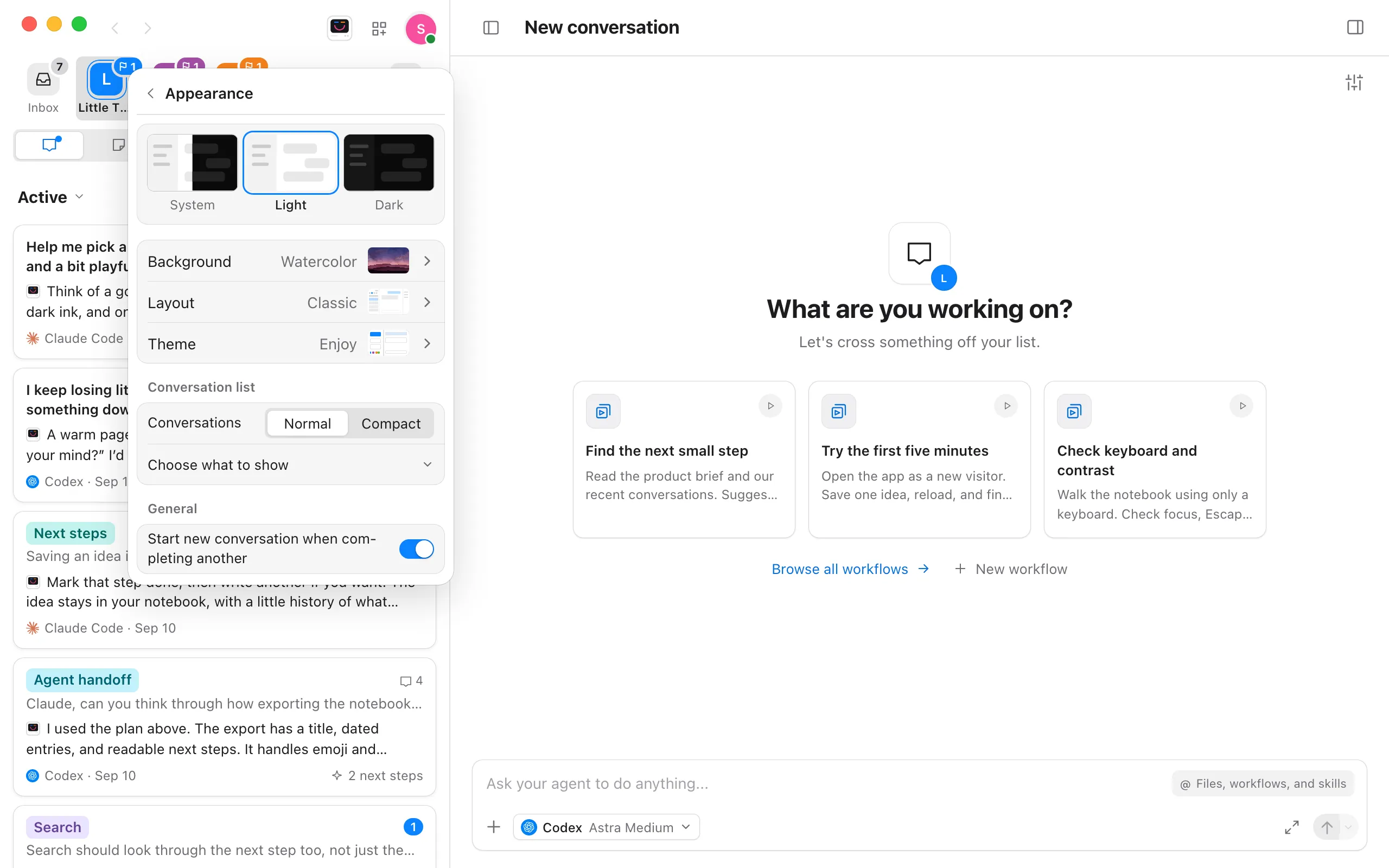
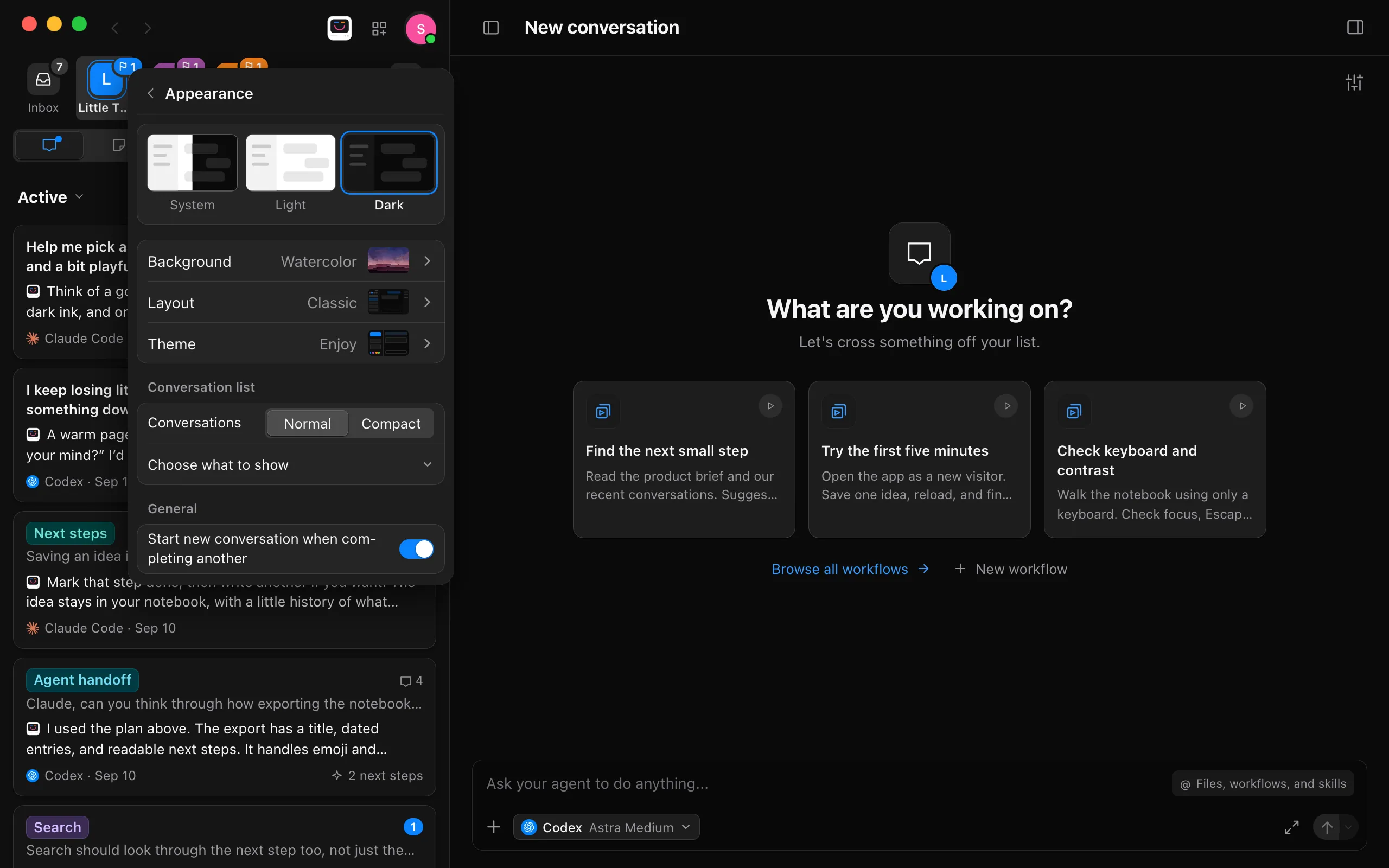
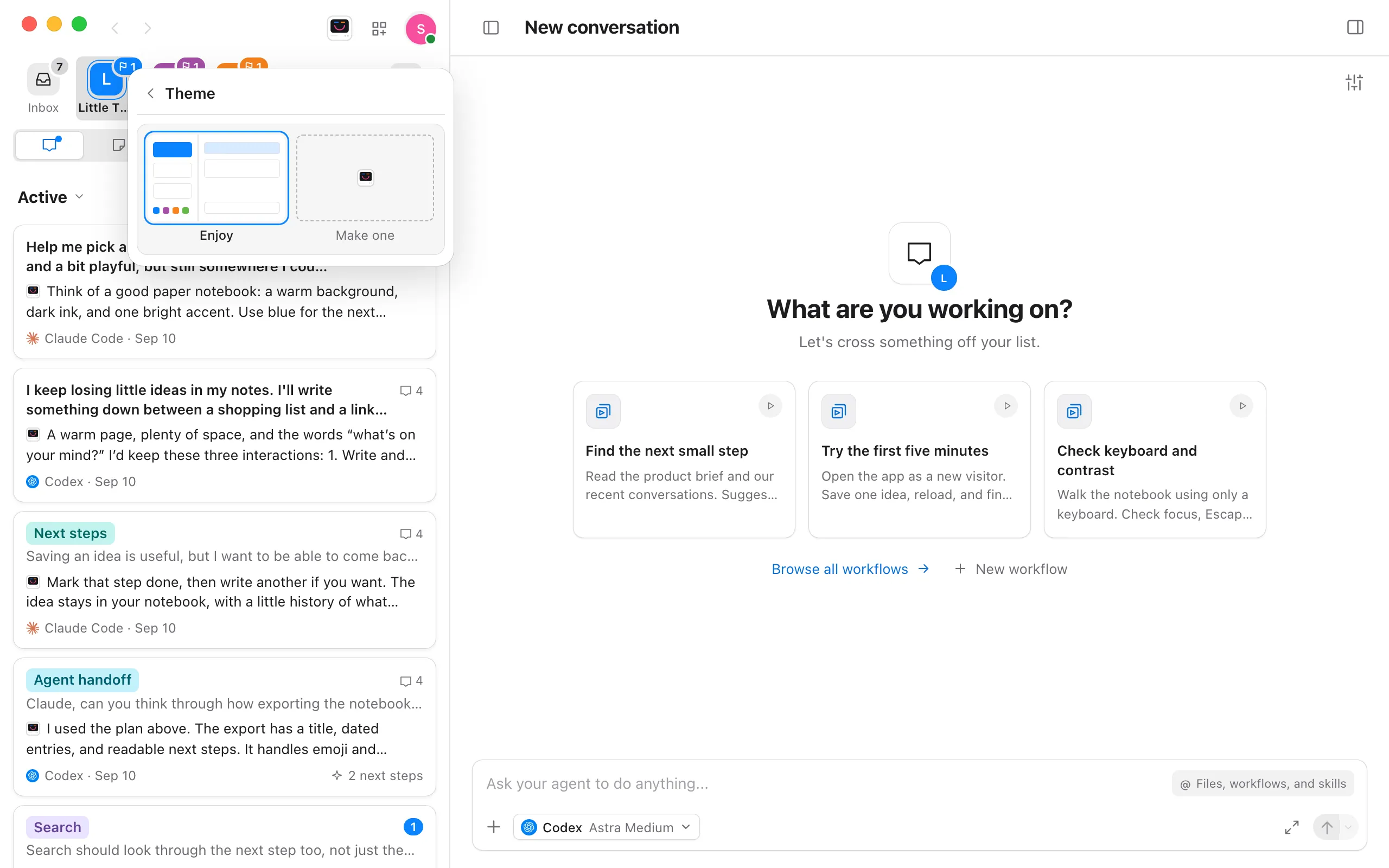
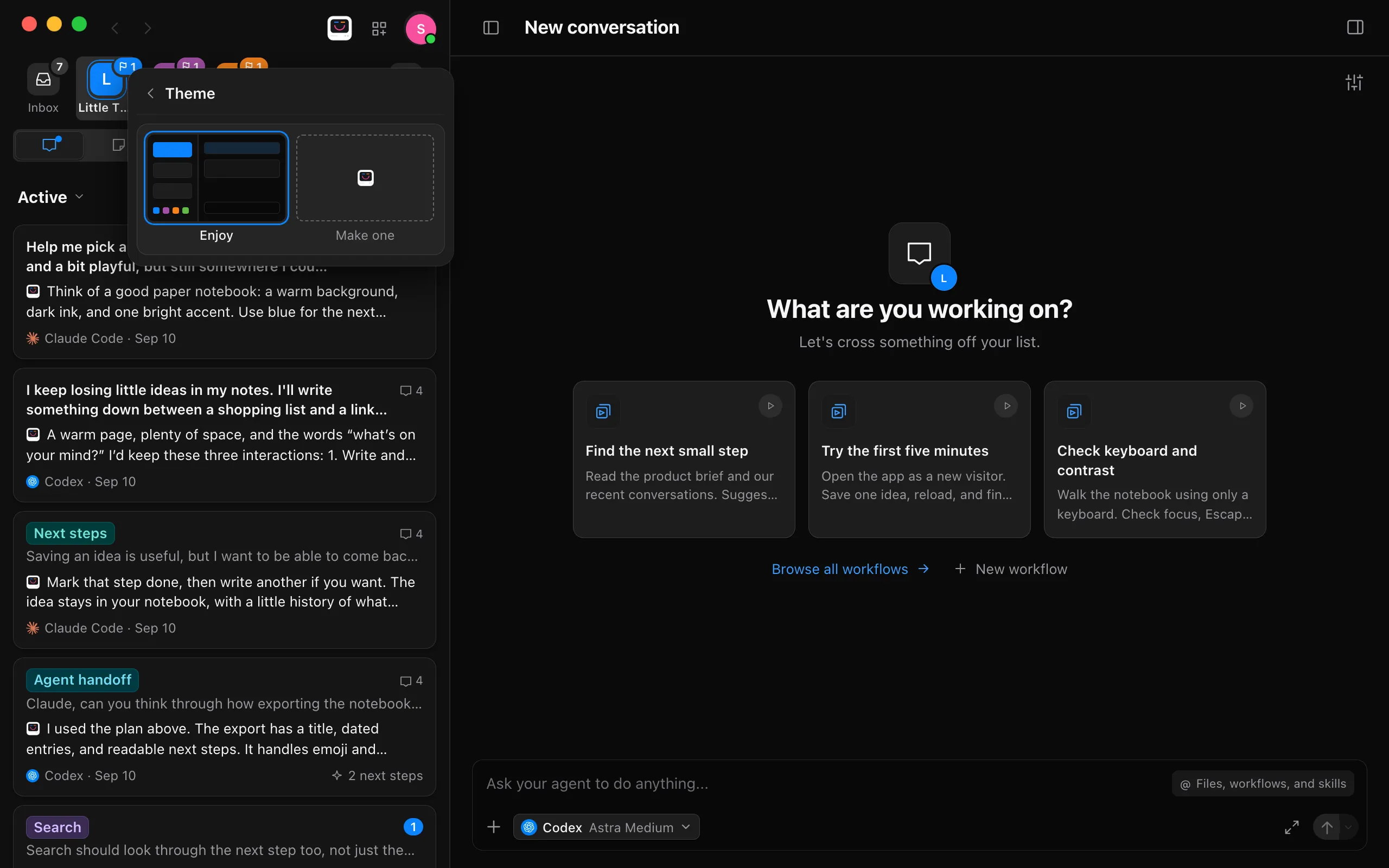
Select your face at the top right of the navigator, choose Appearance, then select Theme. Its row names the theme you have now, beside a small picture of it. Enjoy is the look Enjoy comes with.
Make one
Select Make one. JOY opens with the start of a request in her box.
Say what you’d change
Finish the request in your own words, such as “warmer, like a coffee shop at night”, “serif headings and rounder cards” or “the Nord palette”, and send it.
See it right away
JOY writes the theme and Enjoy wears it at once. Ask her for changes, such as “make the cards rounder”, and she updates it.
A theme changes Enjoy’s own look, so whatever you don’t ask to change stays as it is. You can also ask JOY for a theme without opening Appearance, or to remove one of yours.
Switch between themes
- Open Theme. Select your face, choose Appearance, then select Theme. Each theme you made is a small window in its own colors after Enjoy.
- Choose one. Select a theme and Enjoy changes right away. Select Enjoy to go back to Enjoy’s own look.
- Go back. Select Theme at the top to return to Appearance, or press Escape to close the menu.
Good to know
- Enjoy comes with one look of its own, Enjoy. Every other theme in Theme is one you made.
- A theme can be made for dark or for light. While one of those is chosen, Enjoy takes that look, and System, Light and Dark wait for another theme. Ask JOY for a theme that works in both, and it follows your choice.
- Each project keeps the color you gave it, and the theme decides how that color looks, so a project that’s Blue wears the theme’s own blue.
- A theme can paint a background of its own behind the window. With None chosen in Background, its row shows the theme’s own background instead. A picture or painting you choose in Background covers it.
- Themes keep working as Enjoy updates. A theme can only change Enjoy’s colors, type, corners and shadows, never move things around or hide anything, and a question from an agent always looks the same.
- If part of a theme of yours can’t be used, Theme says which lines under the themes. The rest of the theme still applies. Ask JOY to fix it.
- Your theme is saved on this device. Each computer and browser keeps its own.