Arrange Enjoy's window
Steps
Open Layout
Select your face at the top right of the navigator, choose Appearance, then select Layout. Its row names how the window is arranged now, beside a small picture of it.
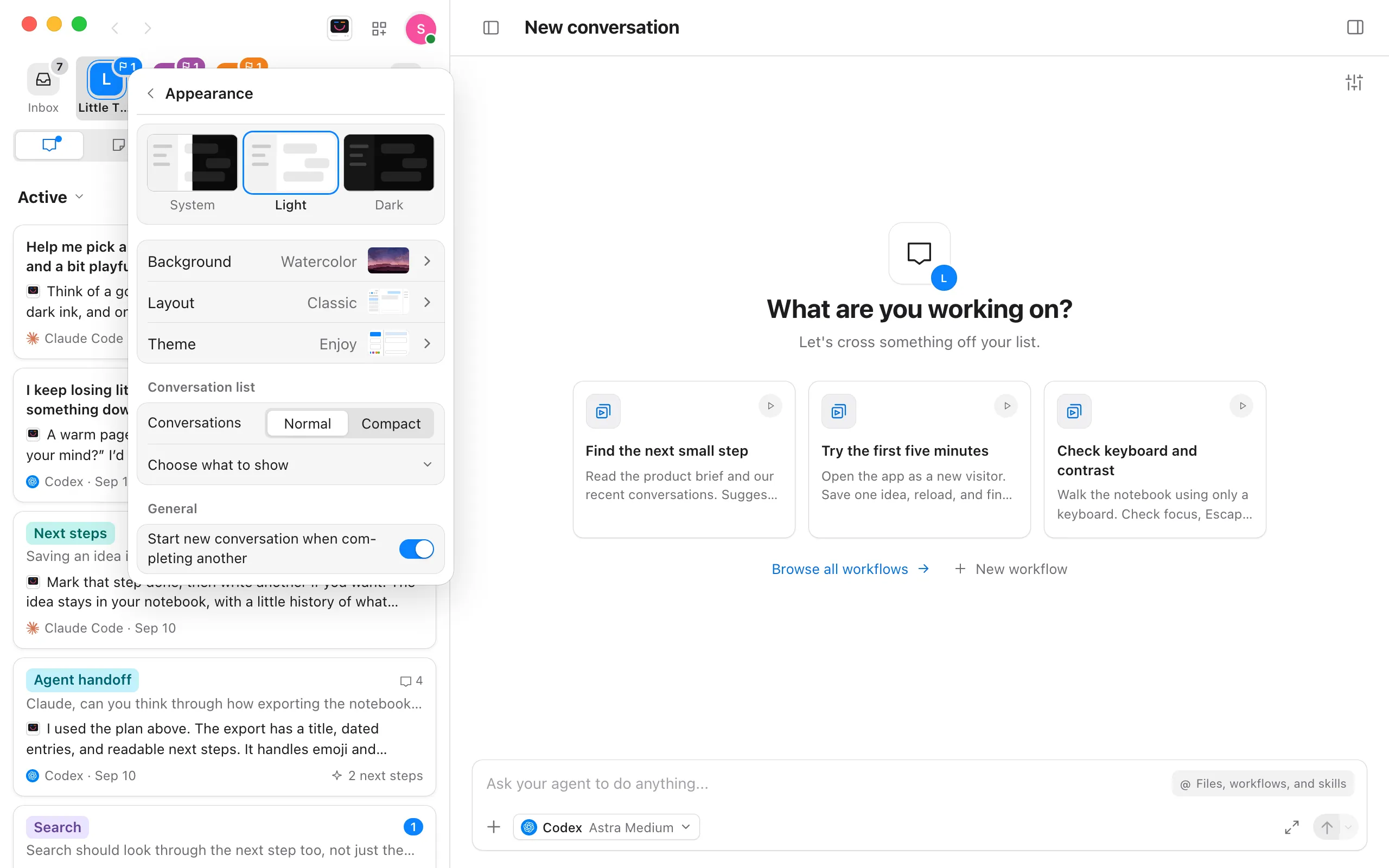
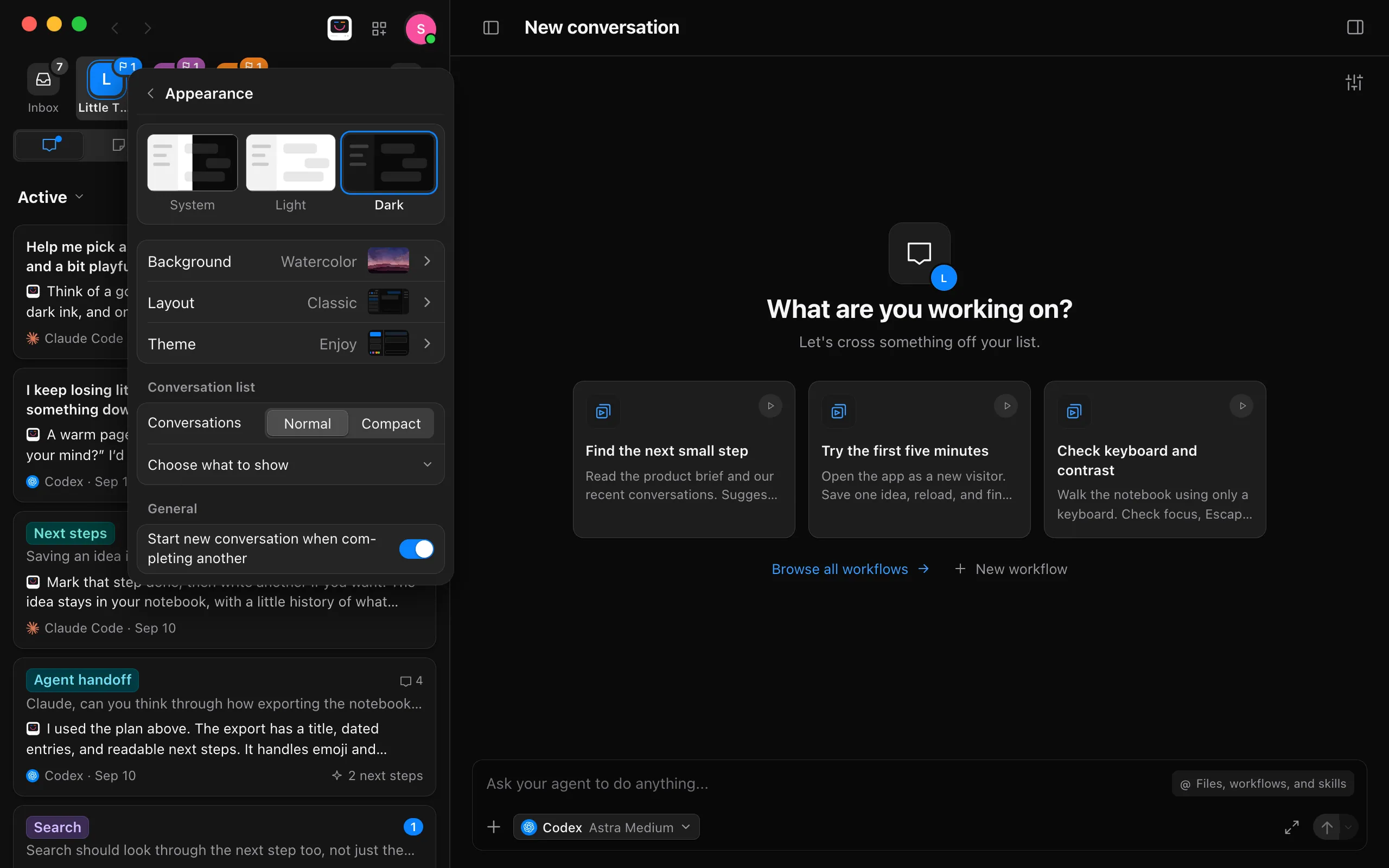
Choose a layout
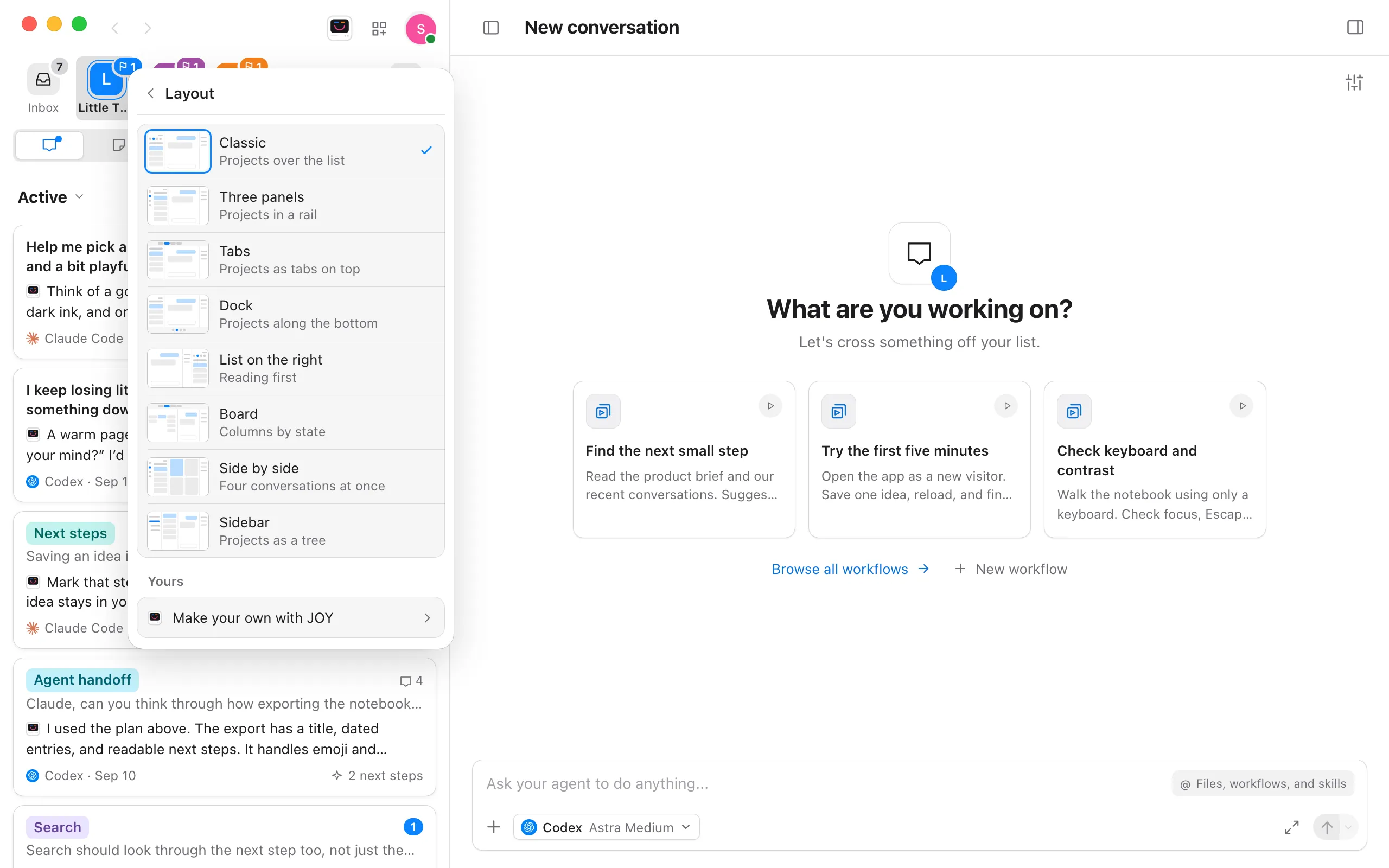
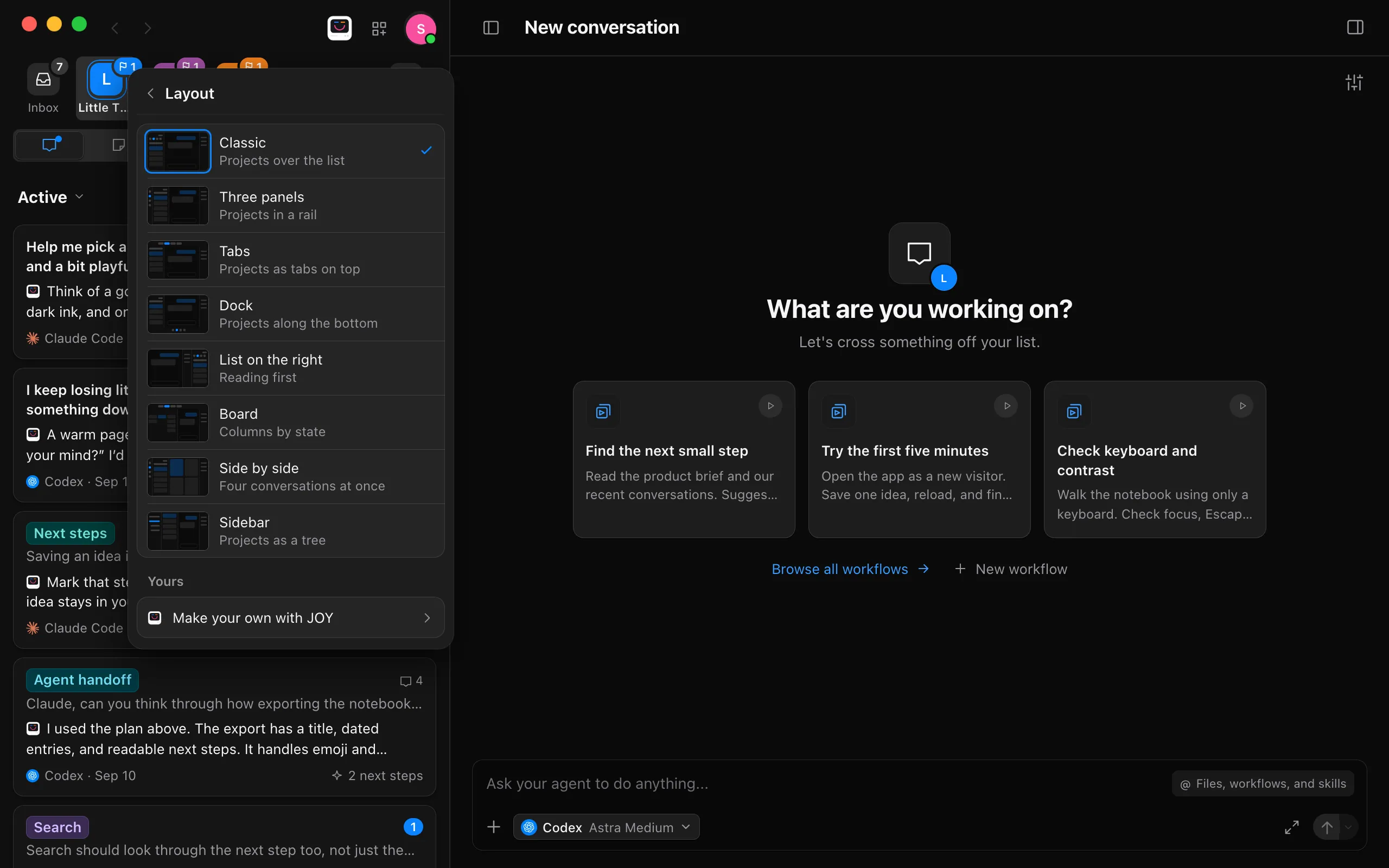
Each is a row with a small picture of the window and what it does. Select one and the window changes right away.
- Classic is Enjoy as it comes: projects over the list, with what’s open beside it.
- Three panels puts your projects in a rail down the window’s left edge, so the list column holds only your conversations.
- Tabs puts your projects as tabs across the top of the window, the way a browser keeps its pages.
- Dock puts your projects along the bottom of the window.
- List on the right lets what’s open lead the window, with your projects and list on the right.
- Board sets the open project’s conversations out in columns by state, Needs you, Working and Ready, with your projects as tabs on top. It shows whatever the list is showing or searching. In a window narrower than about 1000 points, the list shows as a list.
- Side by side shows up to four of the open project’s active conversations at once, each with its own box to write in, so you can steer several agents. Each keeps its place as replies arrive. Select in one to make it the open one, which Agent activity follows; a conversation you open from the list takes the last place.
- Sidebar lists your pinned projects in a sidebar, each unfolding into its conversations, notes, files, workflows and tools, with Project settings under the open one. Select the arrow beside a project to fold or unfold it, and All at the bottom for the rest of your projects.
Go back
Select Layout at the top to return to Appearance, or press Escape to close the menu.
Make your own with JOY
- In Layout, select Make your own with JOY. JOY opens with the start of a request in her box.
- Say how you’d like the window, such as “projects as tabs on top, with the list on the right”, and send it.
- JOY writes the layout and the window takes it right away. It’s added to Layout under Yours, so you can switch to it and back any time.
Good to know
- Narrow windows, phones among them, show one pane at a time whatever layout you choose.
- You can still drag the edge of the list column, or of Agent activity, to resize them.
- Every layout keeps a way to choose projects, your face, JOY and Your tools, so you can always come back here. Your face’s menu stays open as you try layouts.
- In Sidebar, right-click a project for its menu, as on the shelf. Projects there aren’t dragged into order; pin and unpin them from All.
- If a layout of yours can’t be shown, Layout says what’s wrong under Yours, and Enjoy keeps the layout you had. Ask JOY to fix it.
- Your layout is saved on this device. Each computer and browser keeps its own.