See an HTML file as its page
Before you start
- On the web or your iPhone, the computer with the project must be on, with Enjoy open. The page comes from that computer.
Steps
Open Files
Select Files in the sidebar, under your project’s name. On your iPhone, open the project and select Files at the top.
Open the HTML file
Select a file whose name ends in
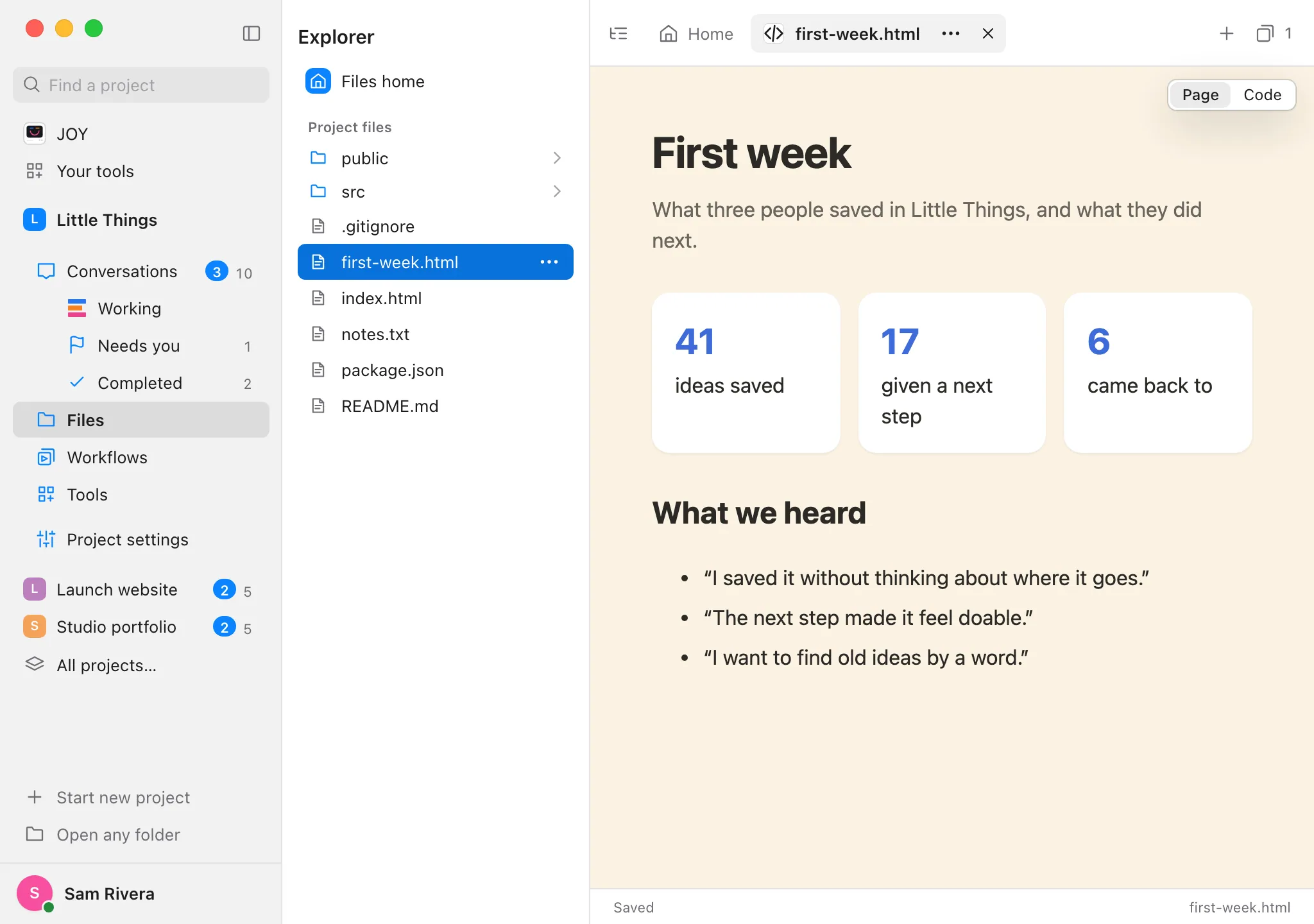
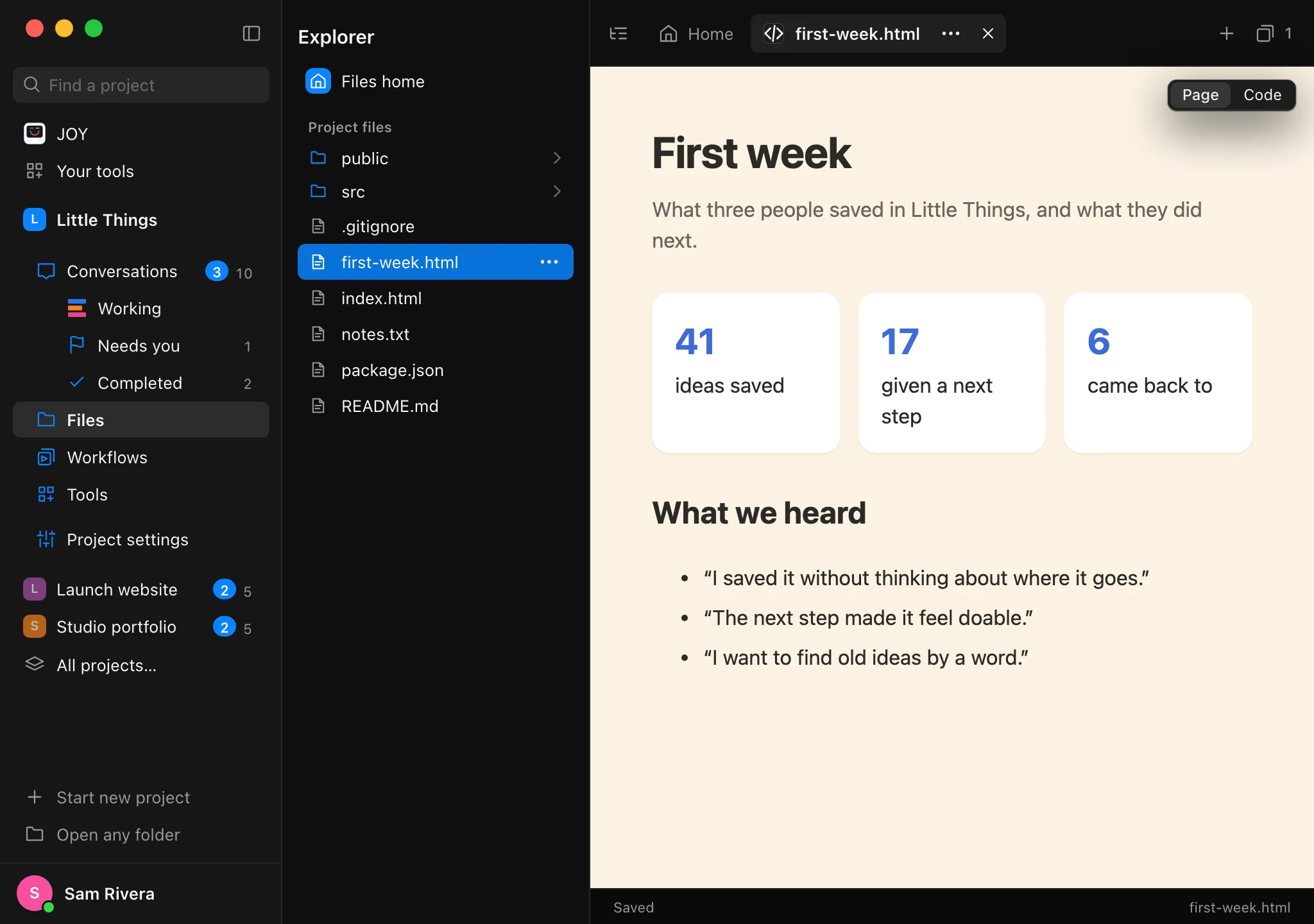
.htmlor.htm. On your computer and in the web app, it opens as its page, the way a browser shows it. On your iPhone, the file opens as code, with a row at the top that names the page: select it to see the page full screen.Switch to the code to change it
Select Code at the top right of the page. Edit the file as any other, and Enjoy saves it for you.
Go back to the page
Select Page. It shows your latest saved changes.
Good to know
- The page loads its own styles, pictures, and scripts from your project, and from the internet when it links there. Links to other pages in your project open in the same place.
- When the file changes, from your edits or an agent’s, the page loads again.
- Files whose names start with a dot, such as
.envand the.gitfolder, are never part of a page. - Anyone who can view the project can see its pages, including teammates with view access.
- On the web and your iPhone, the first page you open in a project can take a few seconds while your computer gets it ready.
- To see a site that runs as a server, such as one an agent starts with
npm run dev, see See your site from the web app or your iPhone. - To save a copy of the file instead, see Download a file from your project.
If something goes wrong
“Pages of a project inside WSL can’t show here yet. Open the file as code.”
Projects inside WSL don’t show pages yet. Select Code to edit the file, or open it in your browser from Windows.
The page doesn’t appear in the web app or on your iPhone
Your computer must be on, with Enjoy open, and remote access turned on. If a message says the page isn’t running or Enjoy needs an update, select Try again, or update Enjoy on your computer.