Download a file from your project
Before you start
- Use the web app, the iPhone app, or the computer app while it shows another computer’s projects. On the computer the project is on, the files are already there. See Open a file in another app instead.
- The computer with the project must be on, with Enjoy open.
Steps
Open Files
Select Files in the sidebar, under your project’s name. On your iPhone, open the project and select Files at the top.
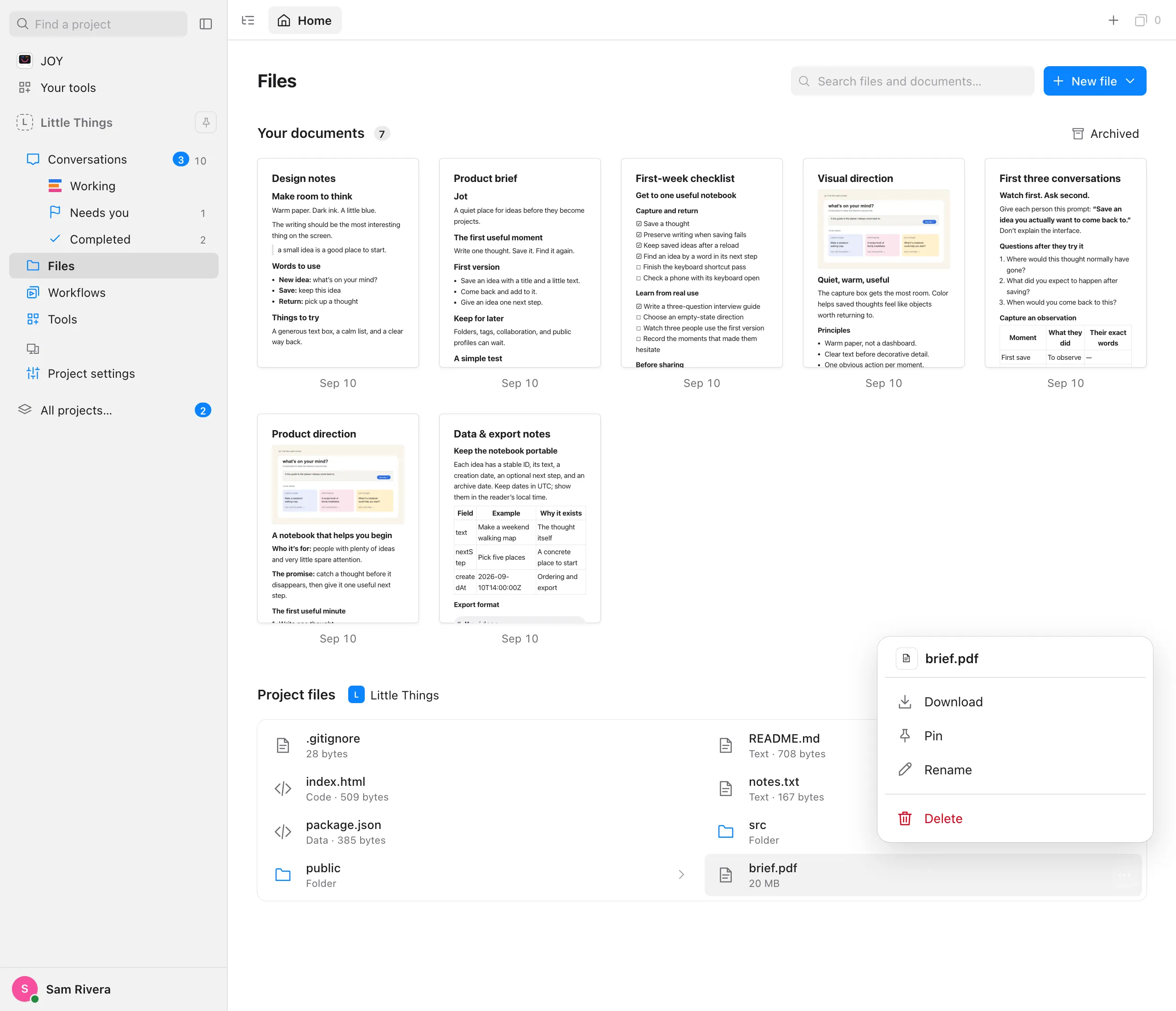
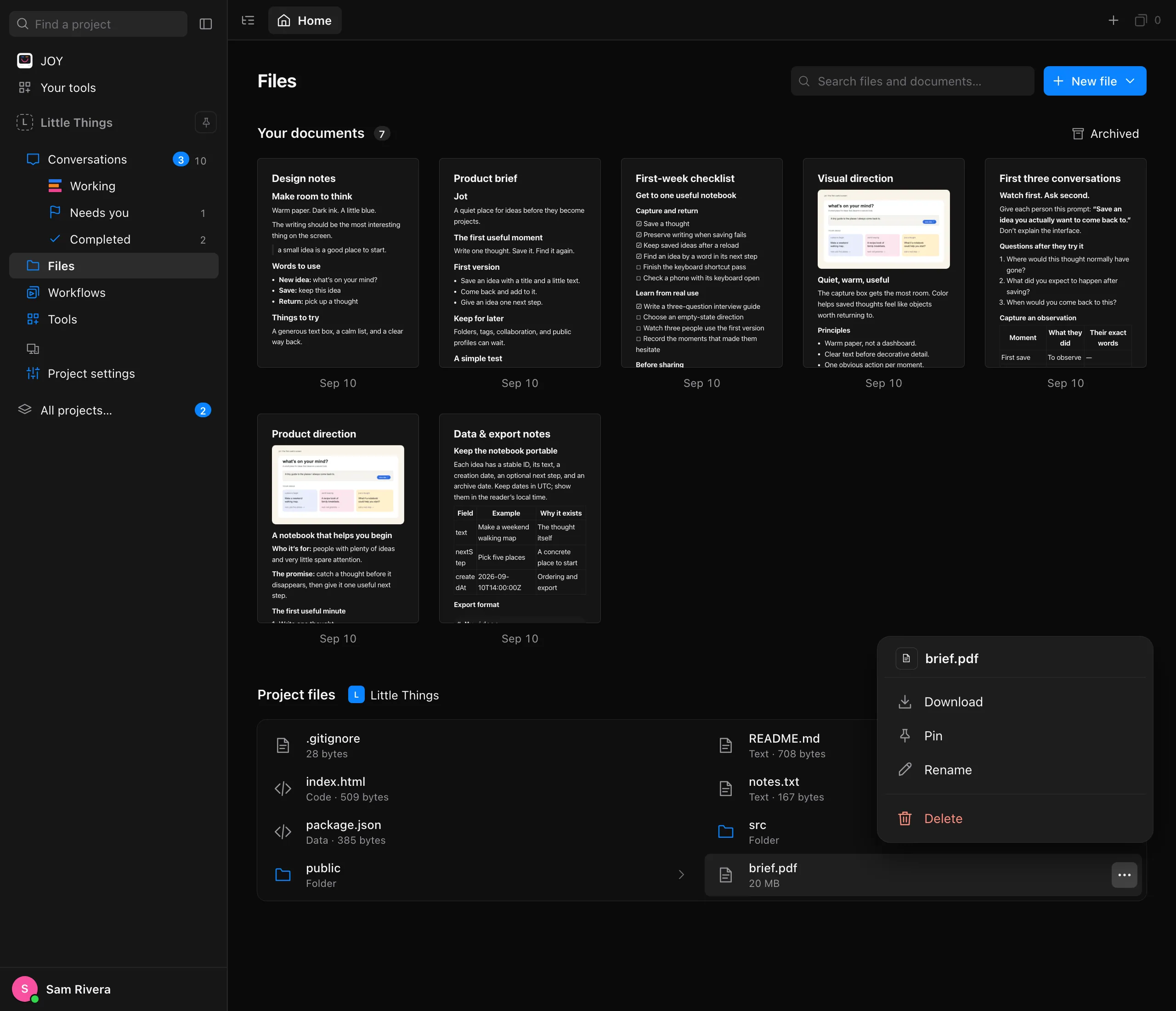
Choose Download
In the web app, right-click the file, or point to it and select …, then choose Download. On your iPhone, open the file, select its name at the top, and choose Download. A file Enjoy can’t show, such as a PDF or a zip file, also has a Download button.
Watch it arrive
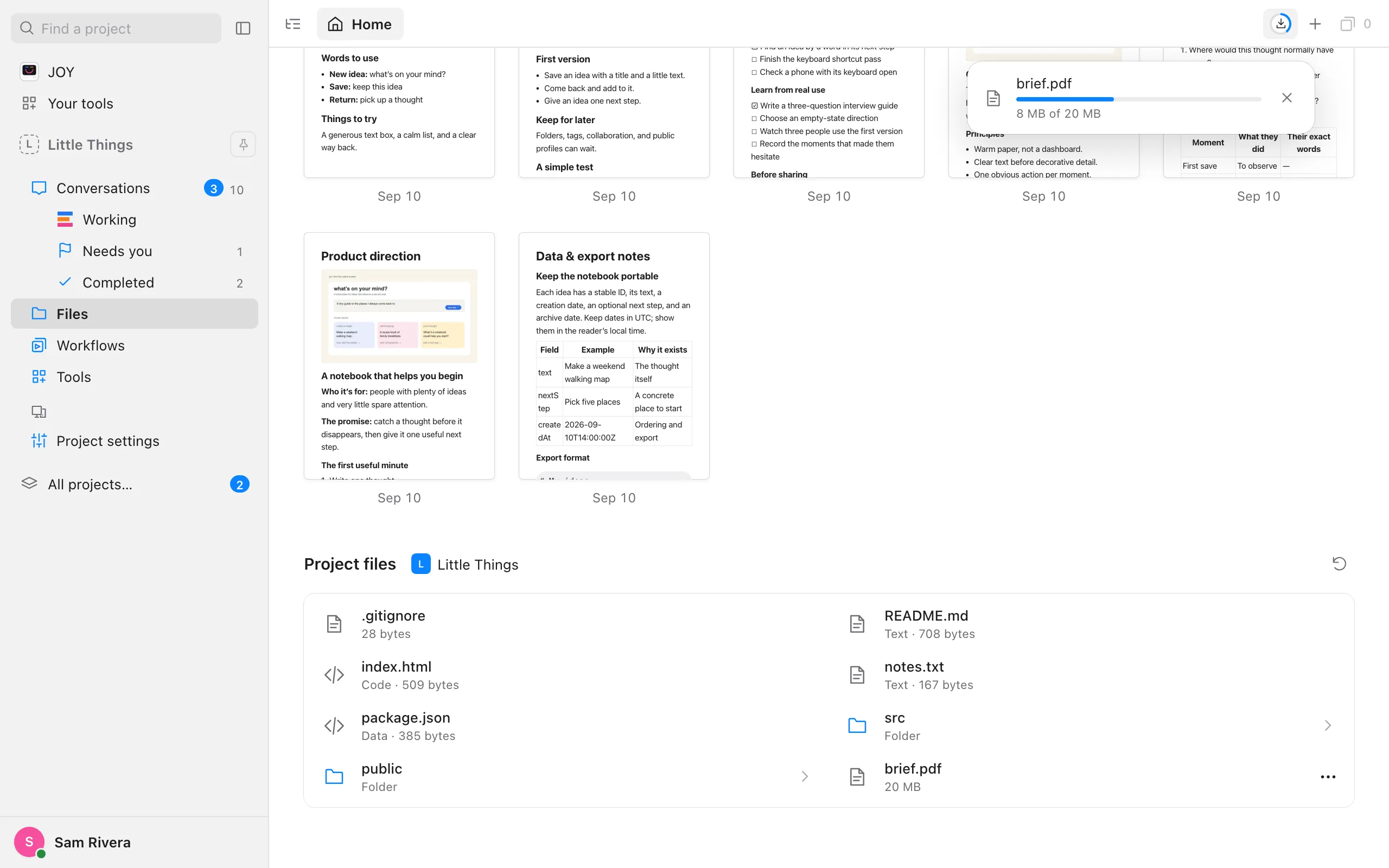
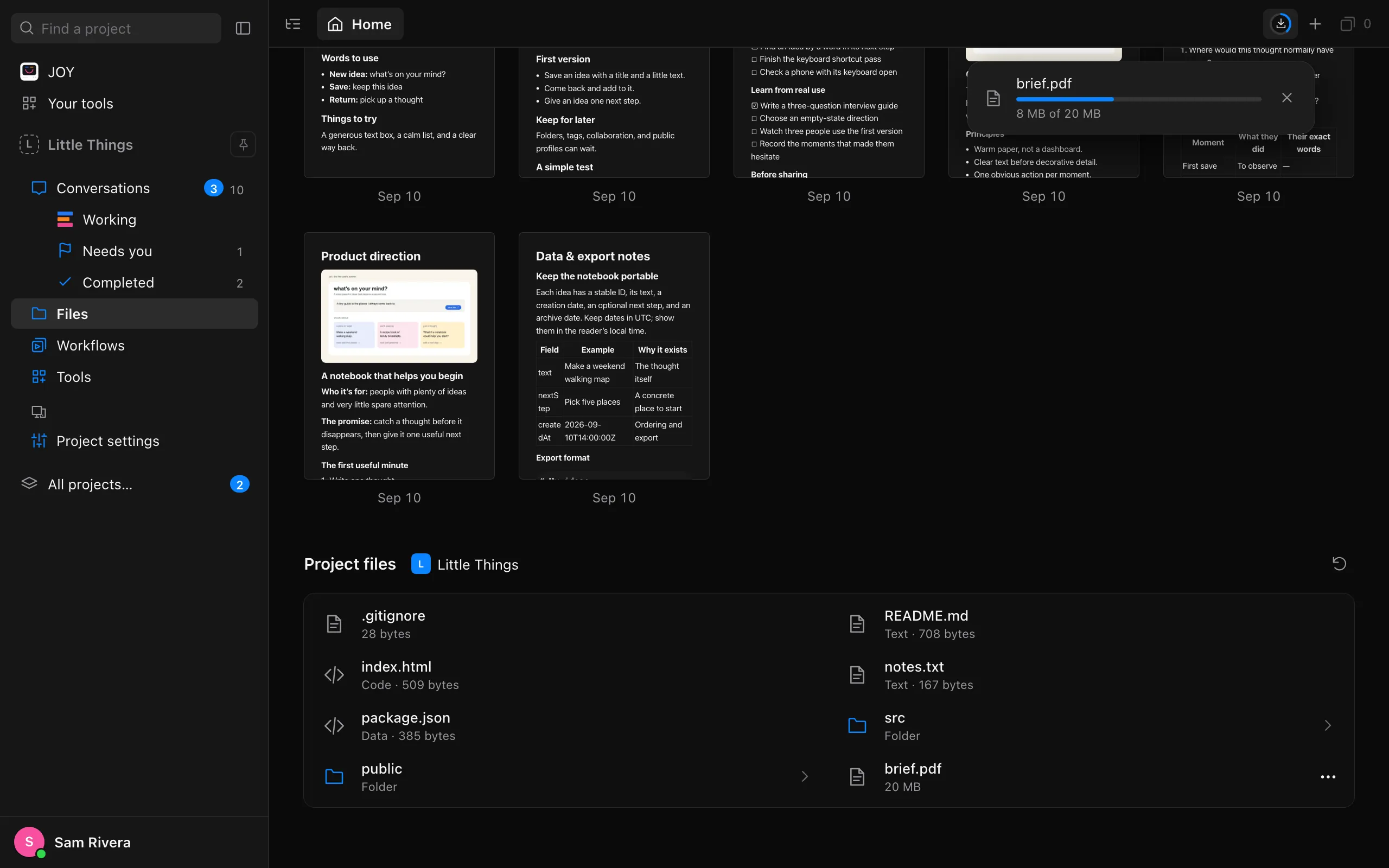
In the web app, a Downloads button appears at the top right of Files, ringed with the download’s progress, and its list opens. On your iPhone, a note at the top shows the progress. Select × or Cancel to stop.
Find your copy
In the web app, your browser saves the file where it saves downloads, usually your Downloads folder. On your iPhone, select Save or share…, then choose Save to Files or where to send it.
Good to know
- Any file in your project can be downloaded, whatever its type, including pictures, videos, PDFs, and zip files.
- You get the file as your computer has it saved. If you’re editing a text file, Enjoy saves your changes first.
- In the web app, files can be up to 1 GB, because your browser holds the whole file until it’s saved. The iPhone app has no limit.
- Downloads keep going while you open other files. In the web app, select Downloads to see them all, and Clear to remove finished ones from the list.
- Viewing access to a project is enough to download its files.
If something goes wrong
“This file changed while it was downloading. Try again.”
The file changed on your computer partway through, so Enjoy stopped rather than give you a mix of two versions. Select Try again to download it as it is now.
“This file is over 1 GB, too large to download to this device.”
Your browser can’t hold a file that large. Download it on your iPhone, or open it on the computer the project is on.
“This action is unsupported or invalid.”
Enjoy on your computer is too old to send files. Update it, then try again.