Post videos to YouTube
An agent can draft a post of a video in your project to your YouTube channel, with its title, description, and tags written. Nothing goes to YouTube until you check the draft and select Post. Enjoy then uploads the video from your computer.
Before you start
- You’re using the computer app. Posting to YouTube isn’t in the web app or the iPhone app.
- You have a YouTube channel on your Google account.
- The video is in your project’s folder.
Steps
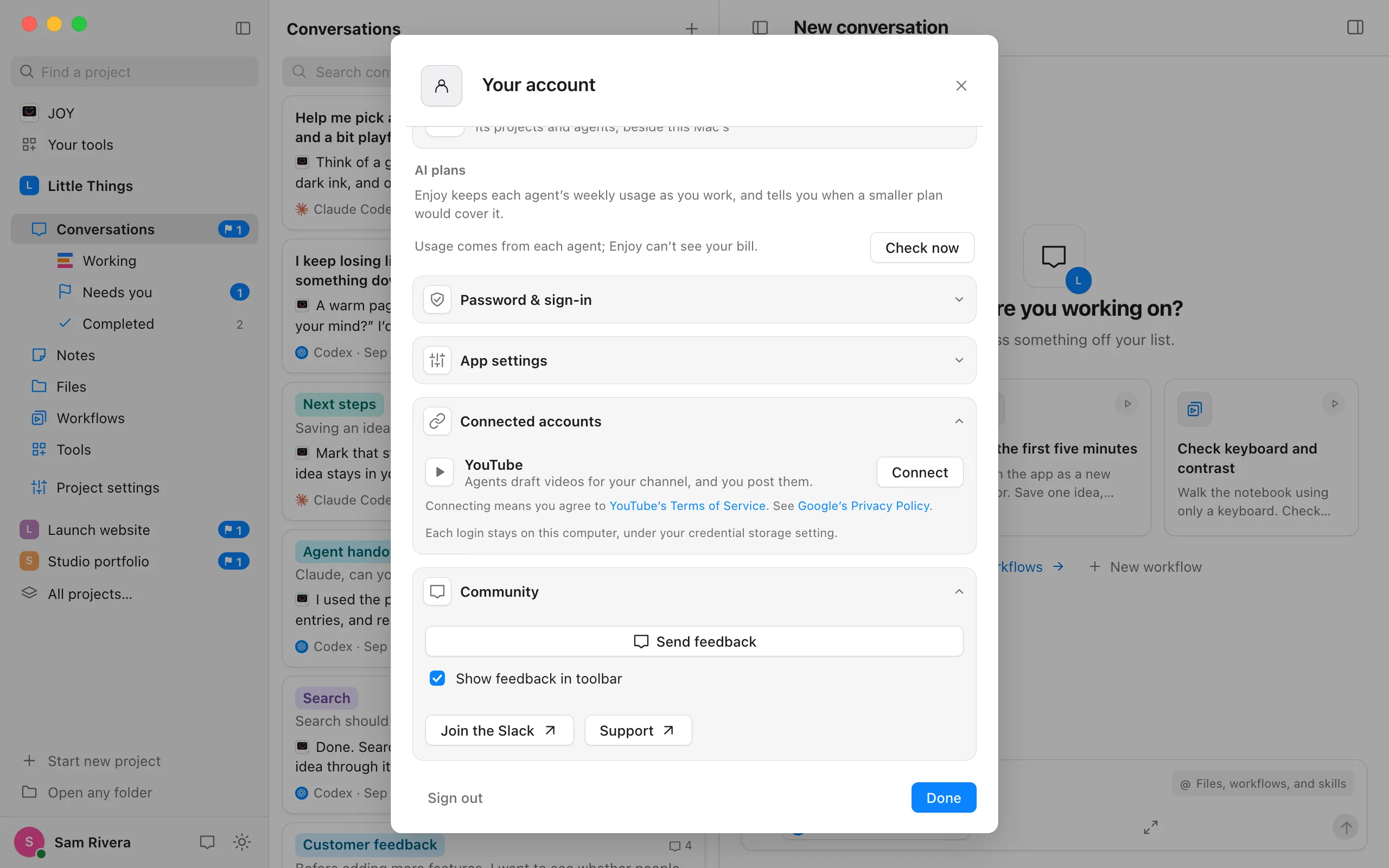
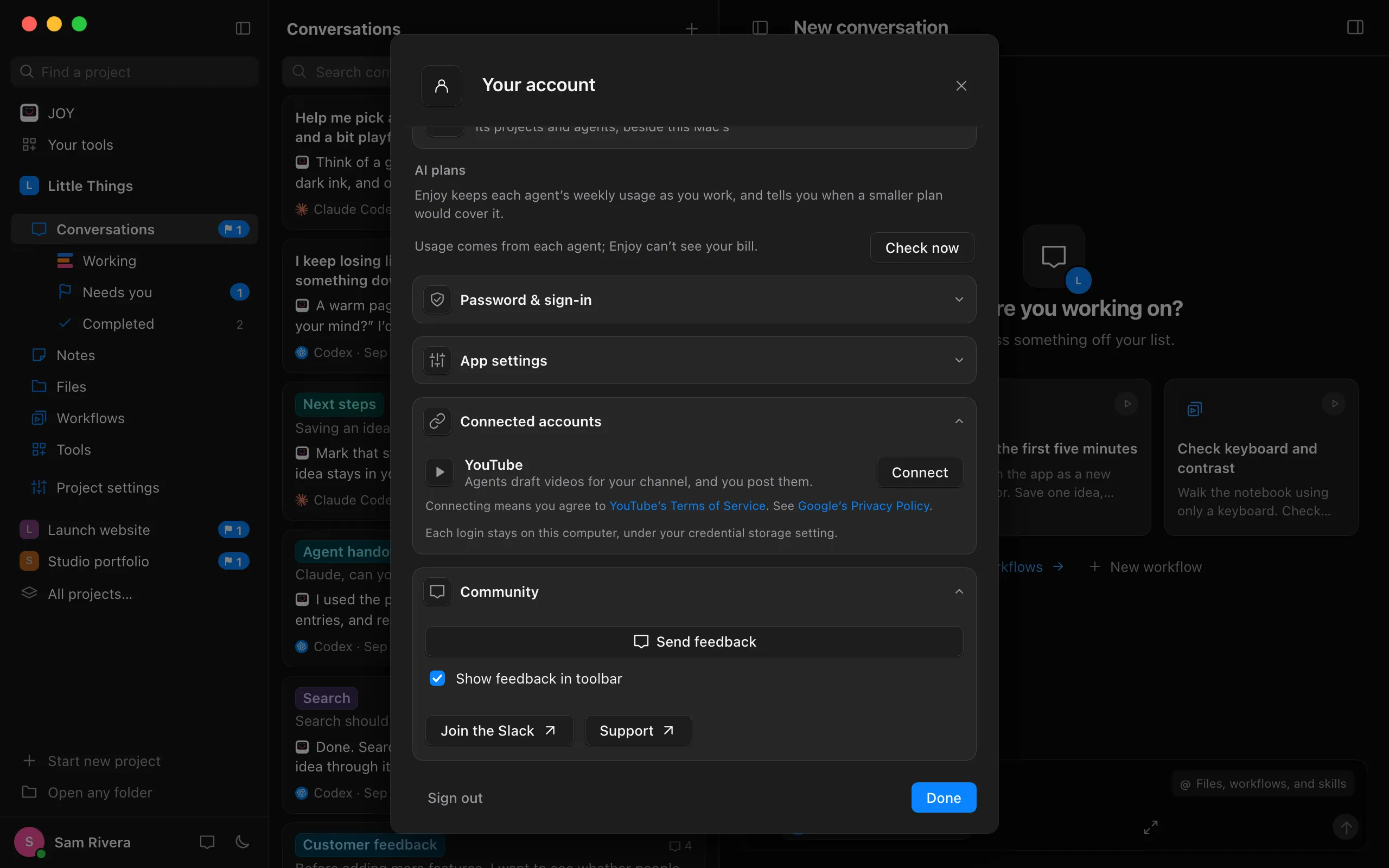
Open Connected accounts
Select your name at the bottom of the sidebar. If a menu opens, choose Your account. Then select Connected accounts.
Select Connect beside YouTube
Your browser opens Google’s page. Choose your Google account and channel, and allow Enjoy to upload videos and see your YouTube account. Back in Enjoy, your channel’s name and picture appear beside Disconnect.
Ask an agent to post a video
In a conversation, ask for what you want, such as “Post the demo video to YouTube.” The agent drafts it, and a Post to YouTube card appears under its reply.
Check the draft
Select a row to change it: Title, Description, Tags, Visibility, Audience, or AI content. Under Visibility, choose Public, Unlisted, or Private. A public video can go up Now or At a time you choose. Select Done to close the row.
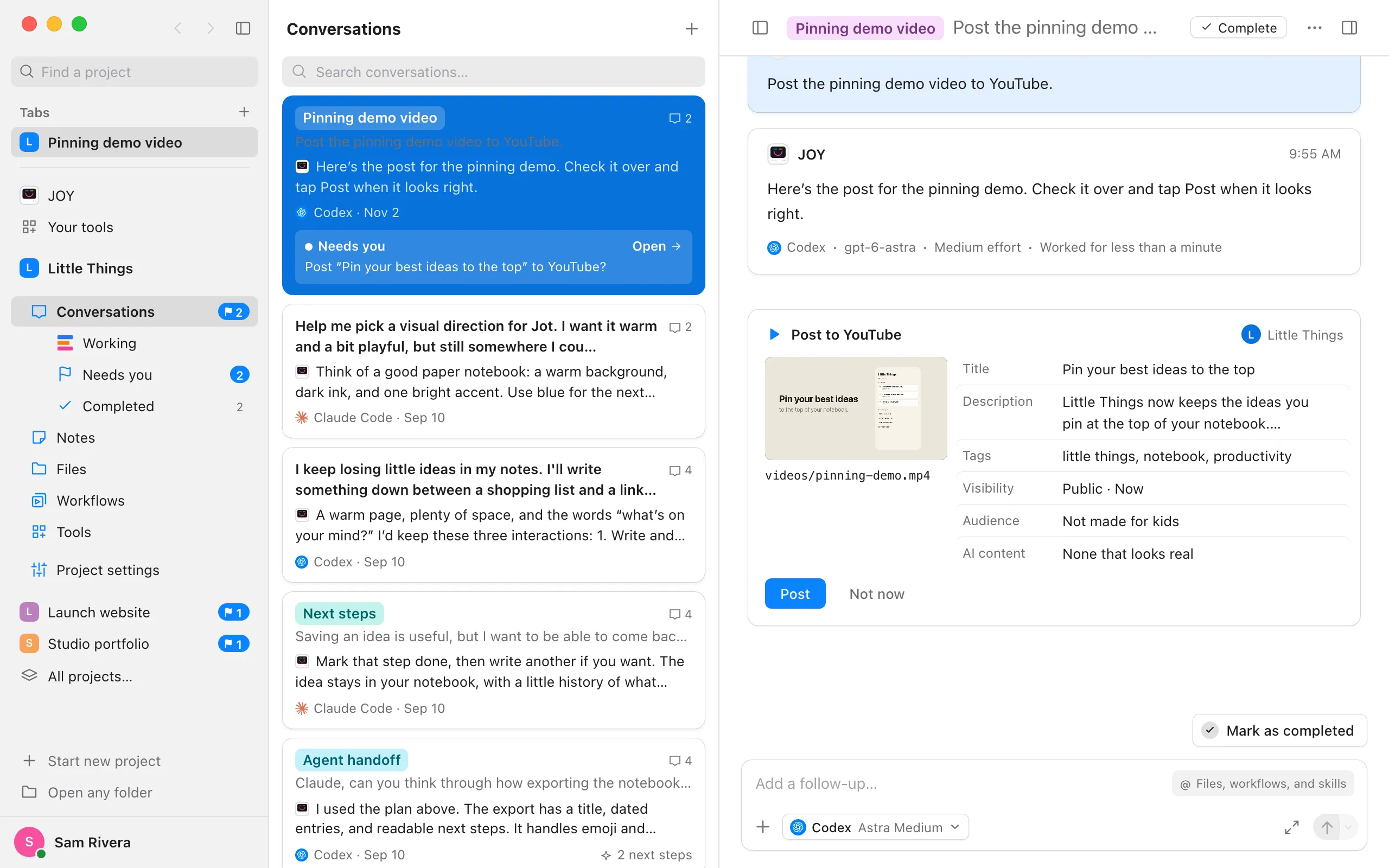
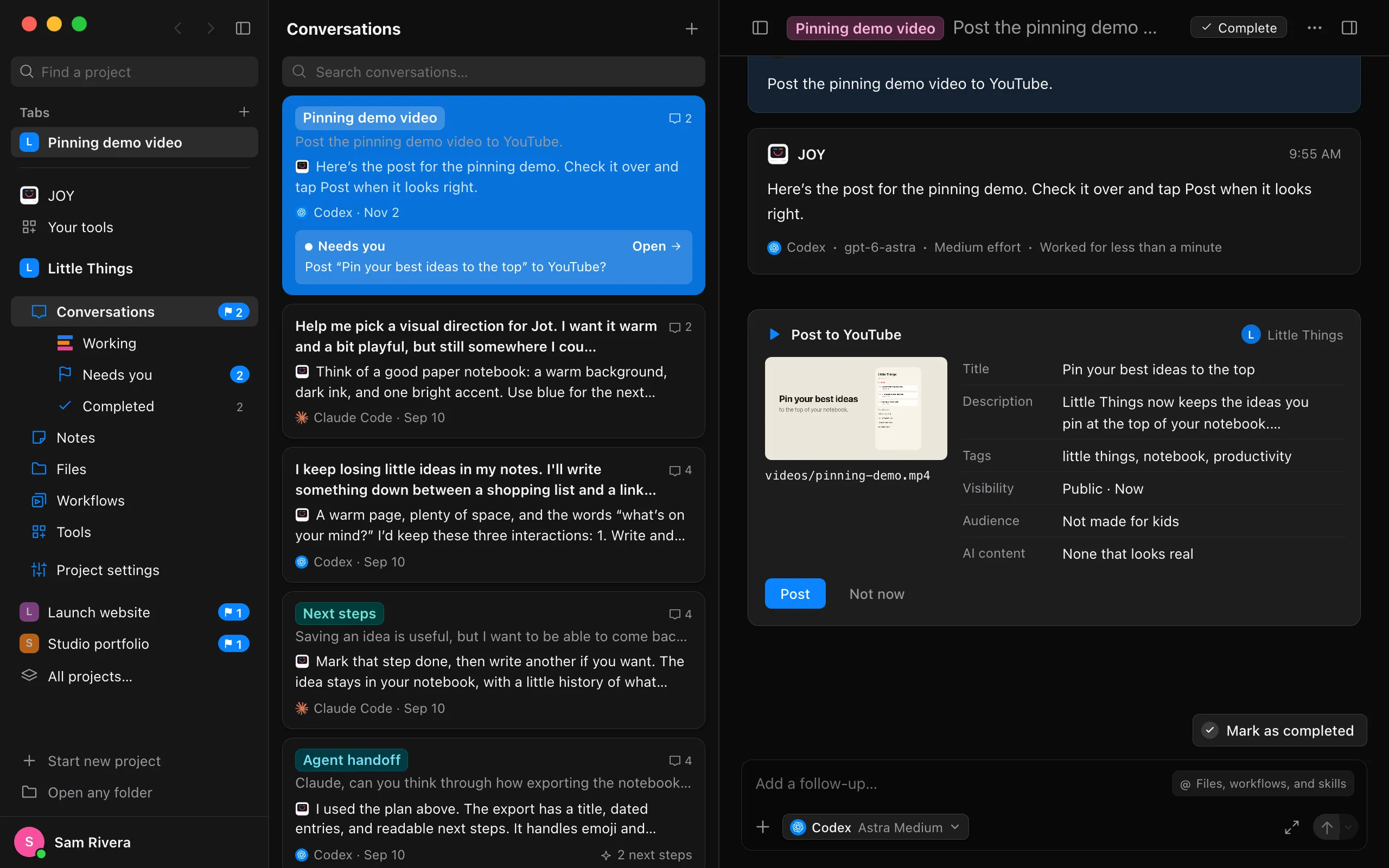
Select Post
For a public video at a time, the button says Schedule. The card shows the upload’s progress, and Stop cancels it. When it’s done, the card says Posted to your channel, with Open on YouTube.
Good to know
- Audience is YouTube’s “made for kids” setting. AI content is YouTube’s label for realistic altered or AI-generated people, places, or events.
- A vertical video up to three minutes long posts as a YouTube Short.
- Not now sets a draft aside. Select Review again to bring it back.
- An agent can draft up to five posts each time you ask.
- Agents can’t post on their own. Every post waits on its card for you.
- Your channel’s login is saved only on this computer, in Enjoy’s credential storage. See Store your Enjoy sign-in in the system keychain.
- If YouTube sets a video’s visibility differently from what you chose, the card says so.
- To disconnect, select Disconnect beside your channel in Connected accounts. Enjoy deletes the login from your computer and asks Google to end its access. You can also remove Enjoy in your Google Account’s security settings.
If something goes wrong
The card says YouTube isn’t connected
Select Connect YouTube on the card, or connect your channel in Connected accounts, then post the draft.
The upload stopped
If you selected Stop, the card says Upload stopped. Nothing was posted. The draft stays, so select Post again when you’re ready.