Paste long text into a message
Agents often need to see something long, such as what a command printed or a whole file. When you paste text that is too long to read in the message box, Enjoy keeps your message readable by holding the text in a card, and the agent still receives all of it.
Steps
Copy the text
In the app it comes from, select the text and copy it.
Paste it into the message box
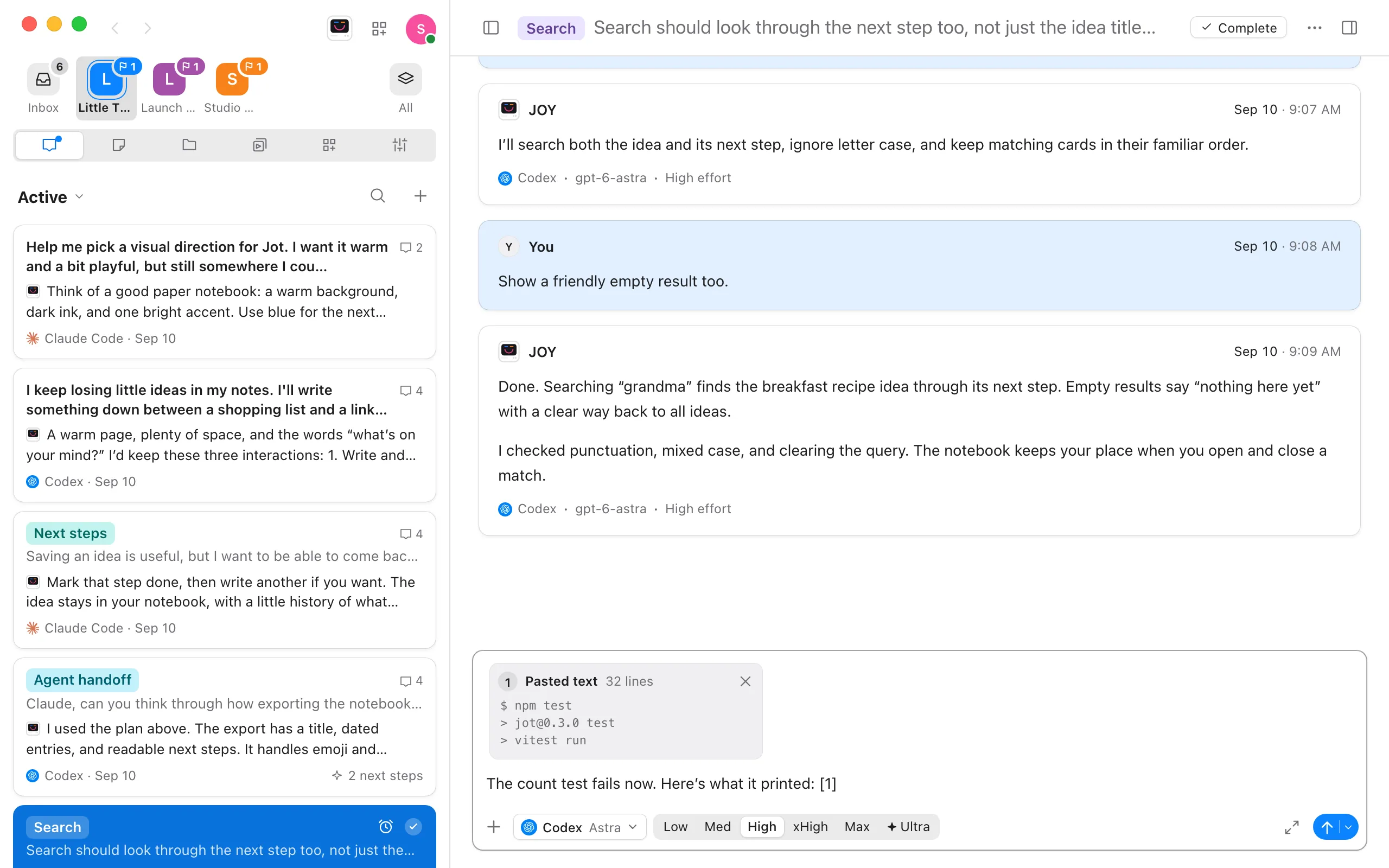
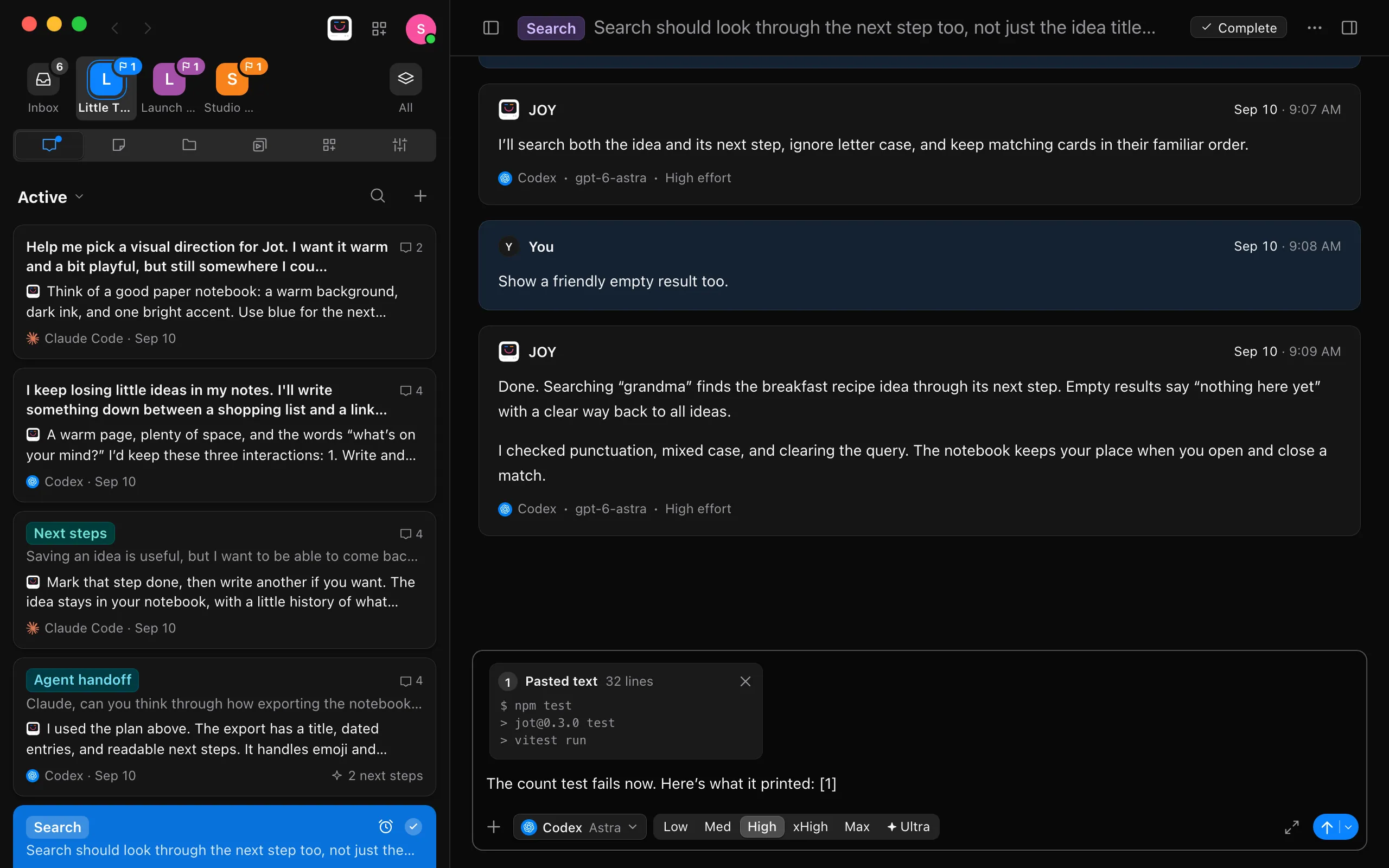
Select the message box and press ⌘V on a Mac, or Ctrl+V on Windows and Linux. Text over 20 lines or over 2,000 characters becomes a Pasted text card at the top of the message box. The card shows how many lines the text has and its first three lines. A marker such as [1] goes into your message where your cursor was, so you can refer to the text in your sentence.
Check what you pasted
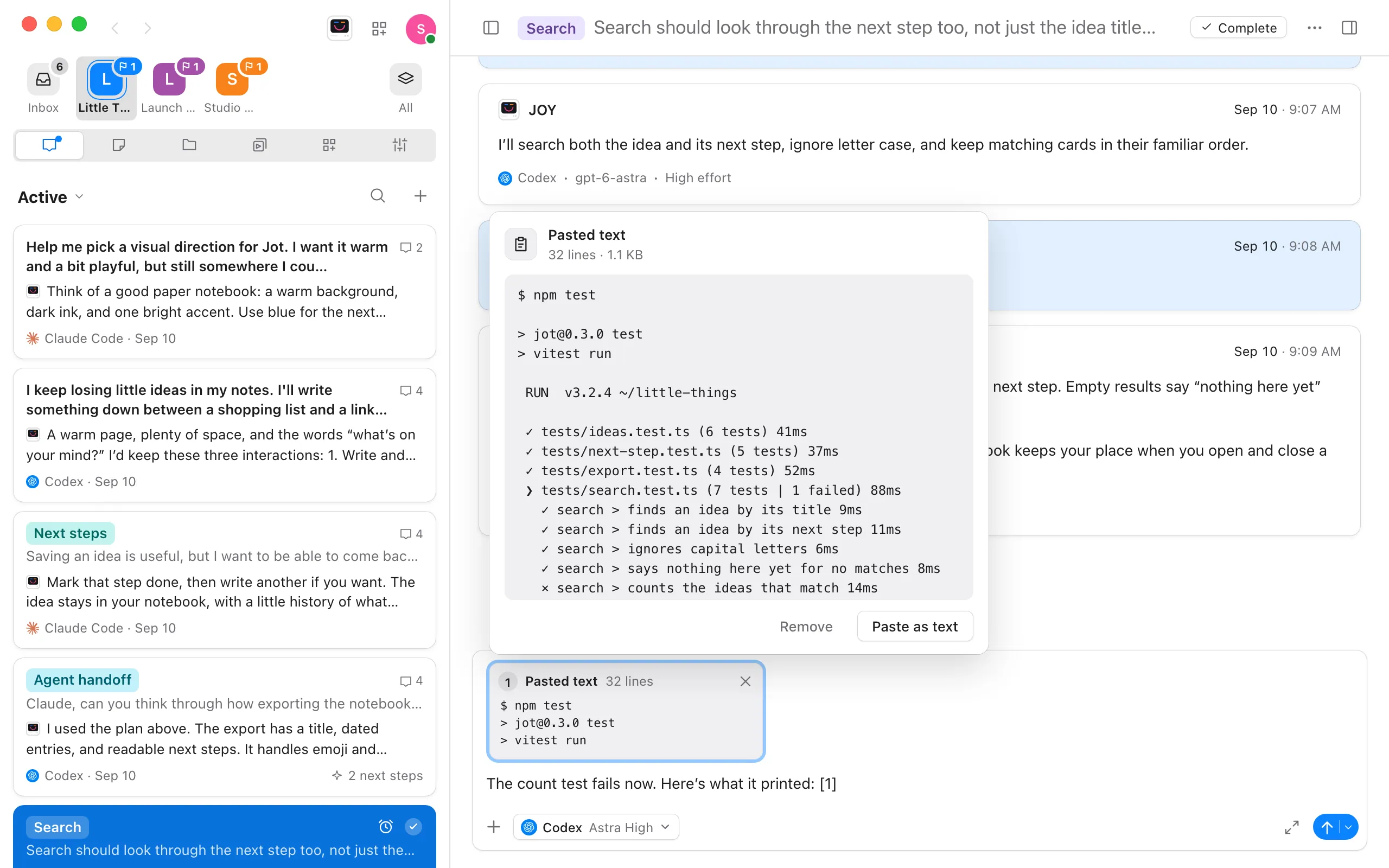
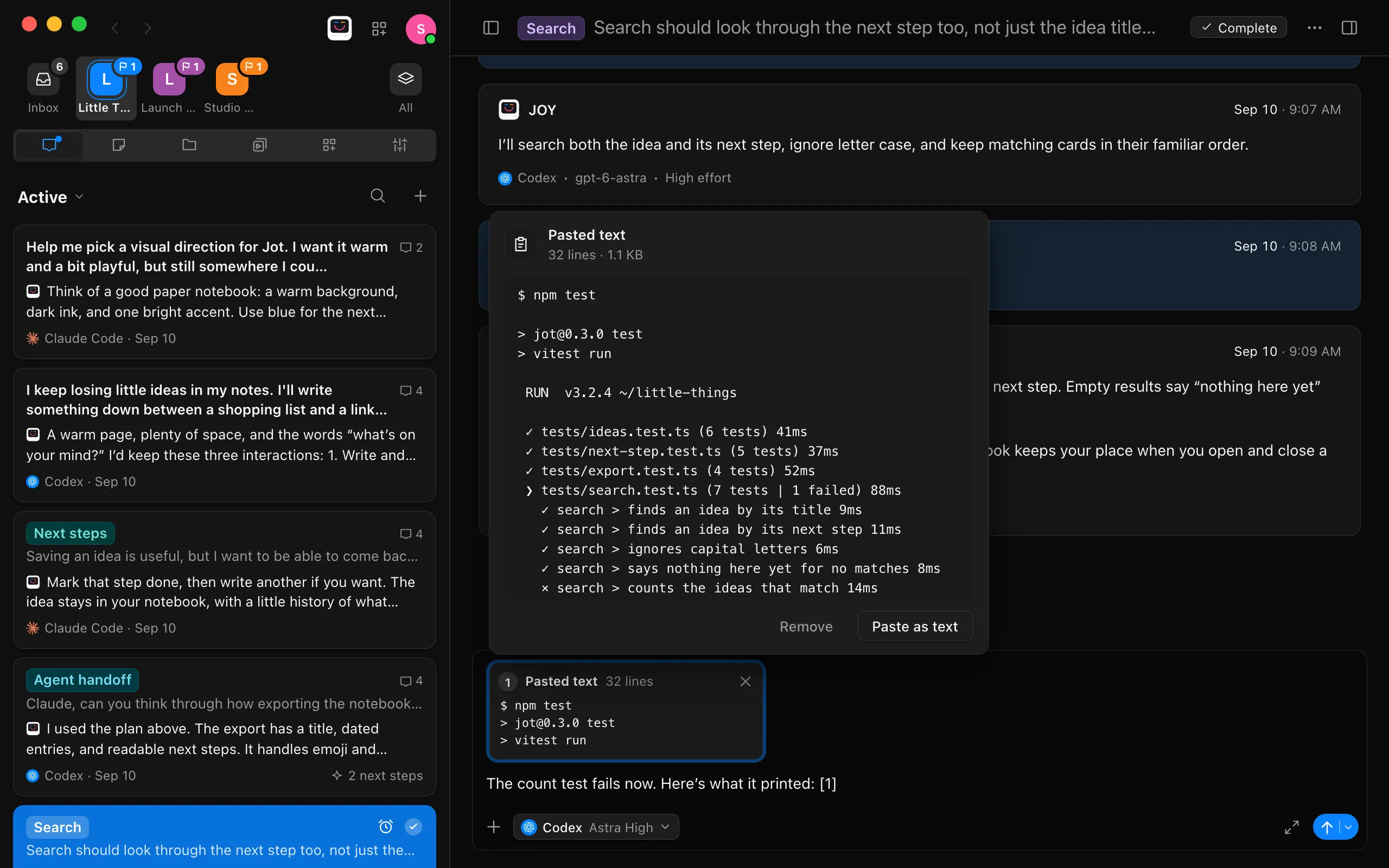
Select the card to read all of it. Choose Paste as text to put it into your message as ordinary text where its marker is, or Remove to take it out of the message.
Send the message
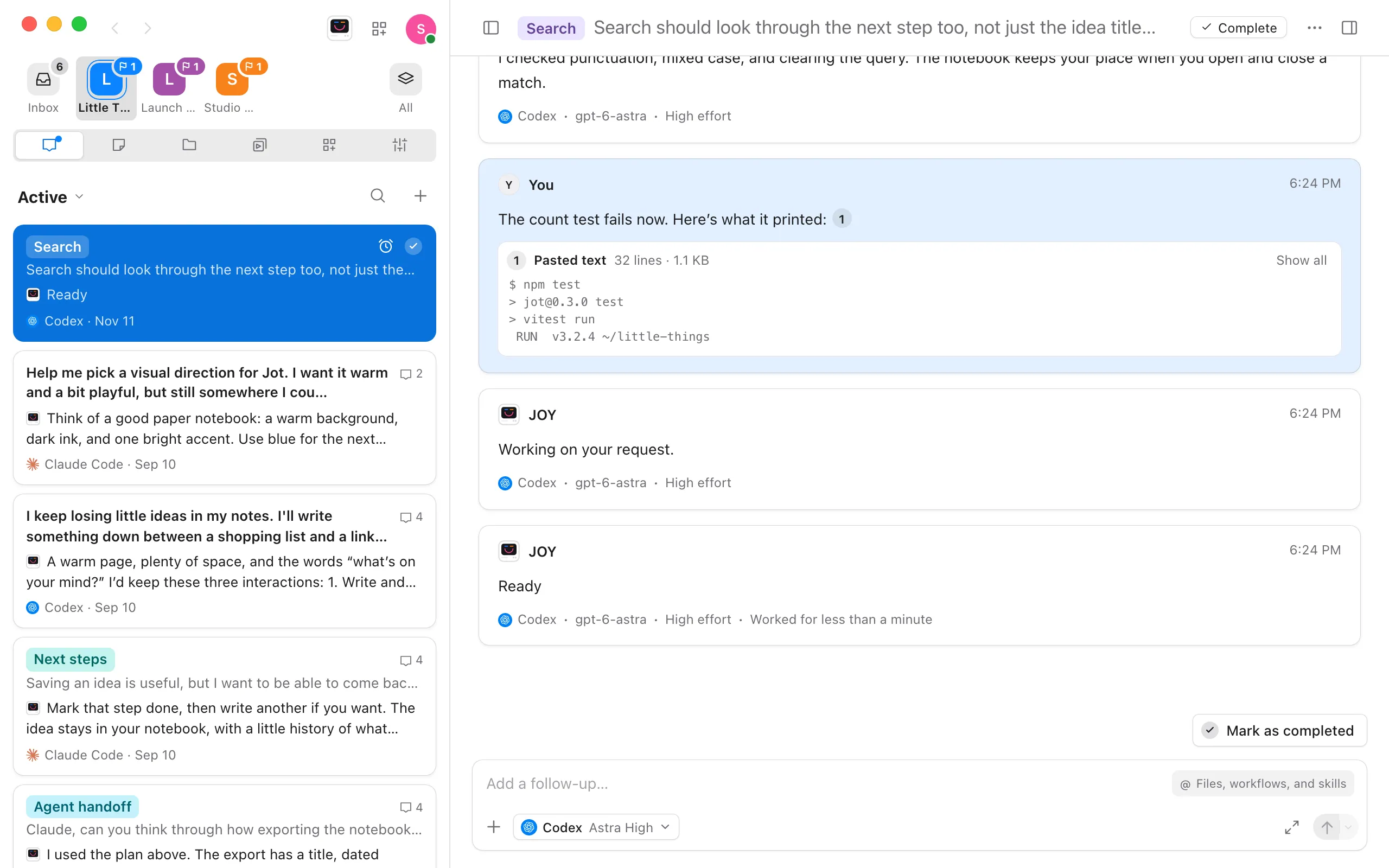
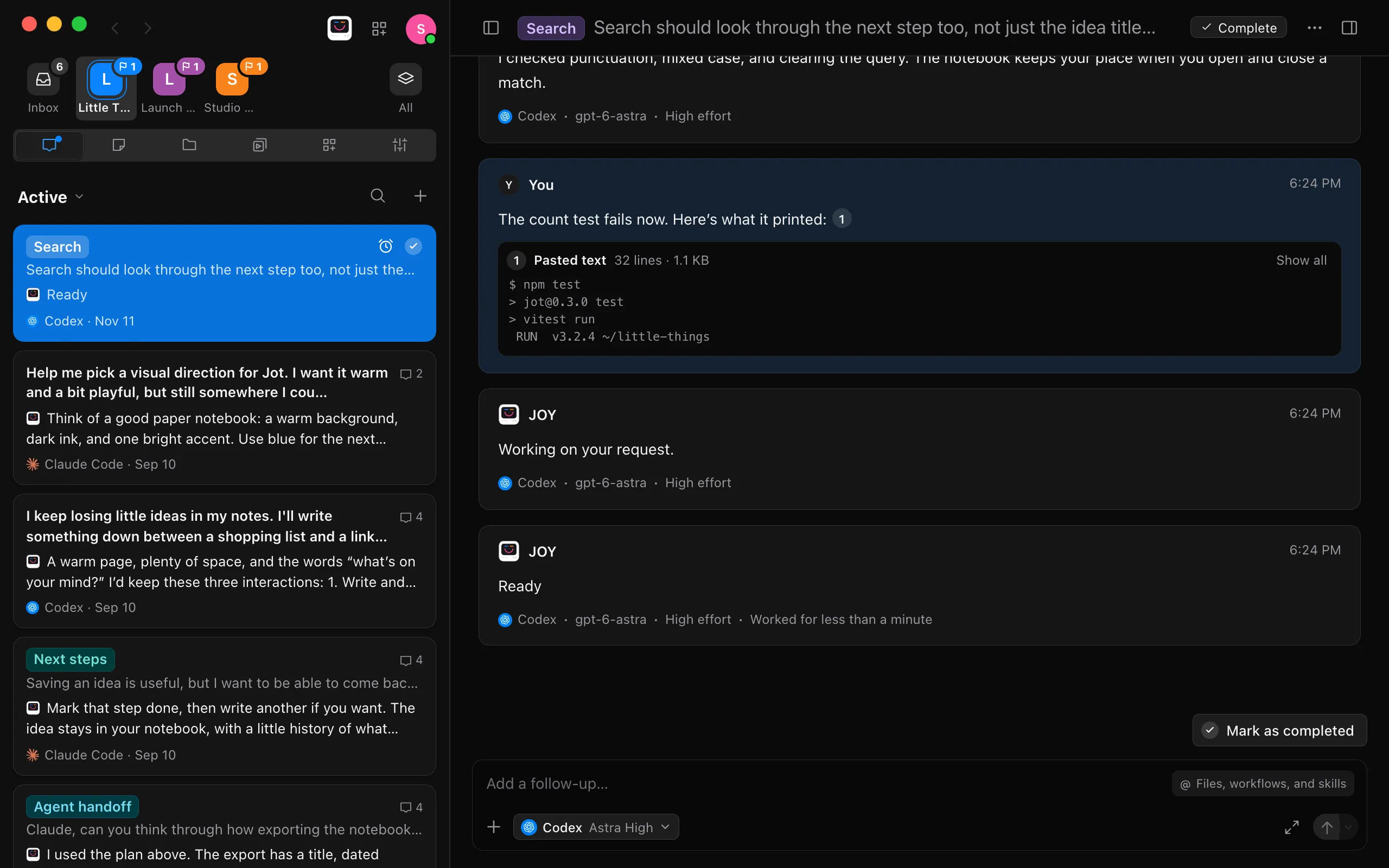
Write what you want done with the text and send as usual. The agent receives your words, followed by all of the pasted text. In the conversation, the pasted text is a card under your words that shows its first four lines. Select Show all to read the rest, and Show less to fold it again.
Good to know
- Shorter pastes go into the message box as ordinary text.
- To turn a pasted text into ordinary text right after pasting, press ⌘Z on a Mac, or Ctrl+Z on Windows and Linux. Press it again to take the paste out of the message.
- To remove a pasted text, select the X on its card. Its marker is removed from your message too. If you delete only the marker, the pasted text stays and goes at the end of your message.
- A message can hold up to 16 pasted texts. Each one gets its own card and number. After that, a long paste goes into the message box as text.
- Your words and pasted text together can be up to 100,000 characters. For something longer, attach it as a file, or put it in your project folder and mention it with @. See Attach files and images and Mention docs, conversations, files, and workflows.
- If you copied a file or an image rather than text, pasting attaches it instead.
- In the computer app, a paste that looks like a password or an access key is held back first, with an offer to keep it as a project secret. See Give agents a token or key without showing it to them.
- A new conversation is named after your words, not the pasted text. If your first message is only pasted text, the conversation is named after how the text begins.
- While the agent works, a queued message shows how many pasted texts it holds, such as 1 pasted text. Select Edit in the queue to see their cards. A long paste into a queued message becomes a card too. See Send follow-ups while the agent works.
- Find in conversation counts words inside a pasted text. They are highlighted once you select Show all on its card. See Find words in a conversation.
- Copying your sent message copies your words and all of the pasted text.
- In the computer app, a pasted text stays in your draft, even if you quit Enjoy. See How Enjoy keeps your unsent messages.
- In the iPhone app, a long paste goes into the message box as text. A message sent with pasted text from the computer or the web app shows the text in full under your words.
If something goes wrong
“Message is too long”
Your words and pasted text together are over 100,000 characters. Remove the pasted text, then attach it as a file, or save it in your project folder and mention it with @.