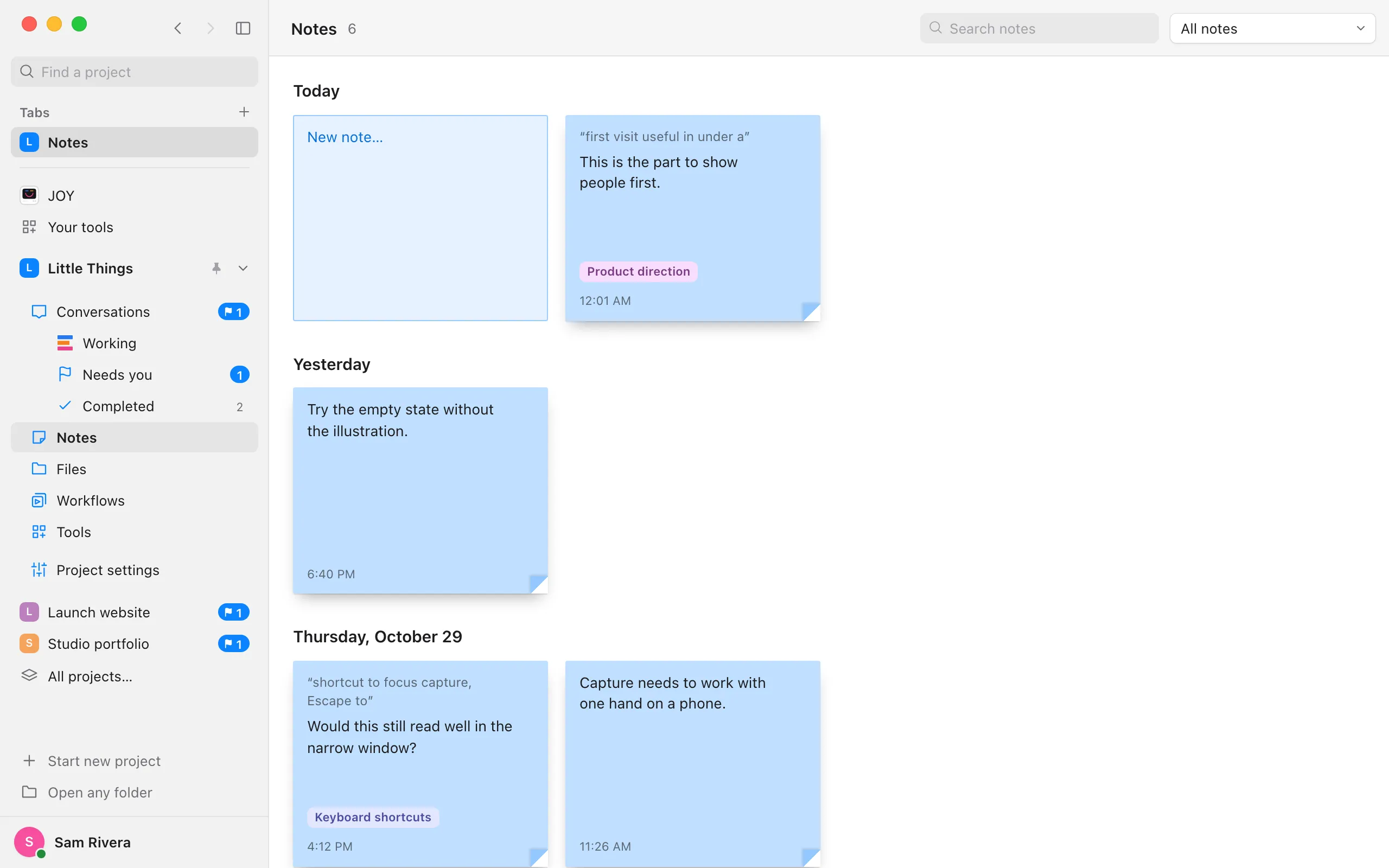
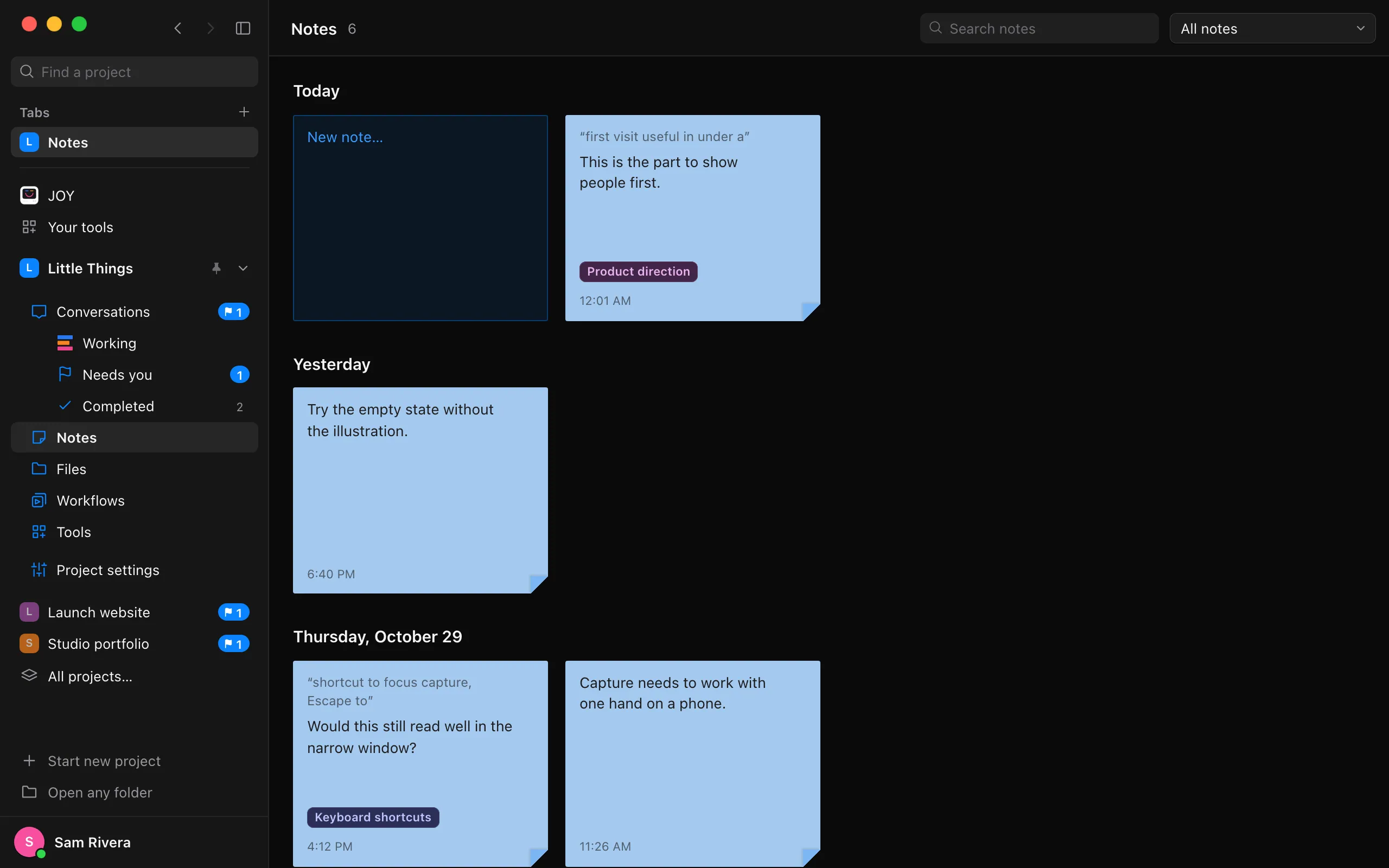
See all your notes in one place
Notes gathers every sticky note in a project, from all its conversations, so you don’t have to remember which conversation a thought is in. You can also write a note there that isn’t about any message.
Steps
Select Notes
It’s in the sidebar, under your project’s Conversations. Your notes are under the day you took them: Today, Yesterday, then the date of each day you took one.
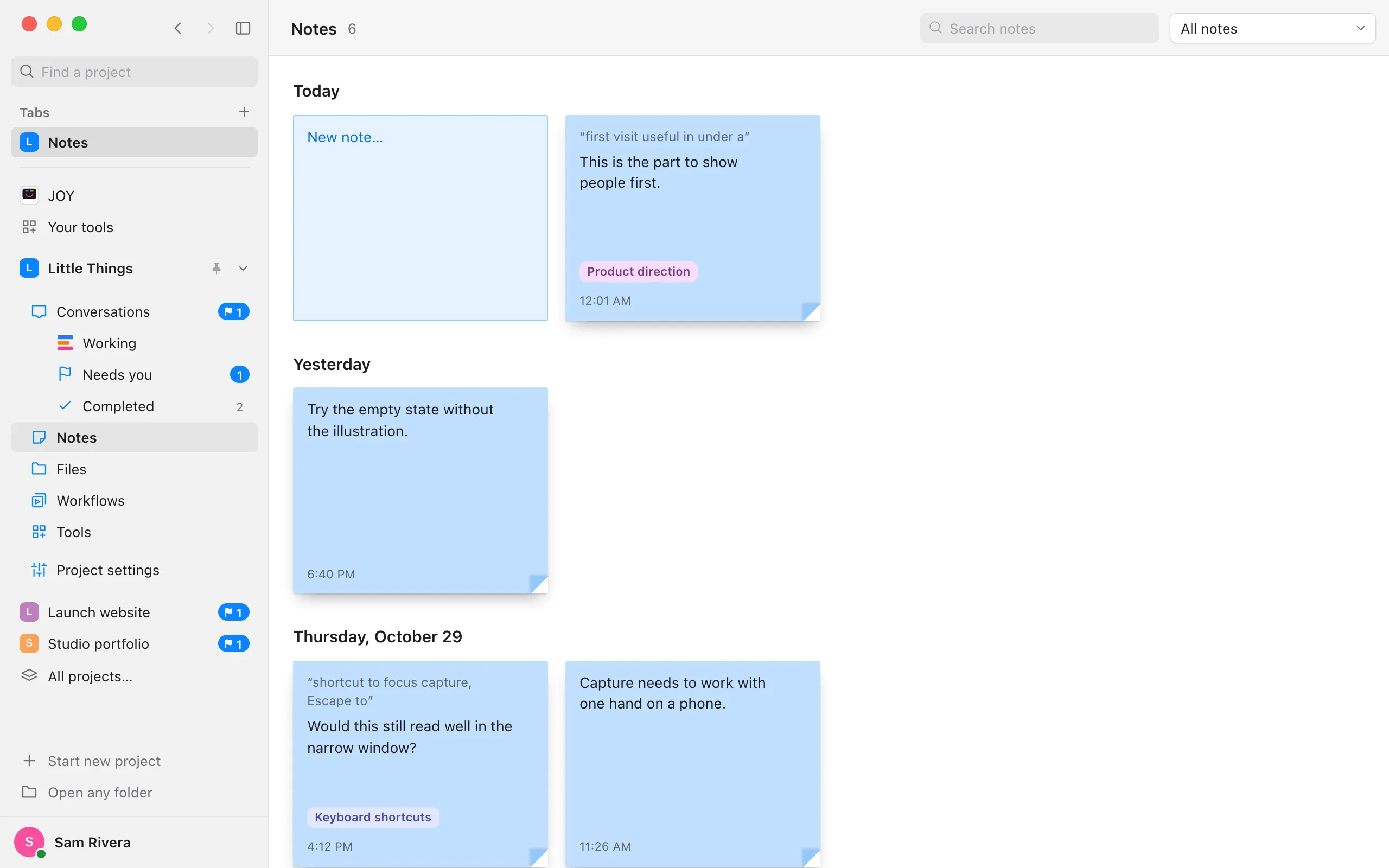
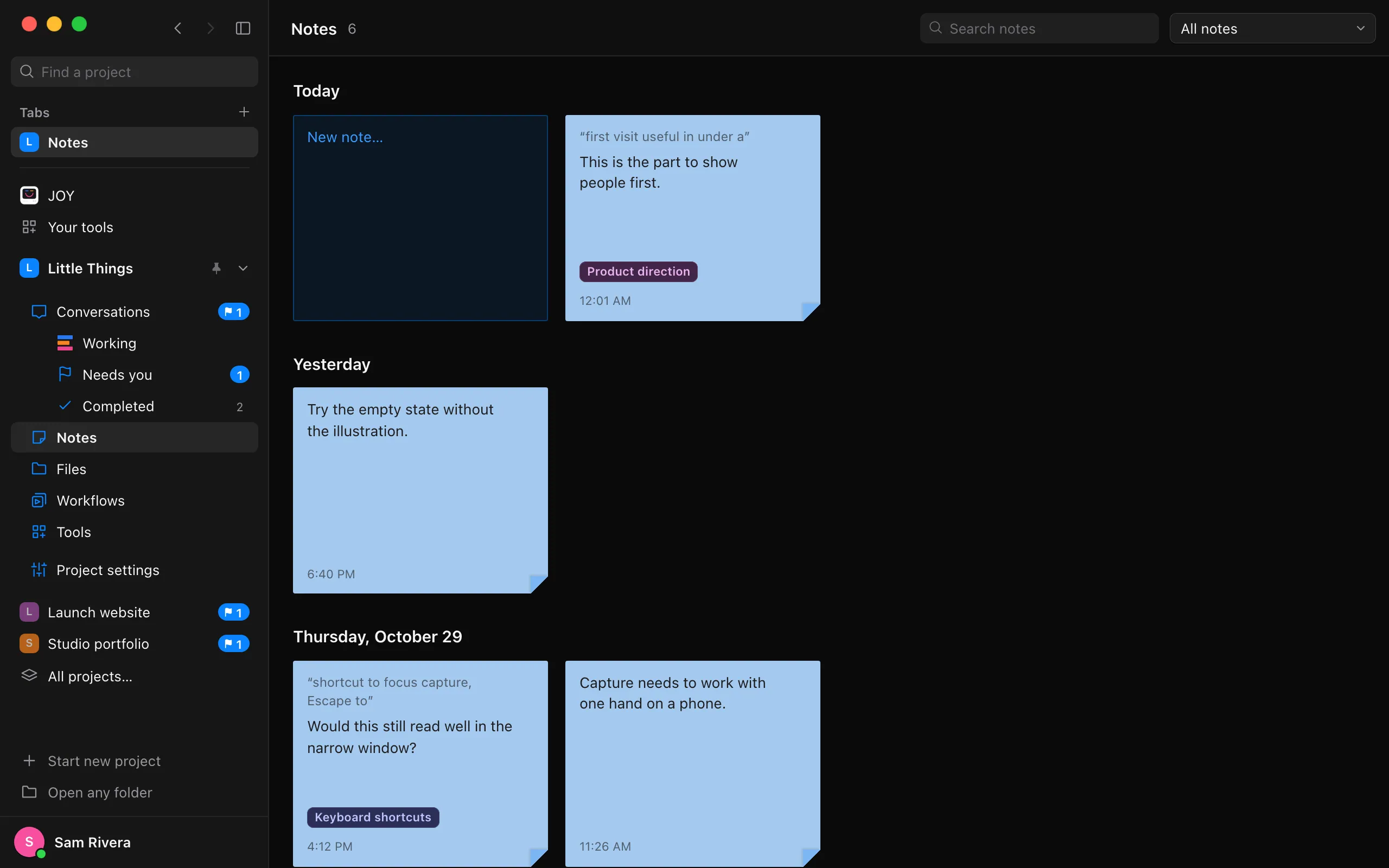
Write a new note
Select New note…, the blank paper under Today, and type your thought. Press Return on a Mac, or Enter on Windows and Linux, to keep it. To start a new line instead, hold Shift as you press it.
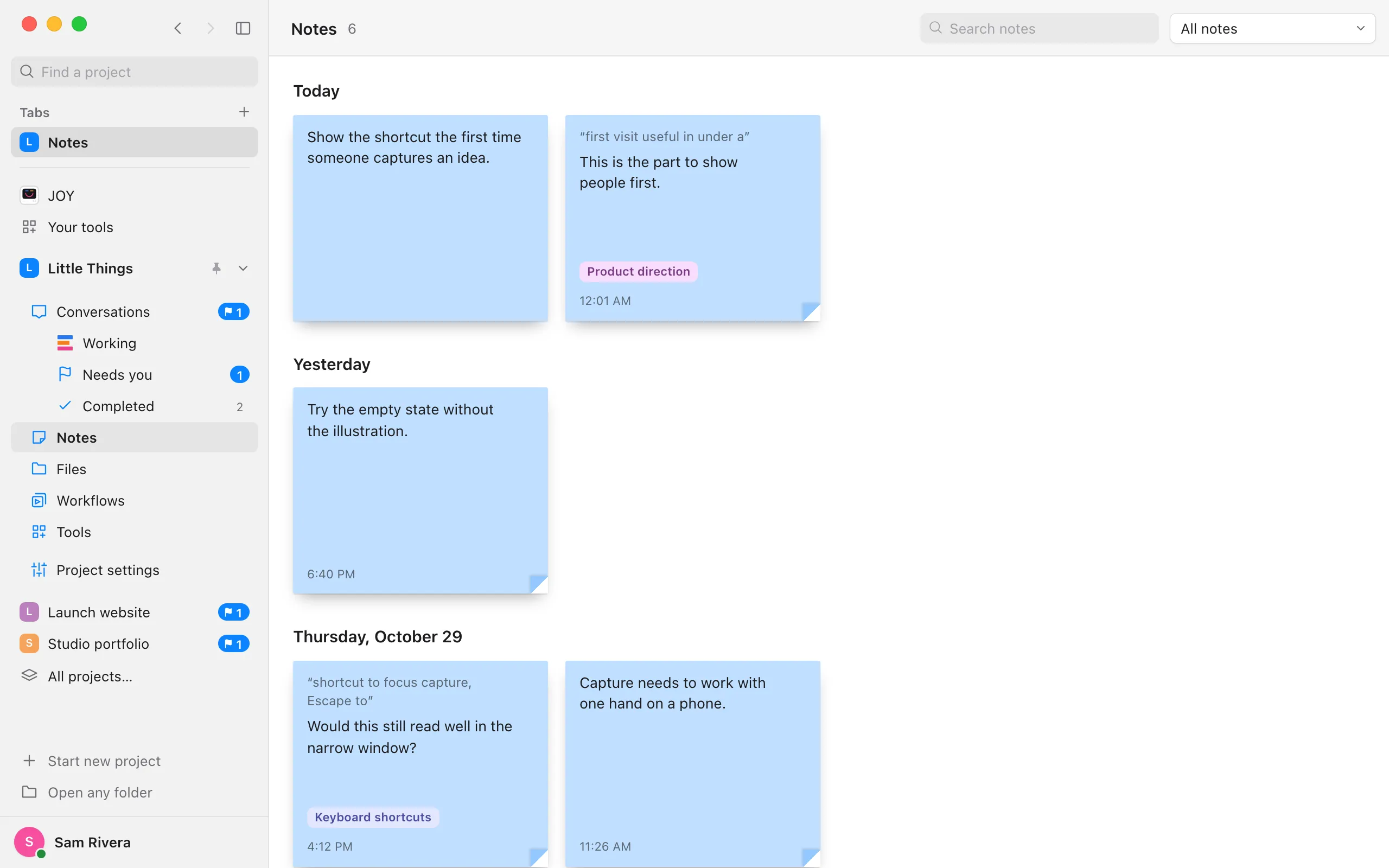
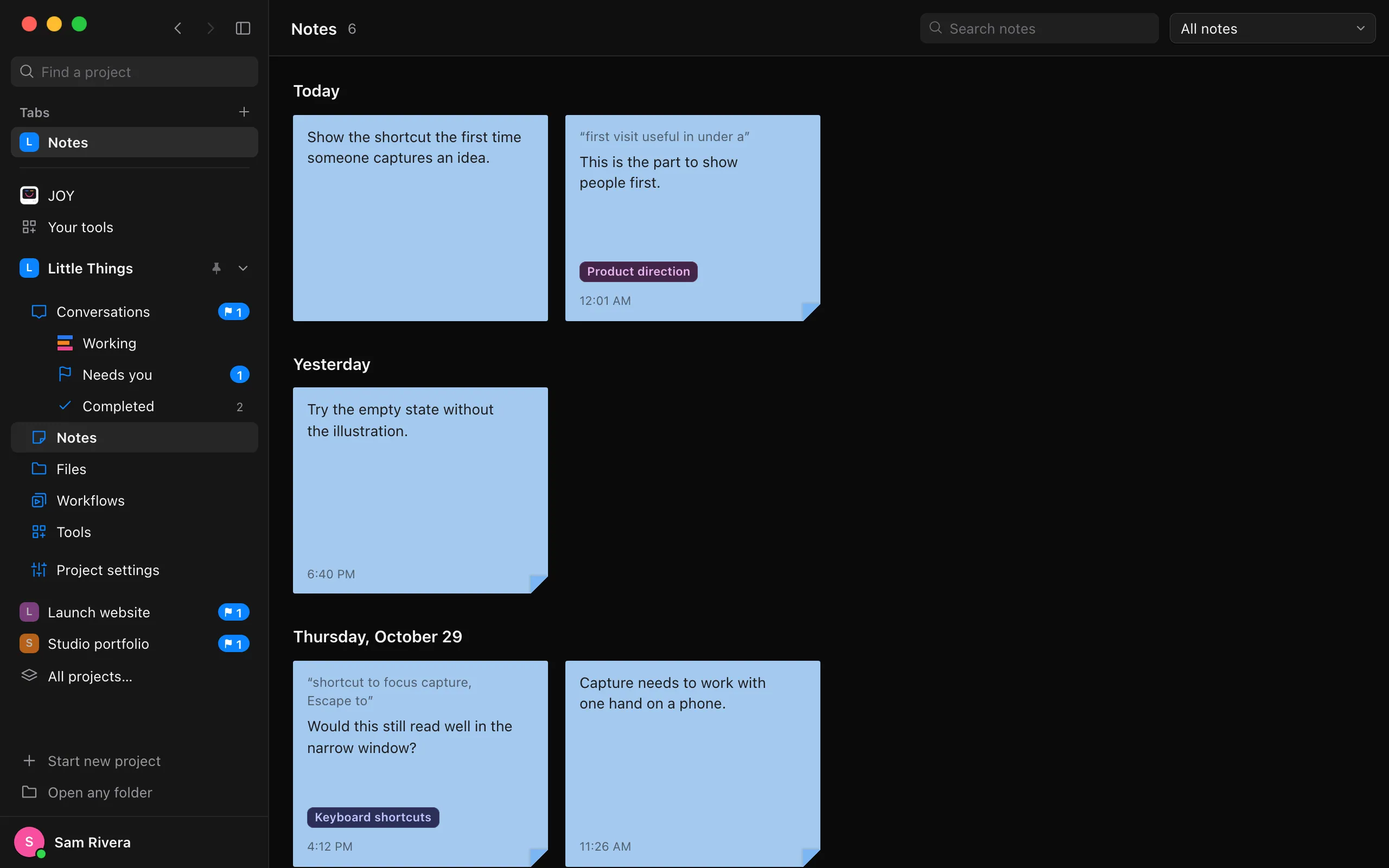
Go back to where a note came from
Select the name of the conversation on the note. The conversation opens with the cursor in your note, beside the words it’s about.
Send a note that isn’t on a conversation
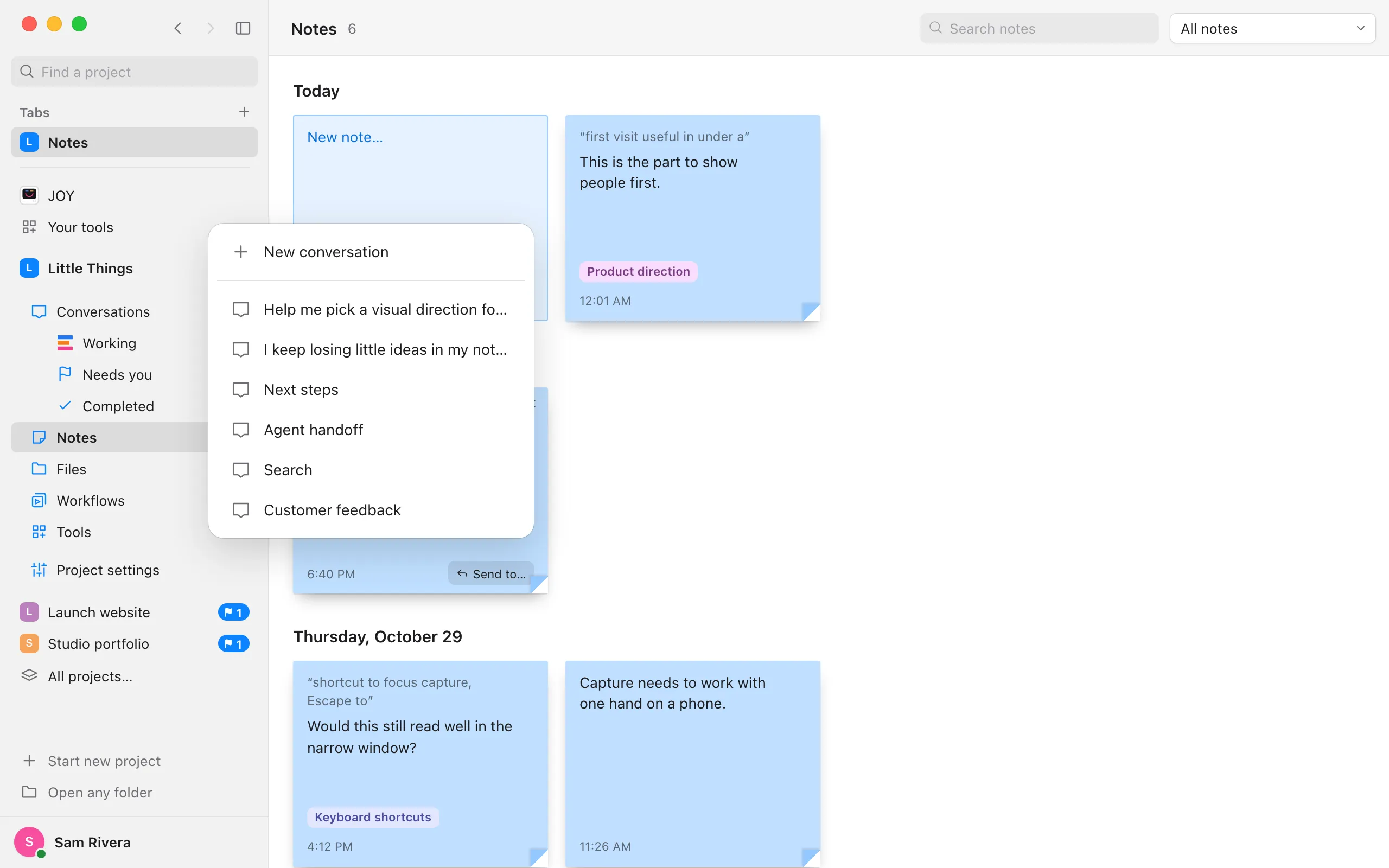
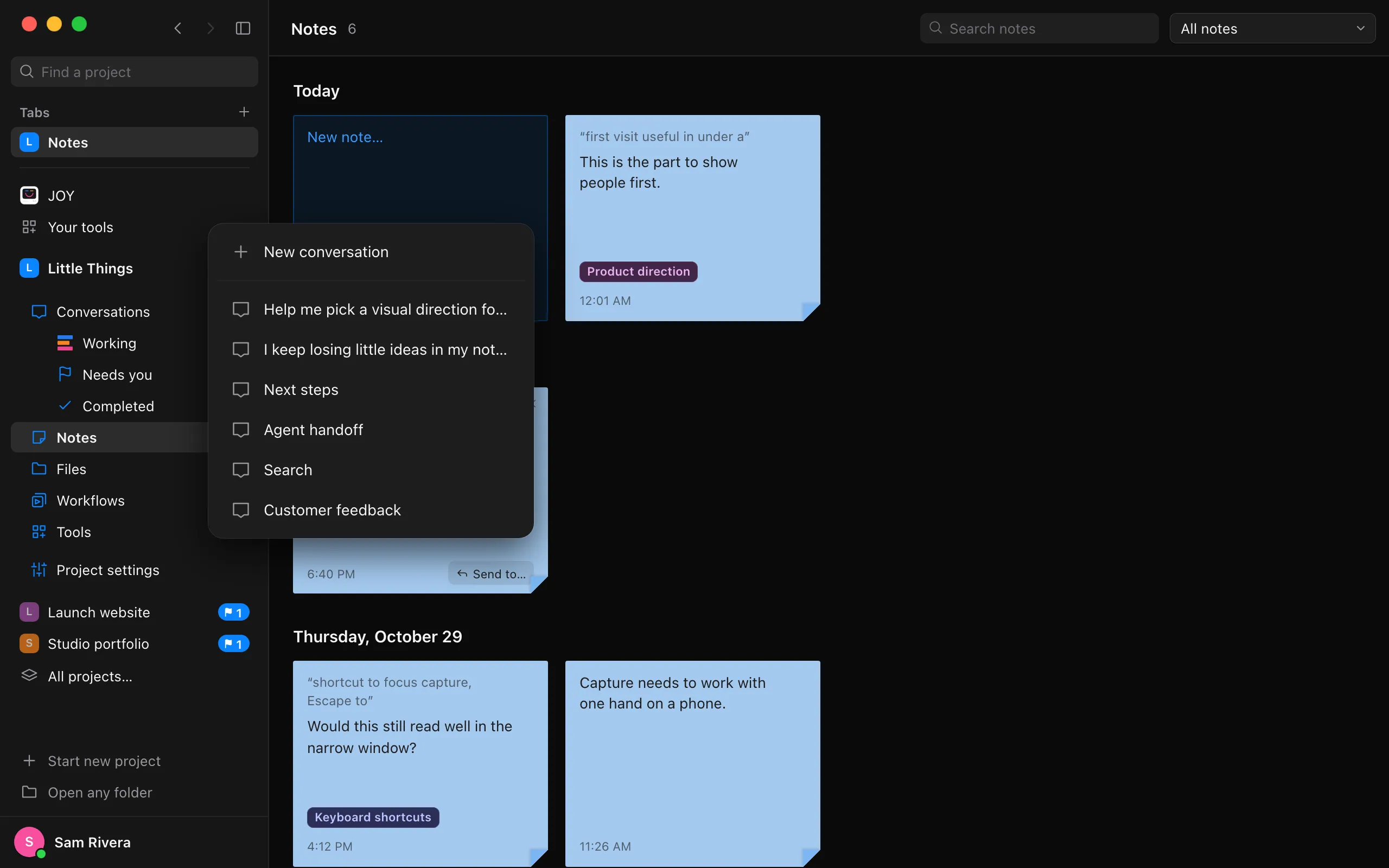
Point to the note and select Send to… at its bottom. Choose New conversation or one of your latest conversations. The note joins your message there, and when you send, your message starts with it.
Good to know
- To find a note, type in Search notes. It looks through your notes’ words, the passages they quote, and the names of their conversations.
- To see only some notes, use the menu beside the search: On conversations, Not on a conversation, Not sent yet, or Sent. In a shared project, Yours shows only the notes you wrote.
- To change a note, select its text and type. Press Esc to put back what it said before. A long note shows its first lines until you select it.
- To delete a note, point to it and select the × in its corner.
- Add to reply on a note from a conversation puts it in your next message there, as it does in the conversation. You stay in Notes, so you can add several. See Keep sticky notes on a conversation.
- After you send a note that isn’t on a conversation, it says Sent and shows the conversation it went to. It stays in Notes, and you can send it again.
- Press Esc in New note… to let go of what you’ve written.
- Everyone in a shared project sees its notes, with the name of the person who wrote each one. Notes also come along when you sync the project to your other computers.
- Deleting a conversation deletes the notes on it, but not notes you wrote in Notes and sent to it.
- Press ⌃6 on a Mac, or Alt+6 on Windows and Linux, to go to Notes.
- The iPhone app doesn’t show sticky notes.