See every project's scheduled workflows
Steps
Open Inbox
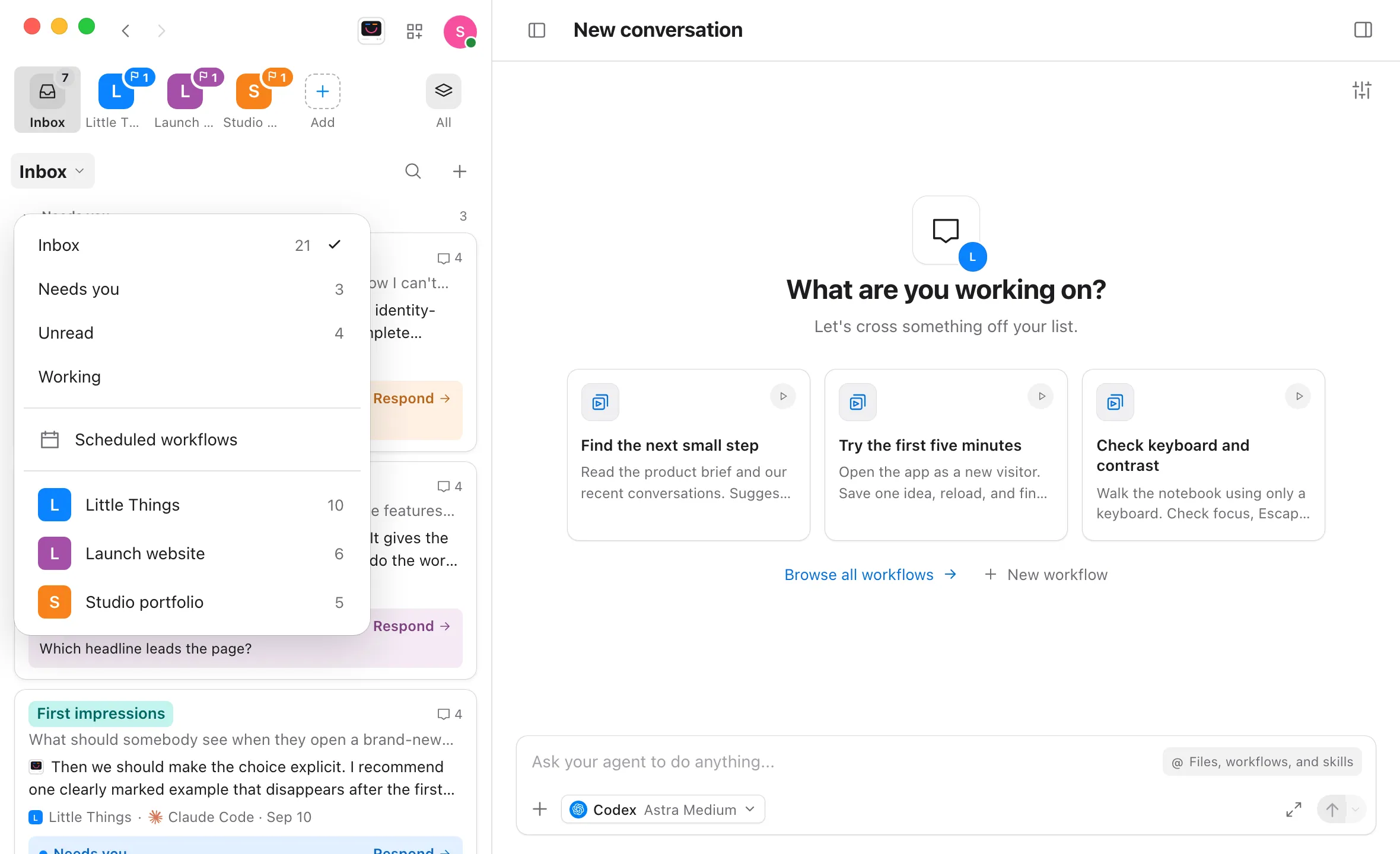
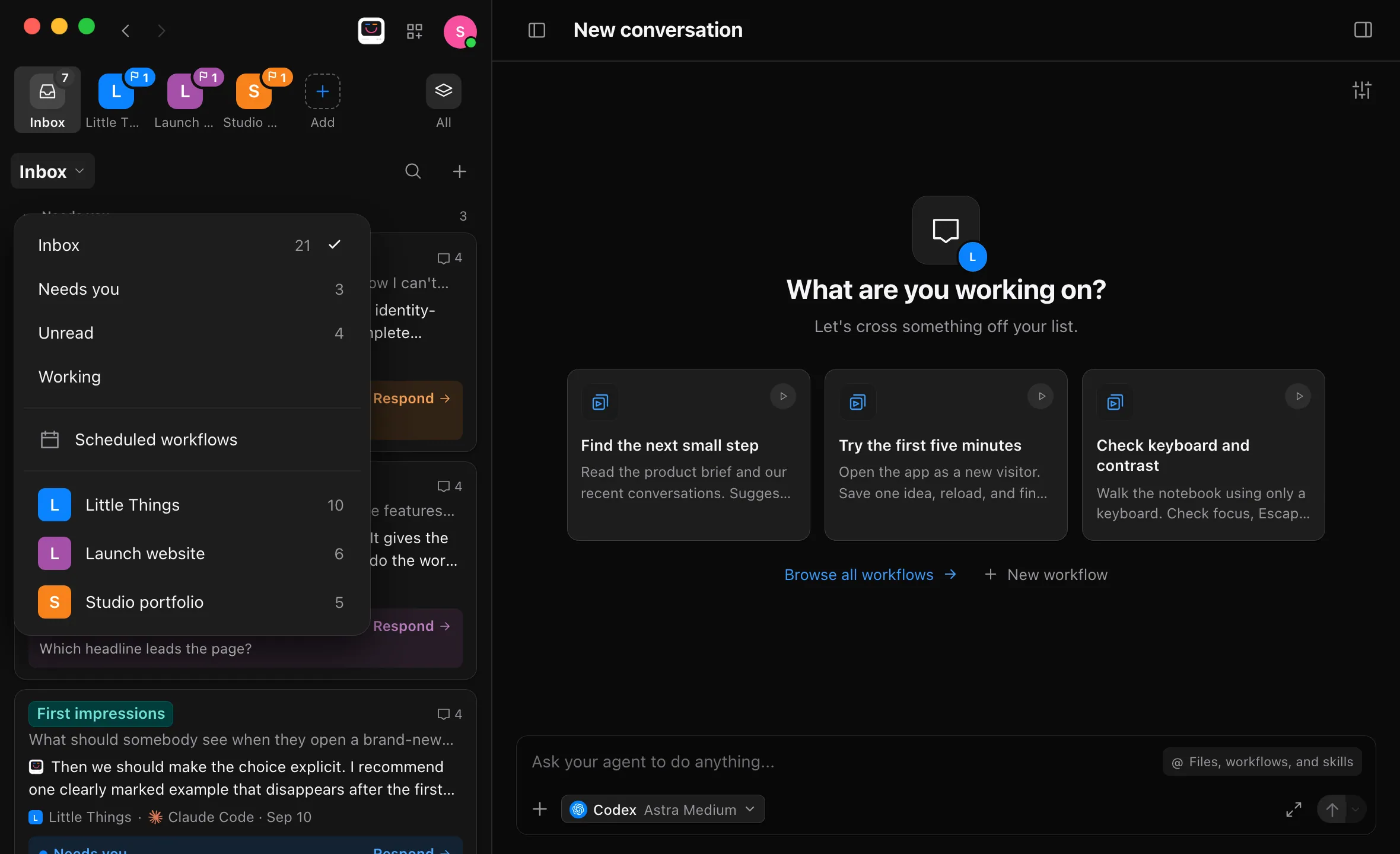
Select Inbox, the first tile on the shelf.
Choose Scheduled workflows
Select the list’s title, Inbox, and choose Scheduled workflows.
Read the list
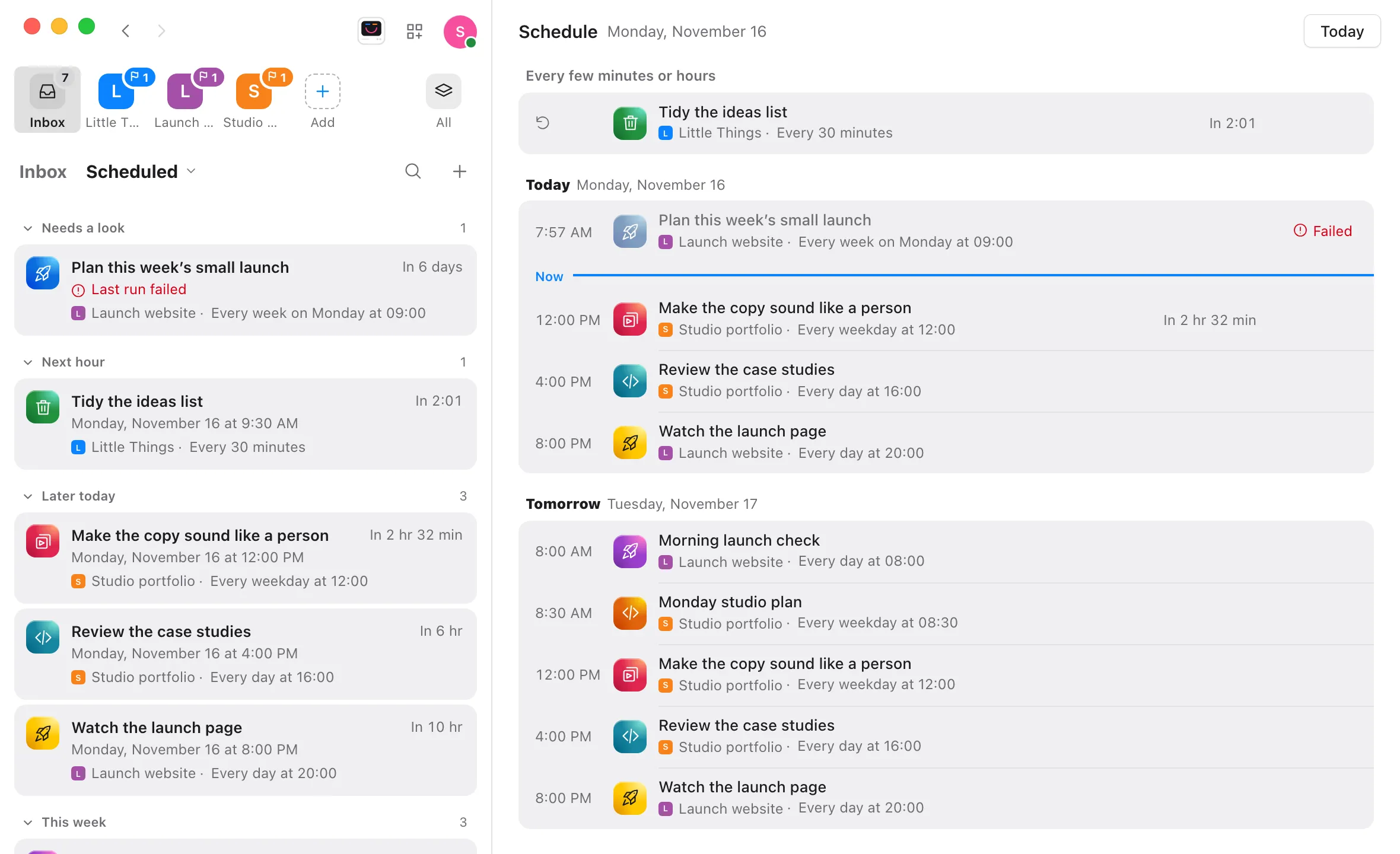
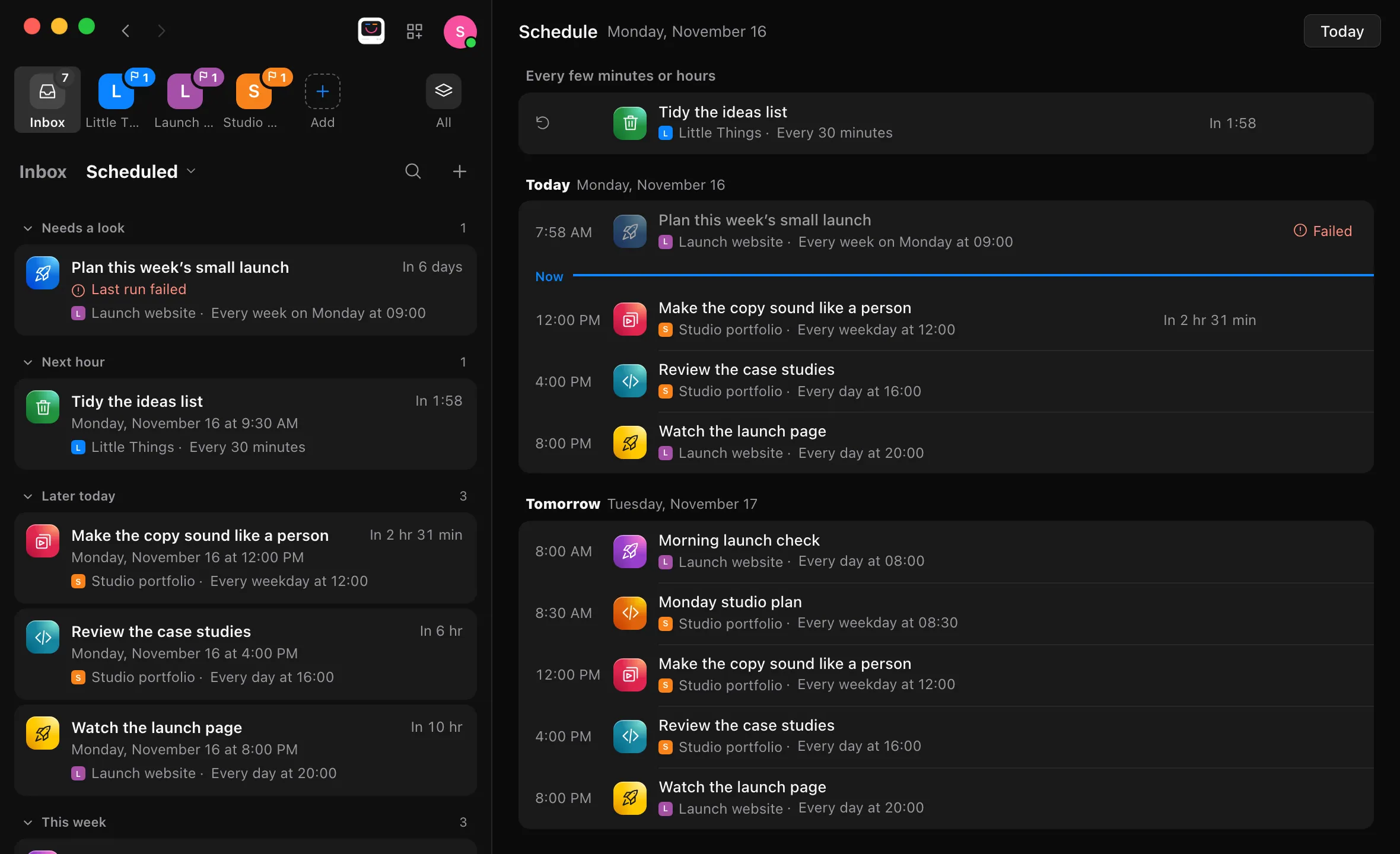
Every project’s scheduled workflows take the place of the conversations, under headings that fold: Needs a look, Running, Next hour, Later today, This week, Later, and Paused. Each shows how long until it next runs, then when that is, or why it needs a look, then its project and schedule.
Read the schedule beside it
Schedule lists the week’s runs, day by day. Today’s runs that already started are above the Now line, with how each went: Done, Failed, Needs you, or Running. The next run of all counts down. Workflows that repeat every few minutes or hours are listed once at the top, and the ones that won’t run are under Not running at the end.
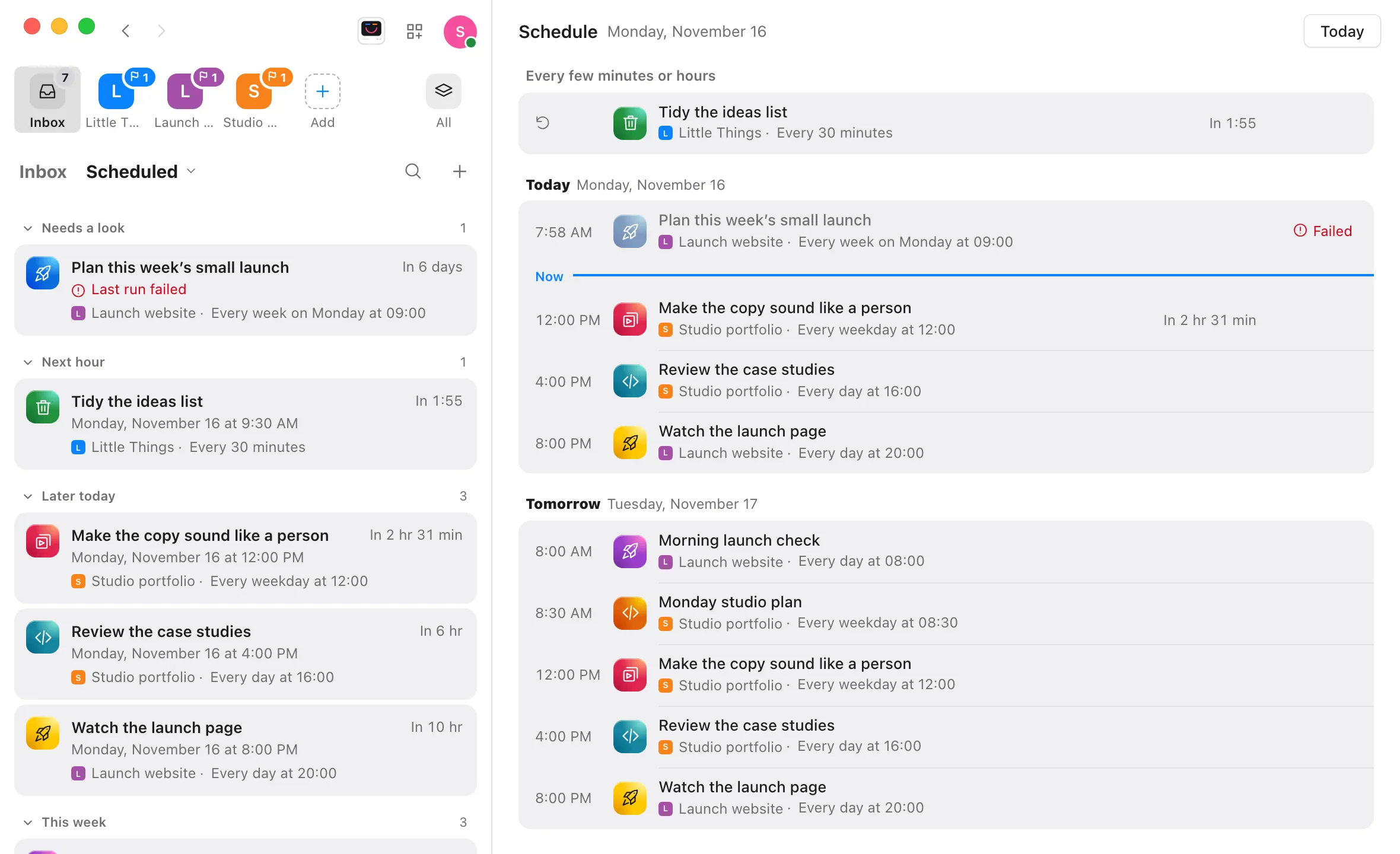
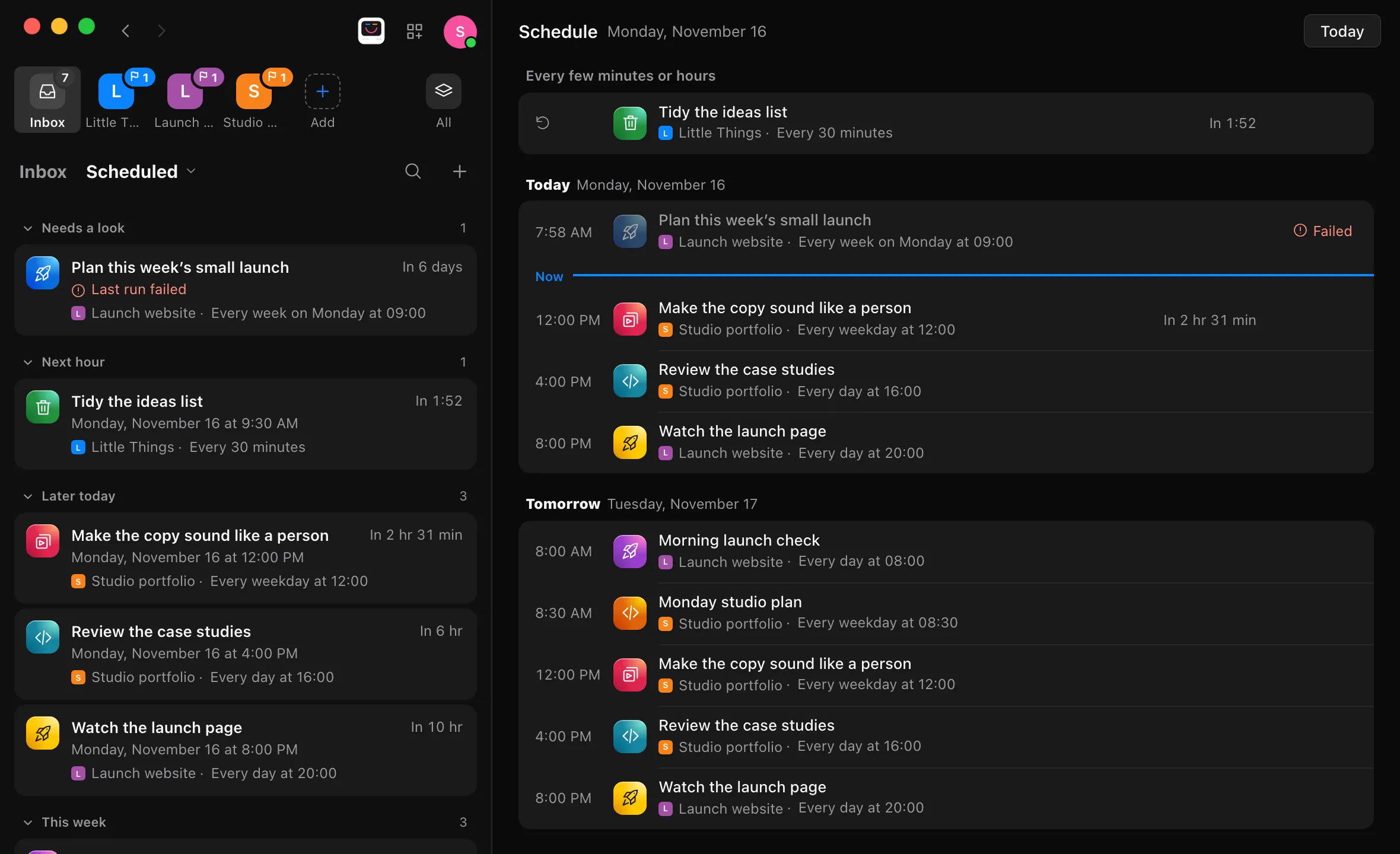
Run one now, or open it
Point at a workflow’s card and select its icon, which turns into Run, or point at a run in Schedule and select Run now. Select a workflow to open it in its project. Select one of today’s earlier runs to open its conversation.
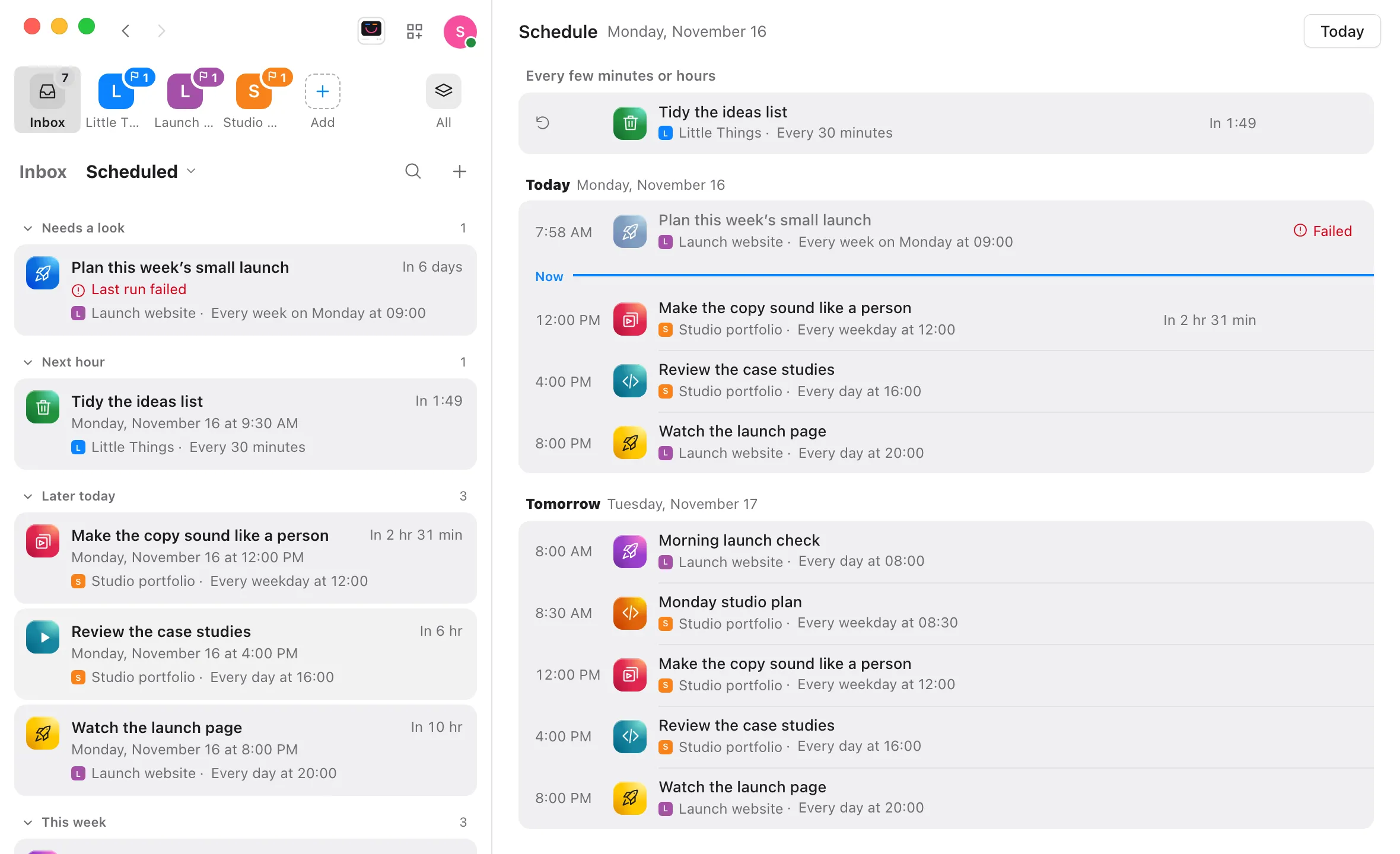
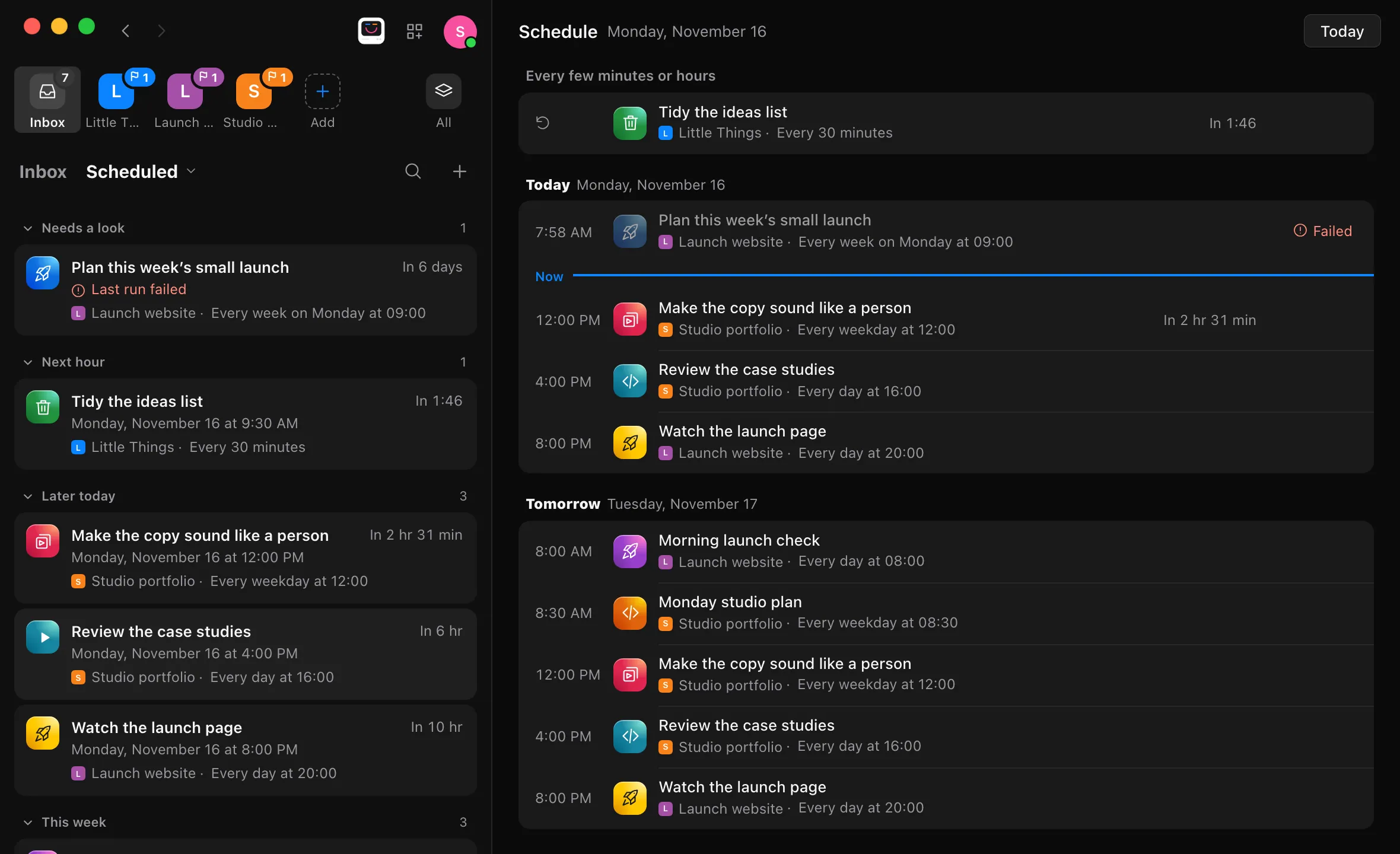
Good to know
- Needs a look holds workflows whose last scheduled run failed or is waiting for your answer, and ones that show Desktop review needed. A workflow leaves it once a later run goes well, or once you mark that run’s conversation completed.
- Running a workflow from here starts it in its own project without leaving the list. Its card moves to Running. While it runs, its icon opens that run’s conversation instead.
- Paused holds workflows whose project is paused. Their scheduled times are skipped until you resume the project.
- To go back to your conversations, select Inbox before the title.
- Search in the list’s heading finds a scheduled workflow by its name, its project, or its schedule.
- The iPhone app shows each project’s workflows and their next runs in Workflows, one project at a time.
If something goes wrong
A project’s workflows couldn’t be read
Inbox says so above the list with Try again. The other projects’ workflows still show.
A workflow you scheduled isn’t listed
Only workflows with a schedule still to come are listed. A workflow that ran once and isn’t set to run again, or one that’s archived, isn’t here. See Schedule a workflow.