Run a workflow with another agent
Steps
Open the workflow
In Workflows, select the workflow’s name. Its page opens.
Open Run’s menu
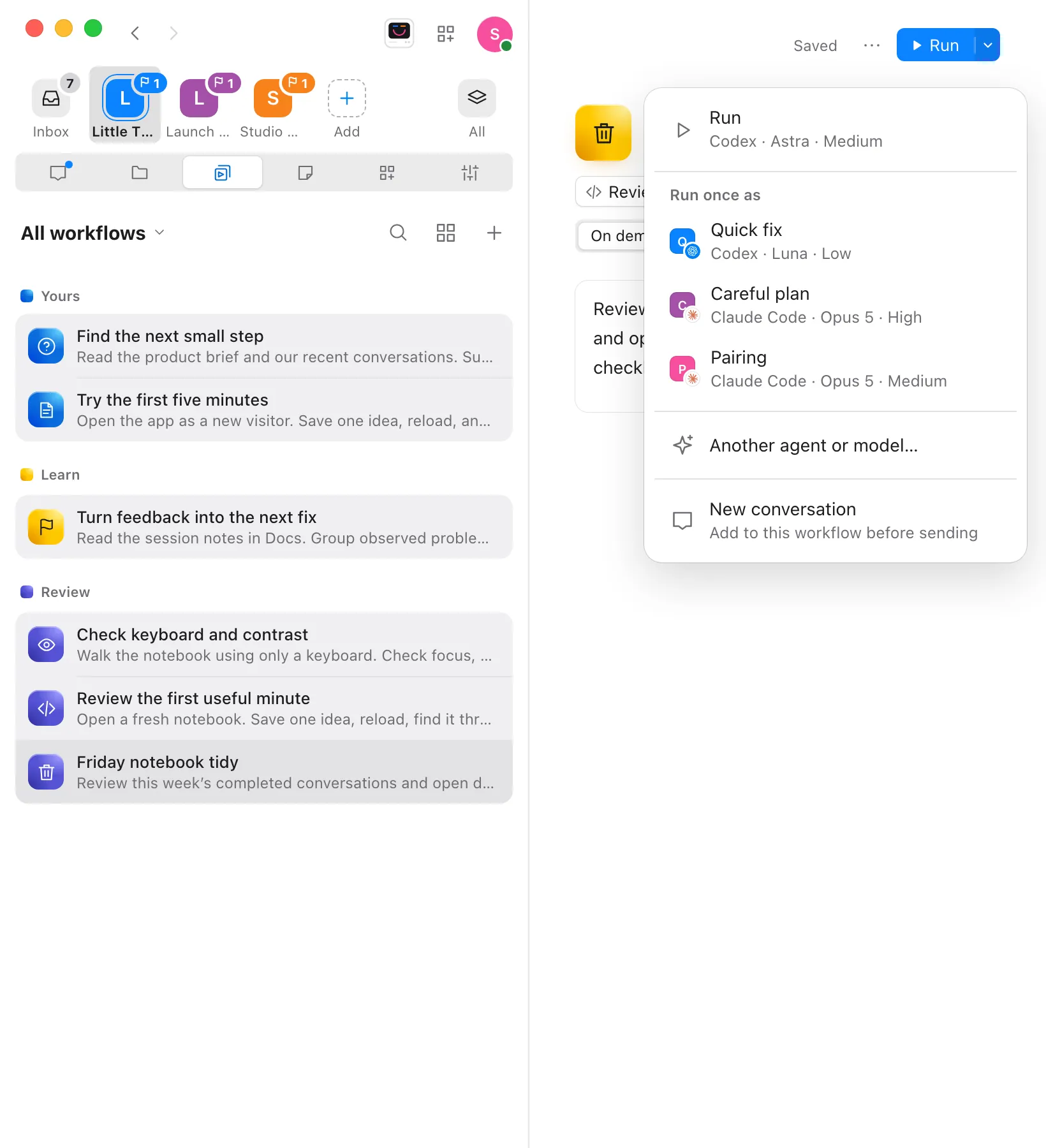
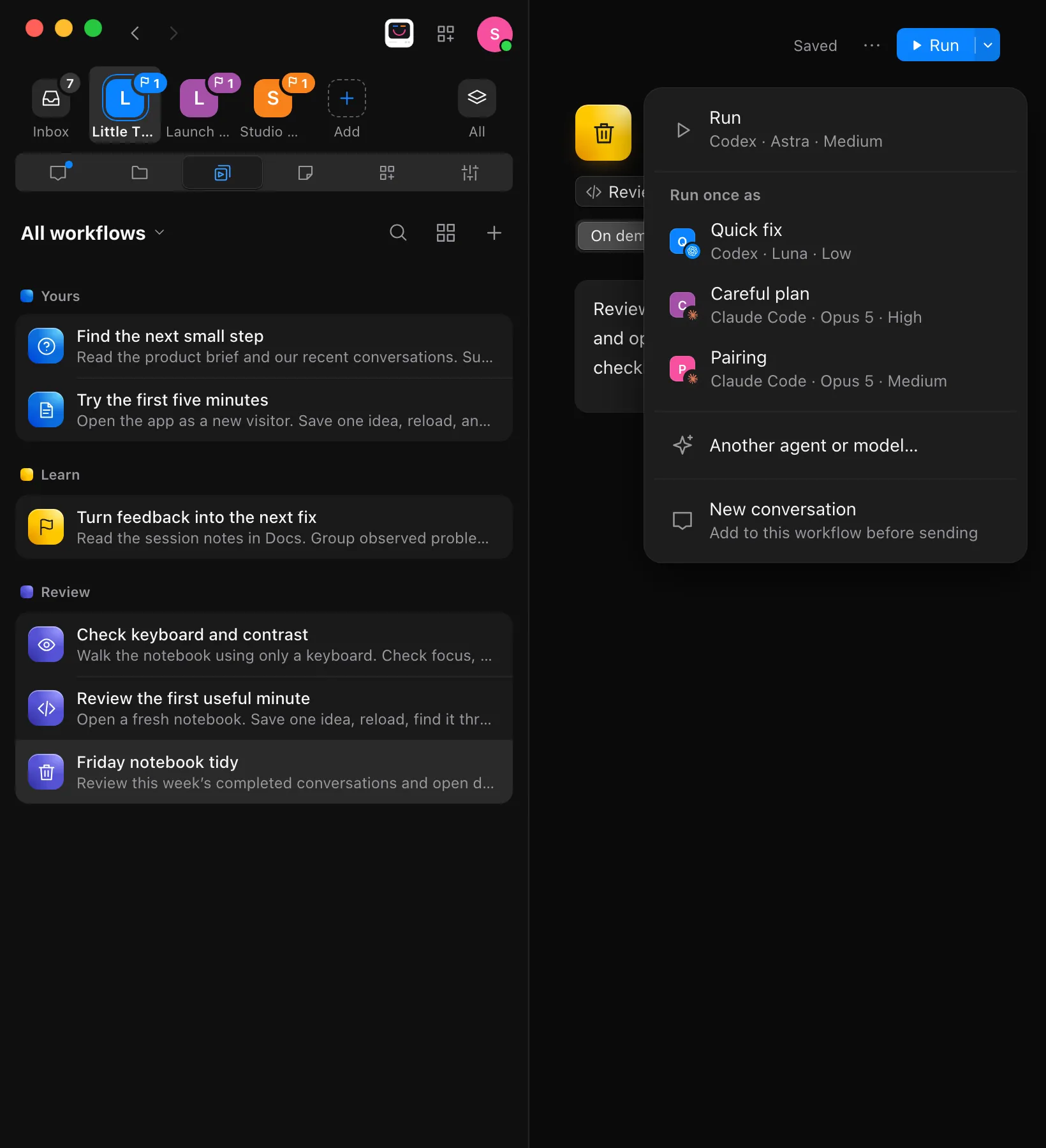
Select the arrow on the right of Run, at the top right of the page. The menu’s first item, Run, shows the agent the workflow runs with.
Choose how to run it
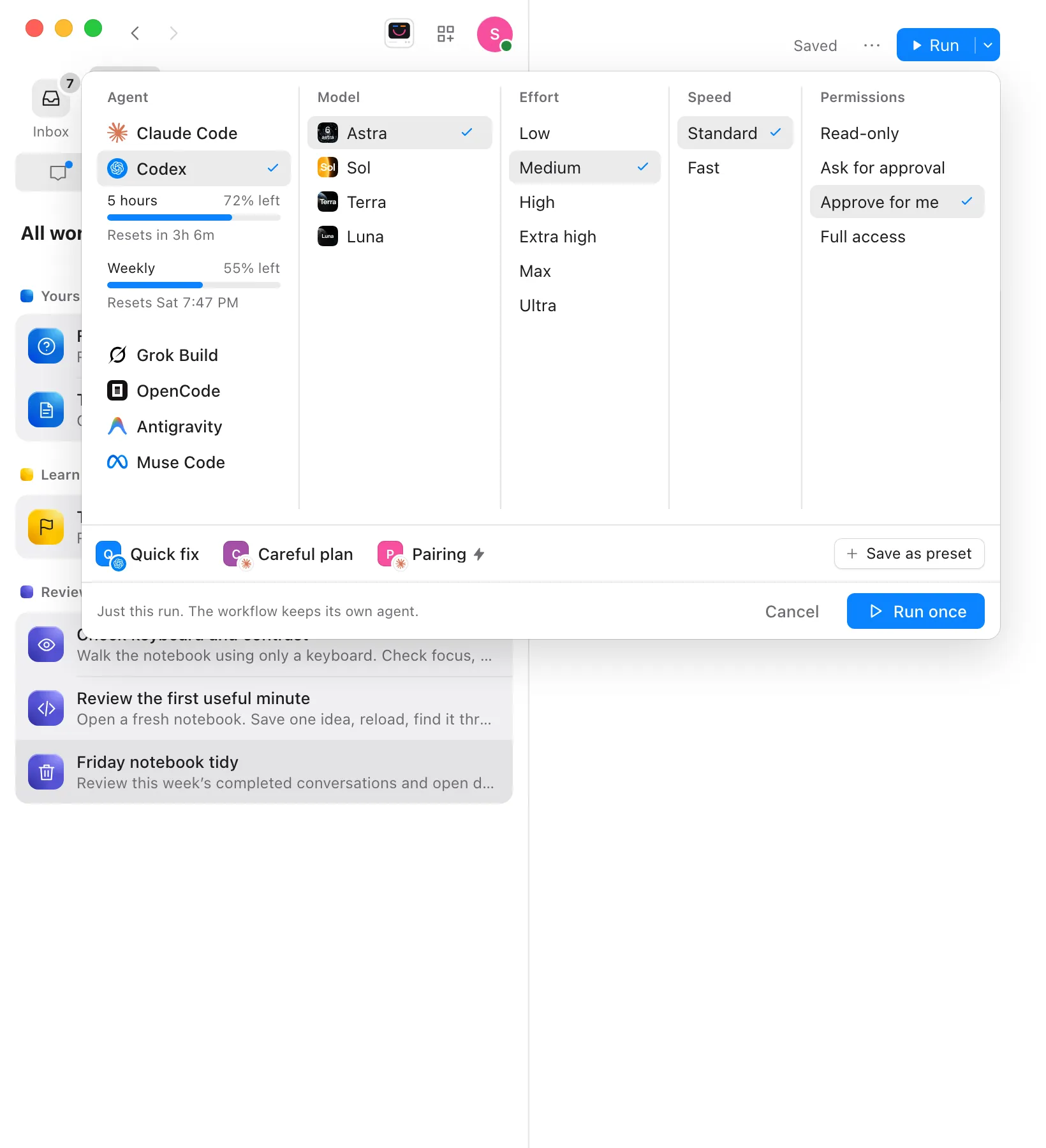
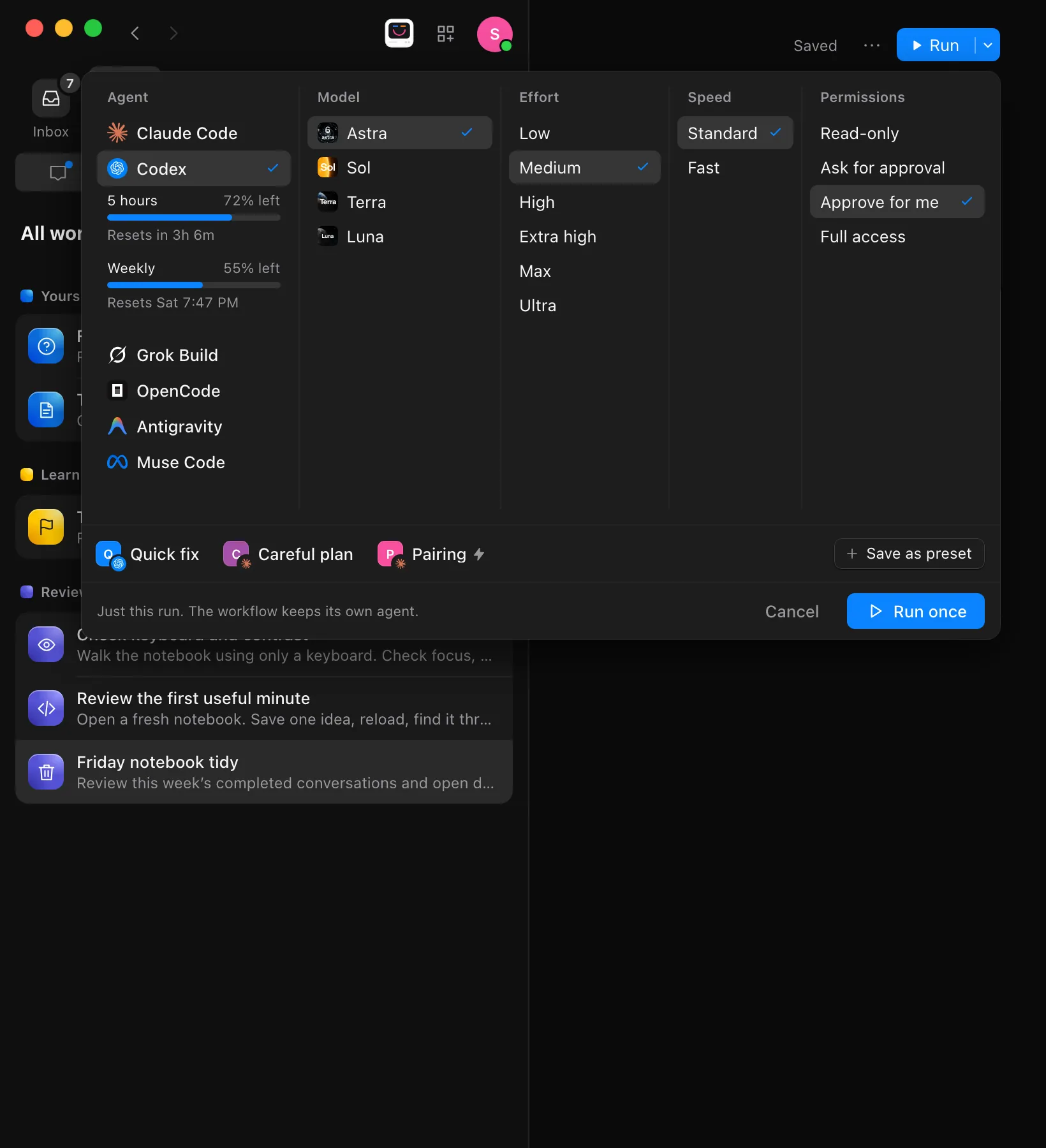
Under Run once as, select one of your presets, and the run starts right away with its settings. Or select Another agent or model…: the agent settings open under Run, starting at the workflow’s own, so choose the Agent, Model, Effort, Speed, and Permissions for this run, then select Run once. Or select New conversation: a new conversation opens with the workflow in its message box, the cursor after it, and the workflow’s preferred agent chosen. Write what you want to add, change the agent there if you like, and send when you’re ready.
Follow the run
Enjoy switches to the new conversation, named after the workflow, and the agent starts working. A new conversation waits for you to send its message first.
Good to know
- The workflow keeps its own agent. Only this run uses what you chose. Its next run, and its scheduled runs, use the workflow’s preferred agent. To change that, see Choose which agent runs a workflow.
- Run once as lists the presets you’ve saved. Without any, the menu goes straight to Another agent or model…. See Agent presets.
- Choosing in the agent settings doesn’t start the run or close them. Select Run once to run, or Cancel to leave without running.
- While a run is going, Run becomes View run, and its menu comes back once the run finishes.
- Selecting any of these saves a change you just made to the workflow first, so the run uses it.
- In the web app, a device with Limited access runs the workflow once with the permission mode the workflow’s own agent has. To run it with other permissions, use your computer or a device with Full access.
- The iPhone app has Run only.
If something goes wrong
“Change permission modes on your desktop.” or “Choose … on your desktop.”
You’re using a device with Limited access, and the run you chose needs broader permissions than the workflow’s own agent. Choose settings with the same permission mode, or run it from your computer or a device with Full access. See Permissions.
Running once from the web app shows an error
The computer that has the project may have an older Enjoy, which only runs a workflow with its own agent. Update Enjoy on that computer. See Update Enjoy.