Mention docs, files, conversations, and skills in a workflow
For example, a “Write the weekly update” workflow can say “Follow @Brand voice, then run /proofread.” The agent gets the same doc and the same skill every time, so you don’t have to describe where to find them.
Steps
Open the workflow
In Workflows, point at the workflow’s line and select Edit, the pencil, to start typing in its instructions. Or select the workflow’s name, then select its instructions.
Type @ where you want the mention
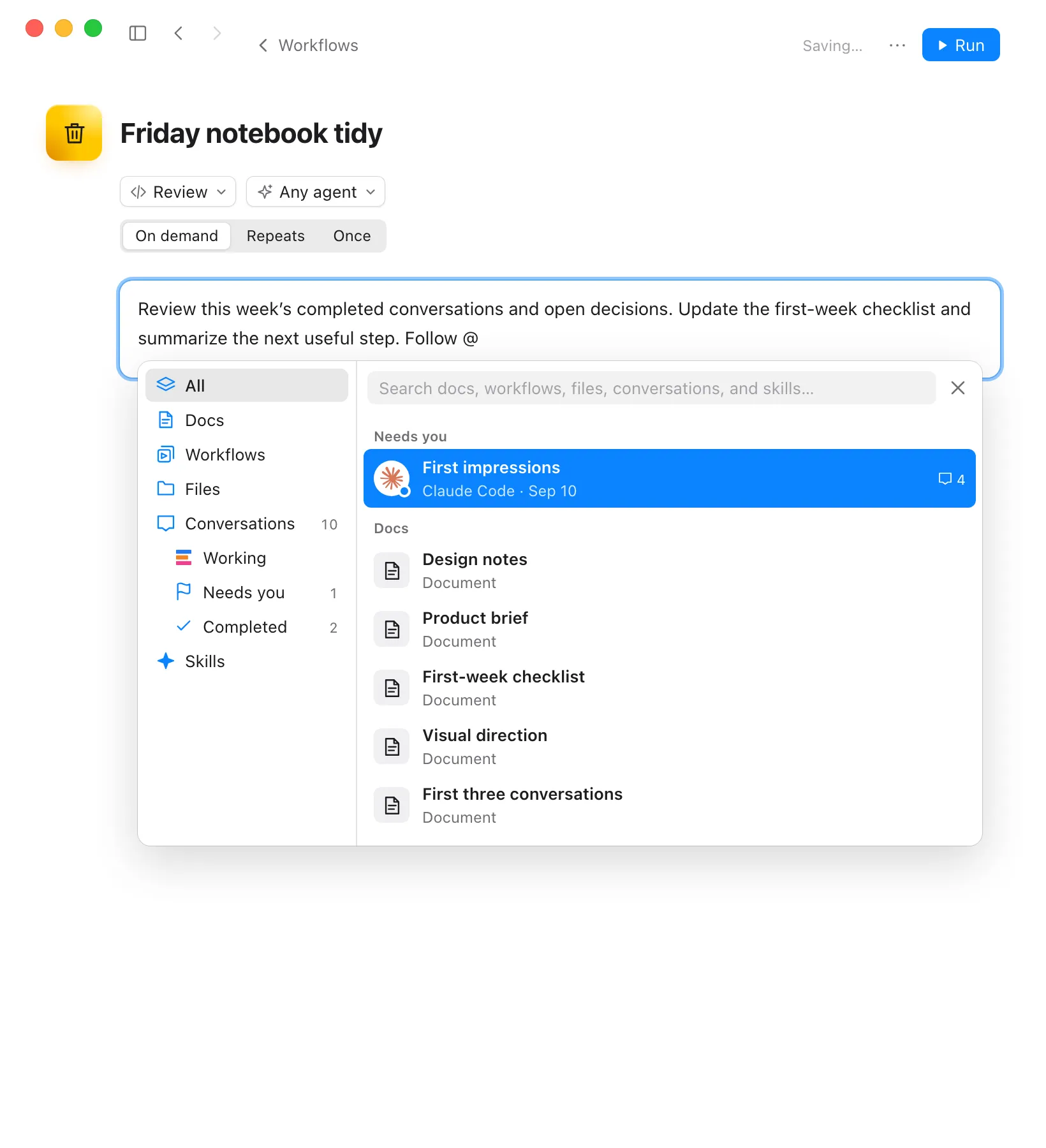
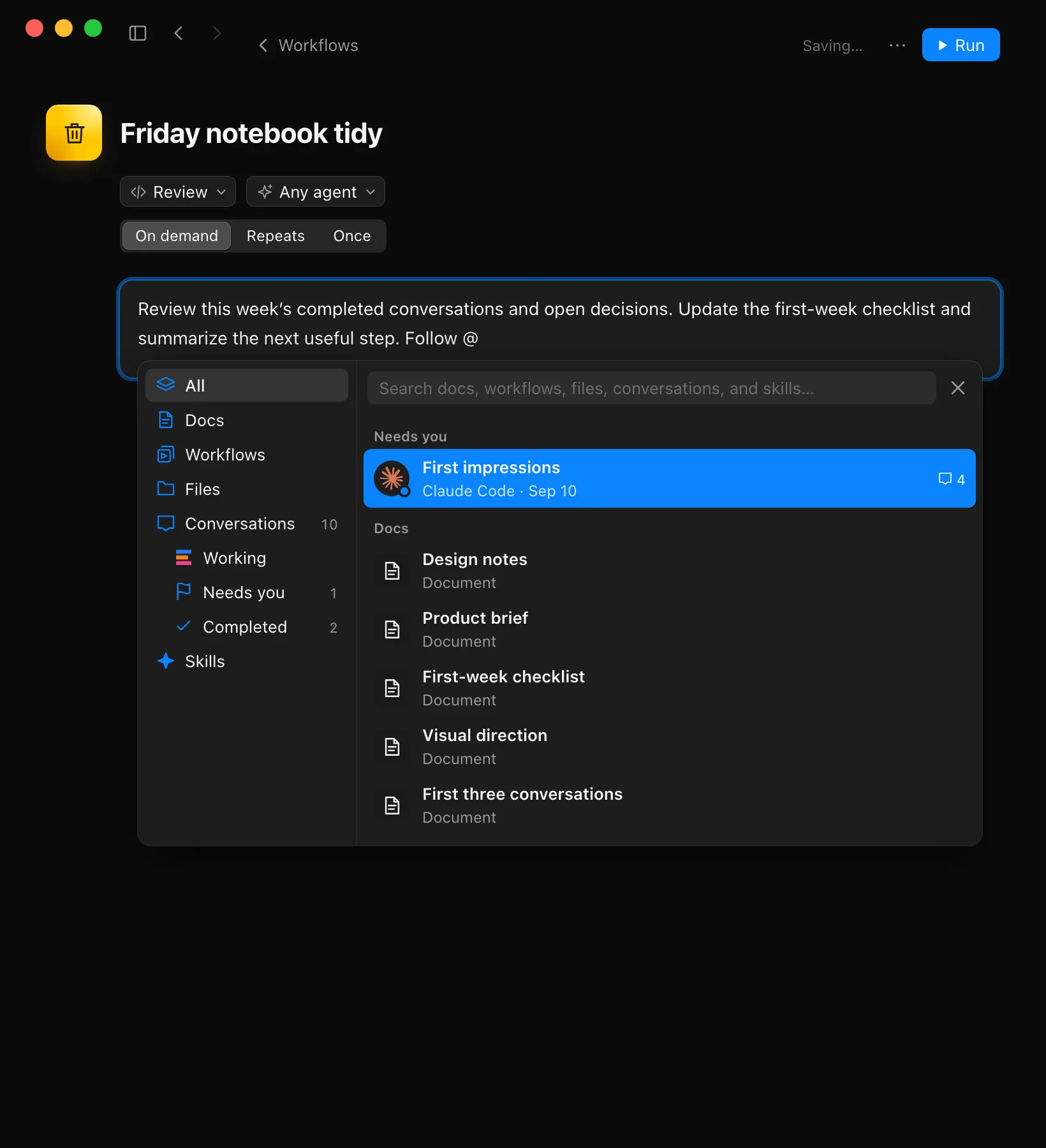
Type it at the start of a line or after a space. The same picker as in the message box opens, with All, Docs, Workflows, Files, Conversations, and Skills on its left. The left and right arrow keys move through them.
Find what you want
Keep typing after the @ to narrow the list, or type in the picker’s search field.
Choose it
Select it, or move to it with the up and down arrow keys and press Enter or Tab. A doc, file, or conversation appears as @ followed by its name. A skill appears as a / followed by its name.
Check that it saved
Enjoy saves the instructions a moment after you stop typing, and the top right of the page shows Saved. The next time this workflow runs, the agent uses what you mentioned.
Good to know
- Docs and files are links. The agent opens them when it gets to that part of the instructions, so it reads their latest contents.
- Conversations are other conversations in this project. When the workflow runs, Enjoy tells the agent to read each one it mentions before it starts.
- Skills are for the agent to run when it gets to them. A workflow can name as many as it needs. The list shows the skills of the workflow’s preferred agent or, with Any agent, of the agent new conversations in this project start with. Each agent has its own skills, so choose a preferred agent if the workflow depends on one.
- Workflows run as a later step in the same conversation. See Link workflows so one runs after another.
- Renaming doesn’t break a mention. It points to the item itself, and the name shown stays as you inserted it. If the item is gone when the workflow runs, the agent can’t open it.
- Select a mention to open it. Your edits are saved first. To select the mention itself instead, for example to delete it, hold Command (Ctrl on Windows and Linux) as you select it. Skills have nothing to open; edit them like any other text.
- To close the picker without choosing anything, press Escape or select its X.
If something goes wrong
“No references found”
Nothing in this project matches what you typed after @. Check the spelling, or type less of the name.
The picker says a skill list couldn’t load
The agent couldn’t list its skills at that moment. Select Try again. The other kinds of mention still work.