Fix problems with a project in WSL
A project inside WSL runs its Git and agents in a Linux distribution, such as Ubuntu. When Enjoy can’t use that distribution, it says why in the words below. Messages name your distribution, shown here as [distribution], and some name an agent, a server, or a folder. For how these projects work, see Work on a project inside WSL.
Steps
Find the message
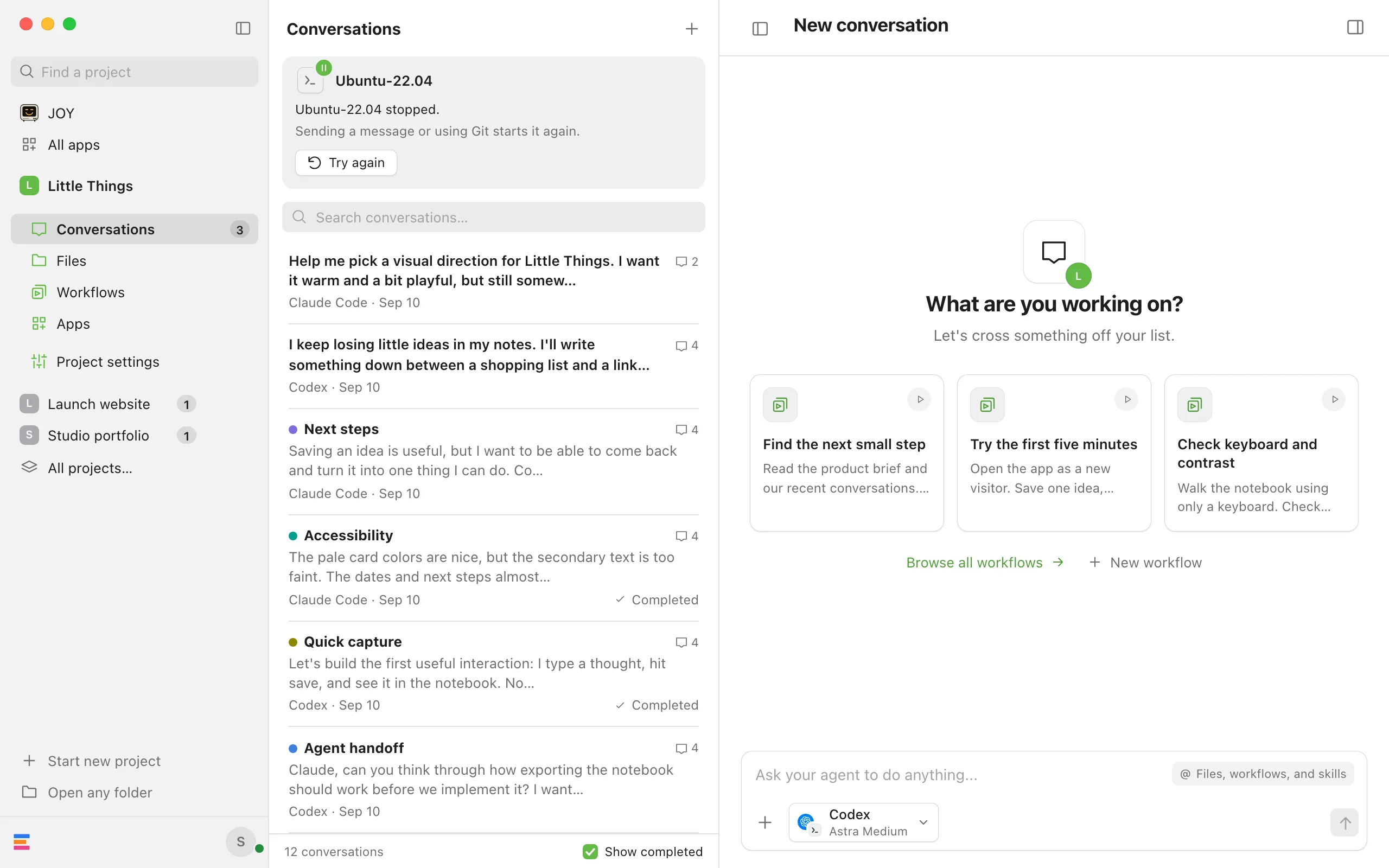
In an open project, a card named after the distribution, such as Ubuntu-22.04, sits at the top of the conversation list and says what’s wrong. For a project that couldn’t open, select Projects at the top of the window and point at the project to read why. The install and sign-in windows show their own messages.
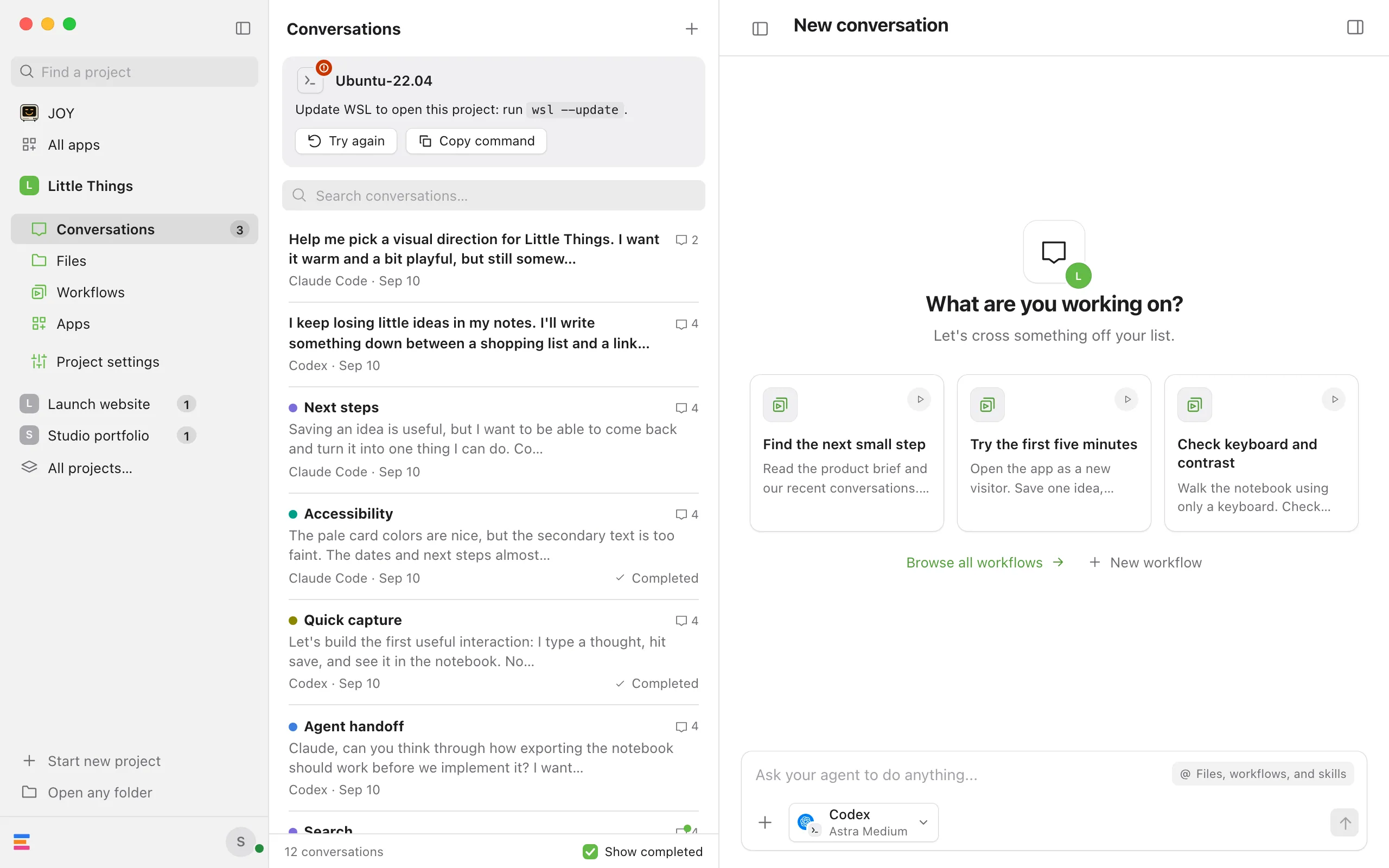
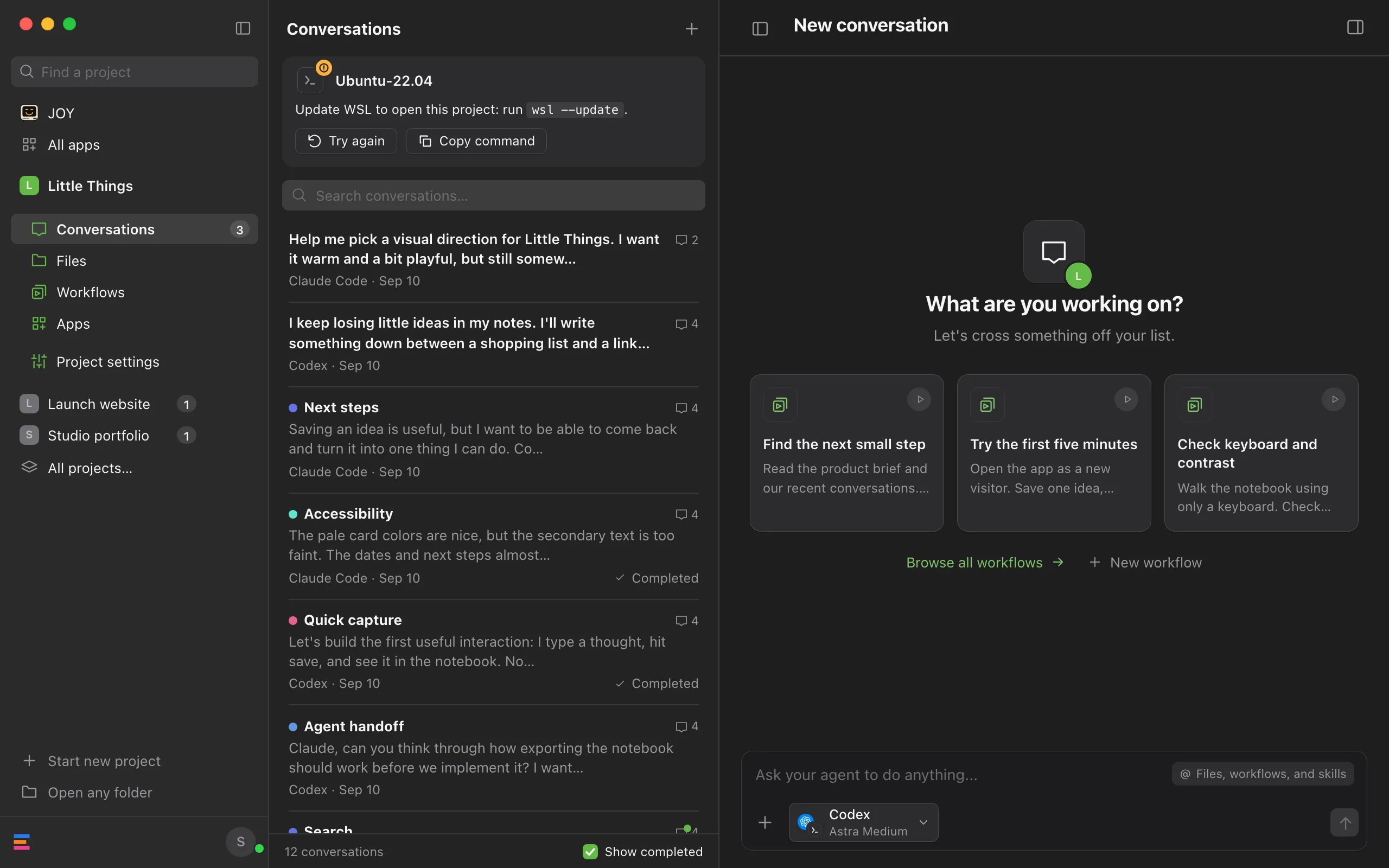
Run the command it names
When the message names a command, such as
wsl --update, select Copy command. Open PowerShell: press the Windows key, type PowerShell, and press Enter. Paste with Ctrl+V and press Enter.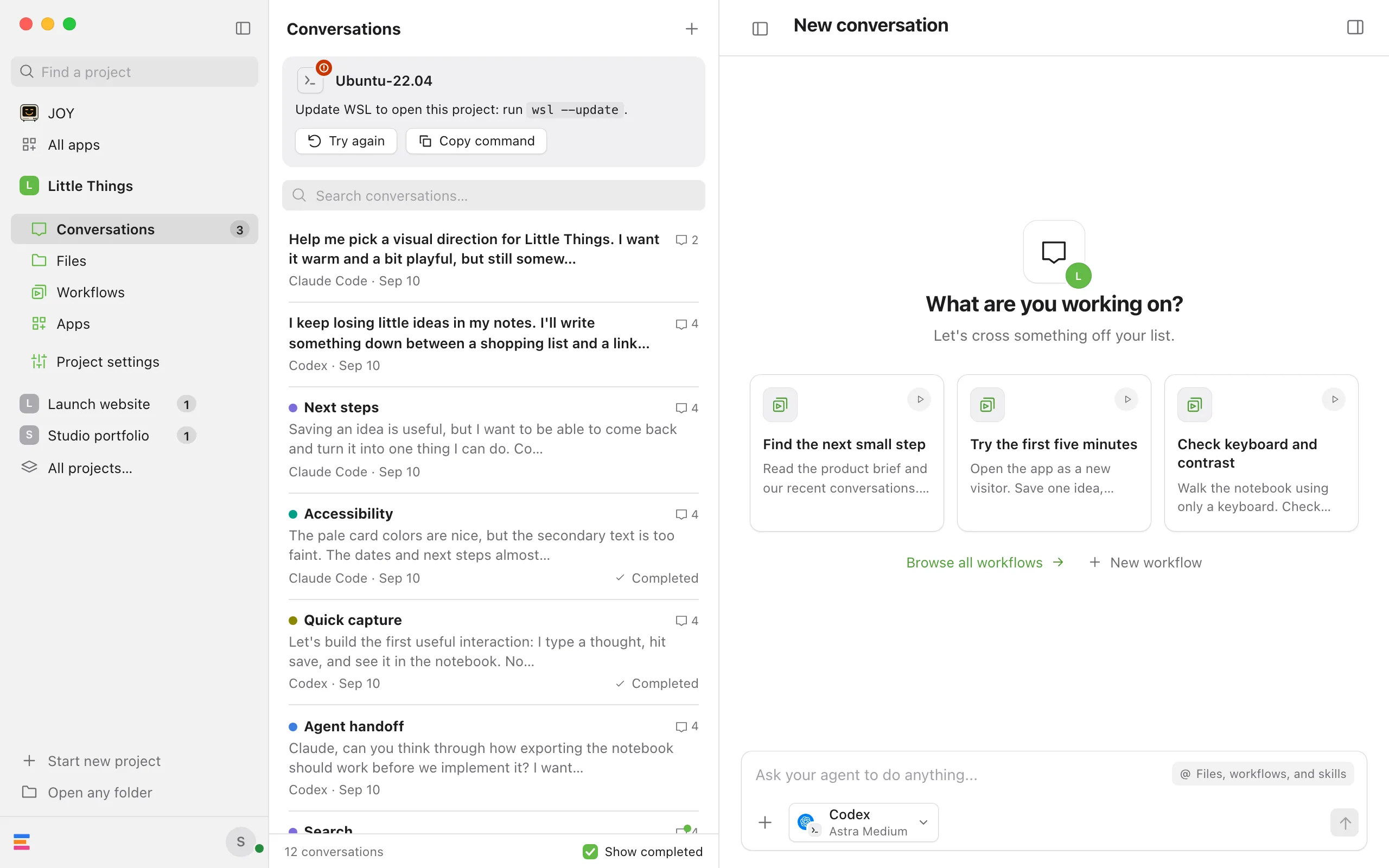
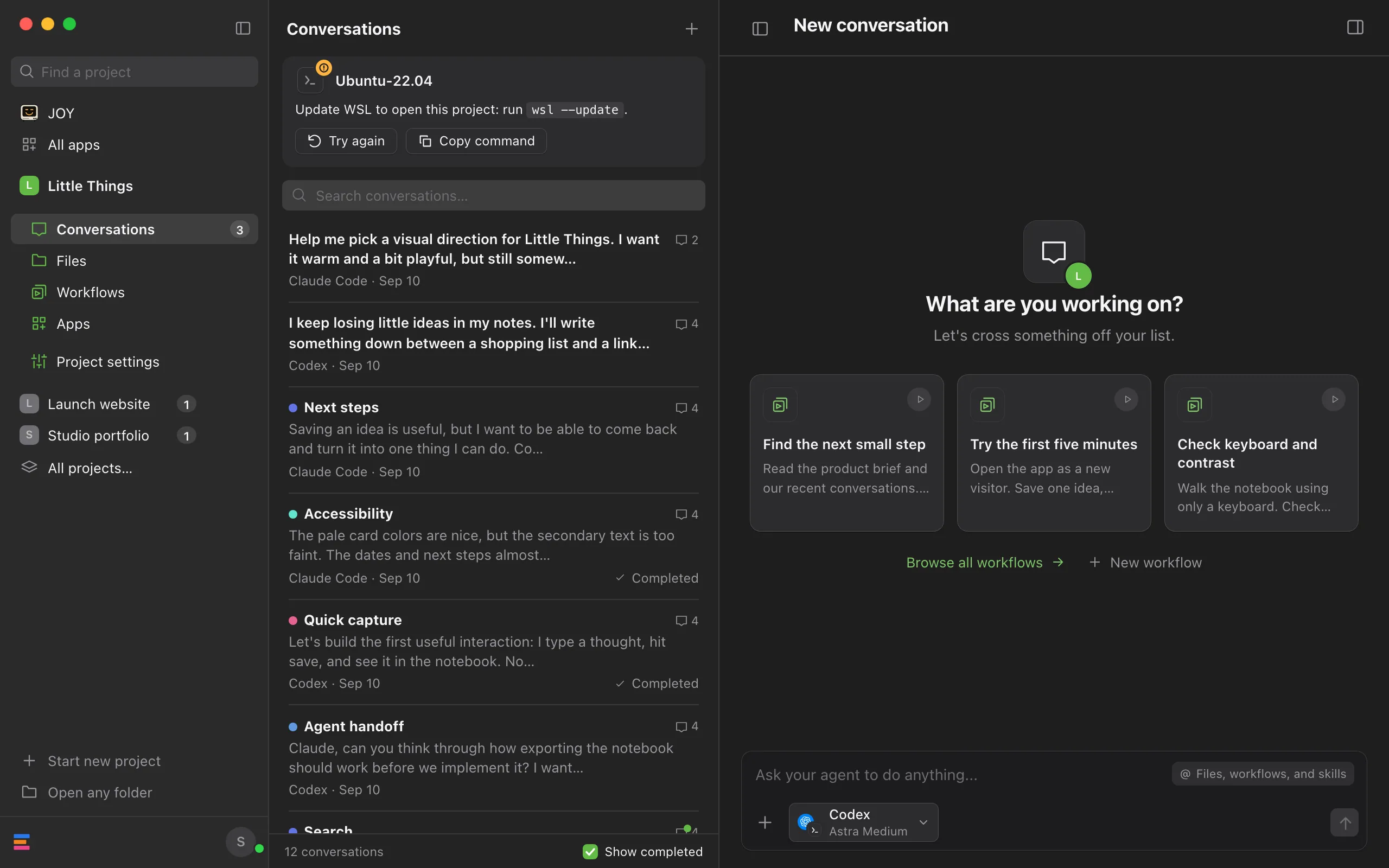
Select Try again
On the card, Try again connects to the distribution again. For a project that couldn’t open, select the round arrow beside it in Projects, which says Try again when you point at it.
Check the distribution in PowerShell
Type
wsl --list --verboseand press Enter. It lists each distribution by name, whether it’s running, and its WSL version, which must be 2.
Good to know
- Enjoy is tested with WSL’s default networking, called NAT. With
networkingMode=mirroredorlocalhostForwarding=falsein your.wslconfigfile, Windows reaches less in the distribution. Websites may say Linux only, as An address says Linux only explains, and some agents can’t finish signing in from your browser, as the sign-in message below explains. - A warning on the card, such as one about who owns the folder, lets you keep working. Select the × beside it to hide it until you next open Enjoy. A stopped distribution or an error stays until it’s fixed.
- Enjoy only starts a stopped distribution when you do something that needs it, such as sending a message, using Git, or selecting Try again. Checking for changes in the background never starts it, so stopping WSL yourself isn’t undone behind your back.
- Try again doesn’t appear when trying again can’t help, as for a processor Enjoy doesn’t support.
- If you contact support, copy the card’s whole message, including what WSL printed under it. See What to include when you ask for help.
If something goes wrong
WSL isn’t installed or is turned off on this PC.
Windows can’t start WSL. Open PowerShell as an administrator: press the Windows key, type PowerShell, select Run as administrator, then type wsl --install and press Enter. Restart your PC if it asks, then open Enjoy again.
Update WSL to open this project: run wsl –update.
Enjoy needs WSL version 2.0.0 or later. The WSL that comes with Windows is older and doesn’t say its version. Select Copy command, run wsl --update in PowerShell, then select Try again. To check your version, run wsl --version.
Enjoy can’t find the Linux distribution [distribution]. Check wsl –list, or remove the project and open it from its new location.
No distribution has that name anymore, for example because it was removed or reinstalled under another name. Run wsl --list in PowerShell to see the names WSL knows. If the project’s folder is in another distribution now, remove the old entry from Projects and open the folder where it is. See Fix a project that’s unavailable.
WSL failed with [error code].
WSL itself couldn’t start. Usually the card shows WSL’s own message instead, with its error code under it. When WSL gives neither a message nor a code, the card says WSL failed without saying why. A common one asks you to turn on Virtual Machine Platform or virtualization in your PC’s settings. Do what WSL’s message says, restart your PC if needed, then select Try again.
Enjoy needs WSL 2 for projects in Linux. Convert [distribution] with: wsl –set-version [distribution] 2
The distribution uses WSL 1, which Enjoy doesn’t support. Select Copy command, then run it in PowerShell, for example wsl --set-version Ubuntu-22.04 2. Converting can take several minutes. When it’s done, wsl --list --verbose shows 2 under VERSION. Then select Try again.
Enjoy can’t work in [distribution]: its Linux kernel doesn’t support [feature]. Update WSL: run wsl –update.
The distribution’s Linux is missing something Enjoy relies on. Select Copy command and run wsl --update in PowerShell. Then run wsl --shutdown, so the distribution starts again with the new version, and select Try again.
Enjoy doesn’t support [processor] Linux distributions yet.
Enjoy works in distributions for 64-bit Intel and AMD processors (x86_64). It can’t work in one for another processor, such as Arm (aarch64). Keep the project on Windows, or in a distribution for x86_64.
[Distribution] belongs to [program]. Open a folder in your own Linux distribution.
The program is Docker Desktop or Rancher Desktop. Each keeps distributions of its own, such as docker-desktop, which aren’t for your projects. Open a folder in a distribution you installed, such as Ubuntu.
This folder is on drive [C:]. Open [C:\folder] instead.
The folder is on a Windows drive, seen through the distribution. Enjoy opens a Windows drive folder by its Windows path, so its Git and agents run on Windows. A folder you choose under /mnt, such as /mnt/c/src/app, opens that way on its own. This message appears when the distribution shows Windows drives somewhere else, for example at /c/src/app because its /etc/wsl.conf sets root = / under [automount], or for a project an earlier version of Enjoy opened through the distribution. Select Projects, then Open any folder, and choose the path the message names. If an older entry for the folder shows this message in Projects, remove it.
Enjoy can’t open this folder yet: “[name]” in [distribution] has characters Windows can’t show. Rename it in [distribution], then open it again.
A folder in the path has a character Windows can’t have in a name, such as : or ?. Rename it in the distribution’s terminal, for example with mv, then open the folder again.
Enjoy opens this folder as [folder]. An earlier version also opened it by this name, and kept its conversations, docs, and workflows in [folder].
Windows can name a folder inside WSL in more than one way, such as \\wsl$\Ubuntu\home\you\app and \\wsl.localhost\Ubuntu\home\you\app, and an earlier version of Enjoy opened each name as a project of its own. Enjoy now opens the folder once, by the name you used most recently, and shows the other in Projects with this message. The conversations, docs, and workflows kept under the other name stay in the folder the message names last. Enjoy doesn’t bring them into the project. To take the entry off your list, select the trash button beside it, then Remove. That leaves the open project and that folder as they are. If you need what’s in that folder, contact support with the message. See What to include when you ask for help.
[Distribution] took longer than a minute to start.
Enjoy waits a minute for a distribution to start. Run wsl -d [distribution] in PowerShell, for example wsl -d Ubuntu-22.04, to see whether it starts and what it says. Then select Try again.
[Distribution] stopped.
The distribution stopped while Enjoy used it, for example after wsl --shutdown, wsl --terminate, a Windows update, or a restart. The card adds Sending a message or using Git starts it again. Select Try again, or carry on with your work. Agents that were running there stopped too. See Fix a conversation that failed.
[Distribution] stopped, so Enjoy paused saving this project’s records.
This project keeps its conversations, docs, and workflows in a .enjoy folder inside the distribution, from an older version of Enjoy. Enjoy can’t save them while the distribution is stopped, and keeps your changes until it can. Select Try again. To keep them on Windows instead, move them when Enjoy offers. See Choose where a project’s conversations are stored.
Enjoy couldn’t set itself up in [distribution]: [reason]
The first time Enjoy works in a distribution, it puts a small helper program there, in ~/.local/share/app.enjoy.desktop/wsl. The reason comes from Linux, such as No space left on device. Fix it, for example by freeing space in the distribution, then select Try again.
Enjoy couldn’t start its helper in [distribution]: [reason]
Enjoy’s helper in the distribution stopped as it started. Select Try again. If it happens again, run wsl --terminate [distribution] in PowerShell, then select Try again.
Enjoy’s helper in [distribution] stopped responding.
Enjoy’s helper answered in a way Enjoy couldn’t use, even after Enjoy set it up again. Select Try again. If the message comes back, contact support with it.
Enjoy couldn’t update its list of WSL distributions: [reason]
Enjoy keeps a list of the distributions it set itself up in, so that Delete all application data… can clean them up. It couldn’t write that list in its application data on Windows. Fix the reason, such as a full disk, then select Try again.
This build of Enjoy can’t open WSL projects.
This copy of Enjoy doesn’t include the part that works in Linux. Download Enjoy again from the download page and install it.
Enjoy is shutting down.
Enjoy was quitting when it was asked to start something in the distribution. Open Enjoy again.
This folder belongs to [owner] in [distribution], but Enjoy works there as [user], like your [distribution] terminal.
Enjoy works as the distribution’s default user, the one its terminal opens as, and another user owns the project’s folder. Git may refuse to work in it, and files agents create belong to the default user. If the folder should be yours, run sudo chown -R [user]: ~/app in the distribution’s terminal, with your user and the project’s folder. Then run wsl --terminate [distribution] in PowerShell and select Try again.
Enjoy couldn’t read your [distribution] terminal settings: [reason]
Enjoy reads the settings your terminal there loads, such as ~/.bashrc and ~/.profile, so agents find the same programs you do. The reason says what went wrong, such as an error in one of those files. Fix it, then run wsl --terminate [distribution] in PowerShell and select Try again. Until then, agents may not find programs your terminal finds.
[Distribution] can’t see drive [C:], so agents there can’t open attachments. Turn on automount in /etc/wsl.conf.
Enjoy keeps attachments with the project’s records on Windows, and agents in the distribution open them through its view of your drives, such as /mnt/c. The distribution doesn’t show that drive. In its terminal, run sudo nano /etc/wsl.conf. Under [automount], change enabled = false to enabled = true, then press Ctrl+O, Enter, and Ctrl+X. Run wsl --shutdown in PowerShell, then select Try again.
Git isn’t installed in [distribution]. Install it there, then try again.
Enjoy uses the distribution’s own Git, not Git for Windows. In the distribution’s terminal, install it, for example with sudo apt install git on Ubuntu. Then try again.
Enjoy needs Git 2.34 or later in [distribution], which has Git [version]. Update Git there, then try again.
Enjoy needs at least the Git that Ubuntu 22.04 comes with. Update Git with the distribution’s package manager, such as sudo apt update && sudo apt install git on Ubuntu. If that doesn’t bring a newer version, as on Ubuntu 20.04, install a newer Git as git-scm.com describes, or use a newer distribution.
[Distribution] needs [programs] to install [agent]. Install them there, then try again.
The agent’s official installer needs programs the distribution doesn’t have, such as curl. Install them in the distribution’s terminal, for example sudo apt install curl on Ubuntu, then select Try again in the install window. See Fix an agent that won’t install.
[Distribution] can’t reach [server], but Windows can. Check WSL networking (DNS tunneling, proxy) for this distribution.
Something in the distribution, such as an agent’s installer, its sign-in, or the agent itself, couldn’t reach a server. Enjoy then checked that server once from Windows and once from the distribution: Windows reached it, and the distribution didn’t. The cause is the distribution’s own networking, often a VPN, a proxy, or how it looks up names (DNS). The card shows this with WSL networking help, and the install and sign-in windows with Help with WSL networking.
Try these in the .wslconfig file in your Windows user folder:
- Open it: press Windows+R, type
notepad %UserProfile%\.wslconfig, and press Enter. Create the file if Notepad asks. - If there’s no line that says
[wsl2], type[wsl2]on a line of its own first. Under it, adddnsTunneling=trueso Linux looks up names through Windows, andautoProxy=trueso it uses Windows’ proxy settings. These settings need Windows 11. - Save the file, run
wsl --shutdownin PowerShell, then select Try again in Enjoy.
If your VPN still blocks the distribution, ask your IT team whether it supports WSL. Some VPNs work with networkingMode=mirrored in the same file. With it, Windows can’t open a website whose server listens only on [::1], and some agents can’t finish signing in from your browser. See An address says Linux only and the sign-in message below.
Windows can’t reach [agent]’s sign-in at [address] in [distribution]. Sign in from your [distribution] terminal instead: run [command] there, then try again.
The agent’s sign-in waits in the distribution for your browser to come back to it, and Windows can’t reach it there. Enjoy stops the sign-in at once instead of letting you finish in the browser for nothing. This happens when WSL’s networking keeps Windows out: with localhostForwarding=false in your .wslconfig file, Windows can’t reach any program in the distribution, and with networkingMode=mirrored, it can’t reach one that waits only at IPv6’s own address, [::1].
Usually the sign-in window says Windows can’t reach [distribution] to finish signing in from your browser. Sign in from a terminal there instead. in place of this message. Select Open [distribution]: a terminal window opens in the distribution with the sign-in command. Finish there, and Enjoy notices when you come back to it. Step-by-step guide shows how to do it yourself. See Sign in from your terminal.
The window shows this message itself when a terminal can’t sign in for you: a terminal signs in only the agent’s own account in the distribution, not an account you’re adding or a saved account the project uses. If the project uses the agent’s own account, sign in from the distribution’s terminal yourself: press Windows+R, type wsl -d [distribution], such as wsl -d Ubuntu-22.04, and press Enter. Type the command the message names, such as claude auth login, press Enter, and finish signing in. Then close the sign-in window and send your message: Enjoy checks the agent’s sign-in again first.
For an account you’re adding or a saved account, or if the page the terminal’s sign-in opens can’t connect to localhost either and shows no code to paste, Windows has to reach the distribution:
- Open your
.wslconfigfile: press Windows+R, typenotepad %UserProfile%\.wslconfig, and press Enter. - Delete a line
localhostForwarding=falseif there is one: it stops Windows from reaching Linux programs atlocalhost. If a line saysnetworkingMode=mirroredand signing in still fails afterward, delete that line too, to go back to WSL’s default networking. - Save the file, run
wsl --shutdownin PowerShell, select Try again on the distribution’s card, and sign in again.
[Distribution] stopped while [agent] was running.
A failed conversation shows this under Details: the distribution stopped during the agent’s work. Select Retry, which starts the distribution again.
[Distribution] couldn’t start [agent]: [reason]
A failed conversation shows this under Details: the agent didn’t start in the distribution, for the reason WSL or Enjoy’s helper gave. Select Retry. If it fails the same way, check that the agent starts in the distribution’s terminal.
The agent says Enjoy’s tools stopped
An agent may report Enjoy’s tools stopped because [distribution]’s connection to Enjoy closed. It can’t ask you questions, write docs, or open previews for the rest of that run. Stop the agent and send your message again. See Stop an agent.
Files have Windows line endings, or scripts lost permission to run
Earlier versions of Enjoy used Git for Windows on projects inside WSL. That Git could give files Windows line endings (CRLF) and take away the permission that lets a script run. Enjoy doesn’t change them back by itself. You can ask your agent: “Find files with Windows line endings and scripts that lost their executable permission, and fix them.” Or check yourself in the distribution’s terminal, in the project’s folder, such as cd ~/app:
- Type
git ls-files --eol | grep crlfand press Enter. It lists files with Windows line endings.w/crlfmeans only the file in your folder has them, andi/crlfmeans Git saved them that way. - For each file listed, except ones meant for Windows such as
.batand.cmdfiles, typesed -i 's/\r$//' path/to/file. Ifgit statusthen lists the file as changed, Git had saved it with Windows line endings. Commit the change. - Type
git diff --summary. A line such asmode change 100755 => 100644 build.shnames a script that lost its permission. Typechmod +x build.shto give it back.