Pause sounds and notifications with Do not disturb
On a call or presenting your screen, you can keep agents working without Enjoy chiming, speaking, or showing notifications. Do not disturb holds those back until the time you choose, then turns itself off.
Steps
Select your face
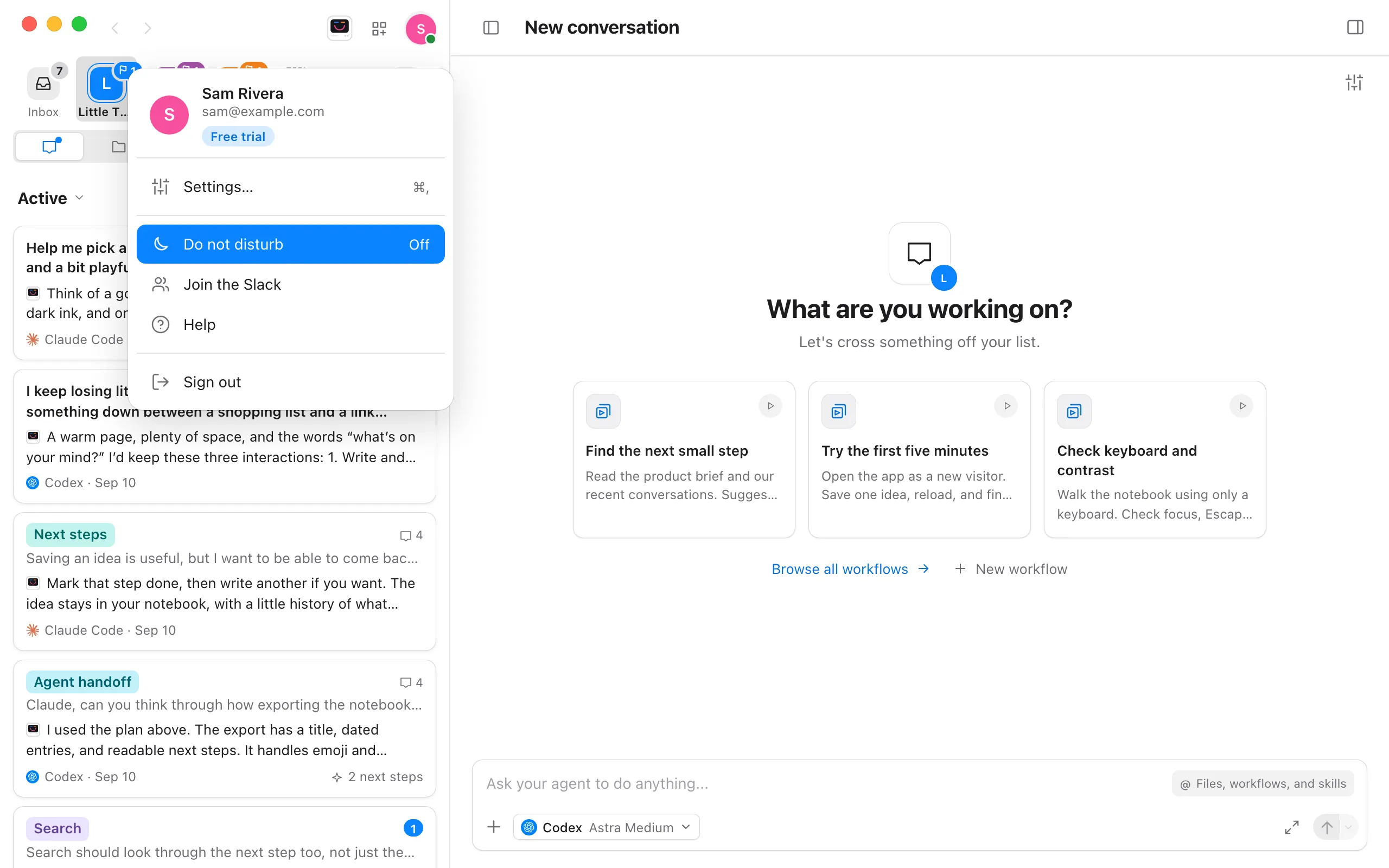
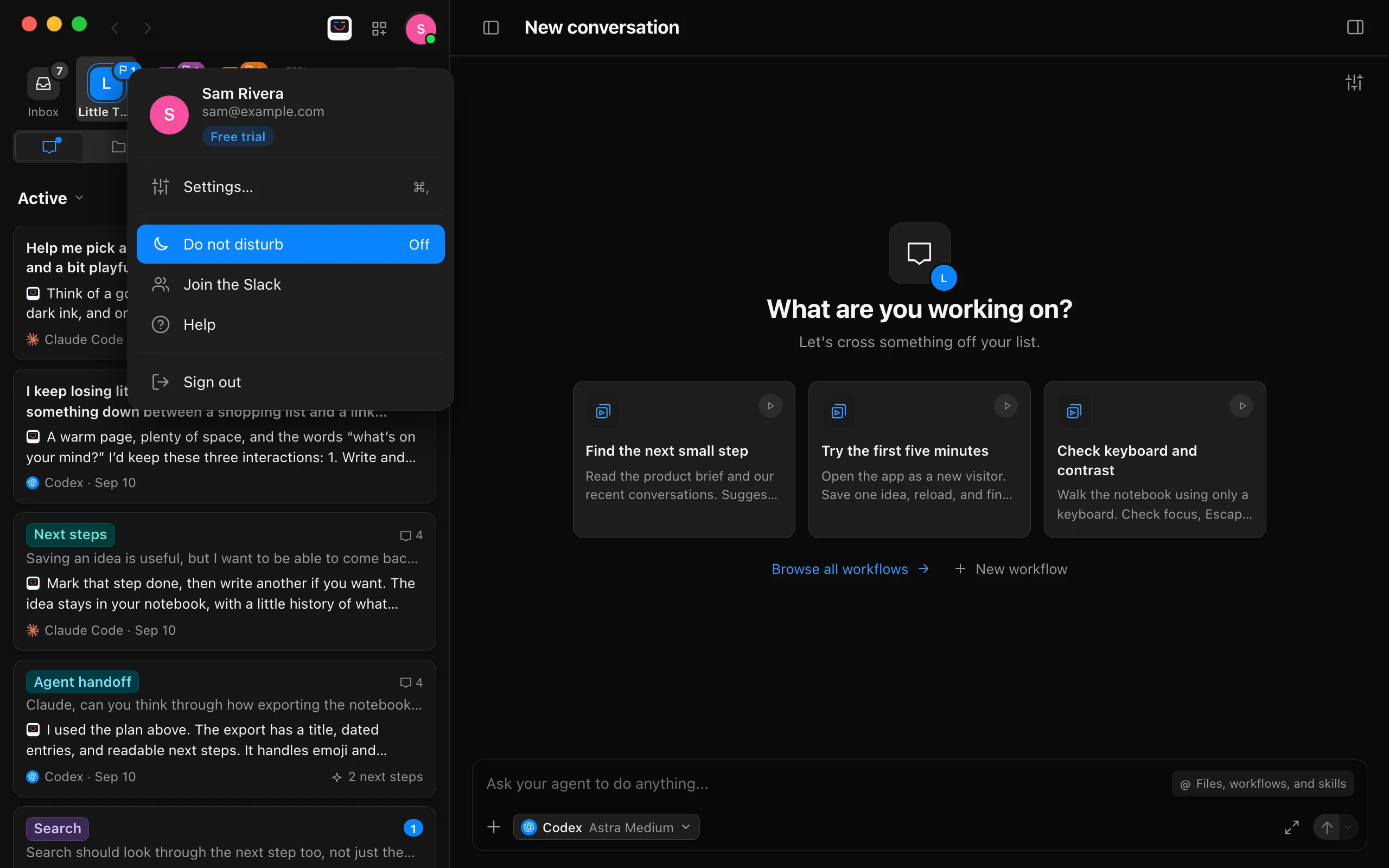
Select your picture or initial at the top right of the navigator. Its menu opens.
Choose Do not disturb
It says Off at its end while it’s off. Its settings open under your face.
Choose how long
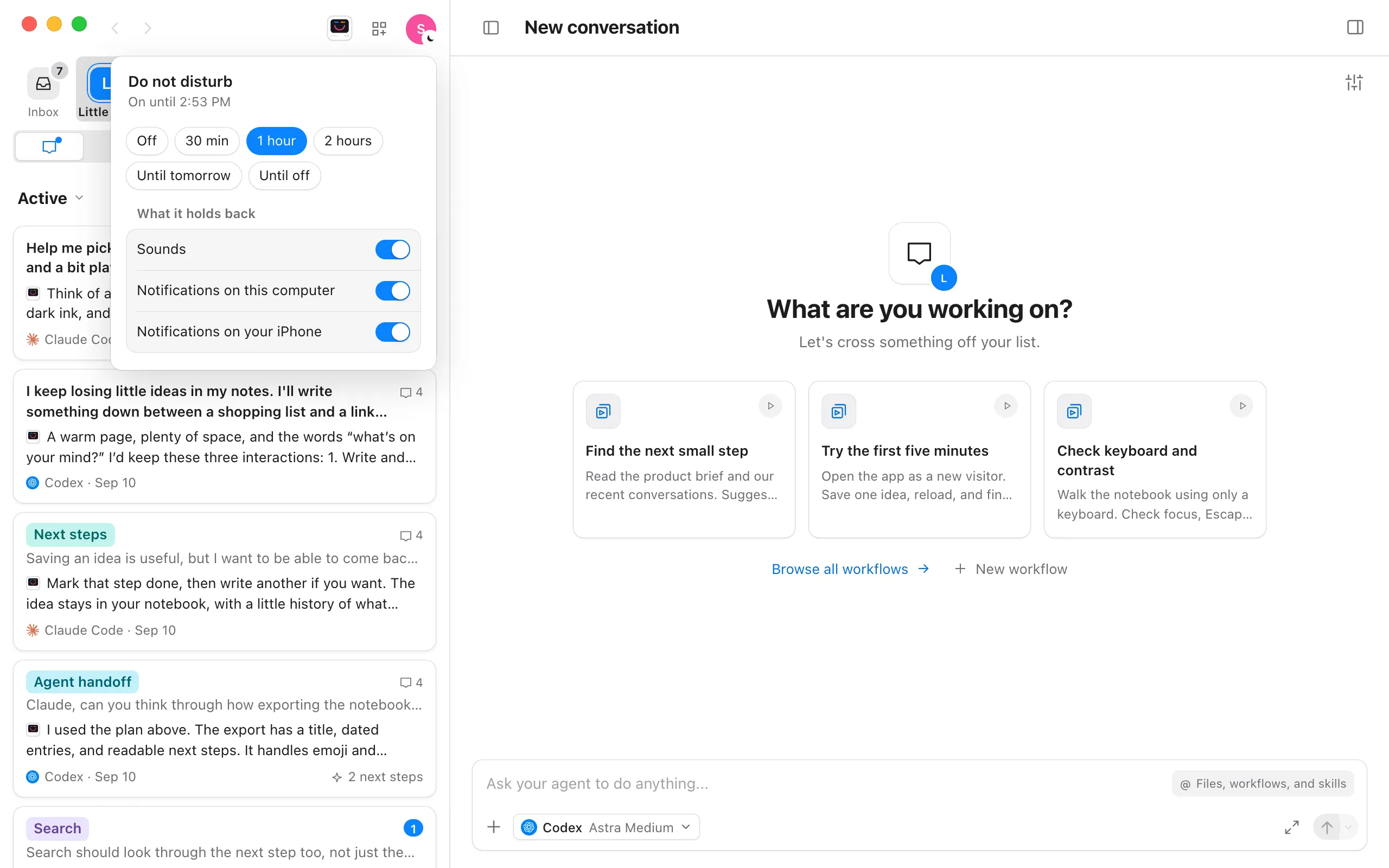
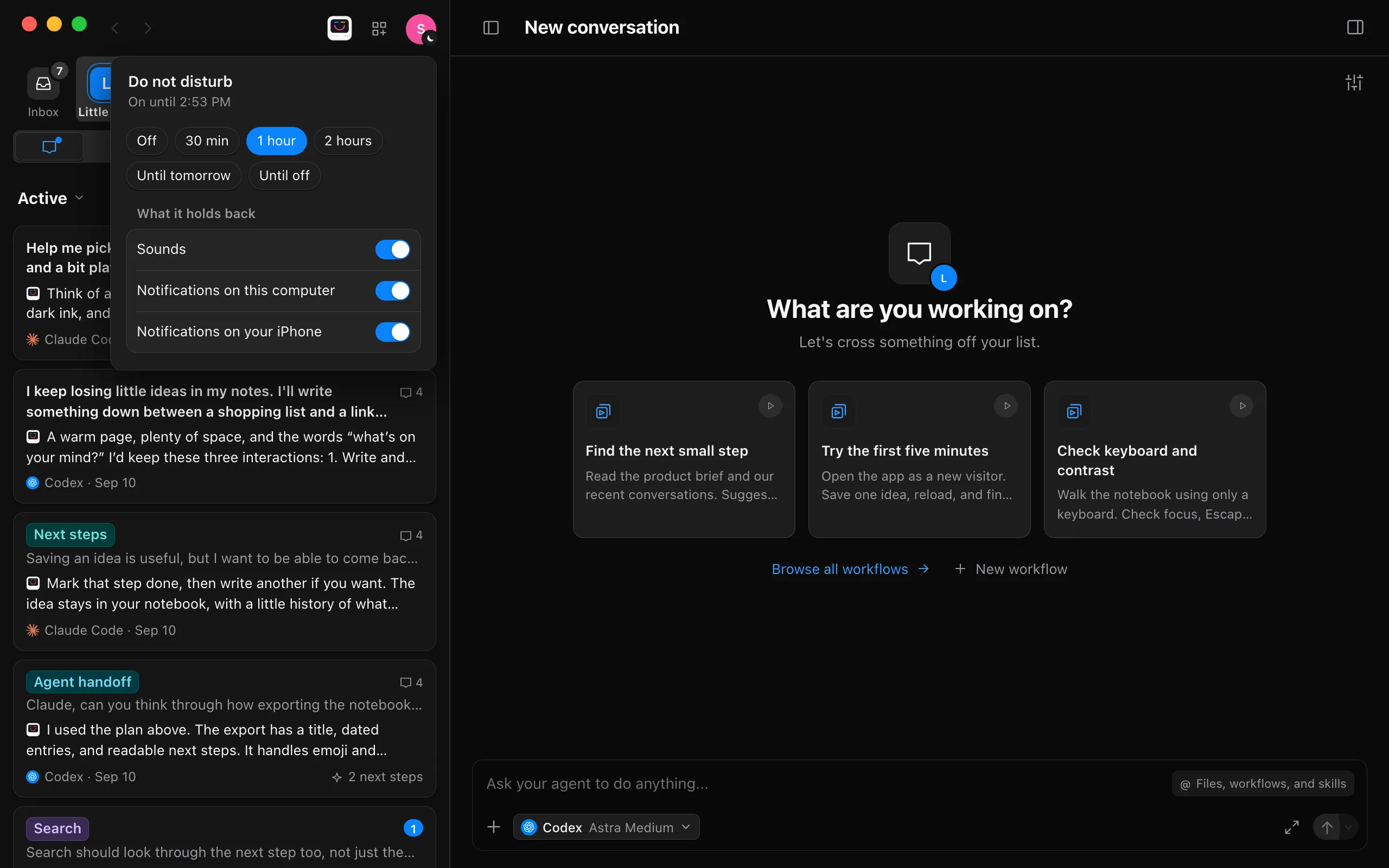
Select 30 min, 1 hour, 2 hours, Until tomorrow, or Until off. It turns on right away, and the line under Do not disturb says when it ends, such as “On until 1:05 PM”.
Choose what it holds back
Under What it holds back, turn Sounds, Notifications on this computer and Notifications on your iPhone on or off. All three are on at first.
Turn it off early, if you like
Open it again from your face and select Off.
Good to know
- Agents keep working the whole time. Their replies and questions wait in their conversations and your Inbox, unread, for when you’re back. Nothing plays or shows all at once when Do not disturb ends.
- While it’s on, a moon takes the place of the dot on your face, and Do not disturb in your face’s menu says when it ends, such as “Until 1:05 PM”, “Until tomorrow” or “On”.
- Until tomorrow lasts until 8:00 AM the next day. Until off lasts until you select Off.
- Sounds covers agents’ chimes, the lines they say with Voice, and JOY’s voice. The play buttons in Settings still play, so you can hear what you’re choosing.
- Notifications on this computer appears on a Mac, where Enjoy shows notifications in Notification Center.
- Notifications on your iPhone holds back only your own devices’ notifications from this computer. People you share projects with still get theirs.
- Do not disturb belongs to the computer you set it on, and each of your computers has its own. The web app on your other devices follows the computer it’s connected to: it stays quiet, and the moon shows on your face there too.
- The switches in Settings > General still decide which events ever make a sound or show a notification. See Choose sounds and notifications.