Work in several tabs
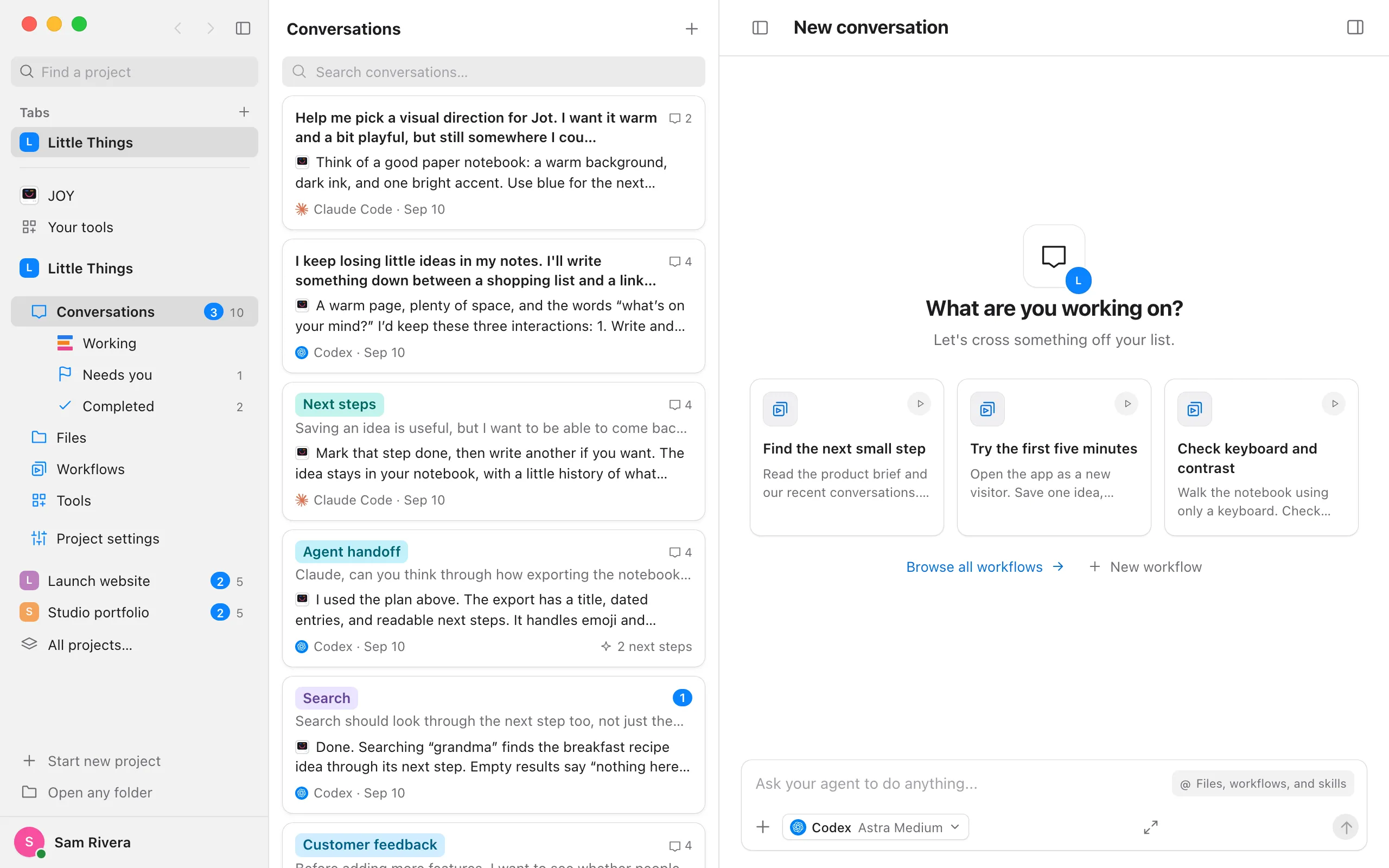
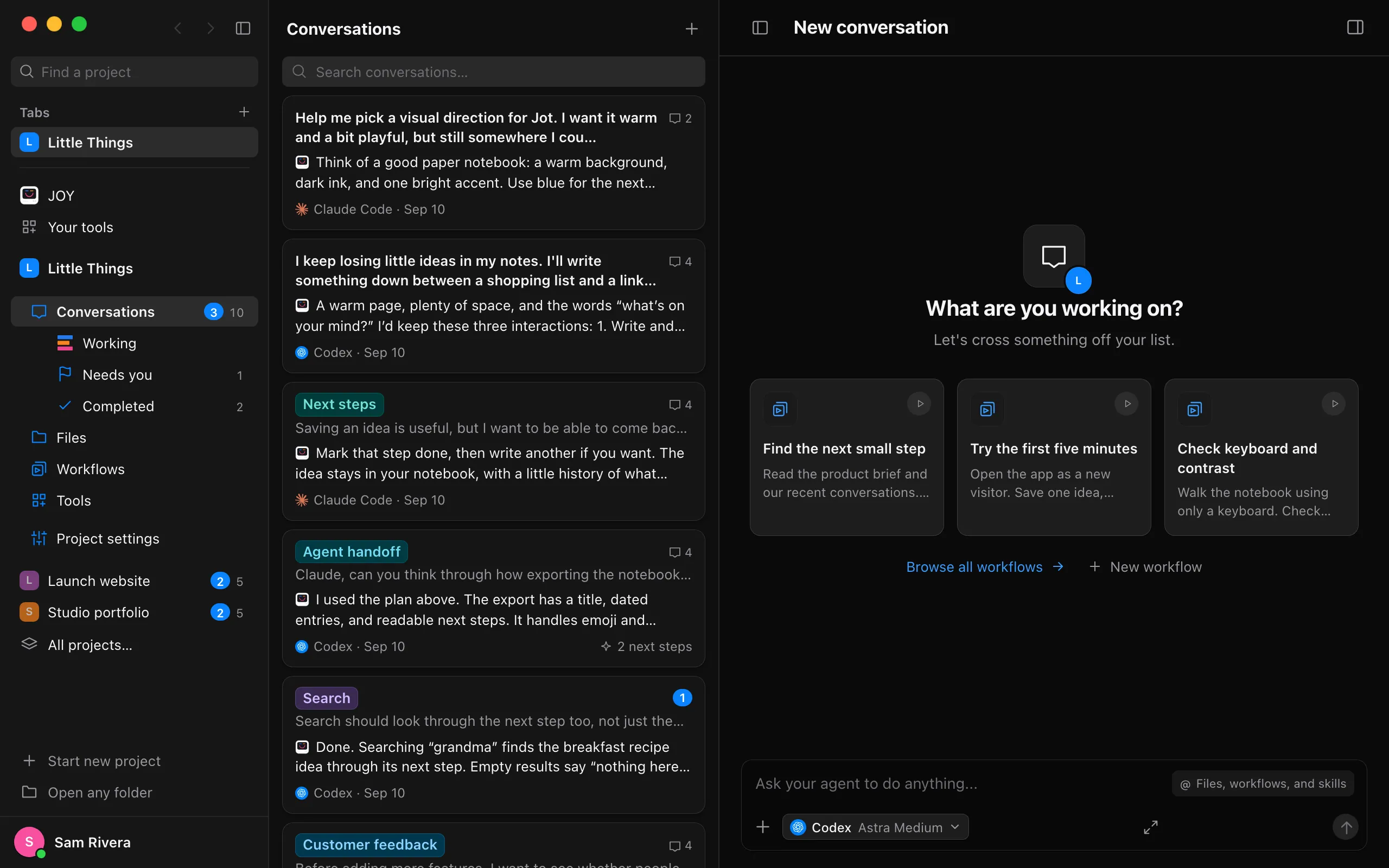
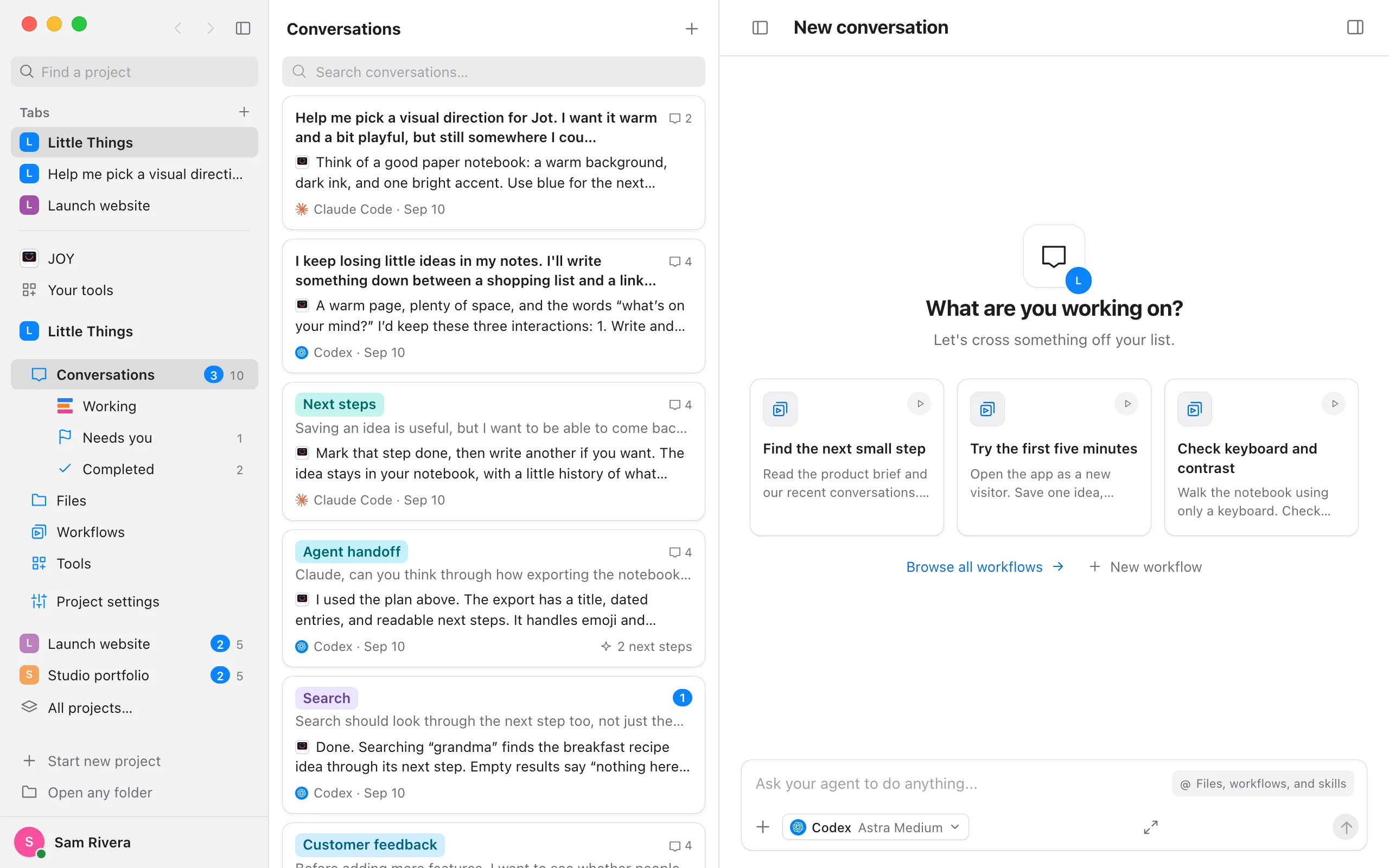
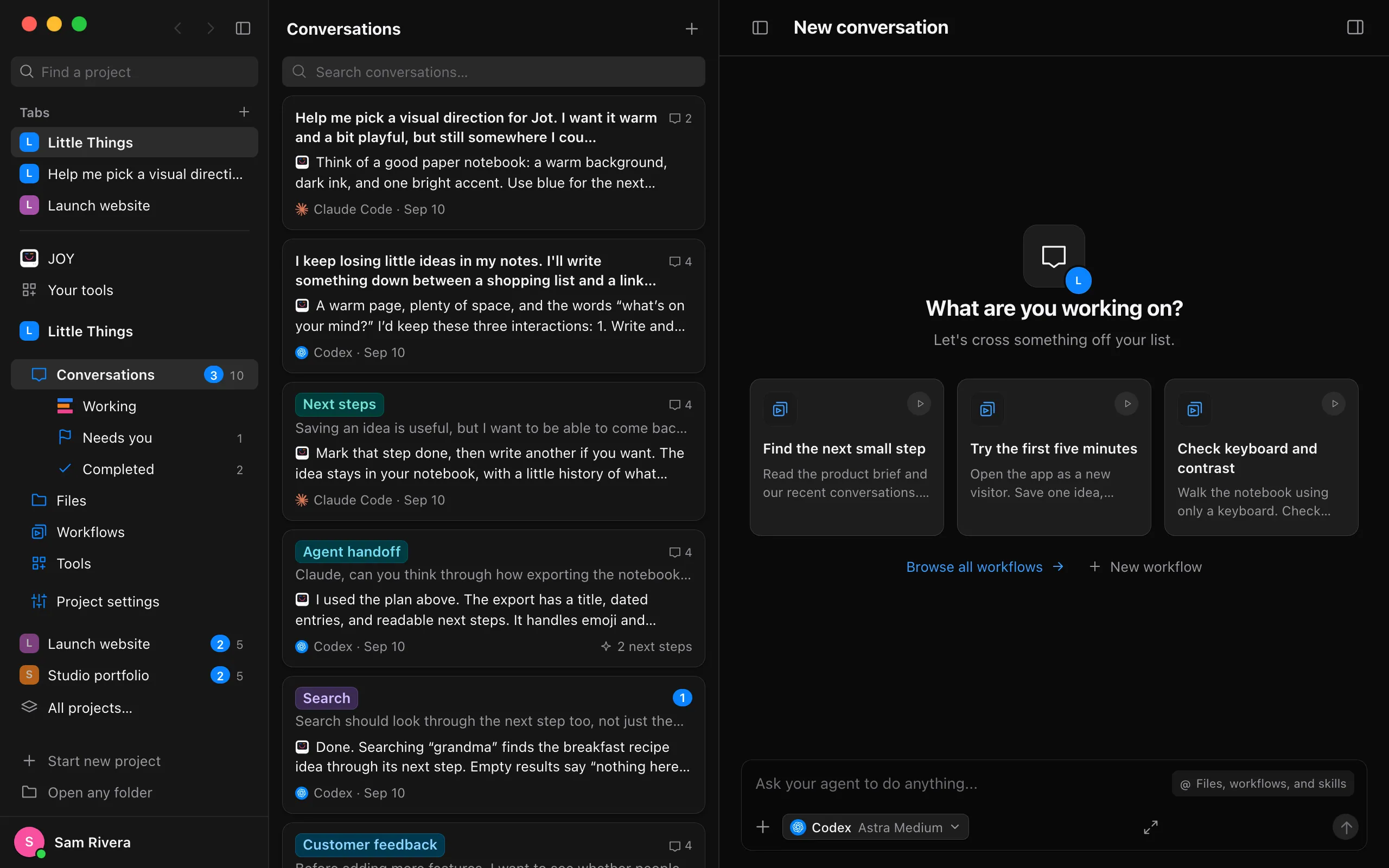
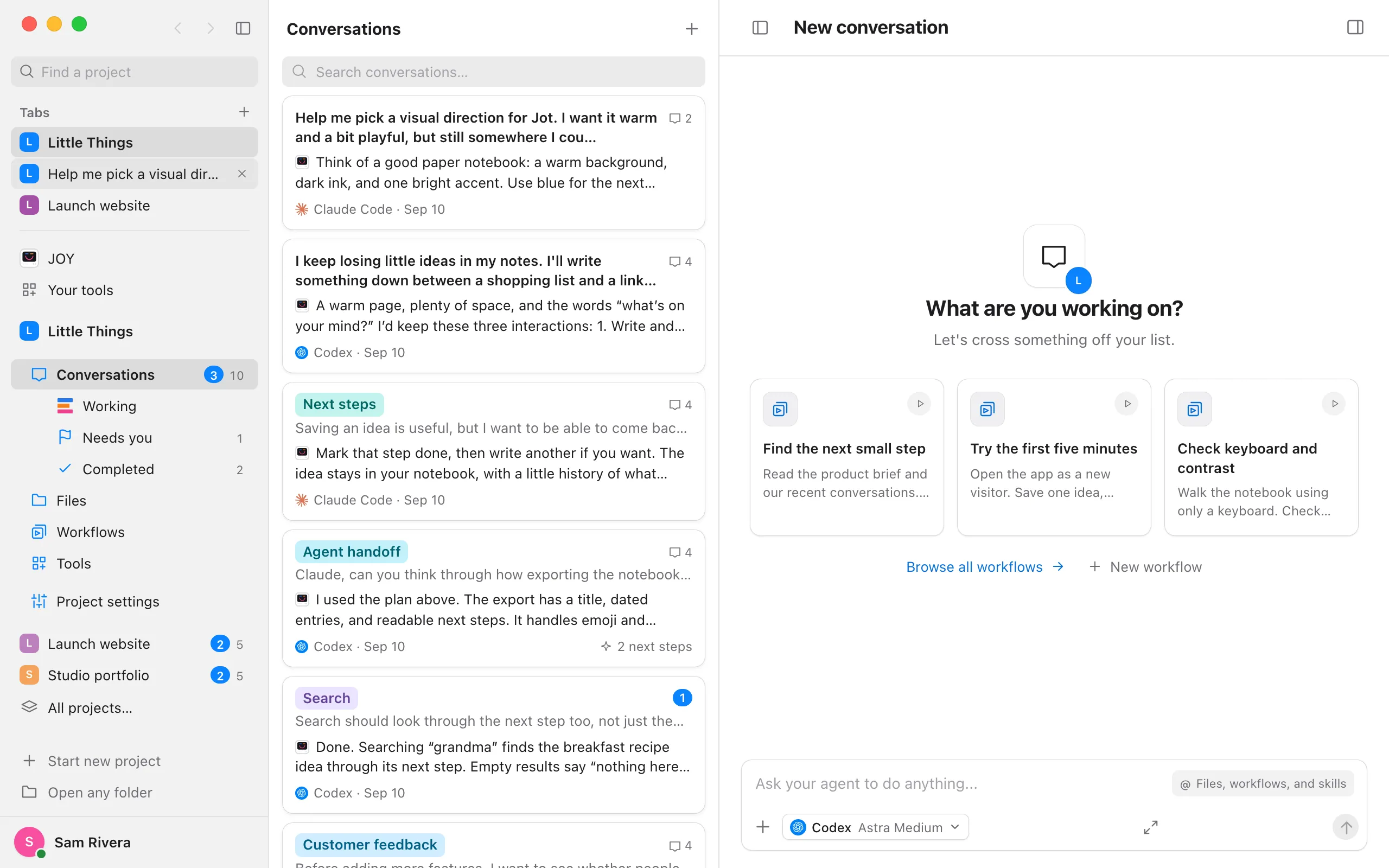
Each tab in the Enjoy window keeps its own project and conversation. You can have one project open in two tabs at different conversations and another project in a third, and switch between them without losing your place. Your tabs are listed under Tabs at the top of the sidebar.
Steps
Open a new tab
Select + beside Tabs at the top of the sidebar, or press ⌘T on a Mac or Ctrl+T on Windows and Linux. The new tab starts a new conversation in the project you have open.
Go anywhere in it
Choose a project, a conversation, a tool, or a conversation with JOY as usual. Only the tab you’re in changes; the others stay where you left them.
Switch between tabs
Select a tab in the sidebar. You can also press ⌃Tab and ⌃⇧Tab on a Mac, or Ctrl+Tab and Ctrl+Shift+Tab on Windows and Linux, to go to the next or previous tab.
Close a tab when you’re done
Point to it and select × at the end of its row, or press ⌘W on a Mac or Ctrl+W on Windows and Linux. The next tab along comes forward.
Good to know
- To open a conversation in a new tab, middle-click it in the conversation list, or right-click it and choose Open in new tab. To open a project, do the same with its row in the sidebar. The new tab opens behind the one you’re in, after any others you just opened that way.
- Each tab shows its project’s icon and the name of what’s open in it: a conversation, a tool, a workflow, or a file. With JOY open, it shows her icon and the conversation you’re having with her, and Your tools shows as itself. Enjoy’s symbol at the end of a tab means an agent is working in its conversation, and a dot in the project’s color means a reply is waiting for you or the agent needs you. Bringing the tab forward shows the reply.
- Back and Forward, the arrows at the top right of the sidebar beside Hide sidebar, go through the places the open tab has been, across projects, tools, and JOY’s conversations as well as your projects’ conversations. Point to one to see where it goes, or right-click it for the list of places that way and choose one to jump there. A new tab starts with nothing to go back to.
- ⌘[ and ⌘] on a Mac, or Ctrl+[ and Ctrl+] on Windows and Linux, also go back and forward, and so do the back and forward buttons on a mouse. While you’re typing in the message box, ⌘[ and ⌘] change the effort level instead; see Choose an effort level.
- ⇧⌘] and ⇧⌘[ on a Mac, or Ctrl+Shift+] and Ctrl+Shift+[ on Windows and Linux, also go to the next and previous tab. A middle click on a tab closes it.
- In Files, ⌘W closes the open file tab first. When only one tab is left in the window, ⌘W hides the Enjoy window on a Mac, as before.
- When the sidebar is folded into its strip, your tabs stay at the top as their projects’ icons, and Back and Forward sit under Show sidebar. When the sidebar is hidden, they follow Show sidebar at the top left.
- Selecting a notification brings forward the tab that already shows its conversation, or opens it in the tab you’re in.
- Two tabs on the same conversation share its draft, since a draft belongs to the conversation.
- Enjoy keeps your tabs, which one was in front, and each tab’s places when you quit, and brings them back the next time. Each computer you use from Enjoy has its own tabs.
- The web app doesn’t have tabs of its own; use your browser’s tabs instead.