Find the projects already on your computer
Before you have any projects, the list column offers to find the ones already on your computer: folders on your Desktop and in your Documents and Downloads folders that hold code, a Git repository, or instructions for an agent. Adding them doesn’t move or change your files.
Before you start
- You haven’t added a project yet. Once you have one, open folders with Open any folder instead. See Bring an existing project into Enjoy.
Steps
Choose where to look
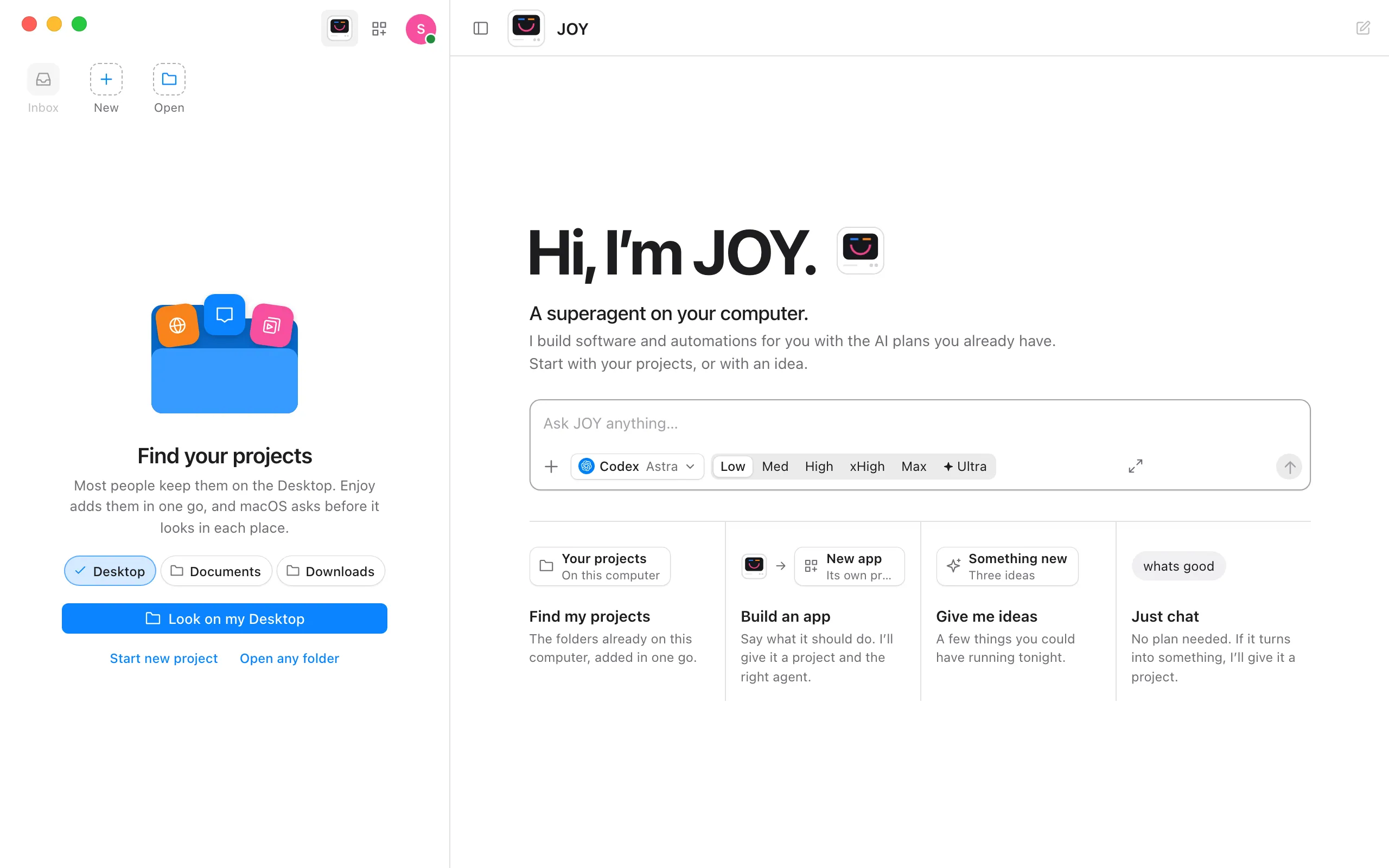
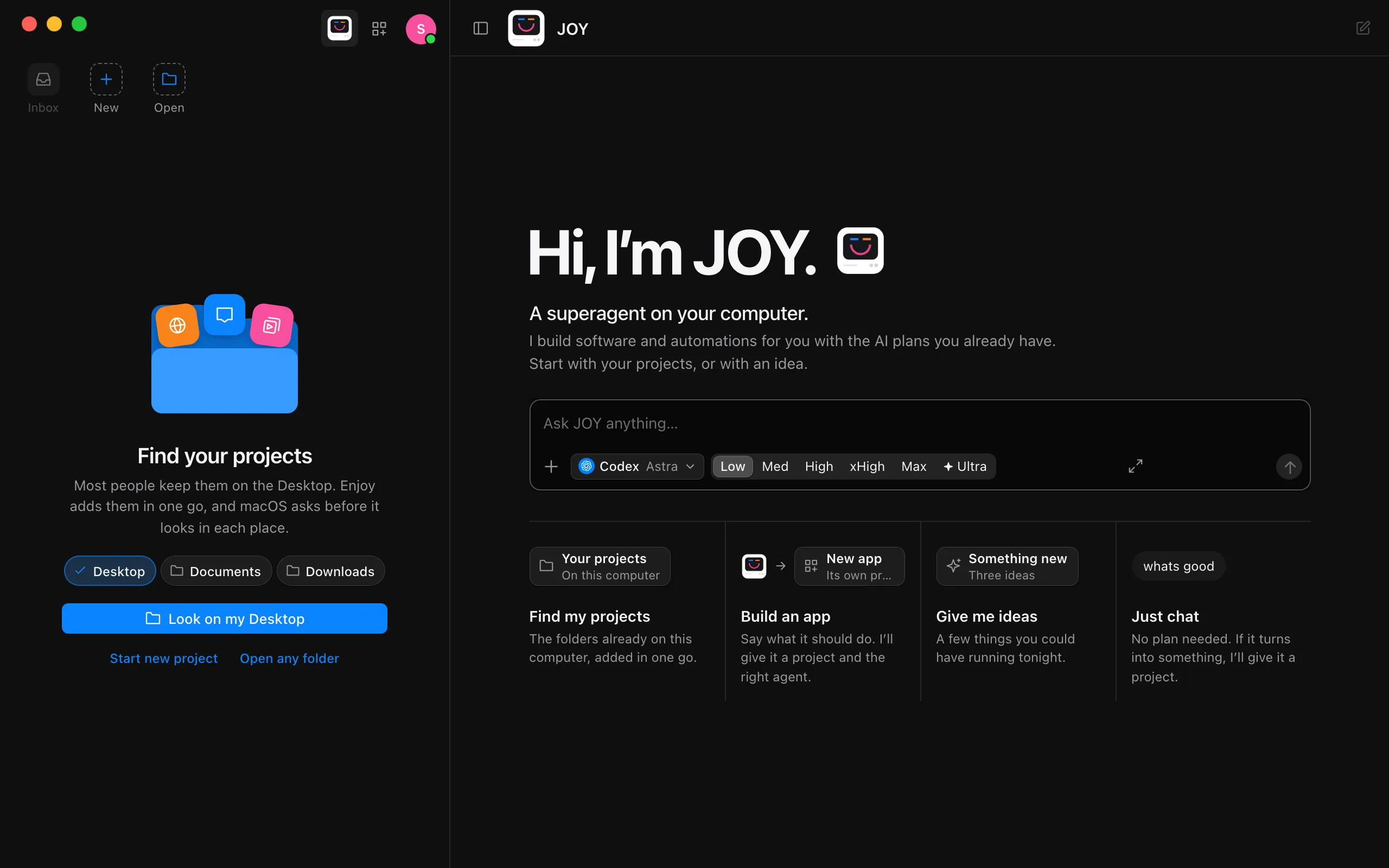
Under Find your projects in the list column, Desktop is already chosen, since that’s where most people keep their projects. Select Documents or Downloads to look there too.
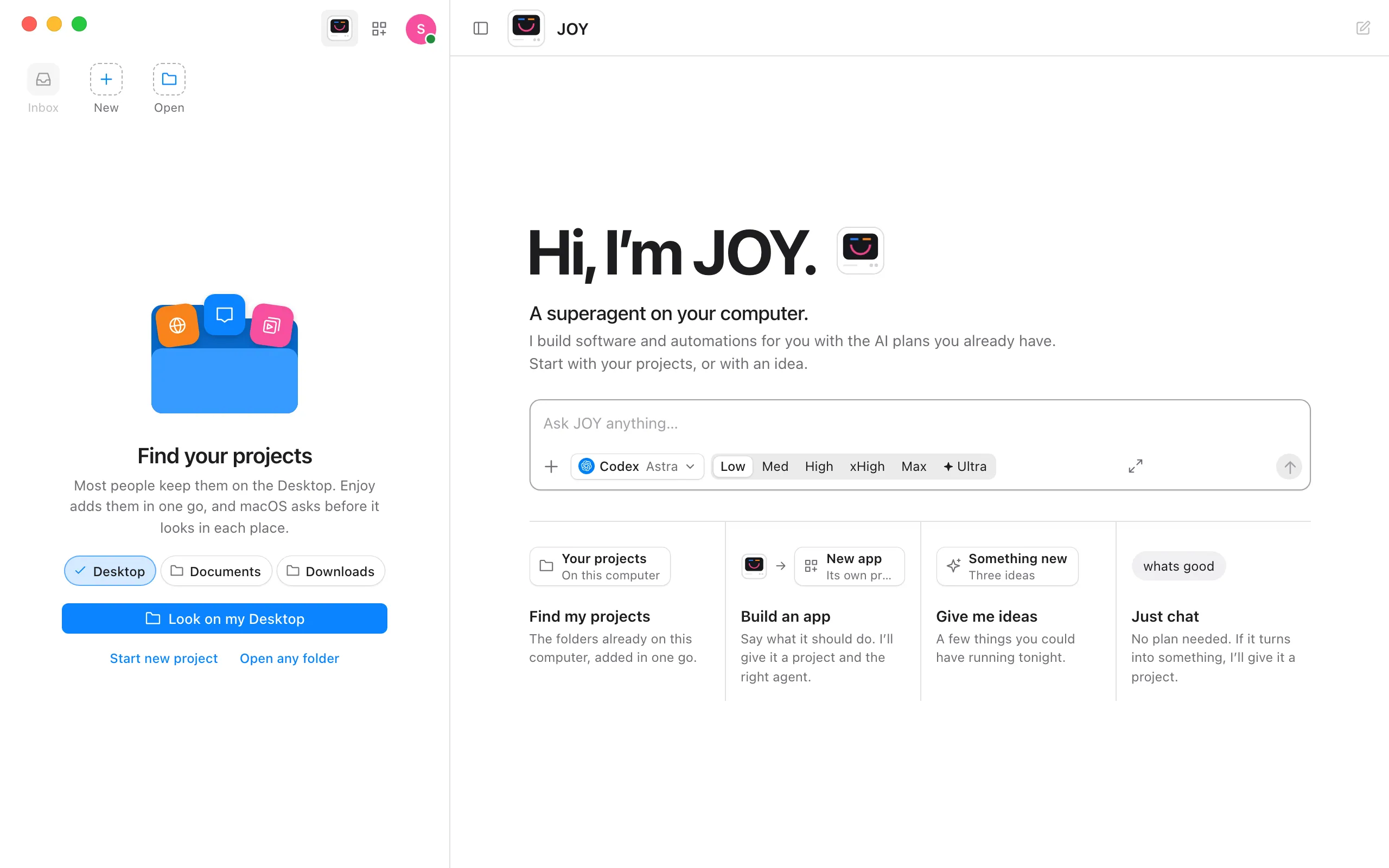
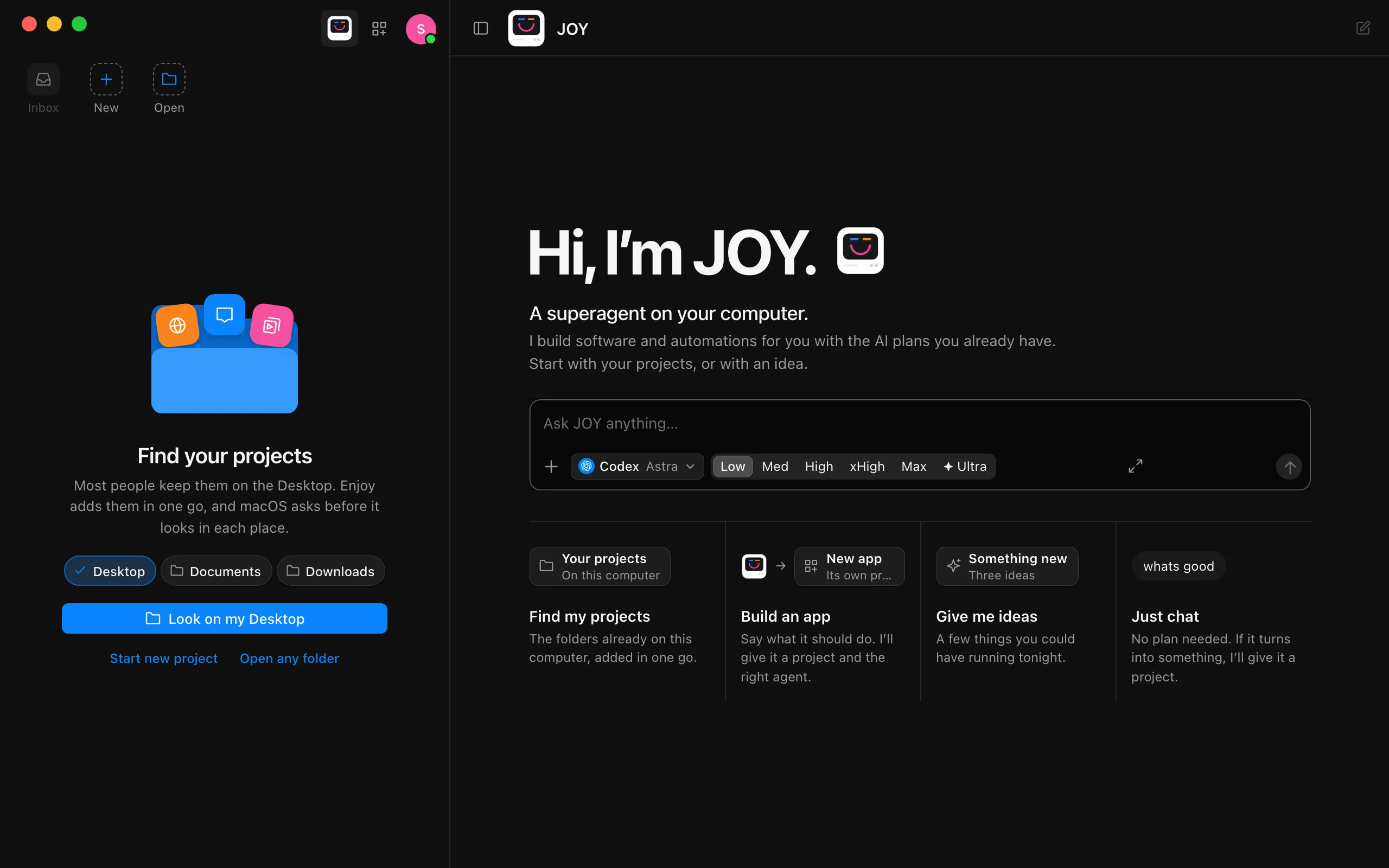
Select Look on my Desktop
The button says where Enjoy will look, such as Look in 2 places when you’ve chosen two.
Select Allow when macOS asks
On a Mac, macOS asks once for each place before Enjoy can look in it: ““Enjoy Agentic” would like to access files in your Desktop folder.” Select Allow. On Windows and Linux there’s nothing to allow.
Pick the projects to add
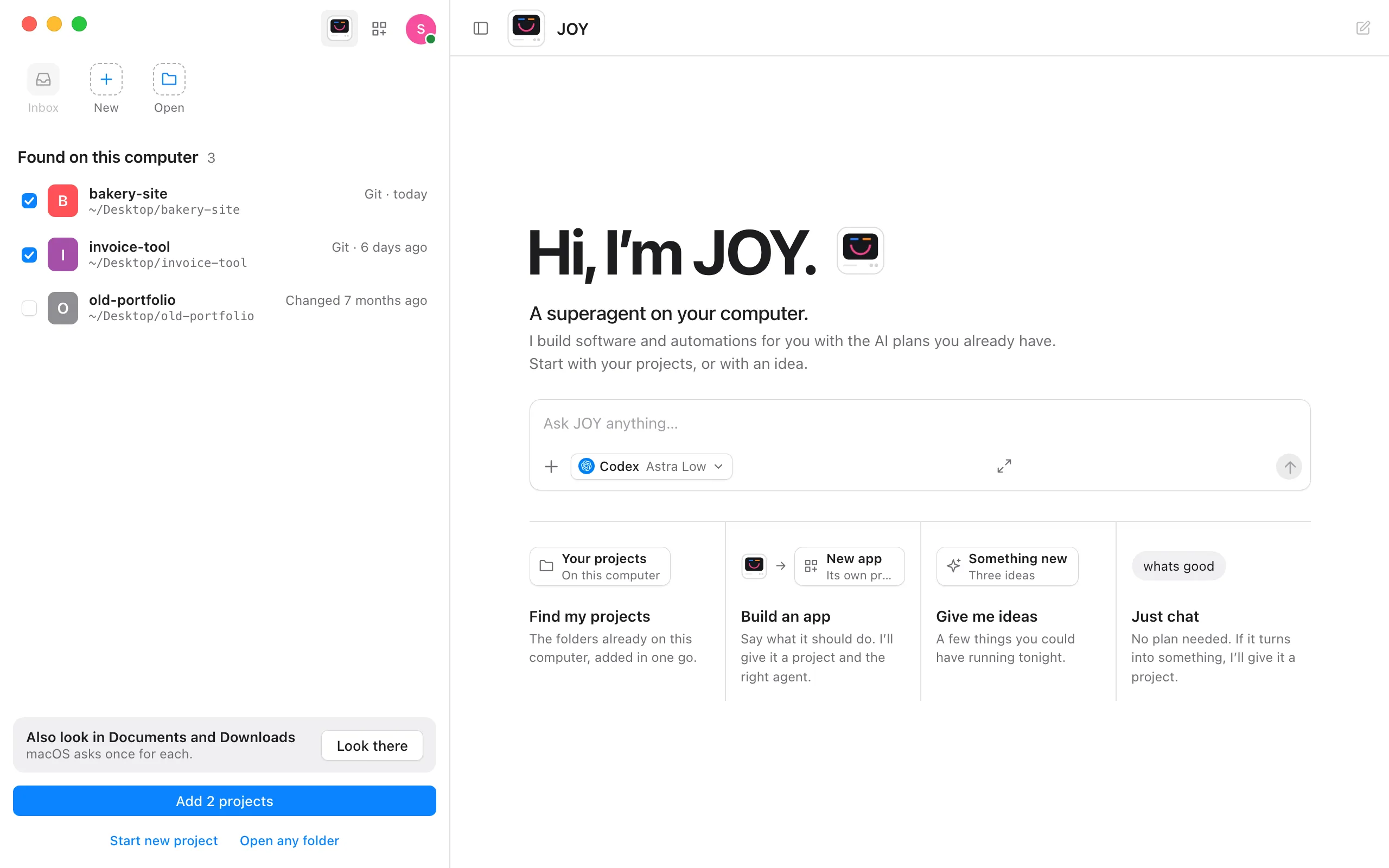
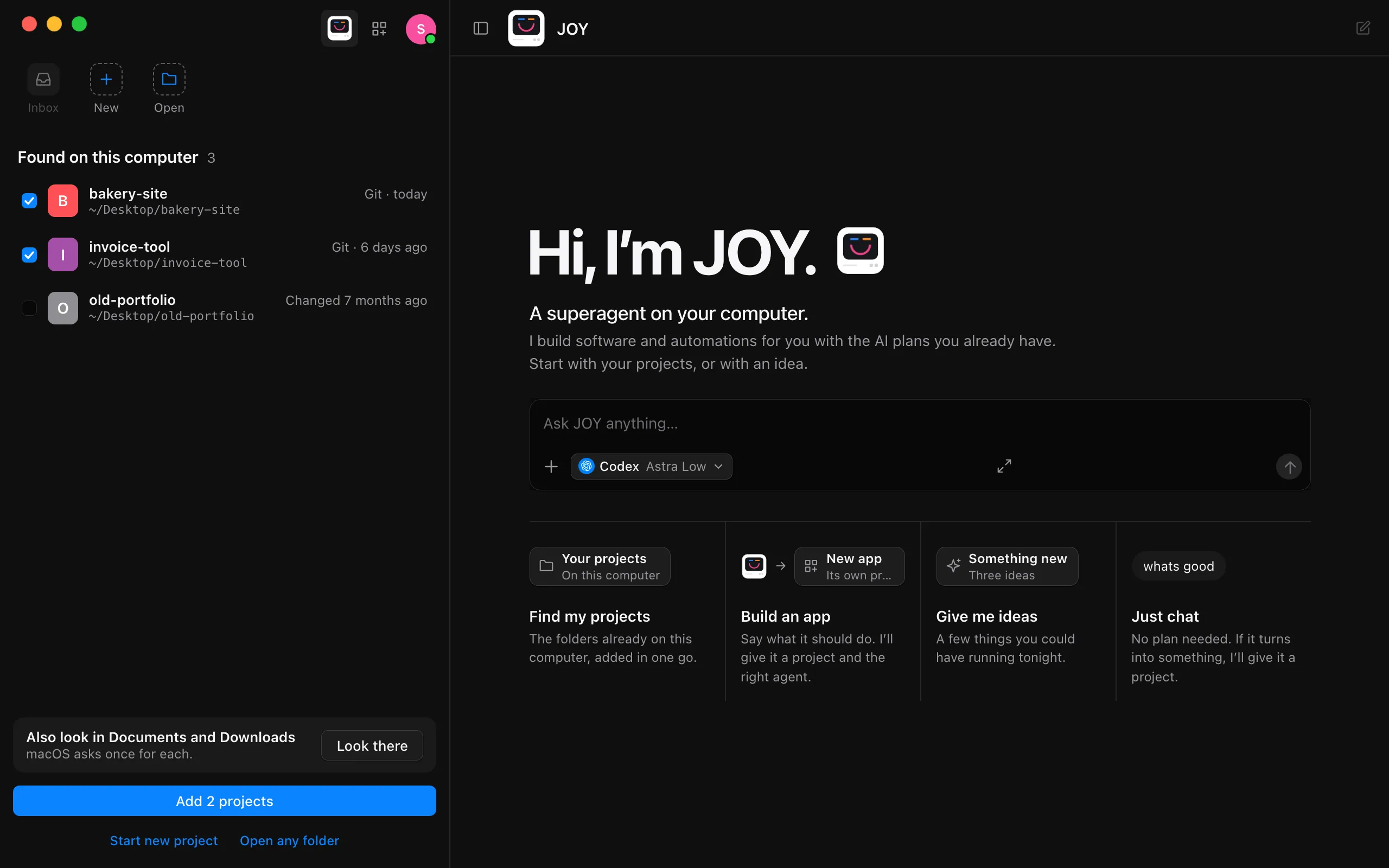
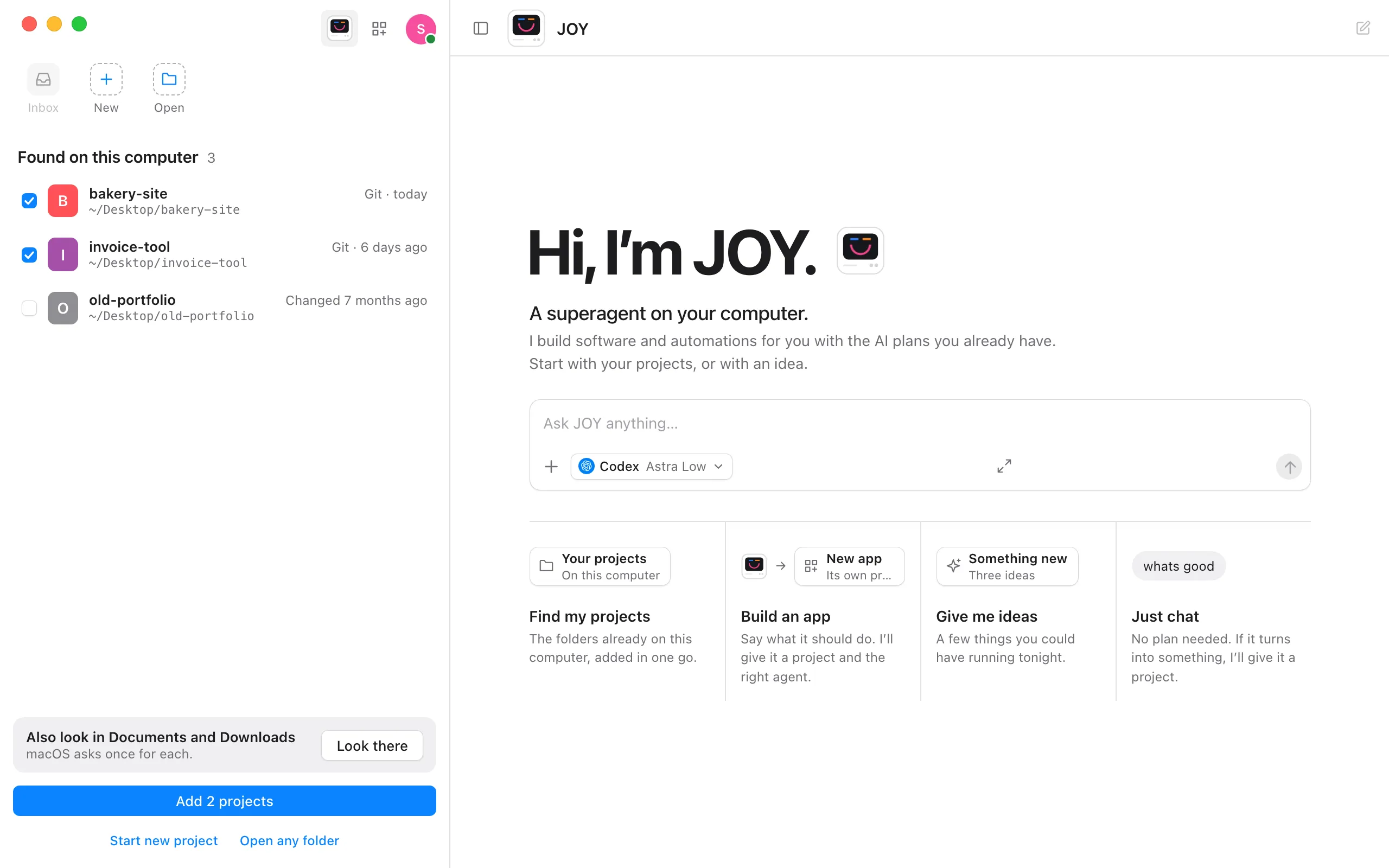
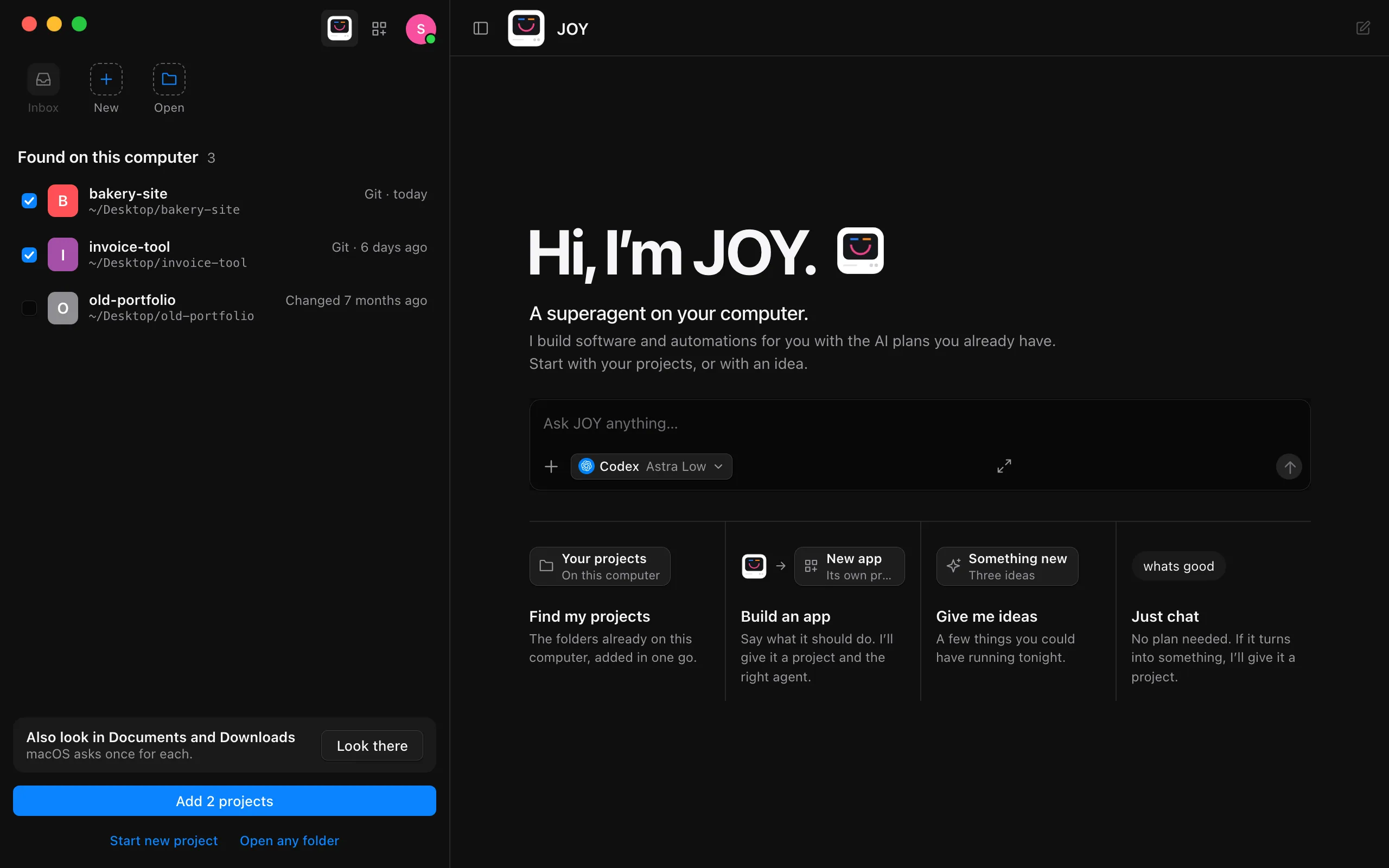
Found on this computer lists what Enjoy found, most recently changed first, with when each last changed and where it is. Projects changed in the last 30 days are already ticked. Tick or untick the others.
Select Add
The button says how many projects you’ve ticked, such as Add 2 projects. Enjoy adds them to the shelf and opens the first one.
Good to know
- On Windows and Linux, Enjoy looks in all three places by itself when it opens without projects, so the list column opens on Found on this computer.
- To look in a place you didn’t choose at first, select Look there under Also look in, below what Enjoy found.
- A folder counts as a project when it has a Git repository, a package or build file such as
package.json,Cargo.toml,pyproject.tomlor an Xcode project, or aCLAUDE.mdorAGENTS.mdfile. Enjoy looks at the folders in each place and one level further in, such asDesktop/code/my-app. - Looking only reads the names and dates of folders and files on this computer. Enjoy doesn’t open your documents, and nothing is sent anywhere.
- Once you’ve allowed a place, Enjoy looks there again by itself the next time it opens without projects.
- If you used Claude Code or Codex in the first project Enjoy opens, it offers to import those conversations. See Import past Claude Code and Codex conversations.
- Start new project and Open any folder stay under the finder if you’d rather start fresh or choose a folder yourself.
- Finding projects works in the computer app only. Your phone and the web app can’t look at the folders on your computer.
If something goes wrong
“macOS didn’t let Enjoy look in Documents, and won’t ask again.”
You selected Don’t Allow when macOS asked, now or earlier, and macOS doesn’t ask twice. Select Open System Settings, turn on Enjoy Agentic for that folder under Privacy & Security › Files and Folders, then come back to Enjoy and select Look again.
“No projects found yet.”
Enjoy didn’t find any folders that look like projects in the places it looked. Select Look there to try the other places, or Open any folder to choose a folder yourself.
“Enjoy couldn’t look in Desktop: …”
Something other than macOS’s permission stopped Enjoy from reading the folder. The message ends with your system’s reason. Quit and reopen Enjoy to try again, or choose the folder yourself with Open any folder.
“Enjoy couldn’t add a folder: …”
Enjoy added the other folders, but not the one the message names. The message ends with the reason, such as the folder having moved since Enjoy found it. Open it with Open any folder instead. See Bring an existing project into Enjoy.