Move a conversation to another project
A conversation works in the folder of the project it was started in. If you started one in the wrong project, you don’t have to stop it and start again: move it, and it carries on in the right one.
Steps
Open the menu
In the conversation, select the ⋯ button (Conversation actions) at the top right. You can also right-click the conversation in the list. It works while the agent is busy.
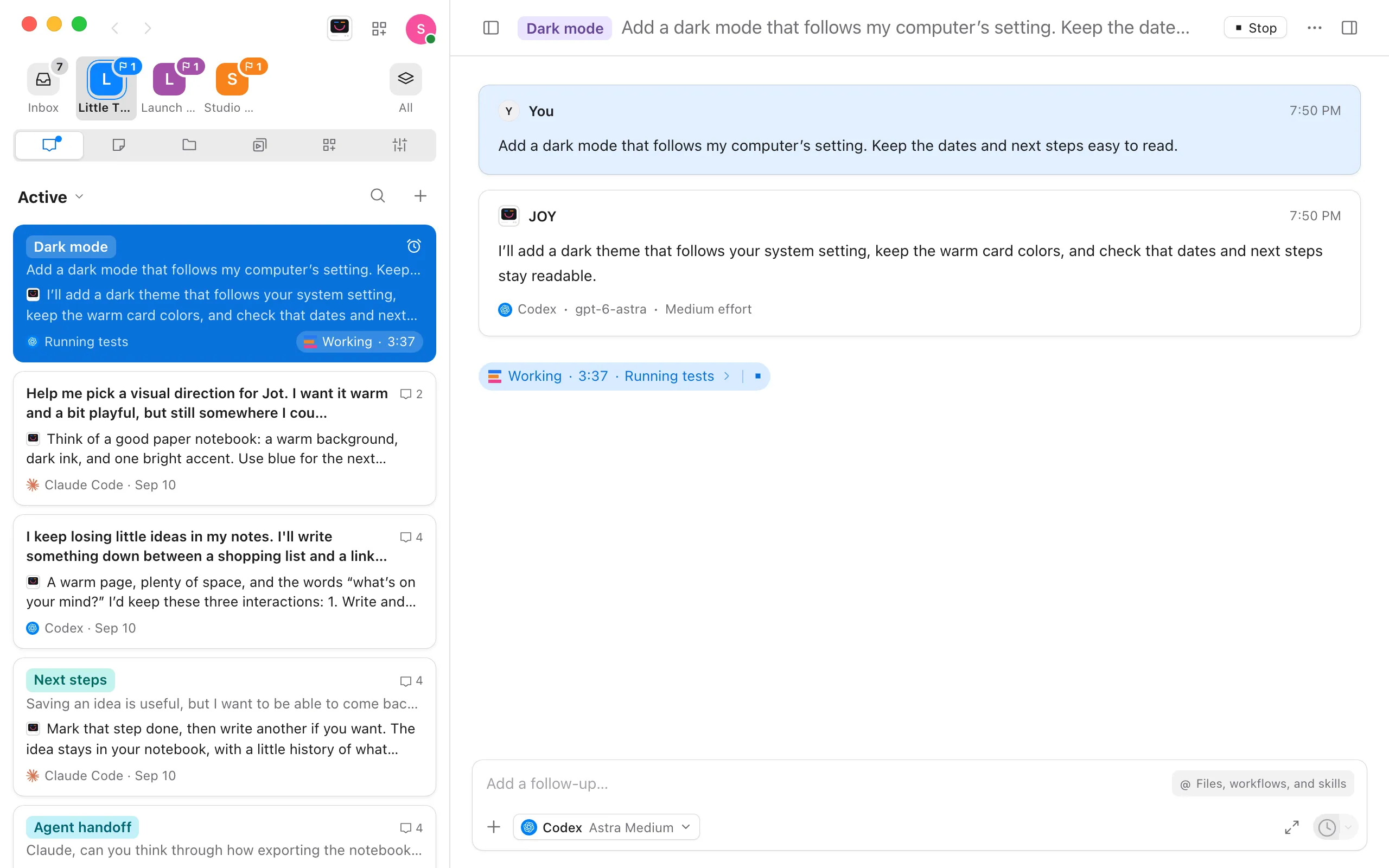
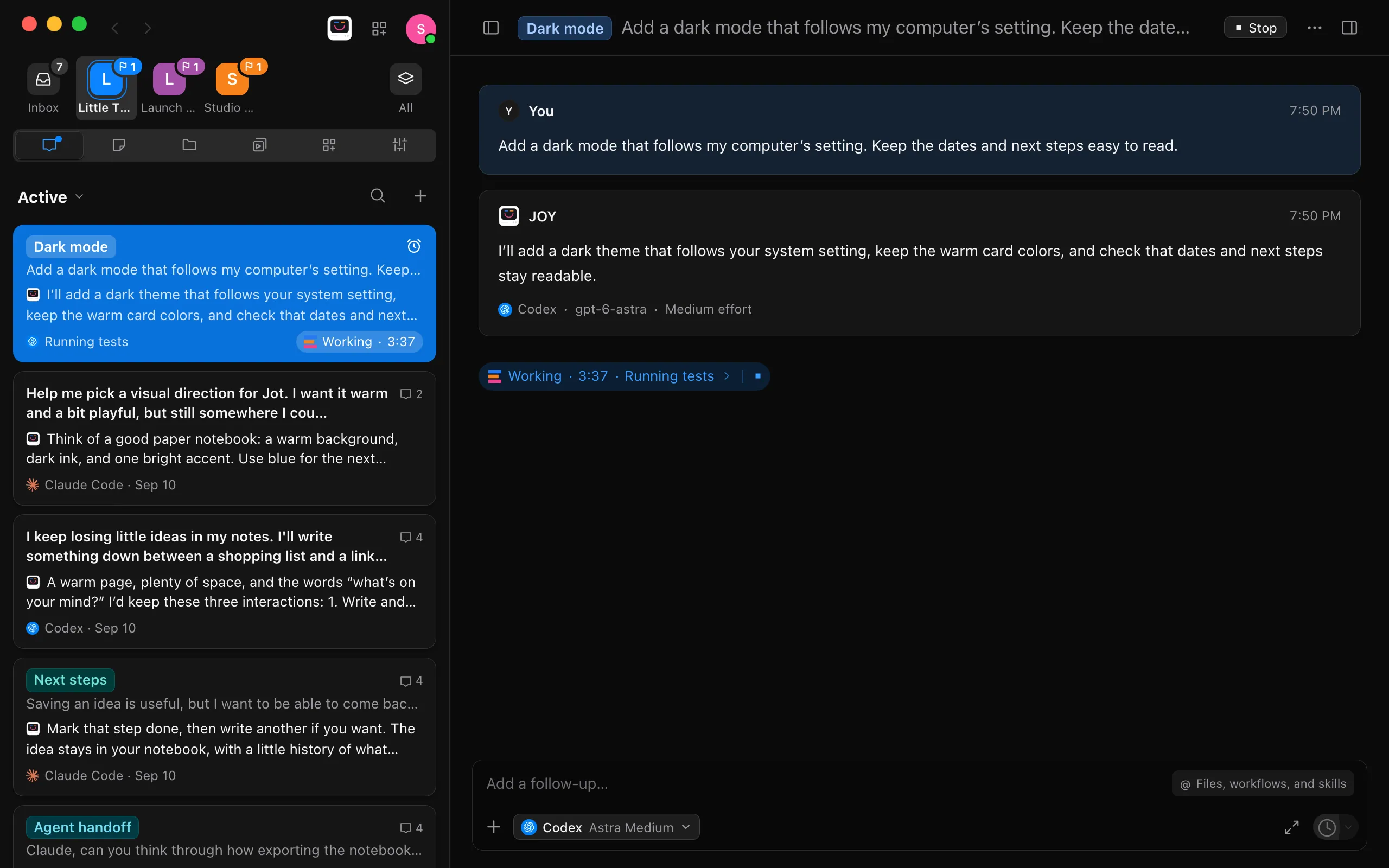
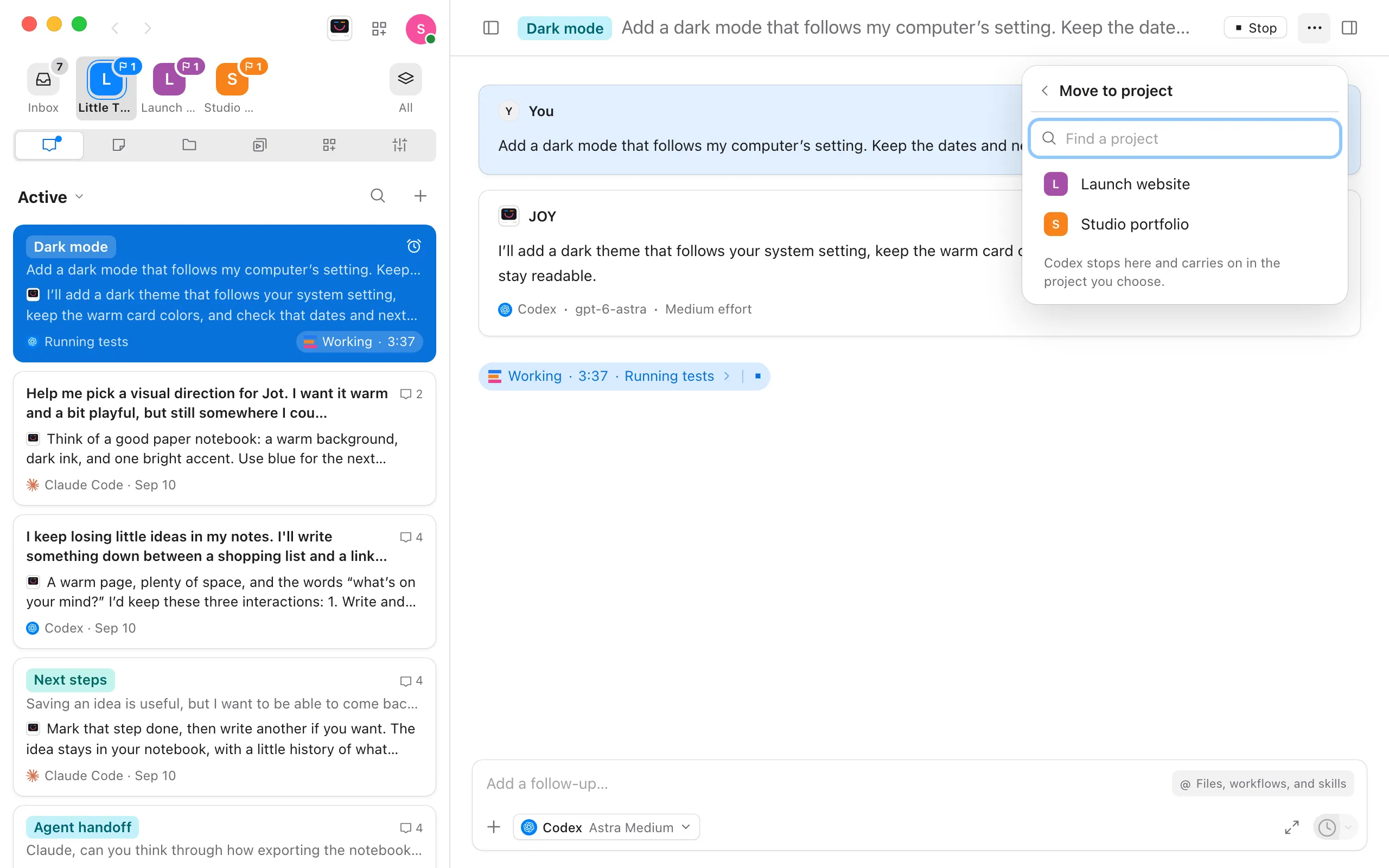
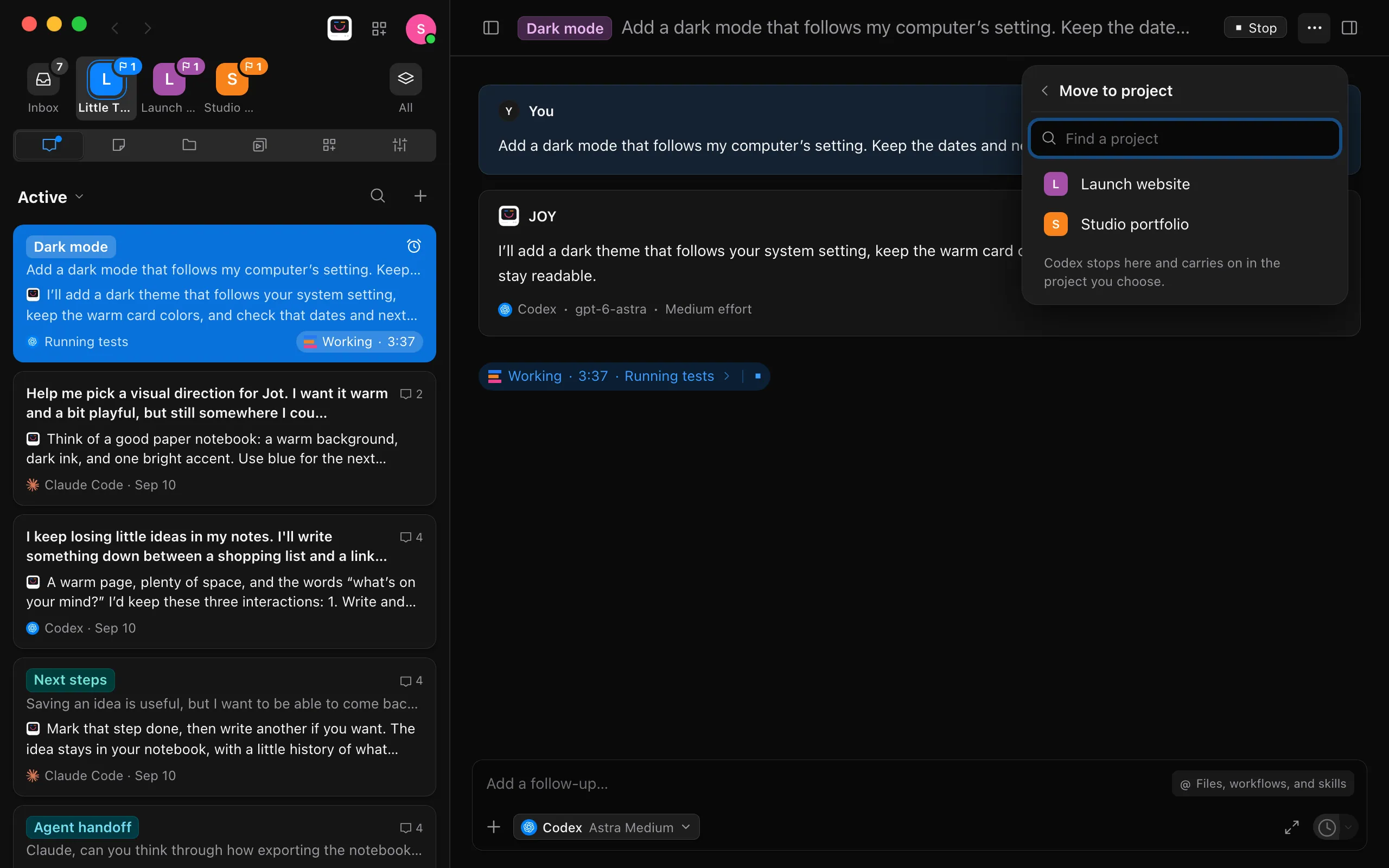
Choose Move to project
The menu shows your other projects.
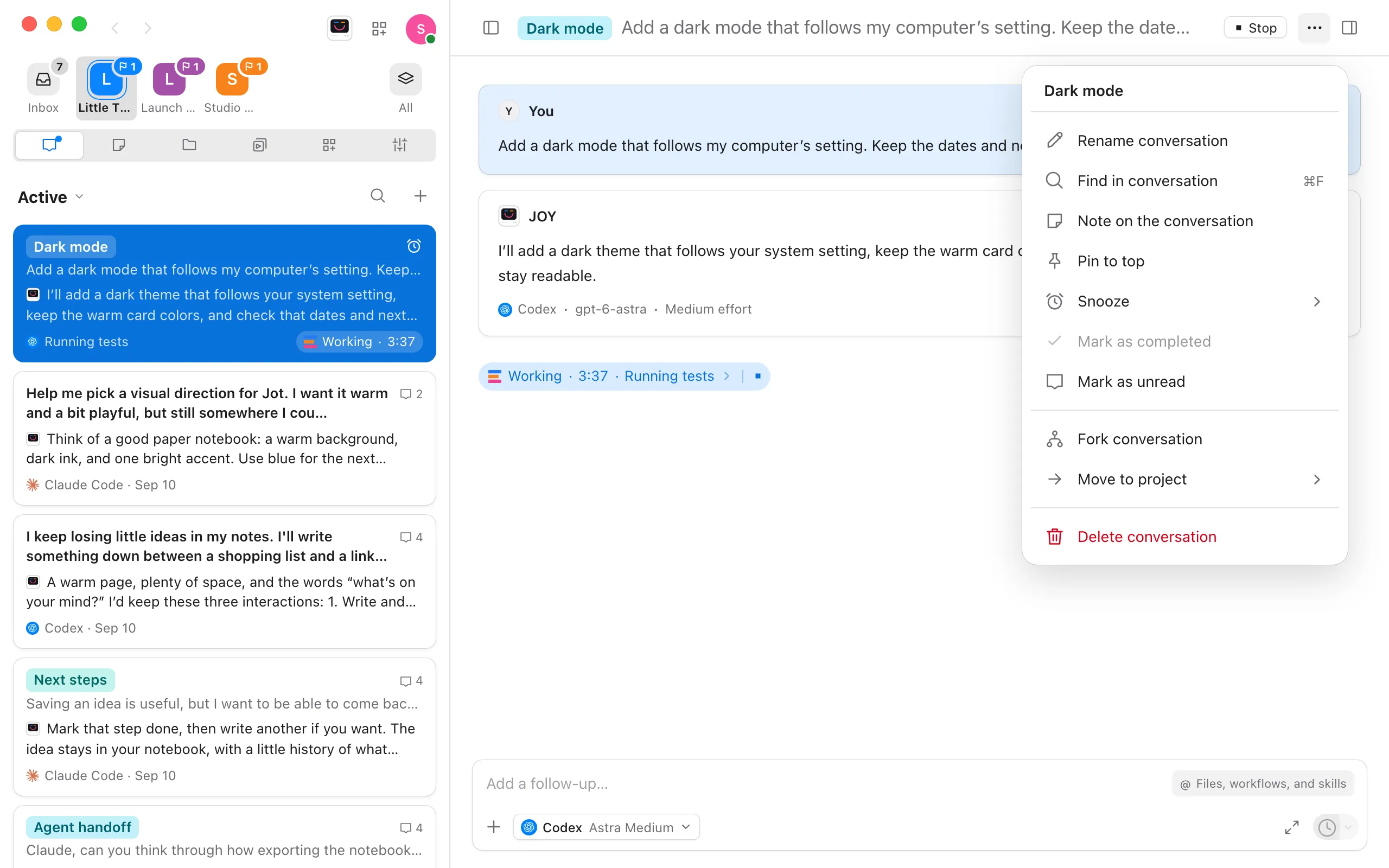
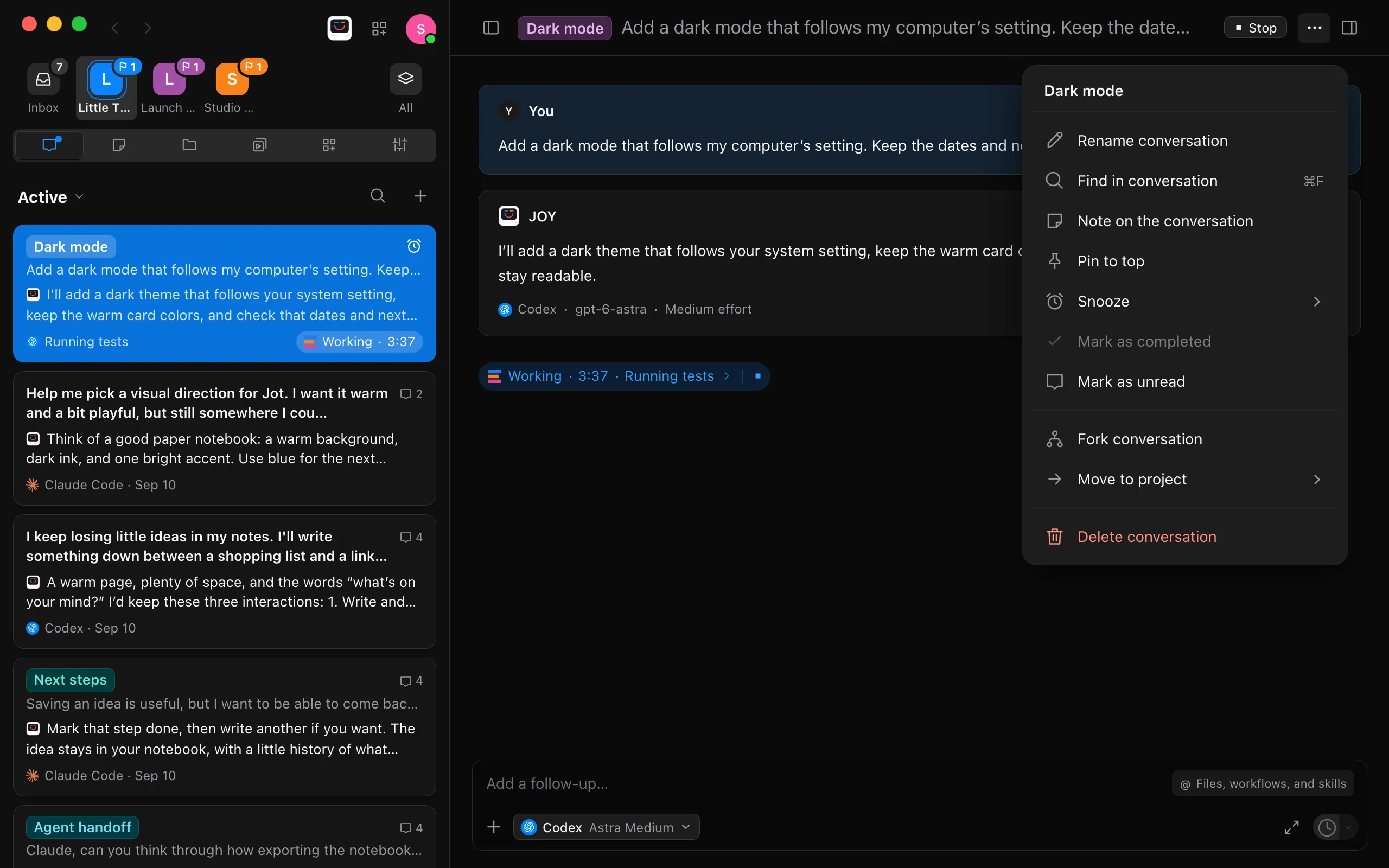
Choose the project
Type in Find a project to narrow a long list. If an agent is working, Enjoy stops it first.
Carry on there
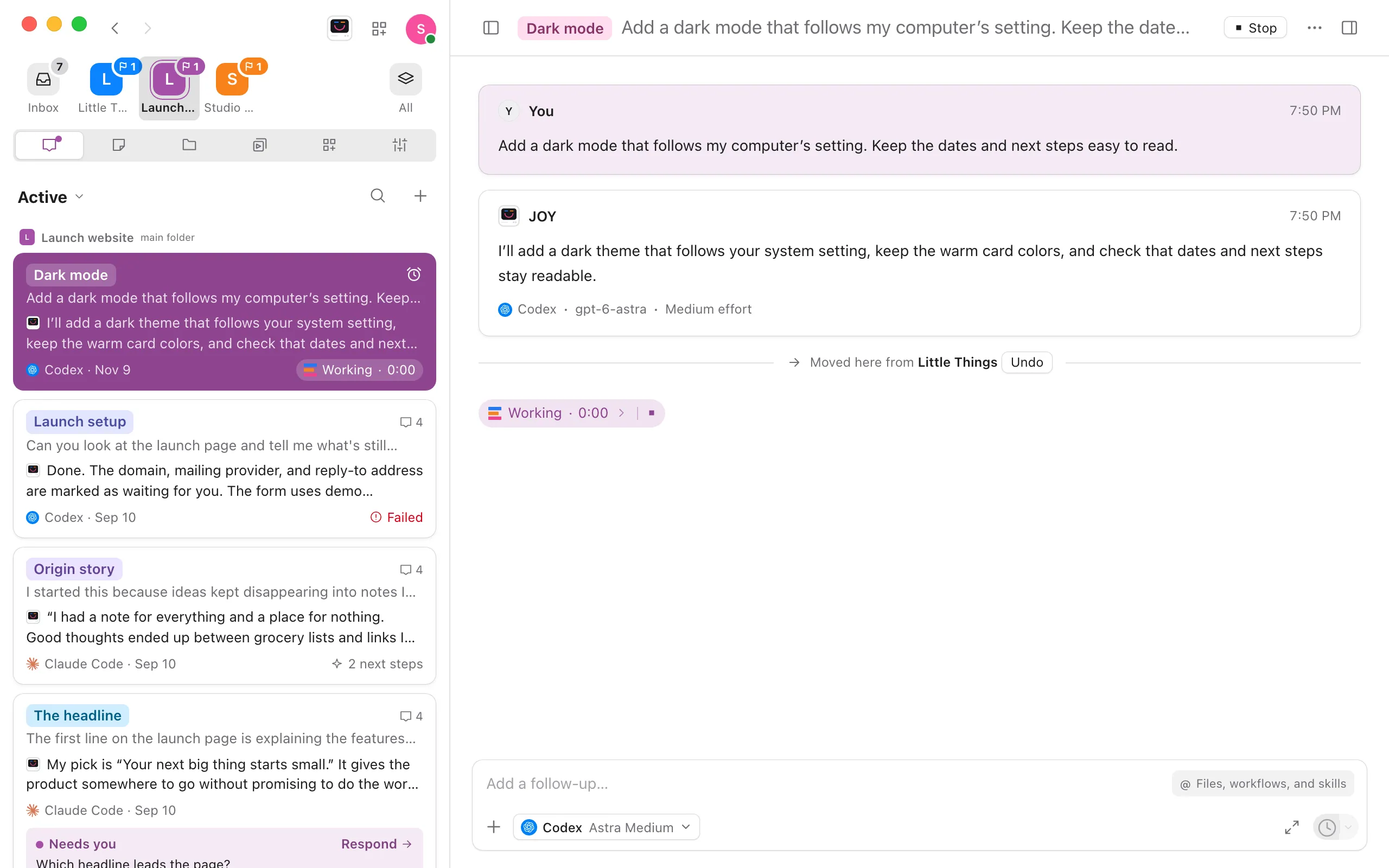
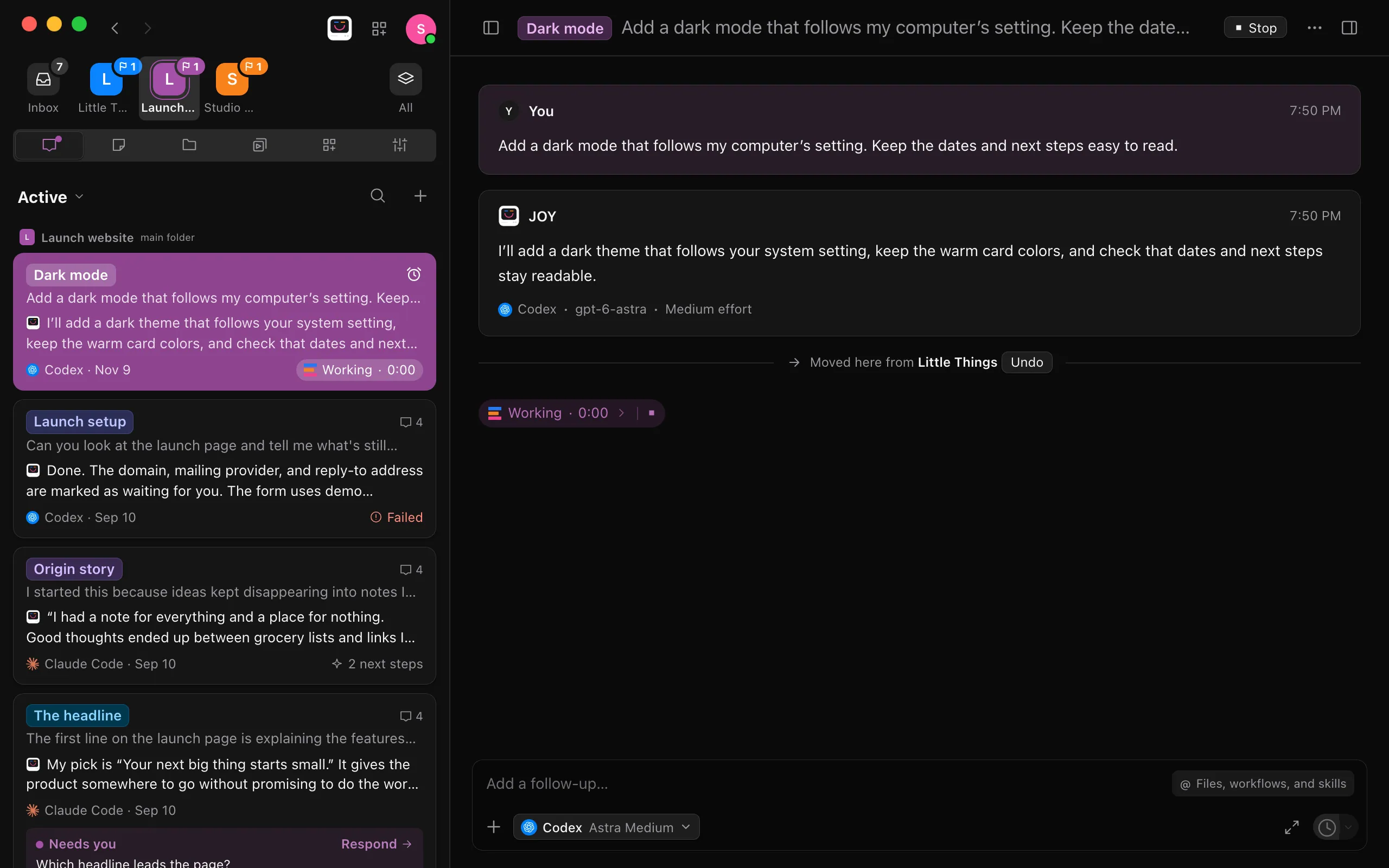
Enjoy opens the project with the conversation in it. A line says Moved here from and the project it left. An agent that was working starts again on the same request, now in this project’s folder.
Undo a move
Select Undo on the line that says where the conversation came from. It goes back to the project it left, and Enjoy takes you there. Undo is offered until you quit Enjoy. After that, move the conversation back the same way you moved it.
Good to know
- Every message, question, sticky note, queued message, and unsent reply moves with the conversation. Images and files attached to its messages are copied into the new project.
- The agent starts a new session in the new project and reads the conversation’s messages first, so it knows what was said. It doesn’t remember things it only looked at while working, such as the files it read in the old project.
- Files the agent already changed stay in the project it left. Moving a conversation doesn’t move or undo its work. See Undo an agent’s changes.
- Websites and other processes the conversation started are stopped, because they run in the old project’s folder.
- A conversation working in a worktree arrives in the new project’s main folder.
- You can move conversations between projects on the same computer, from Enjoy on that computer. The web app and the iPhone app can’t move them.
- A conversation with requests from a paired device moves only to a project that device can use.