Dictate in any field
Before you start
- Dictating in any field is in the computer app, on the computers that can dictate a message: see Dictate a message. It’s on from the start. Its key is fn on a Mac, and Right Ctrl, the Ctrl key on the right of the keyboard, on Windows and Linux. The web app and the iPhone app don’t have it.
Steps
On a Mac, check what macOS does with fn
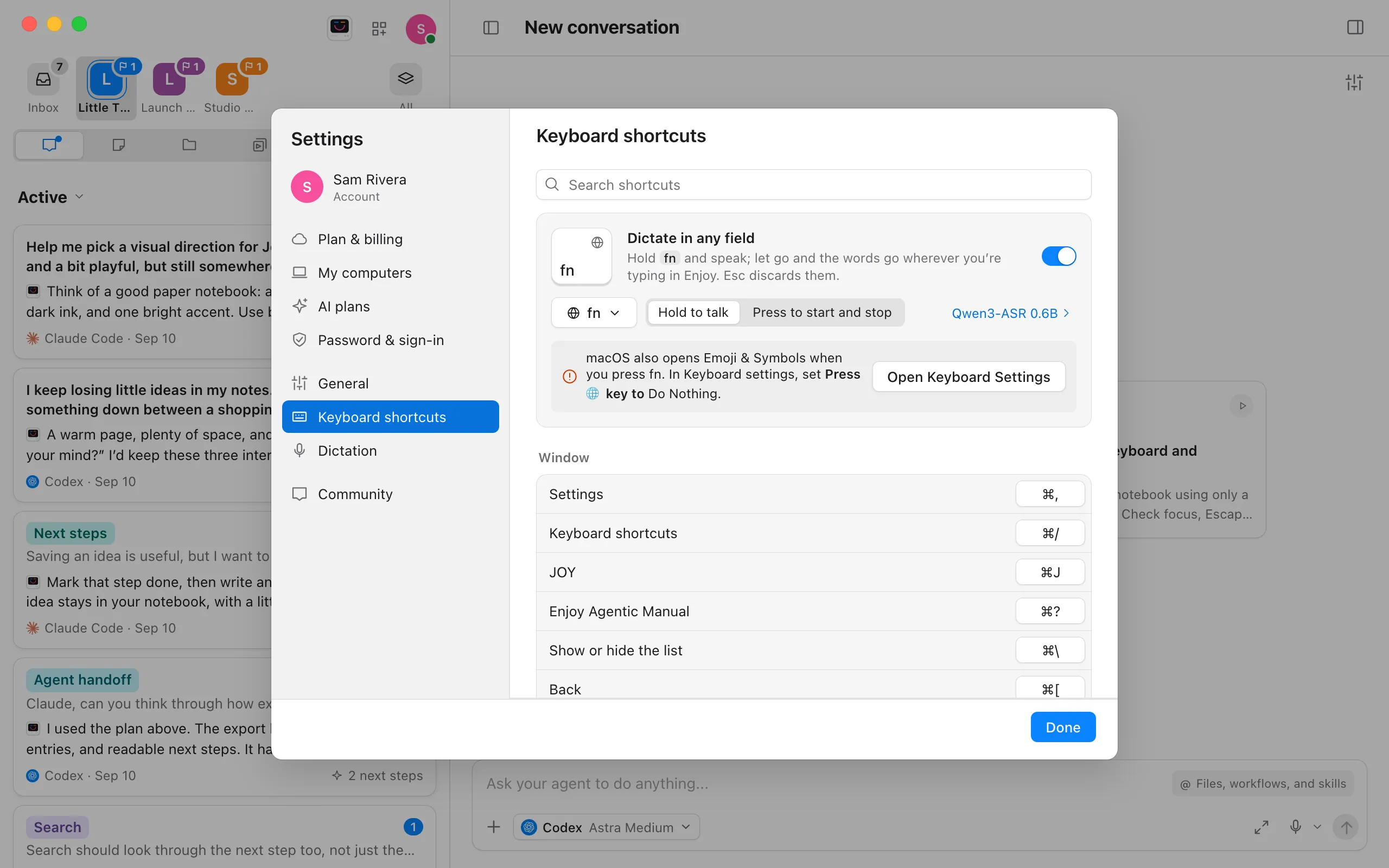
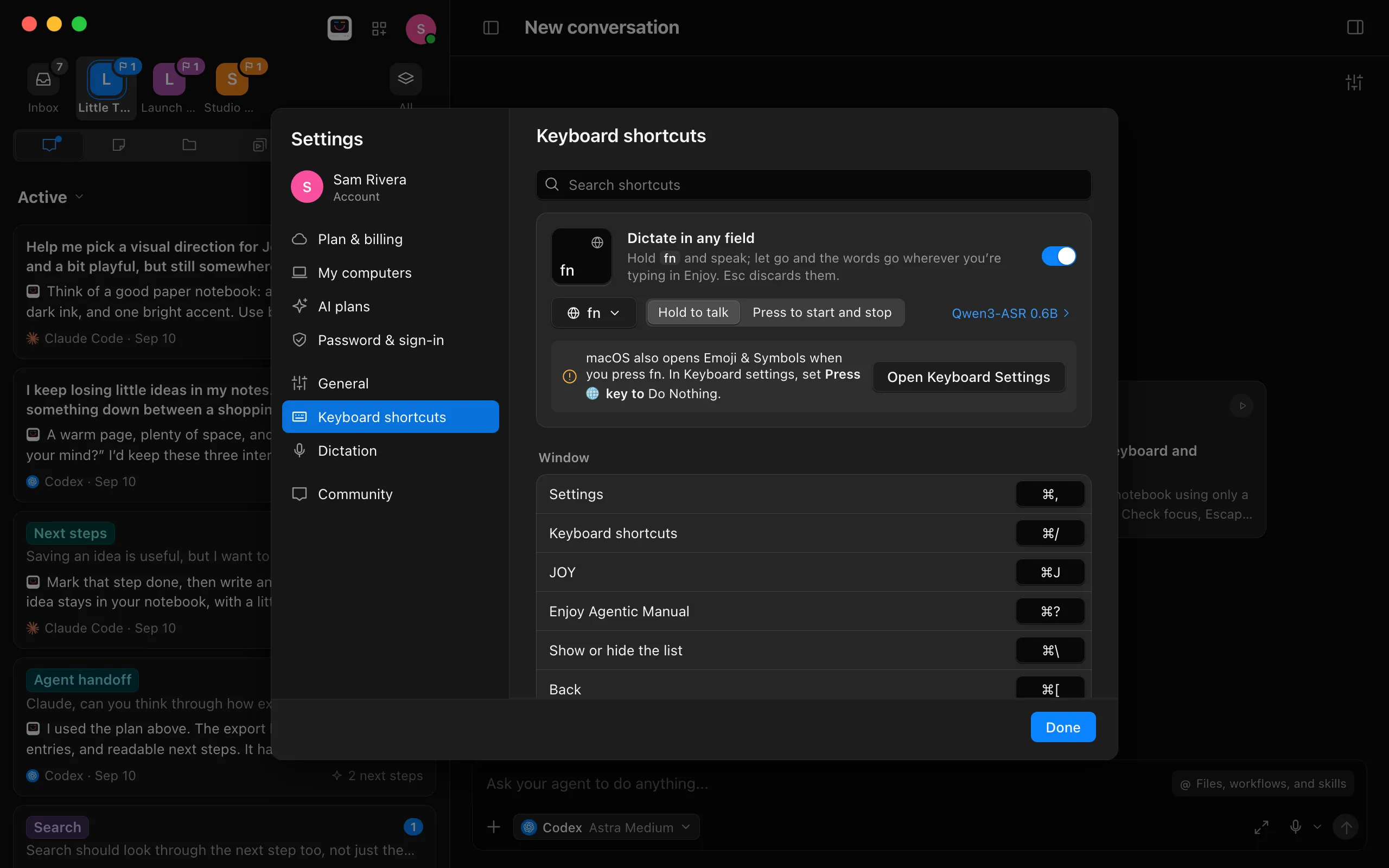
Press ⌘/ to open Settings on Keyboard shortcuts. The Dictate in any field card comes first. If it says macOS also uses fn, for example “macOS also opens Emoji & Symbols when you press fn.”, select Open Keyboard Settings and set Press 🌐 key to to Do Nothing, so that fn only dictates. Without that note, there’s nothing to change. On Windows and Linux, skip this step.
Select where the words should go
Select any box you can type in, such as a search box, a note, a project setting, or the message box, and put the cursor where the words should go. If you select some text, what you say replaces it.
Hold the key and speak
On most Mac keyboards, fn is at the bottom left, marked fn or 🌐. On Windows and Linux, hold Right Ctrl. A small capsule appears under the end of the box, with a dot, a level meter, and how long you’ve been talking. In most boxes, your words appear at the cursor as you say them. In docs and code files, they show in the capsule, and go in when you stop. The first time, Enjoy asks how it should hear you, with the same choices as the microphone button in the message box.
Let go of the key
The words stay where you were typing. Pressing Esc also stops listening, and keeps them.
Change the key or how it works
The Dictate in any field card leads Settings › Keyboard shortcuts. Press ⌘/ on a Mac, or Ctrl+/ on Windows and Linux, to open it, or search that page for words like “dictate”, “voice”, “mic”, or “fn”. It shows the key you use, drawn large, and has:
- A switch that turns dictating from a key off and on. The microphone button in the message box works either way.
- The key’s button. On a Mac, it’s fn to begin with, and chooses between fn, Right ⌘, and Right ⌥, the ⌘ and ⌥ keys on the right of the keyboard, which work on their own. On Windows and Linux, it’s Right Ctrl to begin with, and chooses between Right Ctrl and Right Alt. Or choose Record shortcut… and press the keys you want, such as ⌃⌥Space or Ctrl+Alt+Space. They follow the same rules as other shortcuts; see Find and change keyboard shortcuts. Pressing one of the keys that work on their own by itself and letting go records that key, and Esc stops without a change. If another shortcut already has the keys, Enjoy asks first, with Use it here and Cancel.
- Hold to talk, which listens while you hold the key, and Press to start and stop, where you press the key once to start and again to stop.
- The speech model’s name, which opens Settings › Dictation, where you choose the model. See Dictate a message.
Restore defaults, at the bottom of the page, turns it back on, with fn on a Mac or Right Ctrl on Windows and Linux, and Hold to talk. It restores every other shortcut too.
You can also reach the card from the message box. Select the small arrow beside the microphone button, then choose Dictation shortcut…, which shows the key you use, or Off.
Good to know
- The key works in the main Enjoy window while Enjoy is the app in front. Your choices for it stay on this computer.
- If another window comes in front while you’re holding the key, Enjoy stops listening as if you’d let go, and the words it heard stay where you were typing.
- Password and number boxes don’t take dictation, and neither do boxes you can’t type in.
- When the cursor follows a word, Enjoy puts a space before what you say.
- In the message box, the key dictates the way the microphone button does, and the words join your draft. See Dictate a message.
- Pressing the key together with another key, such as fn+Delete or Right Ctrl+C, doesn’t dictate. With Hold to talk, pressing another key while you’re dictating stops listening and keeps what was heard, so Return in the message box sends it.
- Nothing throws away what you’ve dictated. To take words back out of the message box, press ⌘Z on a Mac or Ctrl+Z on Windows and Linux.
- Speech turns into text on your computer. Your voice isn’t sent to Enjoy, to your agent, or anywhere else.
- While you dictate, agents and JOY play a chime instead of saying their lines out loud, so their voice doesn’t get into your words. See Choose sounds and notifications.
If something goes wrong
Pressing fn also opens Emoji & Symbols or changes the input source
On a Mac, macOS answers fn too. Open Settings › Keyboard shortcuts, select Open Keyboard Settings on the Dictate in any field card, and set Press 🌐 key to to Do Nothing. Or choose Right ⌘ or Right ⌥ as the key instead.
Holding the key does nothing
- Check that the switch on the Dictate in any field card is on, and which key the card shows.
- Select a box you can type in first, so the cursor is in it.
- If you’ve just stopped dictating, wait a moment and try again. Enjoy finishes writing the last words before it listens again.
- If Keyboard shortcuts has no Dictate in any field card, this computer can’t dictate. See Dictate a message.
A message under the box says dictation stopped
When dictation stops because of a problem, Enjoy says why under the box. For “Enjoy can’t use the microphone.”, select Open microphone settings. On a Mac, turn on Enjoy in the Microphone list; on Windows, turn on Microphone access and Let desktop apps access your microphone. Then try again. Select the close button to dismiss the message.