'%3e%3crect%20x='128'%20y='122'%20width='263'%20height='88'%20rx='36'%20fill='%232878ef'/%3e%3c/g%3e%3cg%20transform='rotate(7%20237%20258)'%3e%3crect%20x='128'%20y='215'%20width='216'%20height='82'%20rx='34'%20fill='%23f58220'/%3e%3c/g%3e%3cg%20transform='rotate(-5%20259%20350)'%3e%3crect%20x='128'%20y='304'%20width='264'%20height='88'%20rx='36'%20fill='%23ed438b'/%3e%3c/g%3e%3c/svg%3e)
Bring your Codex projects to Enjoy
Codex works in folders on your computer, in the ChatGPT app, a terminal, or your editor. Open the same folders in Enjoy and bring your conversations along.
- About 5 minutes
- Your ChatGPT account
- Mac, Windows, or Linux

Find your project folder
Using the ChatGPT app?
In Codex, open a chat from your project. Click the arrow next to Open at the top, then choose Finder or File Explorer. You can also press ⌘⇧C (Ctrl+Shift+C on Windows) to copy the folder’s path.
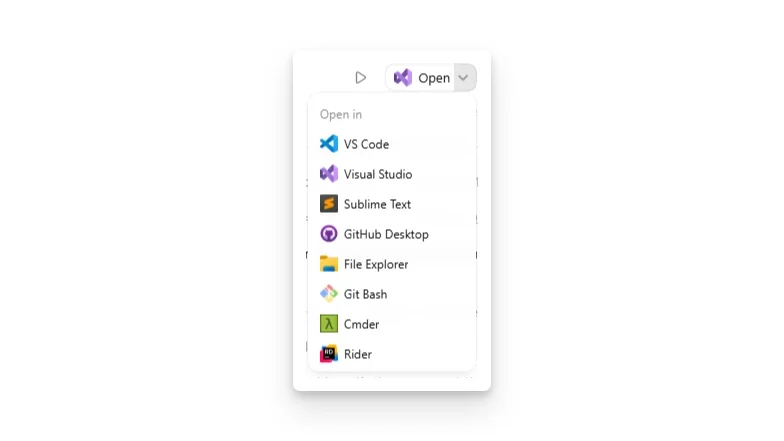
Screenshot: OpenAI docs Worked in a worktree?
Worktree chats keep their changes in a separate copy. Click Hand off at the top of the chat, then Hand off again to bring them into your project folder.
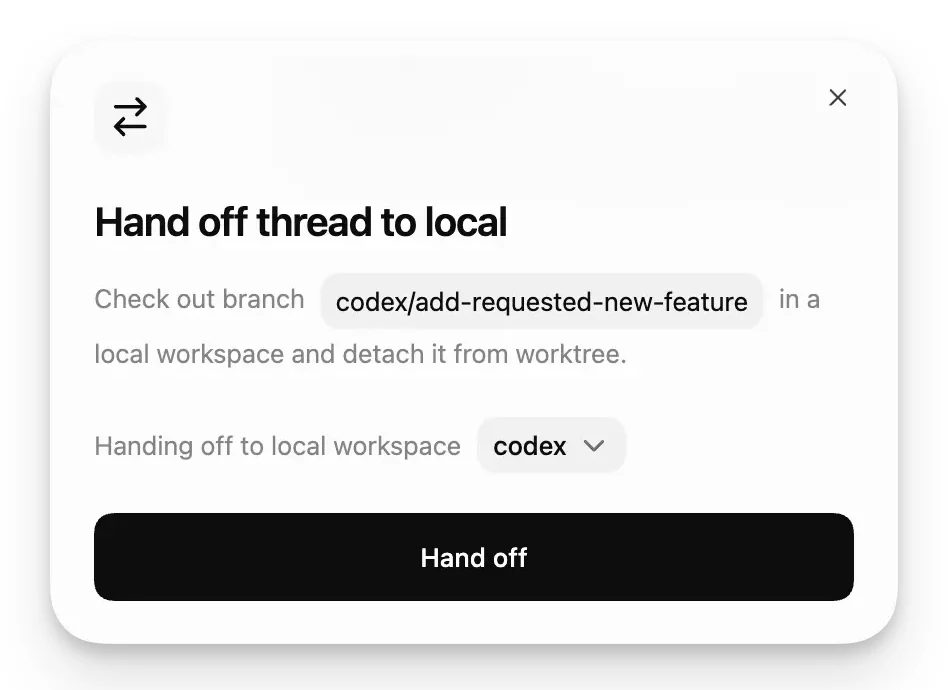
Screenshot: OpenAI docs Using a terminal or editor?
Your project is the folder you run
codexin, or the folder open in your editor.Ran a cloud task?
Cloud tasks change a GitHub repository. Create a pull request from the task, merge it, then download the latest code.
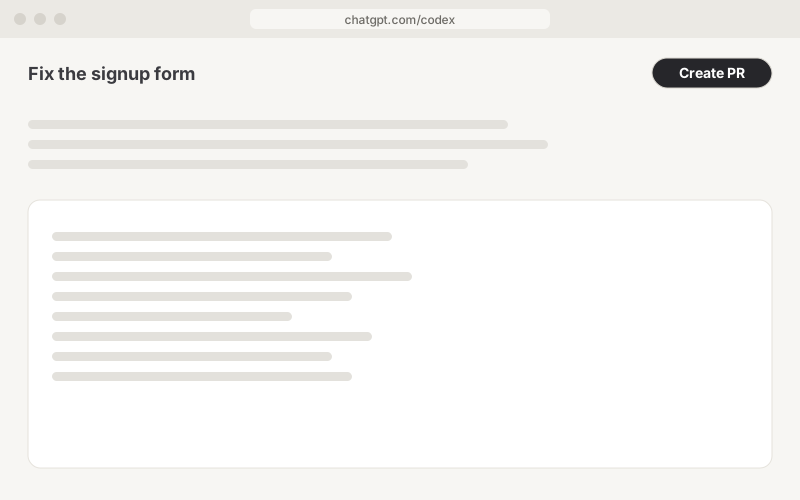
Now you know which folder to open.
Set up in Enjoy
Get Enjoy
Download Enjoy for Mac, Windows, or Linux. Open it and create your Enjoy account.
Download EnjoyConnect your agent
Already signed in to Codex? Enjoy finds it on its own. Otherwise, it helps you install it and sign in.
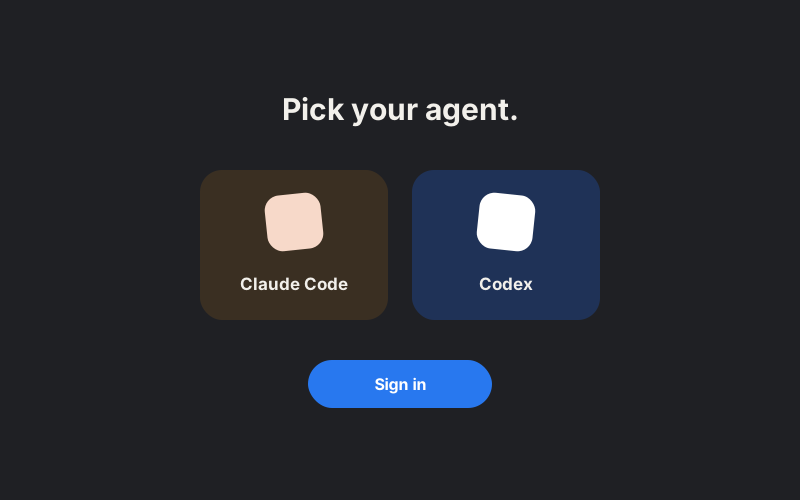
Open your project
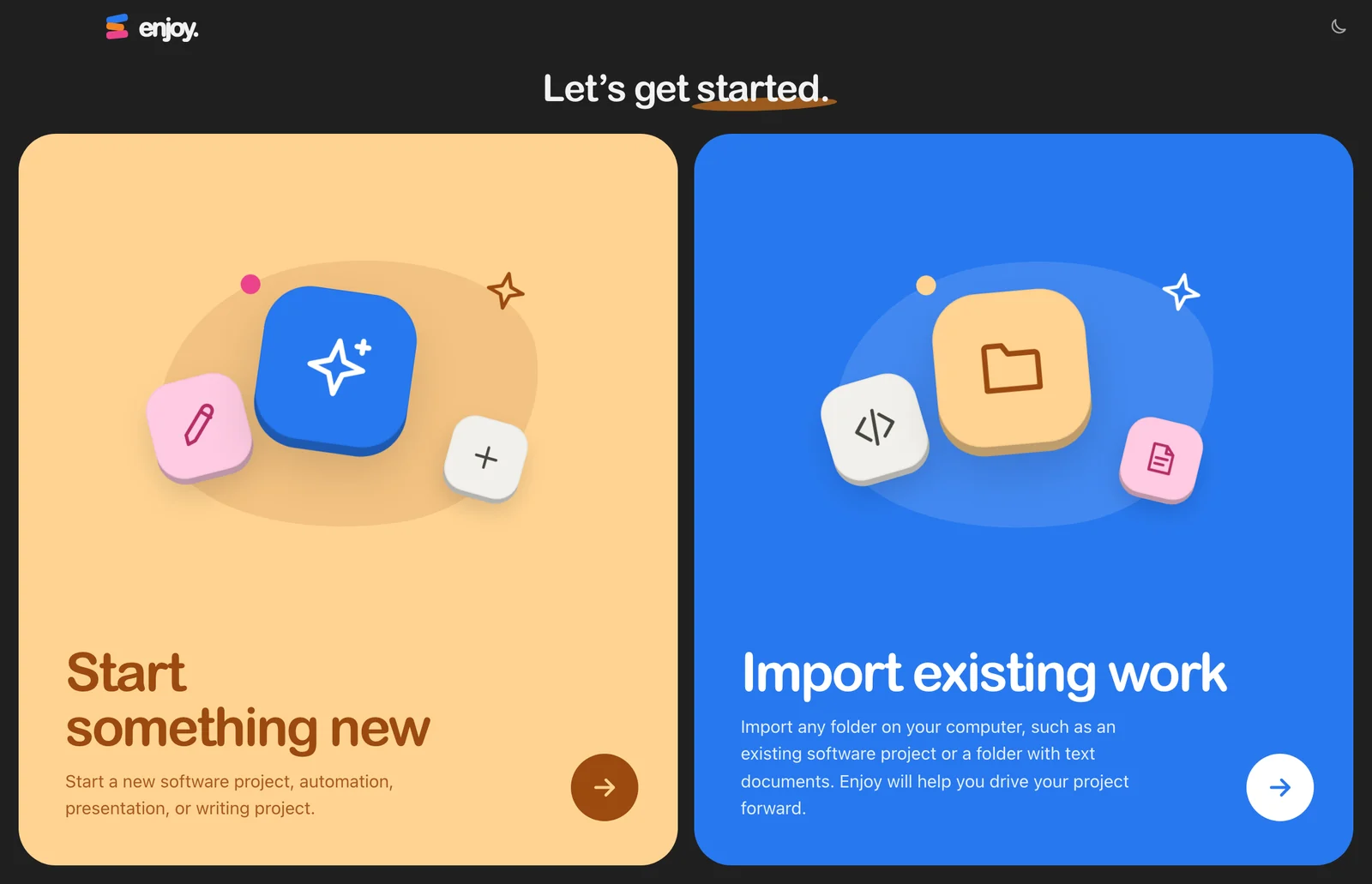
Choose Import existing work and select your project folder. Already using Enjoy? Choose Open any folder from the project menu.
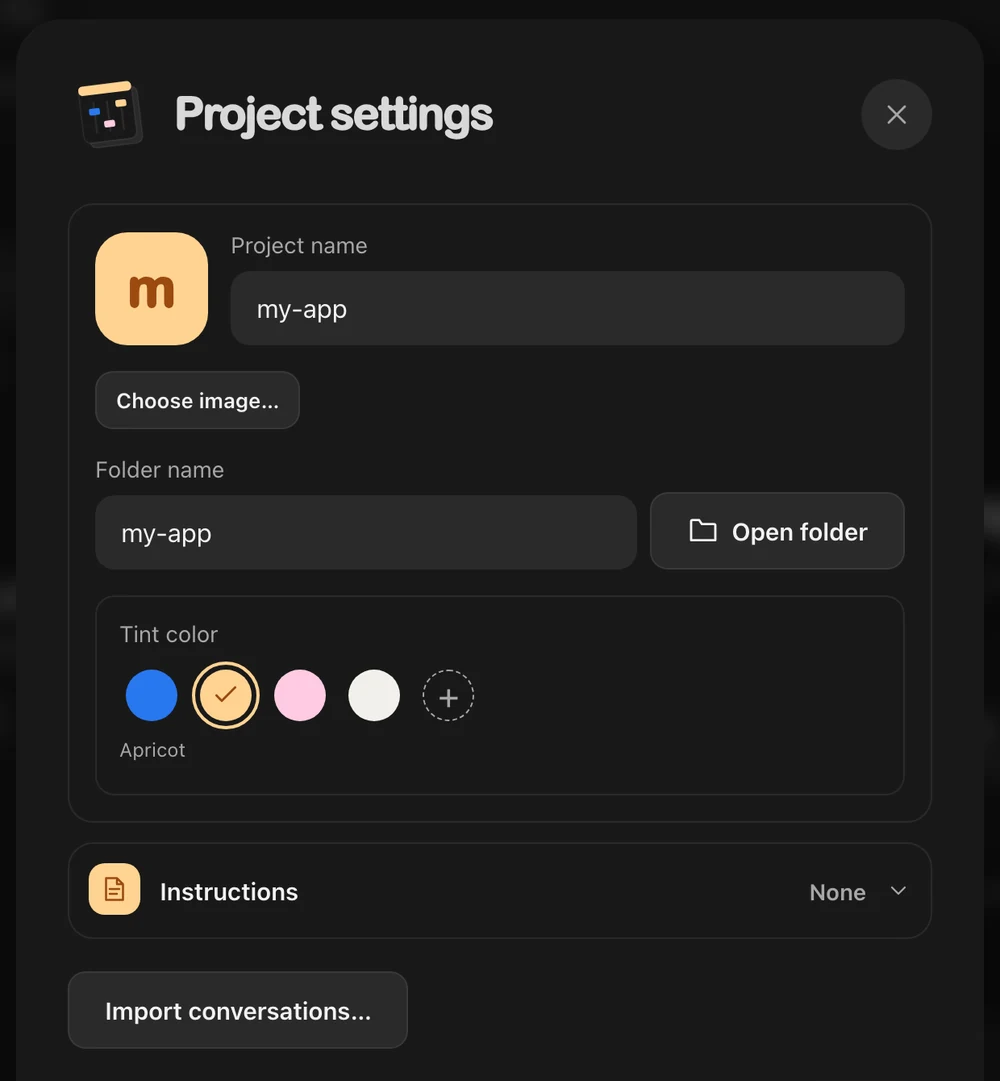
Bring your conversations
Open Project settings and click Import conversations… to choose the Codex conversations to keep.
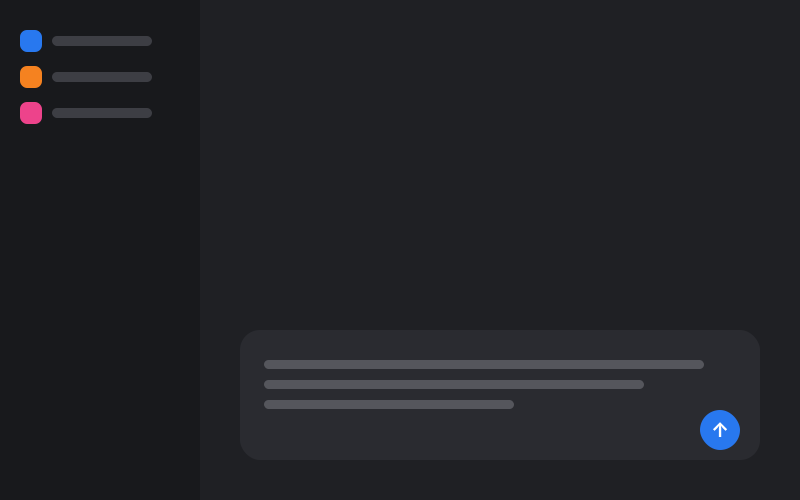
Pick up where you left off
Start a conversation and send:
Take a look around this project and summarize where we left off.
A few things stay behind
- ChatGPT chats
Chats and ChatGPT projects stay in ChatGPT. Export a copy from Settings → Data controls.
- Cloud tasks
Their conversations stay on chatgpt.com. The code comes along once it’s merged.
- Worktrees
Changes Codex made in a worktree aren’t in your folder until you hand them off.
Something look different?
No conversations were found
Open the exact folder Codex worked in. Worktree chats only match after you hand them off.
Enjoy asks me to sign in again
Run codex login in your terminal. Enjoy notices within a few seconds. Step-by-step sign-in help
Checked against Codex’s docs on September 29, 2026: ChatGPT desktop app · Worktrees · Commands · Cloud tasks
Ready to move in?
Want a hand? Book a free 15-minute call and we’ll set up your first project together.
7 days free · then $14.99/month
Free · 15 minutes with Mo