'%3e%3crect%20x='128'%20y='122'%20width='263'%20height='88'%20rx='36'%20fill='%232878ef'/%3e%3c/g%3e%3cg%20transform='rotate(7%20237%20258)'%3e%3crect%20x='128'%20y='215'%20width='216'%20height='82'%20rx='34'%20fill='%23f58220'/%3e%3c/g%3e%3cg%20transform='rotate(-5%20259%20350)'%3e%3crect%20x='128'%20y='304'%20width='264'%20height='88'%20rx='36'%20fill='%23ed438b'/%3e%3c/g%3e%3c/svg%3e)
Change your name
Edit the name shown on your Enjoy account from the account menu.
Before you start
- Sign in to your Enjoy account. A browser connected to someone else’s computer without signing in can’t edit that person’s name.
Steps
Open your account
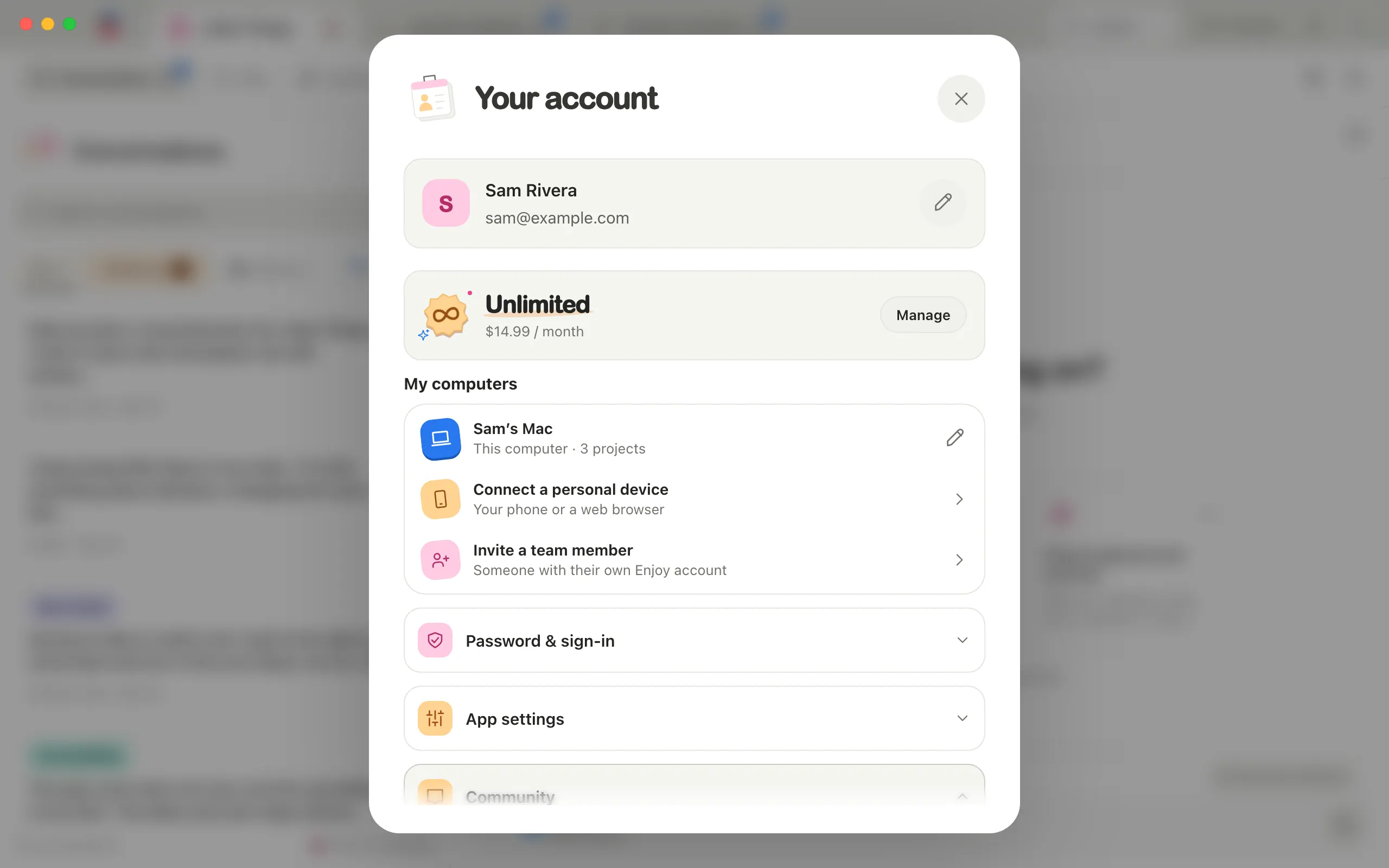
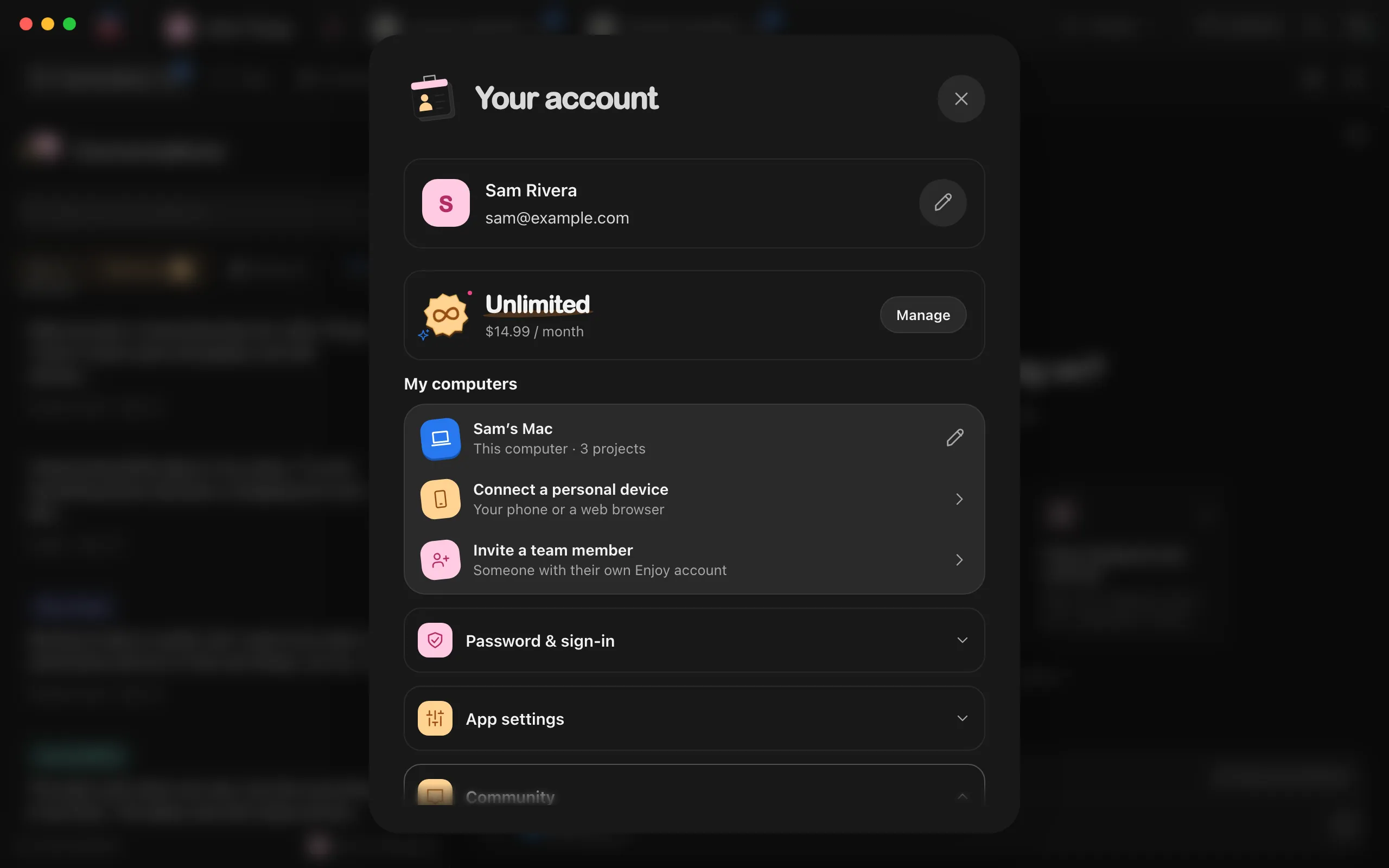
Select your picture in the top-right corner of the computer or web app. On iPhone, select your picture on the Computers or Projects screen to open Settings.
Select the pencil beside your name
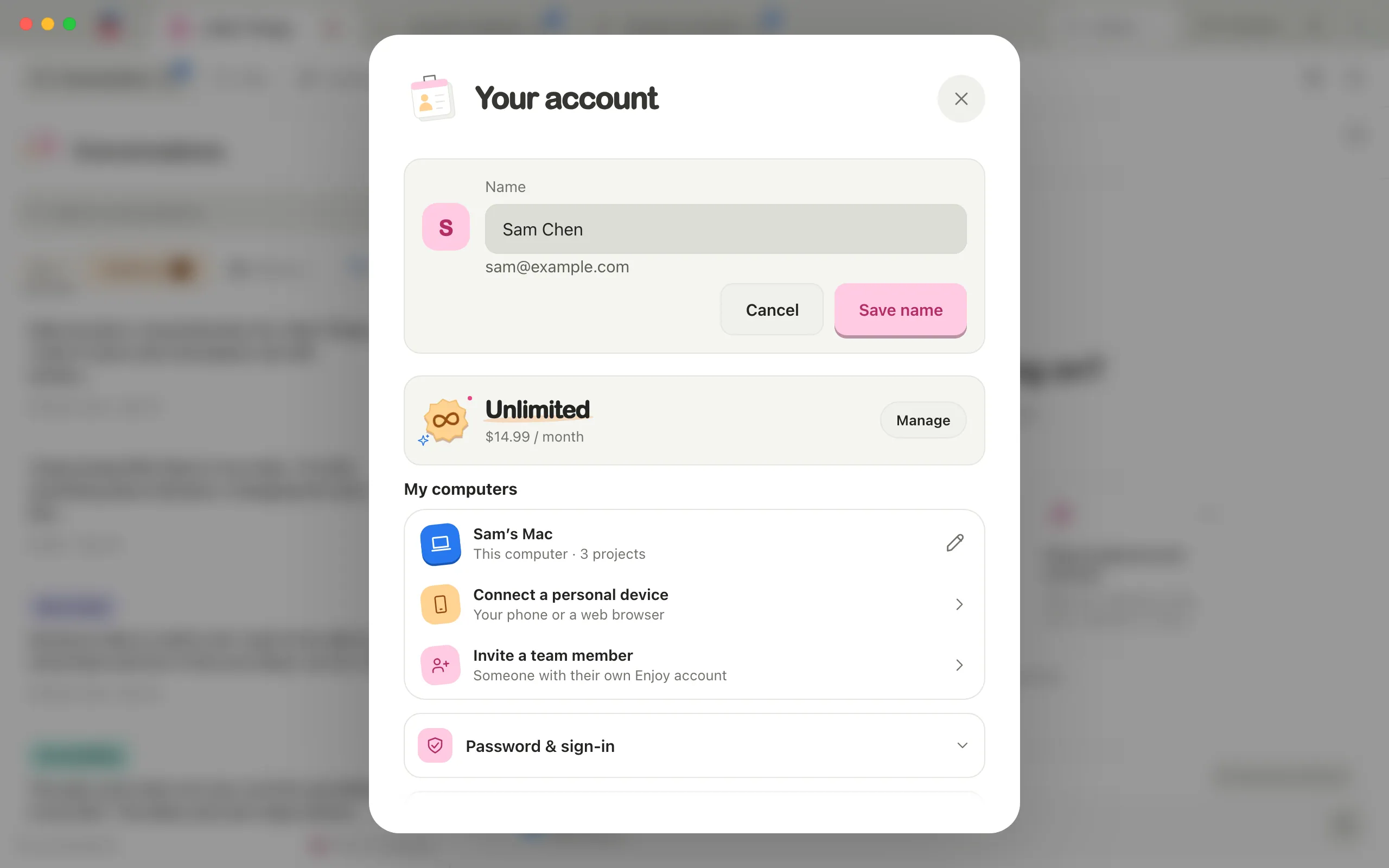
The Name field opens in your account details.
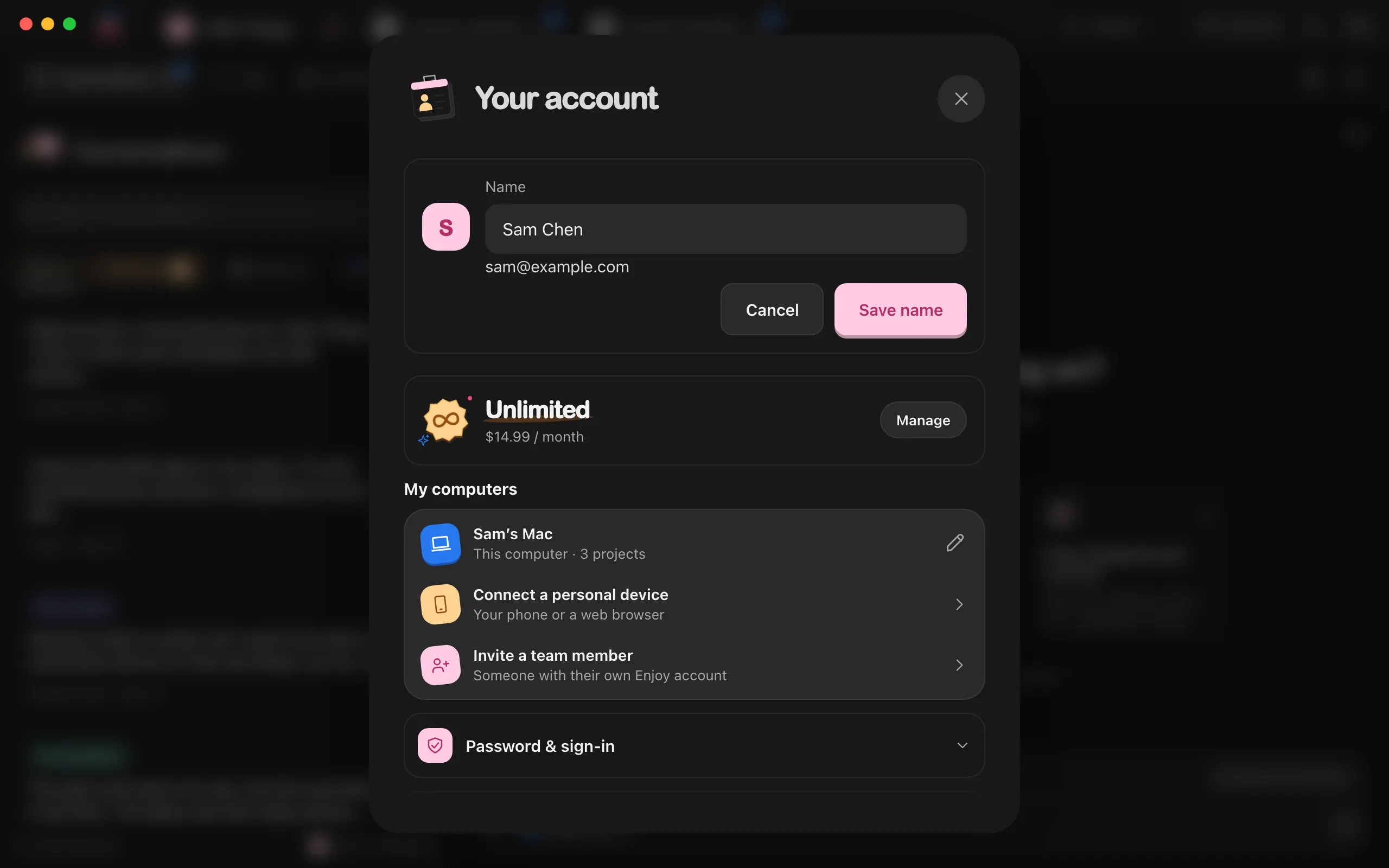
Type your name
Use up to 100 characters on one line. Your email stays underneath the field.
Select Save name
Enjoy shows Name updated. after saving. Select Cancel to keep your previous name.
Good to know
- This changes your Enjoy profile name, including when you signed in with Google. It doesn’t change your email, Google profile, or computer and phone names.
- Save name becomes available when you enter a different, nonempty name.
- In the computer and web apps, Escape cancels an open name edit without closing your account.
If something goes wrong
Couldn’t save your name
Your typed name stays in the field. Check your connection and select Save name again.
Sign in again to change your name
Your account session is no longer available. Sign in again, then retry the change.