Choose which project works on Free
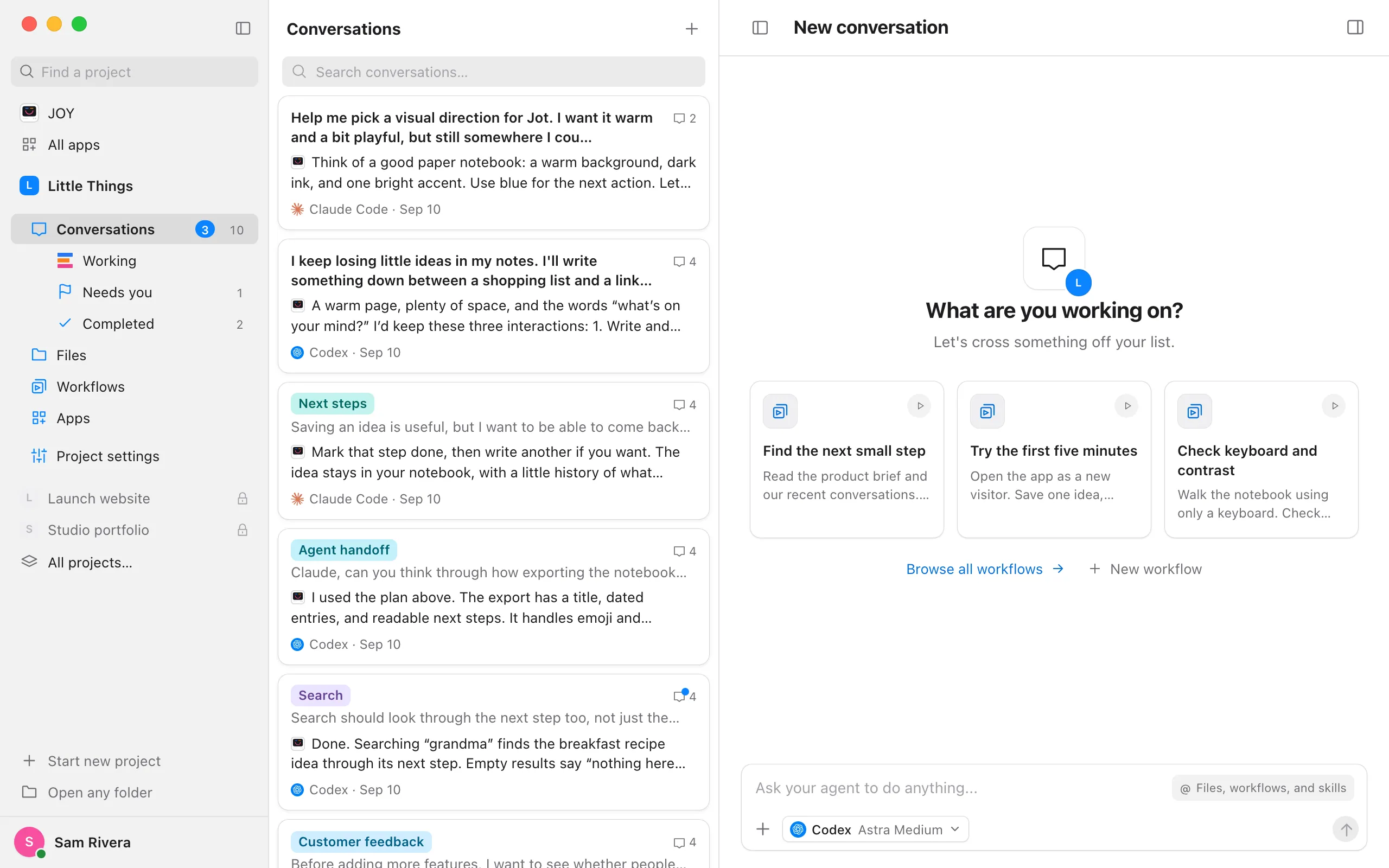
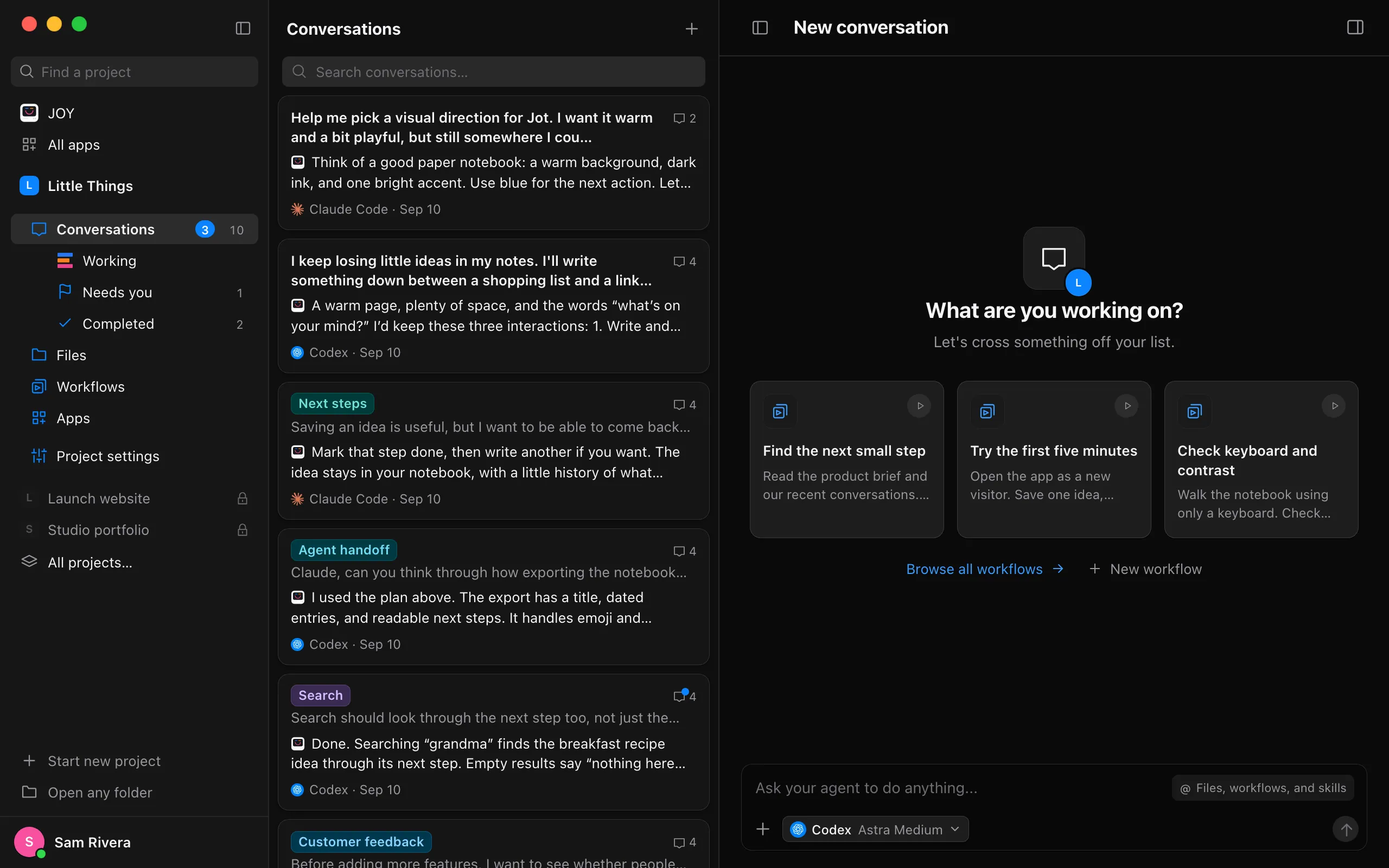
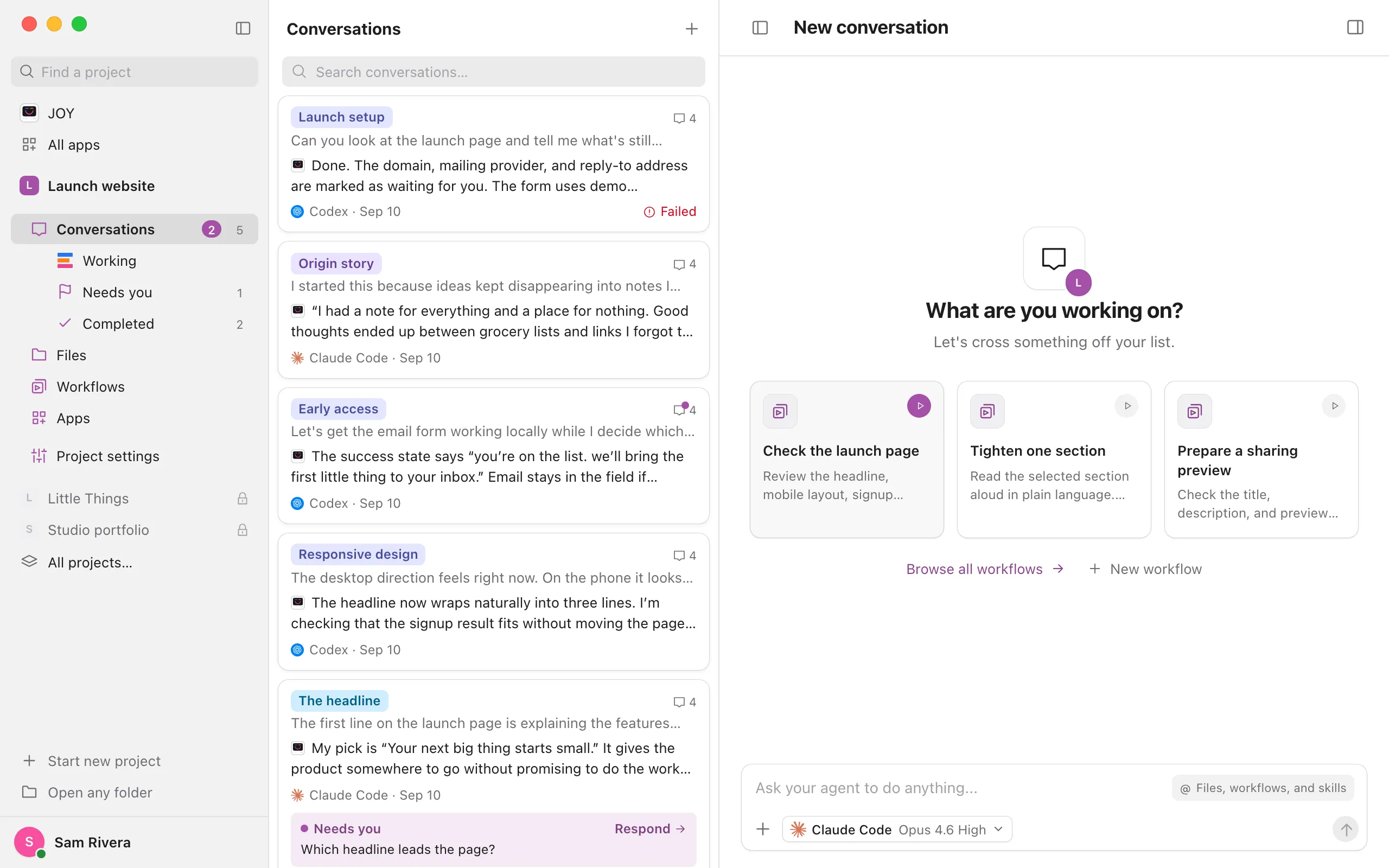
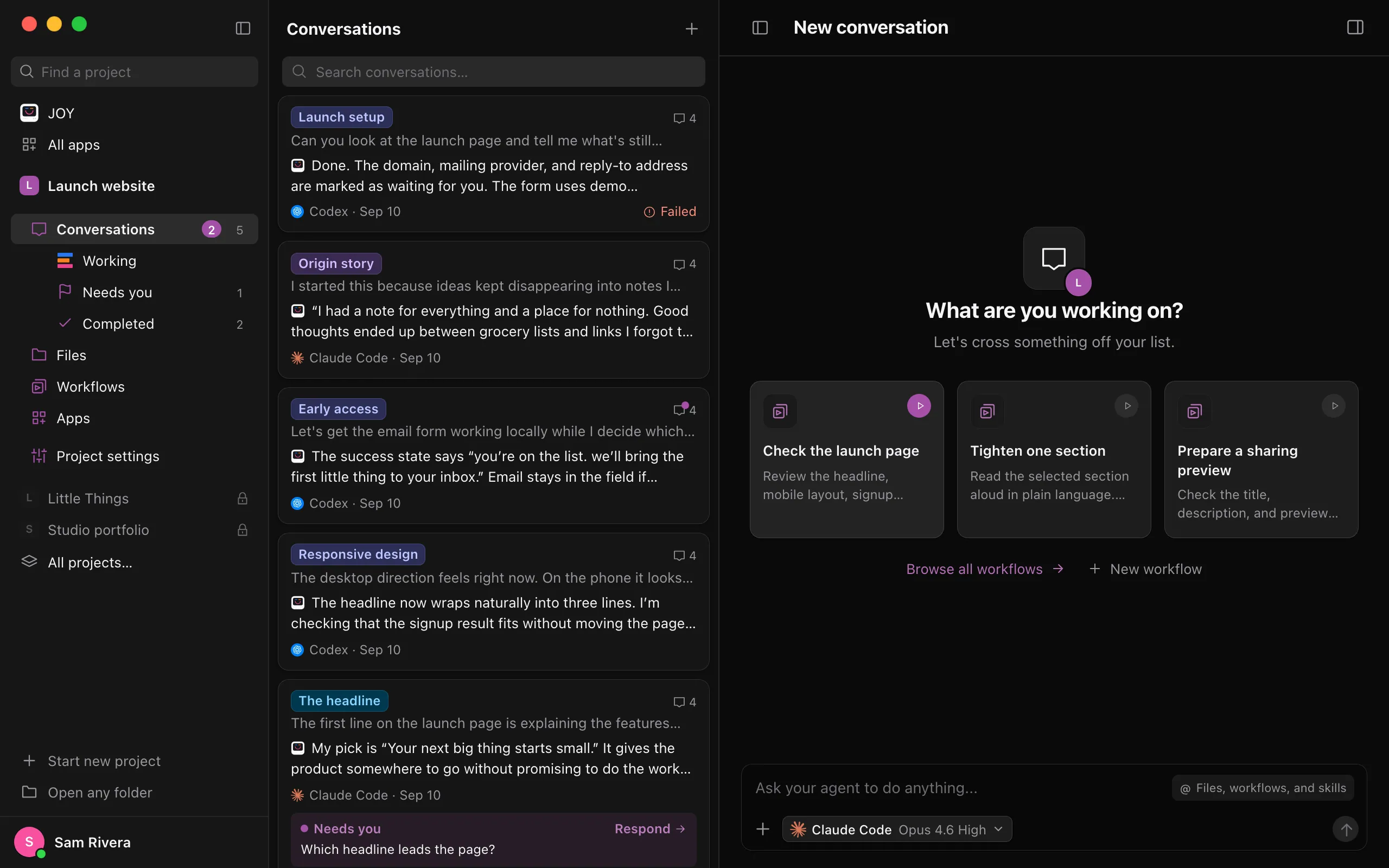
Free works in one project. If you had more than one project when your Unlimited plan ended, they all stay in your list and on your computer, but only the first one works. The others are faded, with a lock.
Steps
Open the project you want to work in
Select it in the sidebar, or in the Projects menu.
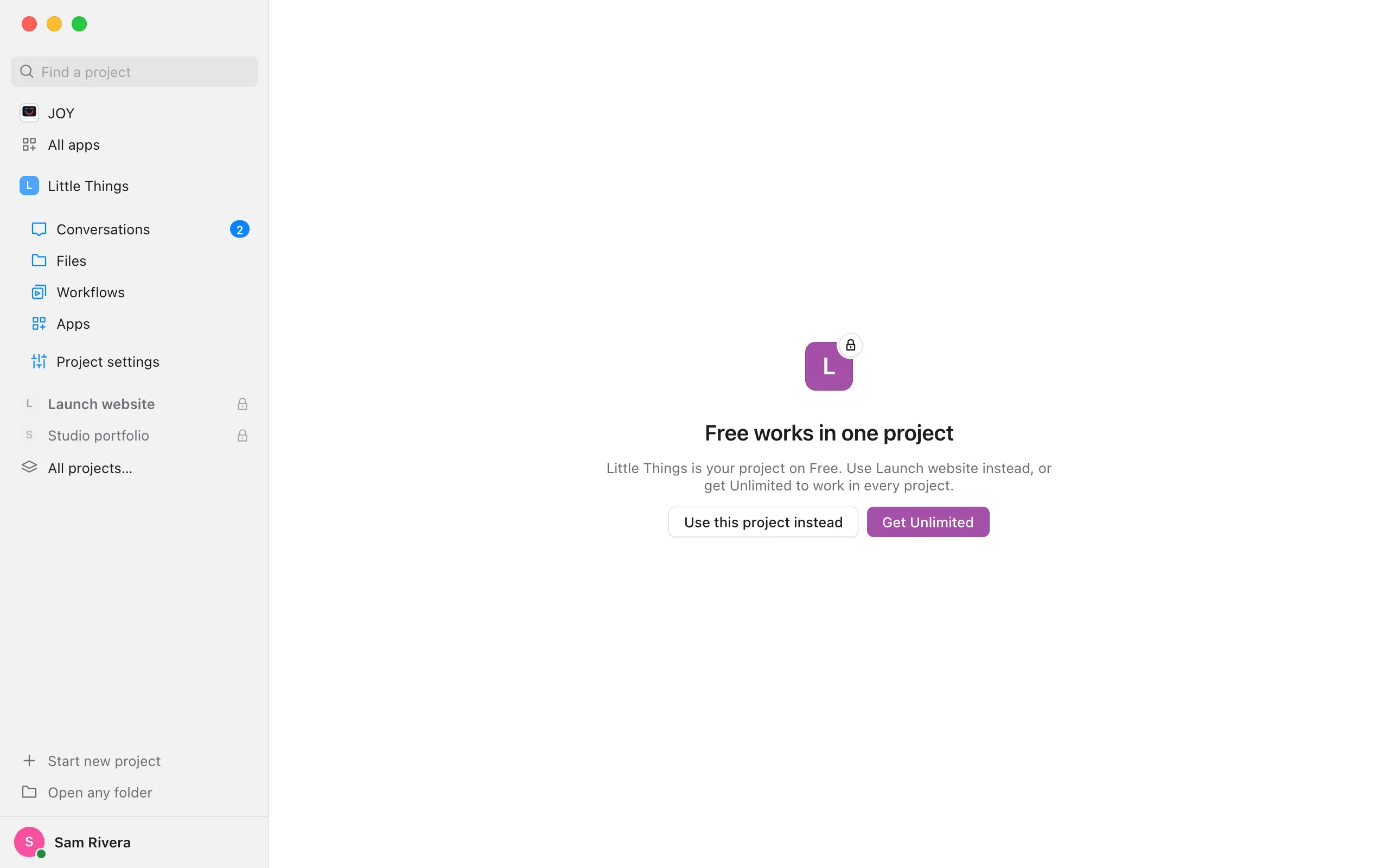
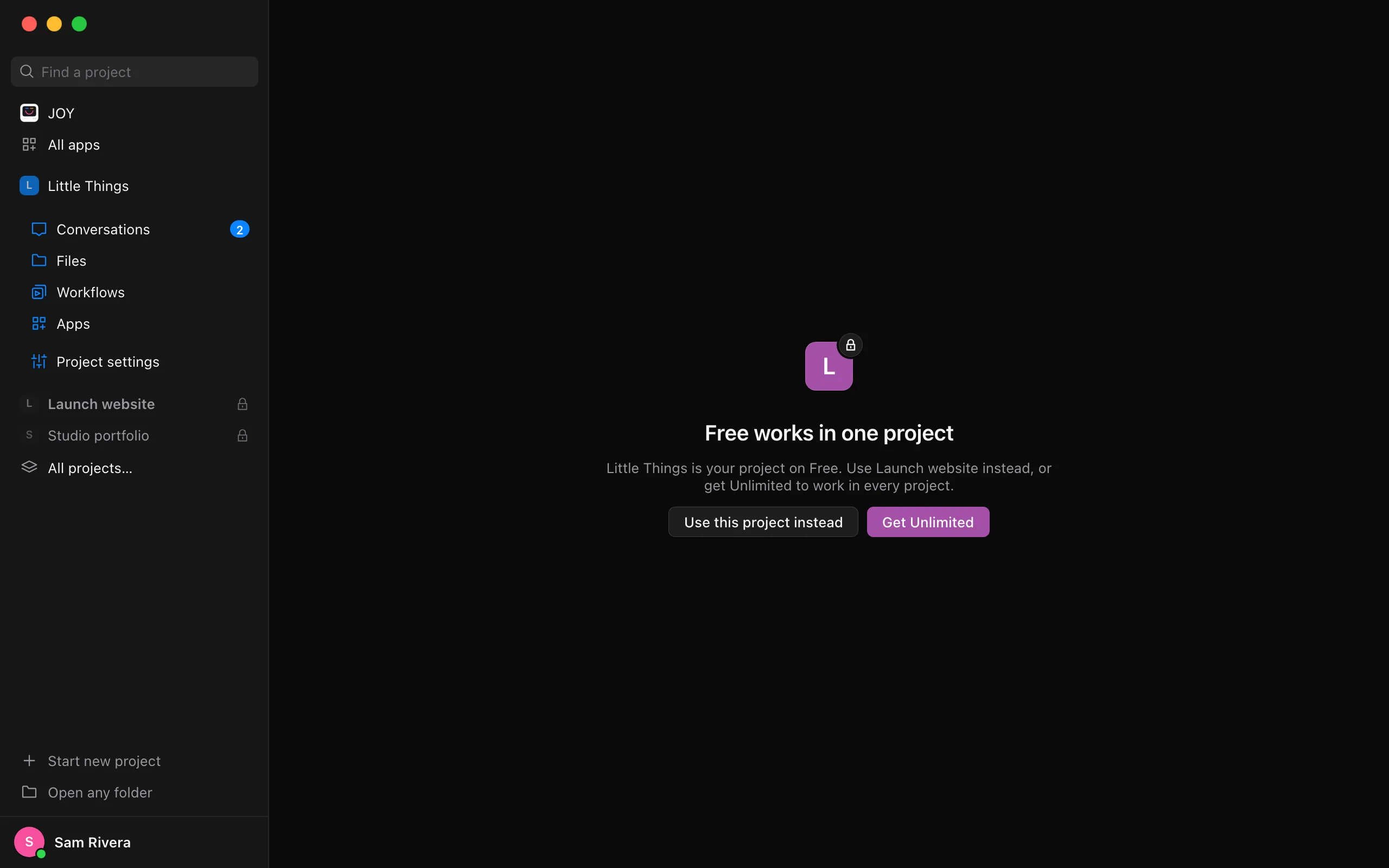
Select Use this project instead
In place of the project’s conversations, Enjoy shows Free works in one project and names your project on Free. Use this project instead moves the project you opened to the top of your list.
Start working
The project opens as usual, and its agents can work. The project you had before is now faded with a lock.
Good to know
- The first project in your list is your first pinned tab, in the order you’ve dragged them. If you have no pinned tabs, it’s the first project by name. Dragging another tab to the top works the same way as Use this project instead. See Pin projects as tabs.
- A locked project’s files, conversations, docs, and workflows are safe. Switch back whenever you like.
- Conversations that were waiting in a locked project start once it’s your project on Free again.
- Removing a project you no longer need leaves its folder on your computer. See Remove a project from Enjoy.
- With Unlimited, every project works. Select Get Unlimited on the locked project’s screen. See Get Unlimited.